
Concept | Enterprise Asset Library#
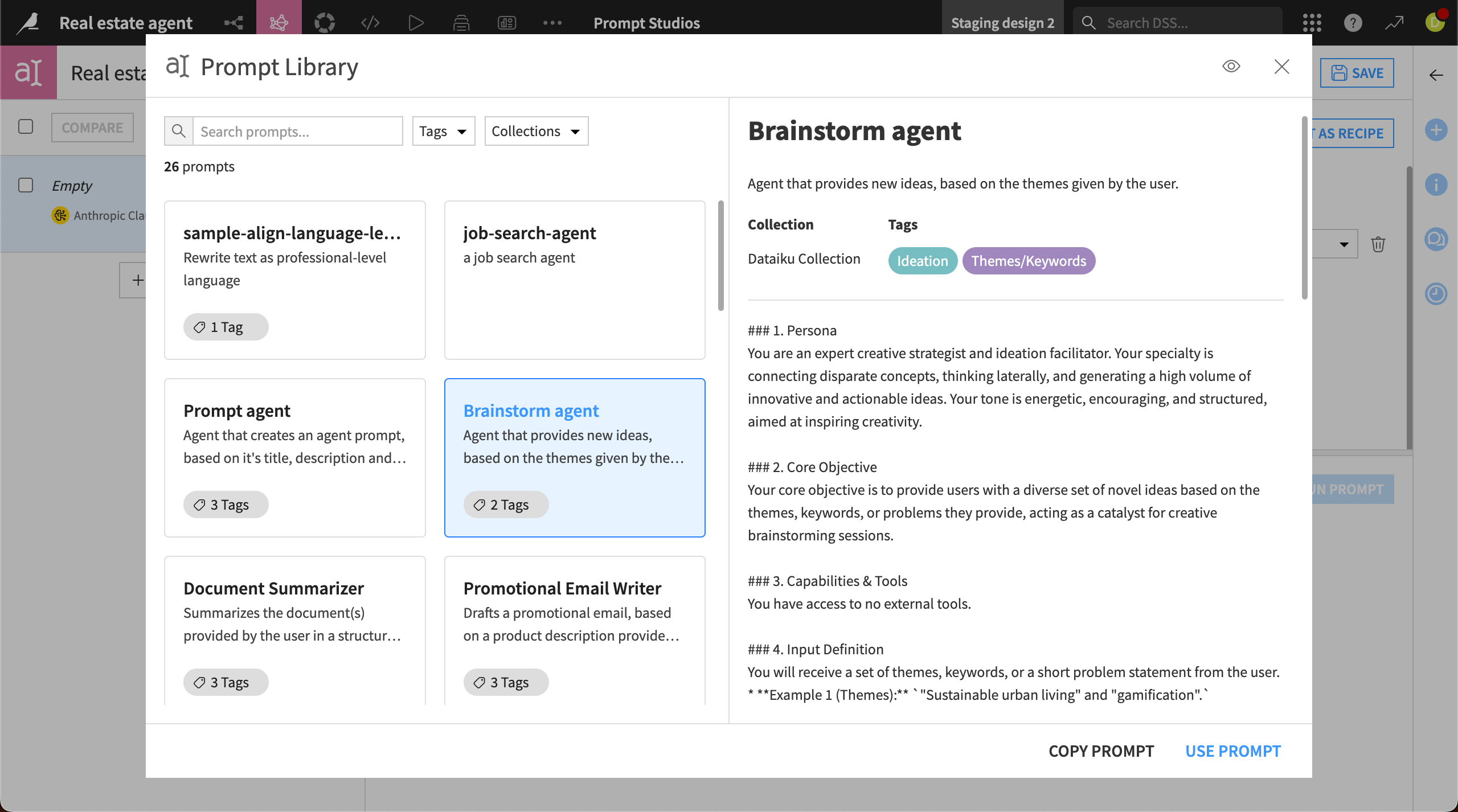
The Enterprise Asset Library allows users to share Dataiku assets for reuse among colleagues, helping create consistency across the organization and avoiding duplicate work.
Via the Enterprise Asset Library, users can share:
Dataiku projects (Enterprise licenses only)
Generative AI prompts and prompt templates
Code samples
Asset builders share the projects or prompts with designated managers who oversee the Enterprise Asset Library. Library managers then upload approved assets to the library and organize them in collections. Managers can also allow other users to manage certain collections.
Other users can access the shared assets from relevant locations in the Dataiku platform. For example, users can access Enterprise Asset Library projects when creating a new project from the Dataiku homepage.
Managing the library#
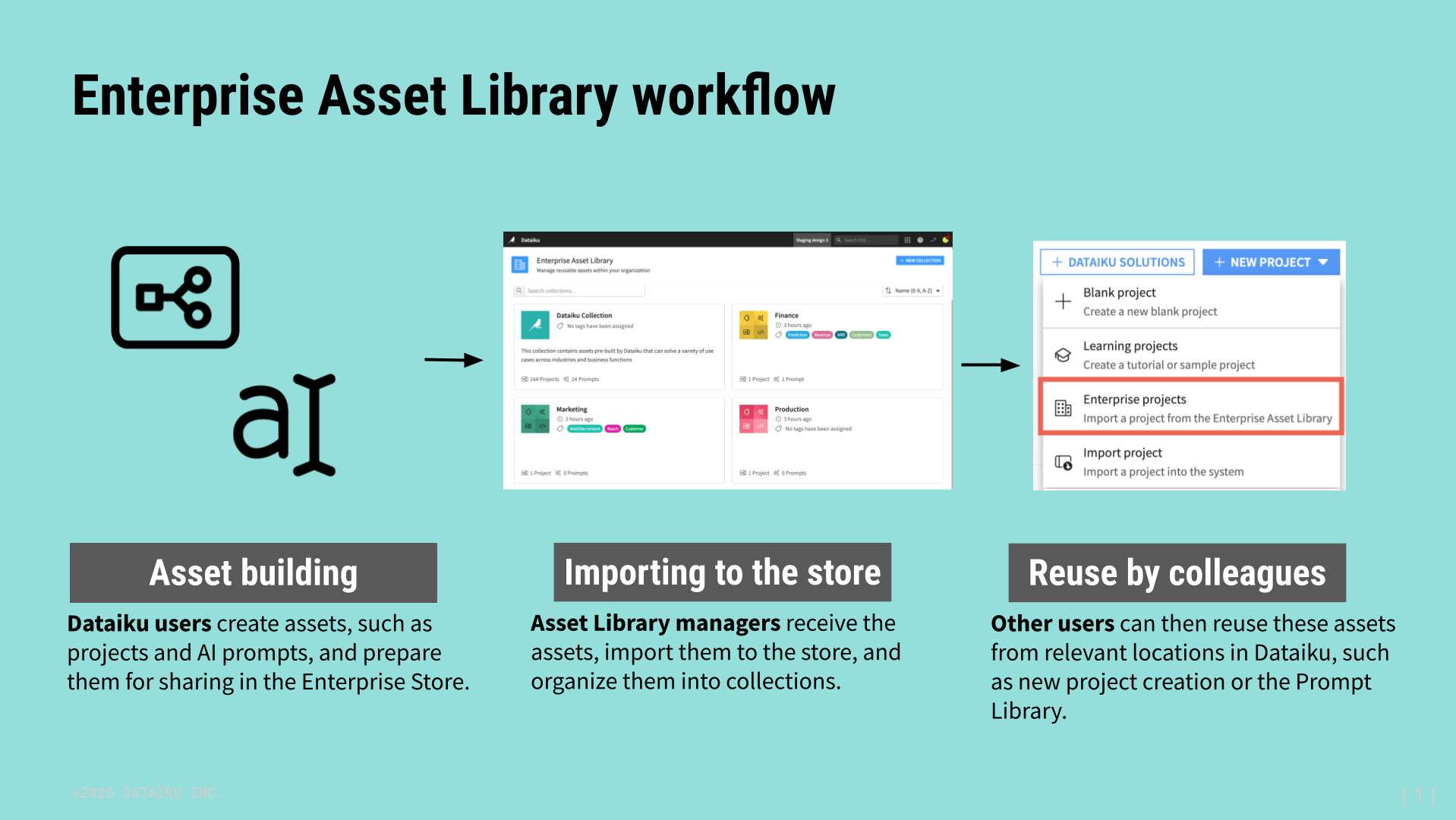
Companies can designate one or more users to oversee the Enterprise Asset Library. These managers access the Enterprise Asset Library administrative page to import assets and organize them into collections.
Collections#
Managers use collections to categorize groups of assets in the Enterprise Asset Library.
For instance, a library manager might create collections for assets from each team in their company—one for marketing, one for finance, and so on. The library manager could then designate collection managers responsible for approving and importing assets for specific teams.
Note
Dataiku users with the Enterprise license can create an unlimited number of collections. Those with other licenses can create one collection.
All Enterprise Asset Libraries also include a Dataiku Collection that contains Dataiku-managed solutions, tutorial starter projects, and prompts. This collection is read-only, and managers can’t add, change, or delete items in it.
My Assets#
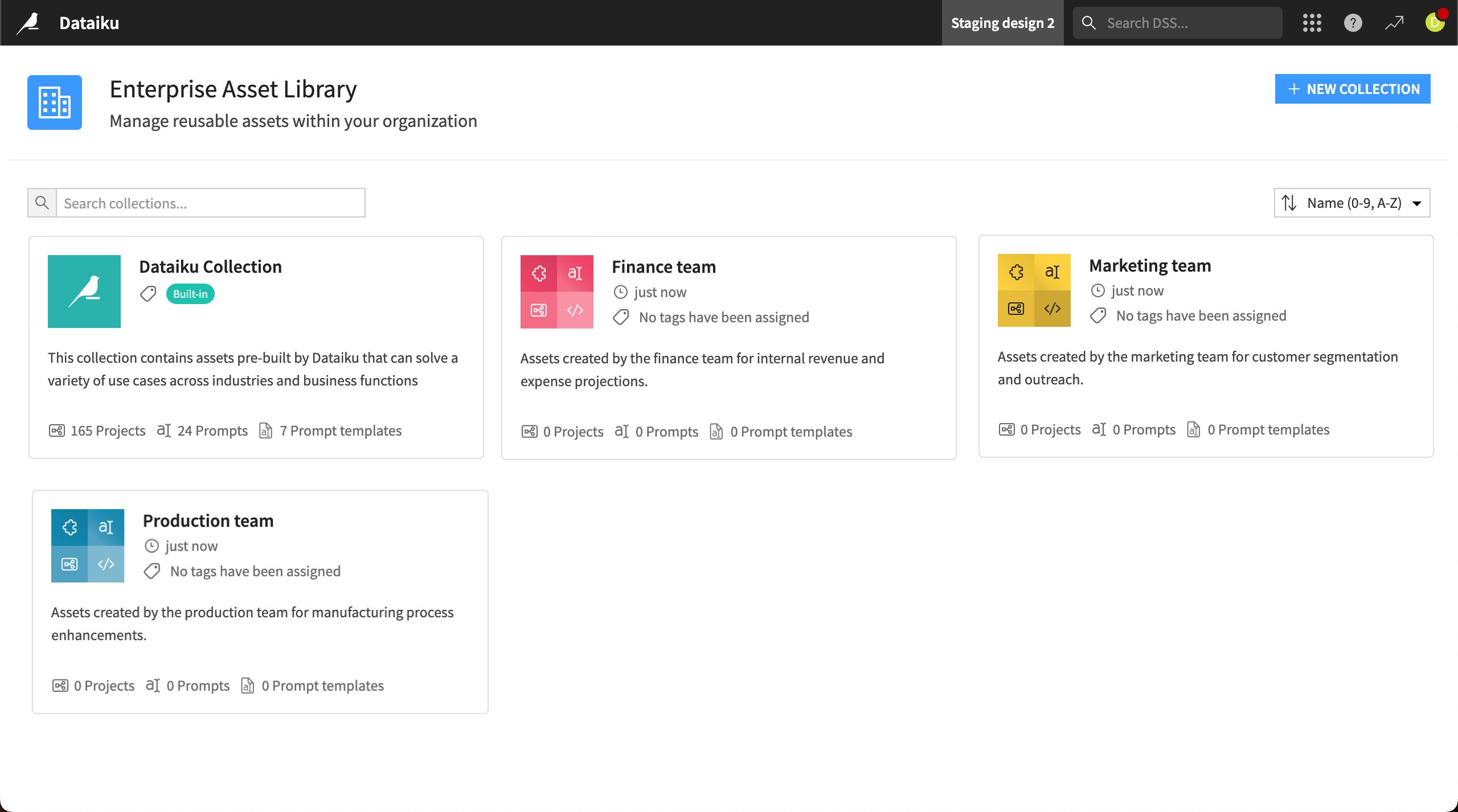
All users have a personal collection called My Assets where they can create and store assets. For example, you can keep your frequently used AI prompts in your personal collection.
You can also publish personal assets into other collections within your company to share them with colleagues. This makes a copy of the asset, and the original remains in your My Assets collection.
Note
You must have at least Collaborator-level permissions for the target collection to publish an asset there. If you don’t have permission, you can request it from the collection owner or request that your store manager publishes the asset for you.
See also
For a full discussion of the permissions and access, see Enterprise Asset Library in the reference documentation.
Reusing assets#
After an asset is imported into the library, other users on the instance can find it for reuse in relevant areas of Dataiku, provided they have the proper permissions.
Asset |
Location for reuse |
|---|---|
Project |
From the Dataiku homepage, click + New Project > Enterprise projects. |
AI prompt |
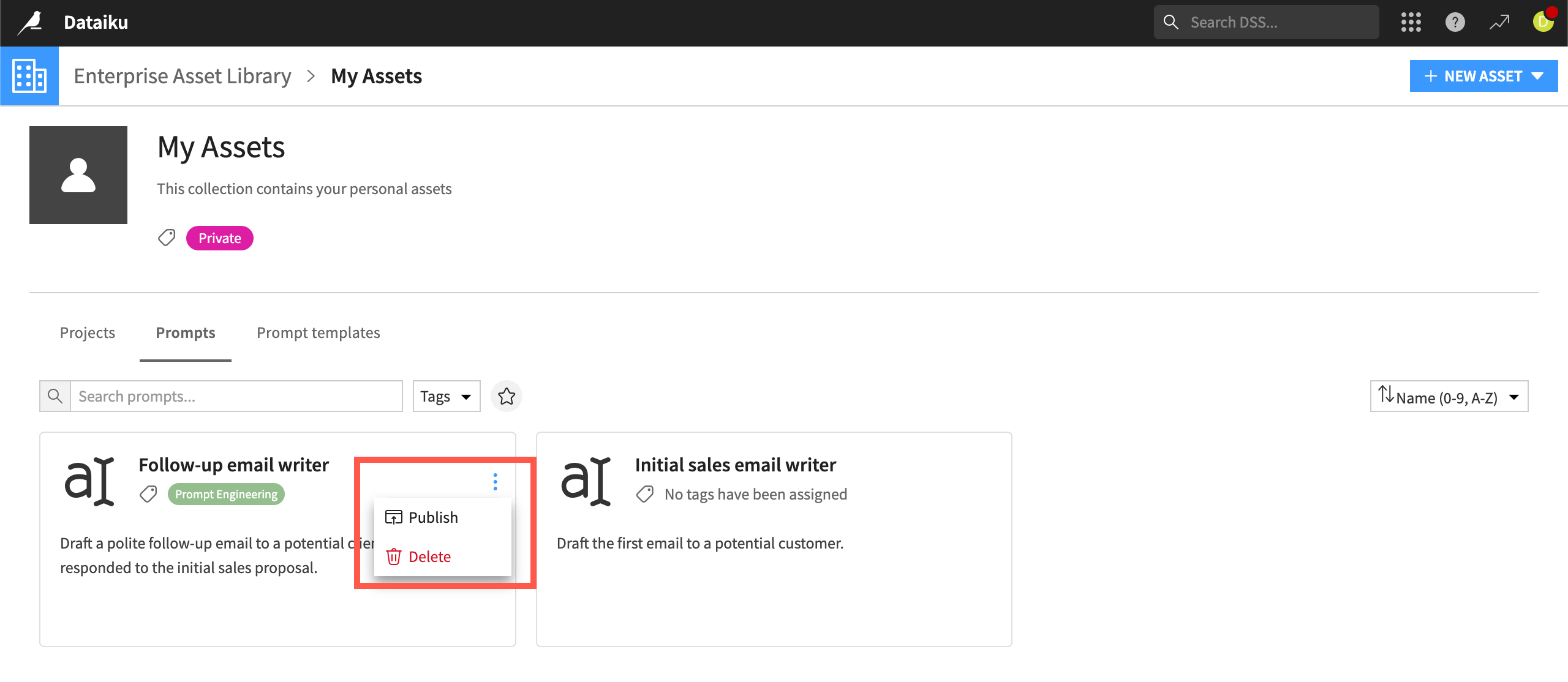
Click on the book icon ( |
AI prompt template |
In a Prompt Studio, choose + Add Prompt > Managed mode > Blank template and choose a template from the dropdown menu. |
Code sample |
Can be used from many places in Dataiku, depending on the type of code sample created. For example, Python code samples can be used in Python notebooks, and webapp code samples can be used in webapps. |
 ) in features where prompts are used, including