
Concept | Dataiku homepage#
Watch the video or read the summary below.
The Dataiku homepage is like the default page of a website. It’s where you land:
When you sign in to your Dataiku design instance via your web browser, if you’re using a self-managed installation.
When you open an instance from the Launchpad, if you’re using Dataiku Cloud.
Dataiku provides two homepage experiences tailored to different user needs:
Designer homepage: A technical workbench for AI builders working with projects, datasets, and data workflows.
Consumer homepage: A streamlined interface for business stakeholders to discover and access shared insights without navigating technical complexity.
Which homepage will I see?#
Your default homepage depends on your user role:
User role |
Default homepage |
|---|---|
AI Consumer, Reader, Explorer |
Consumer homepage |
All other roles |
Designer homepage |
Important
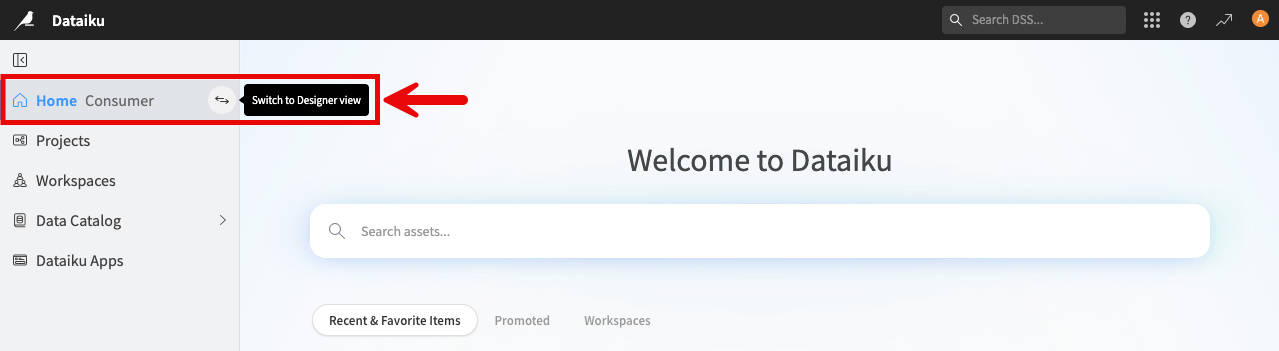
You can switch between these two experiences at any time using the homepage switcher in the left navigation panel. Click it to toggle between the Consumer and Designer homepage views.
Designer homepage#
The Designer homepage serves as a workbench for users building and managing projects. From here, you can create new projects, access existing projects and items, and see shared assets if you are collaborating with colleagues.
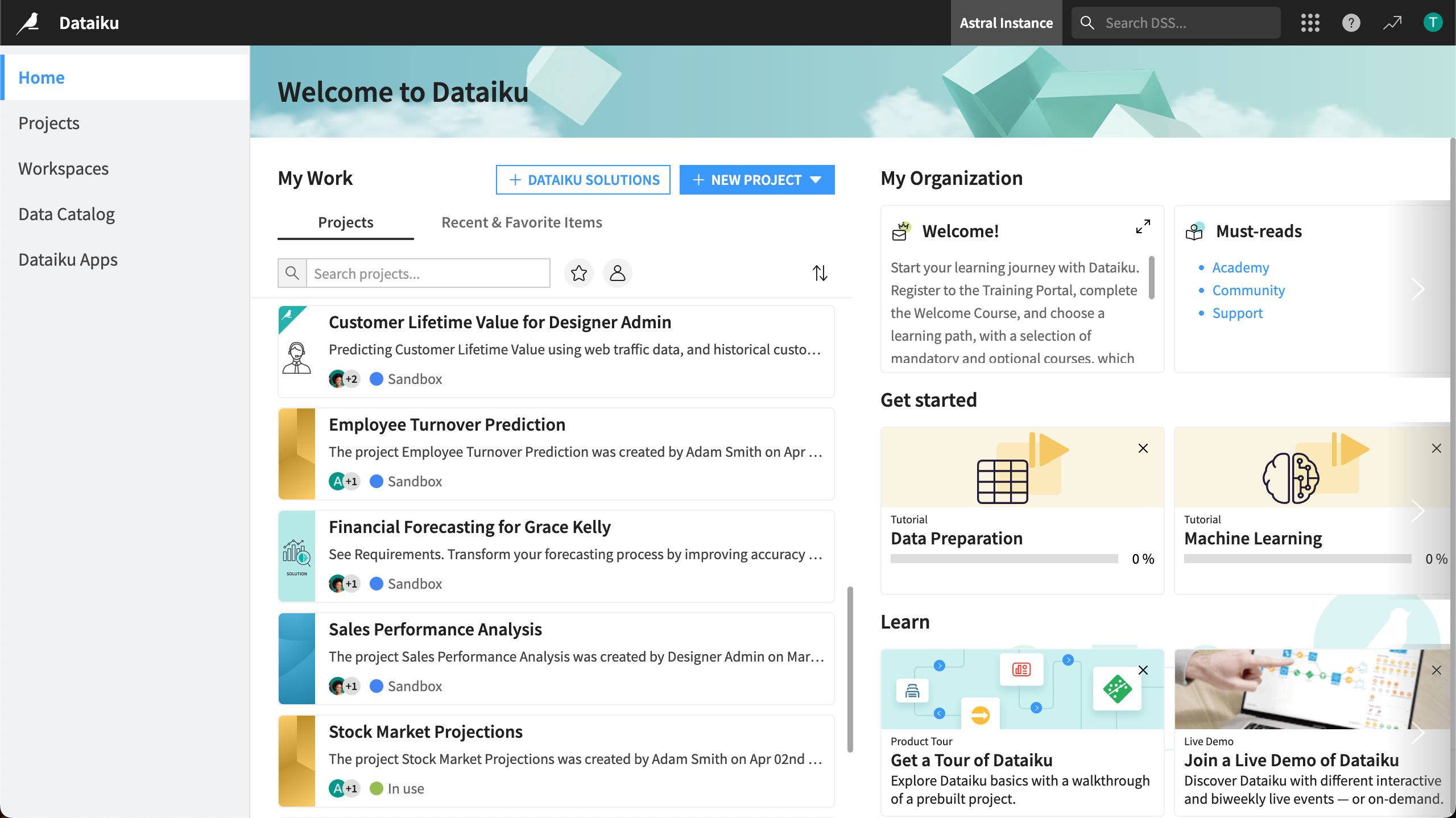
The layout is organized into three sections to help you navigate the platform, pick up where you left off, and discover helpful resources.
Section |
Description |
|---|---|
Left navigation |
|
My work |
|
Resources |
|
Consumer homepage#
The Consumer homepage is designed for business stakeholders who need streamlined access to insights and dashboards. It emphasizes asset discoverability and removes technical complexity, allowing you to focus on business questions rather than platform navigation.
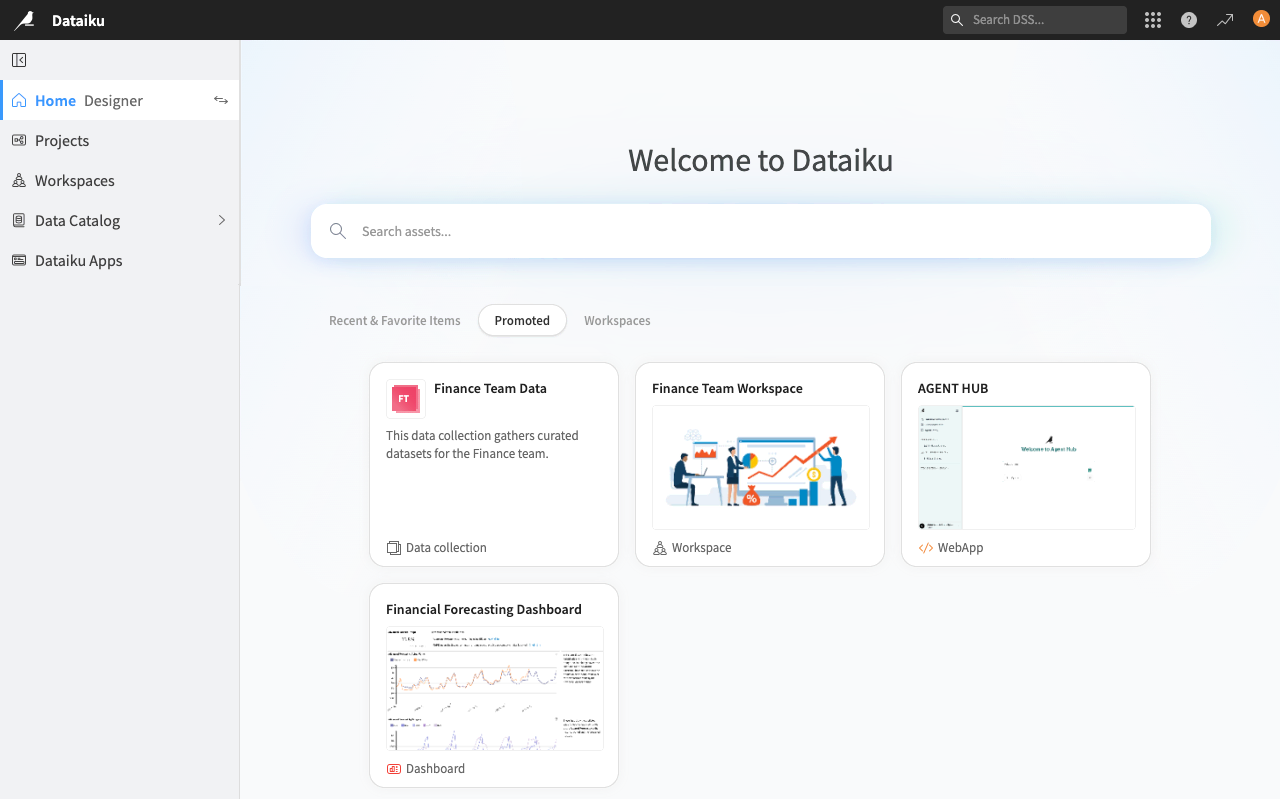
The homepage is organized into three tabs:
Tab |
Description |
|---|---|
Recent & Favorite Items |
Displays items you’ve recently accessed or marked as favorites. You can switch between Tile view (visual cards showing item previews) and List view (compact rows for faster scanning). |
Promoted |
Shows curated content configured by your administrator to highlight important dashboards, stories, and other high-value insights. |
Workspaces |
Lists all workspaces you have access to, sorted by your recent activity. This provides quick navigation to collections of related insights. |
Note
If you haven’t accessed or favorited any items yet, the homepage defaults to the Promoted tab.
Content in the Promoted tab must be configured by an administrator via Admin Settings > Homepage > Promoted content. If no content has been promoted, you’ll see a No recommended content yet message.
The Consumer homepage also includes a search function to help you discover assets across workspaces.
Waffle menu#
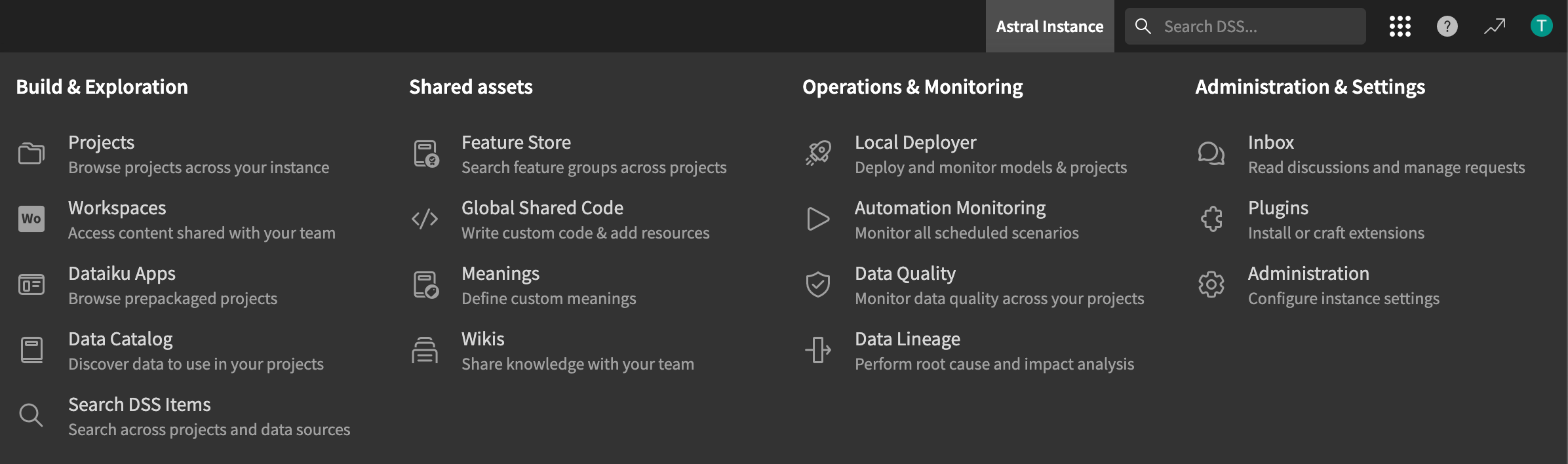
The Waffle menu ( ) in the top right of the homepage is where you’ll find:
Access to your projects, workspaces, applications, the Data Catalog, and an items search.
Shared assets such as the Feature Store, shared code, and wikis.
Tools to monitor models, automation, data quality, and data lineage.
Your message inbox, access to the plugin store, and instance-level administration settings for on-premise installation, including management of the license, connections, security, code environments, etc.