

Concept | Labeling recipe#
The Labeling recipe provides a structured, collaborative workflow to label tabular, text, or image data for use in training a machine learning model.
You can also use the recipe to keep humans in the loop and review predictions from an ML model or responses from a GenAI model.
Use case#
A machine learning model needs a ground truth to learn from, so it can accurately classify images, extract meaning from text, or predict outcomes from tabular data. The Labeling recipe allows teams to add this ground truth.
For example, a healthcare provider might want to train an object detection model to confirm in images whether employees are wearing proper personal protective equipment (PPE), such as masks, gloves, or suits.
First, the team must label these items in input images so the model can learn which items are PPE. In the Labeling recipe, the team can create bounding boxes around PPE items and identify their classes.
Another potential use case is using the Labeling recipe to annotate text responses from an LLM based on accuracy.
The recipe supports six types of labeling tasks:
Task |
Data type |
Description |
|---|---|---|
Record classification |
Tabular |
Assign labels to rows of a dataset. |
Free-text |
Tabular |
Assign free-text labels to rows of a dataset. |
Object detection |
Image |
Identify objects with bounding boxes. |
Image classification |
Image |
Assign labels to images. |
Text annotation |
Text |
Tag elements of text records. |
Text classification |
Text |
Assign labels to text records. |
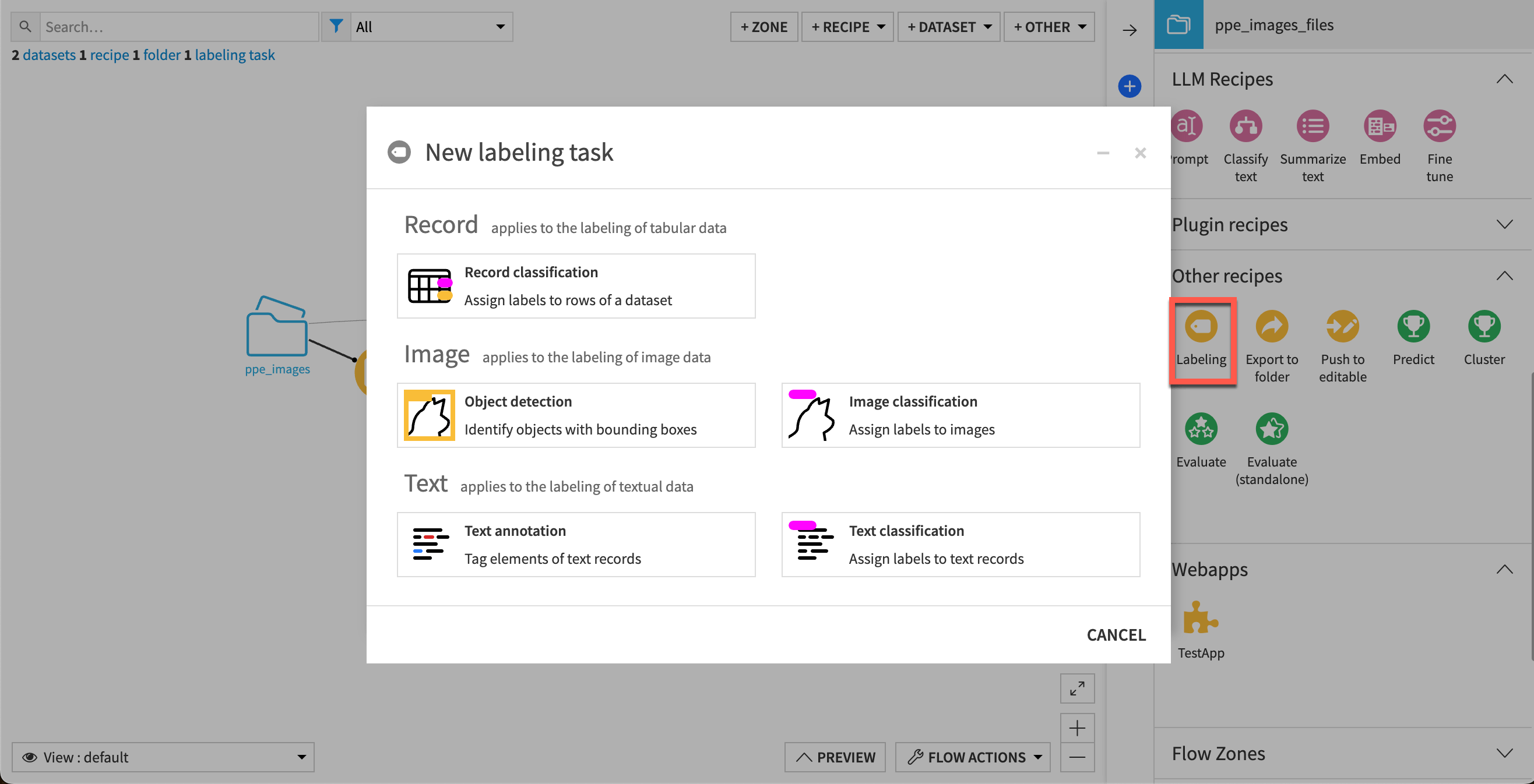
Labeling recipe configuration#
The process for completing labeling tasks includes:
A project manager creates the recipe, selects the type of labeling task, and configures settings.
Annotators create labels for the images, texts, or records.
Reviewers resolve conflicts and validate labels.
Project managers track status and performance.
The recipe outputs an annotated dataset for use in model training or review.
Each of these takes place in a different tab of the recipe.
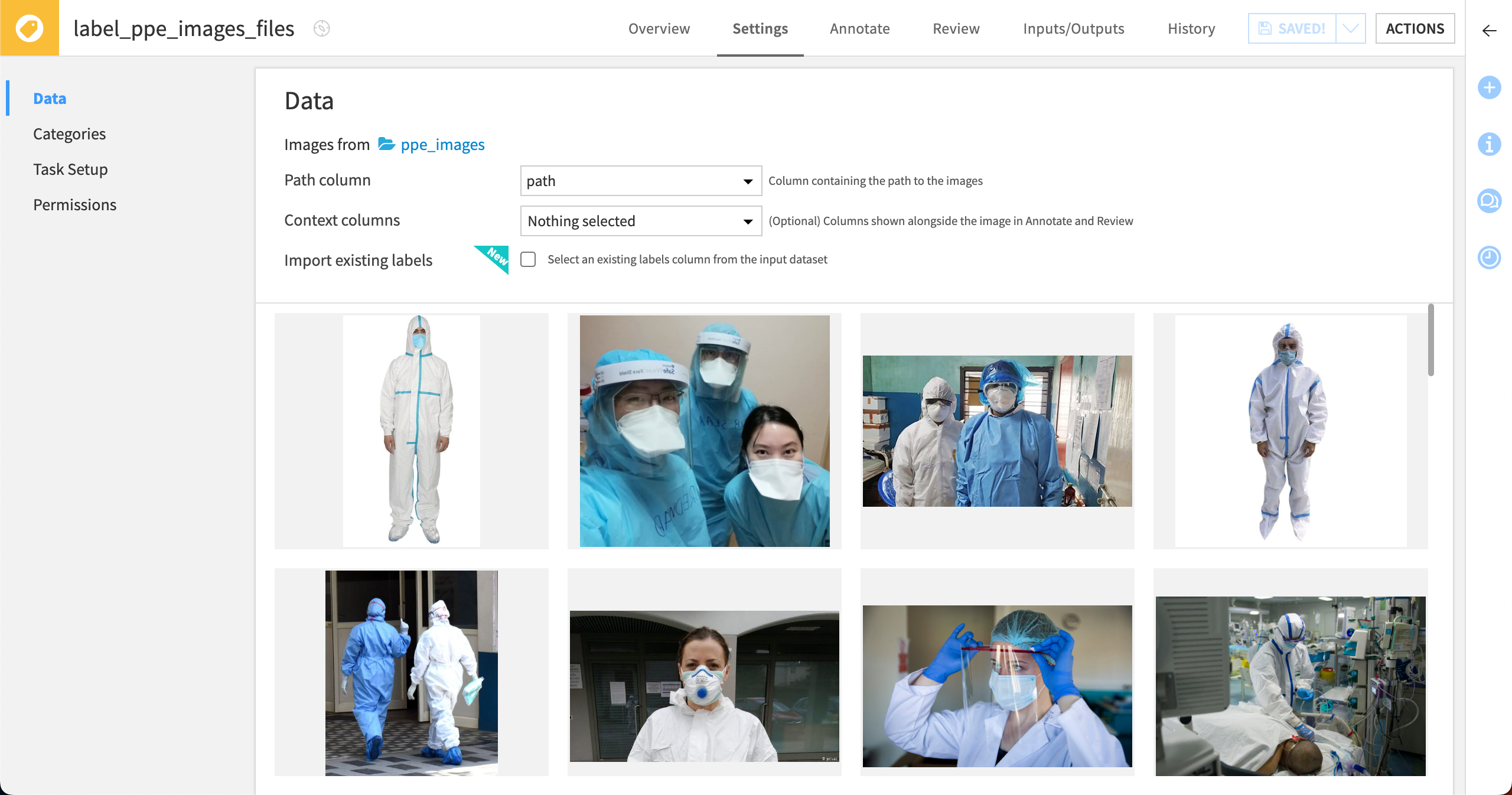
Settings tab#
In the Settings tab, the manager sets up the task. This includes configuring the data for labelers to work on, desired labels, instructions, and user permissions.
Annotate tab#
The assigned labelers can then annotate the image files, text, or records in the Annotate tab of the recipe. The Annotate interface differs depending on the type of data.
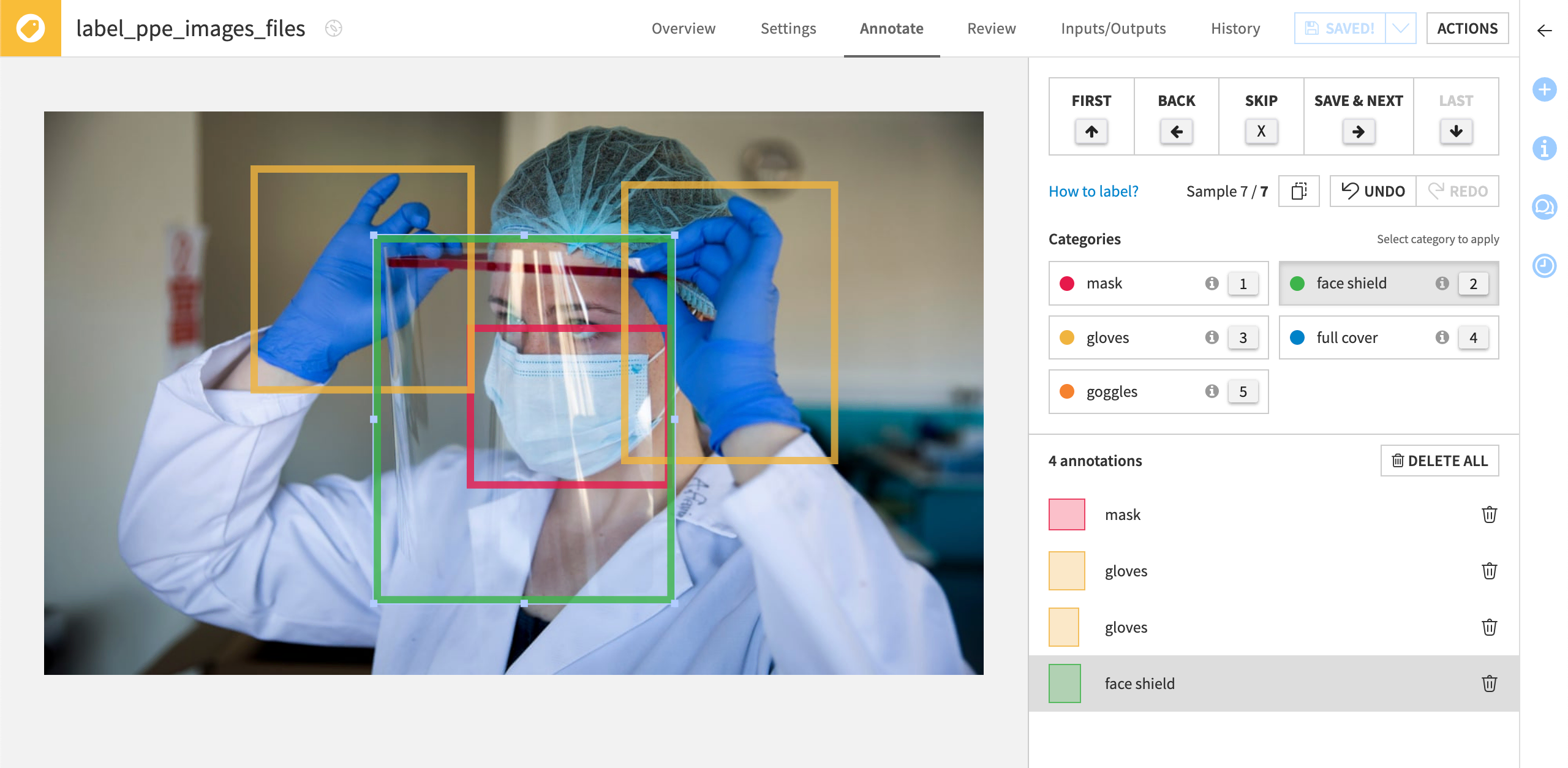
If the project manager enabled comments, labelers can also add free-text comments to each record. This is useful to allow the labelers to communicate uncertainty or other important information to the reviewers. Reviewers can view comments in the Review tab and output dataset.
Review tab#
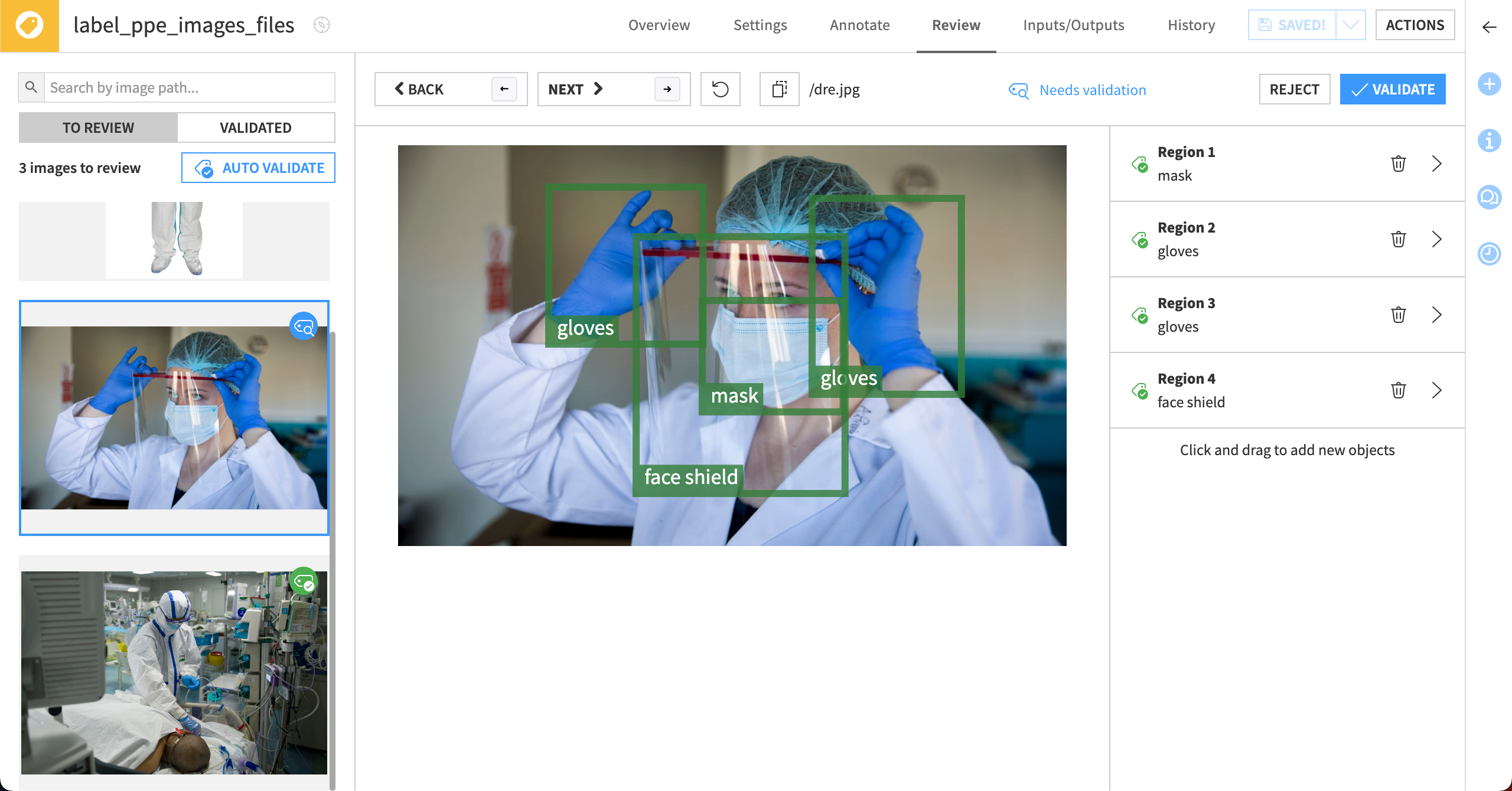
After the labelers are finished, reviewers can check annotations in the Review tab.
The reviewer can see conflicts when labelers don’t assign the same class, bounding box, or annotation (depending on the type of task). The reviewer can also:
Resolve conflicts.
Validate labels.
Create their own annotations if needed.
Send a document back to be labeled again.
Overview tab#
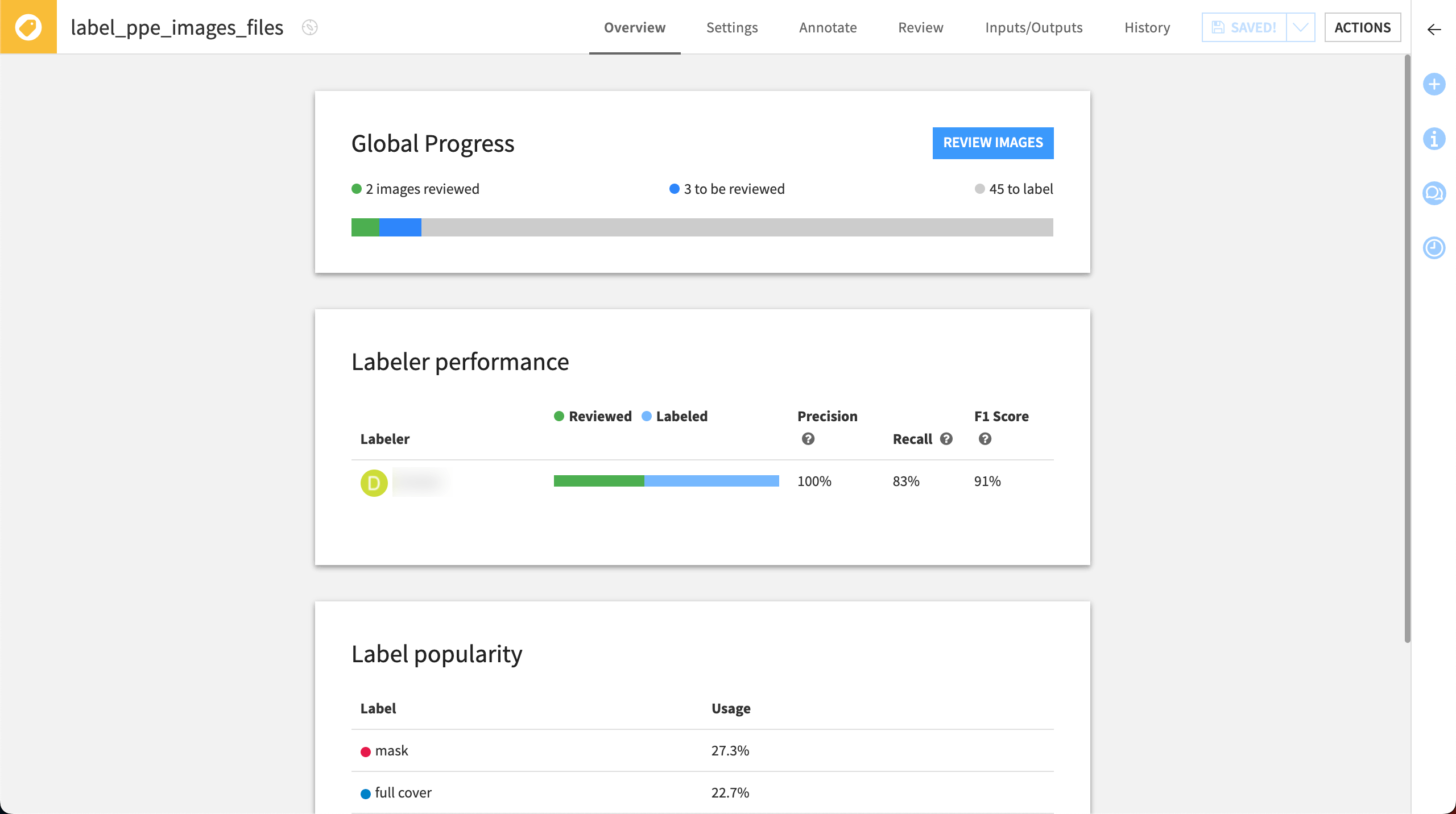
The Overview tab allows the project manager to follow the project with indicators on how many documents are labeled and reviewed, the performance of each labeler, and the popularity of each label.
Inputs/Outputs tab#
The project manager can configure input files and the output dataset in the Input/Output tab.

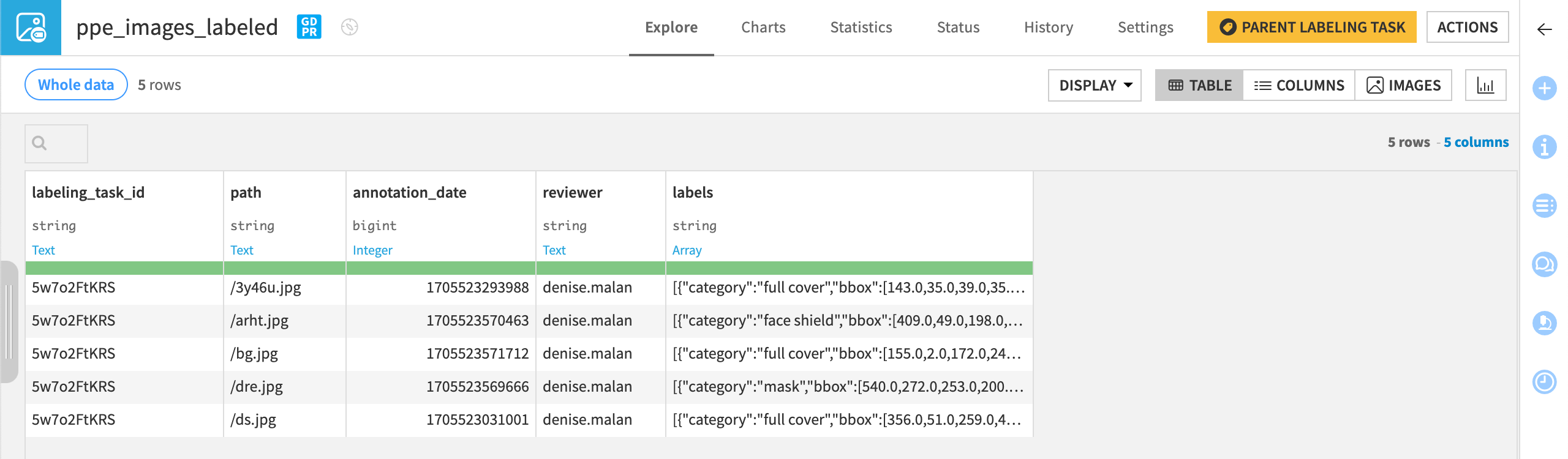
The output dataset is continually updated with all reviewed documents, including labels and comments, if enabled.
See also
For more information, see Labeling in the reference documentation.