

Tutorial | Build a Dataiku app-as-recipe#
Get started#
A Dataiku app-as-recipe allows you to package a Dataiku project as a visual recipe, making it reusable directly in the Flow of any other project on the same instance.
Objectives#
In this tutorial, you will:
Convert a Dataiku project into a Dataiku app-as-recipe.
Apply the app-as-recipe in the Flow of a second project.
Prerequisites#
To follow along with this tutorial, you must have completed Tutorial | Build a visual Dataiku app.
Convert a project into a Dataiku app-as-recipe#
Instead of structuring the app as a separate instance with its own dedicated user interface, you can package it as a visual recipe. Then, you can use this recipe in the Flow of other projects.
Return to the Dataiku Apps project (the project from which you created the application). Unless you manually chose a different key, the project key begins with
TUT_DKU_APPS.From the More Options (
 ) menu in the top navigation bar, select Application Designer.
Navigate to the Advanced tab near the top right.
Toggle On the Use as recipe field.
Click Save.

Define the app-as-recipe#
Since you’ve already handled the app header and included content sections when creating the visual app, you just need to define the contents of the recipe.
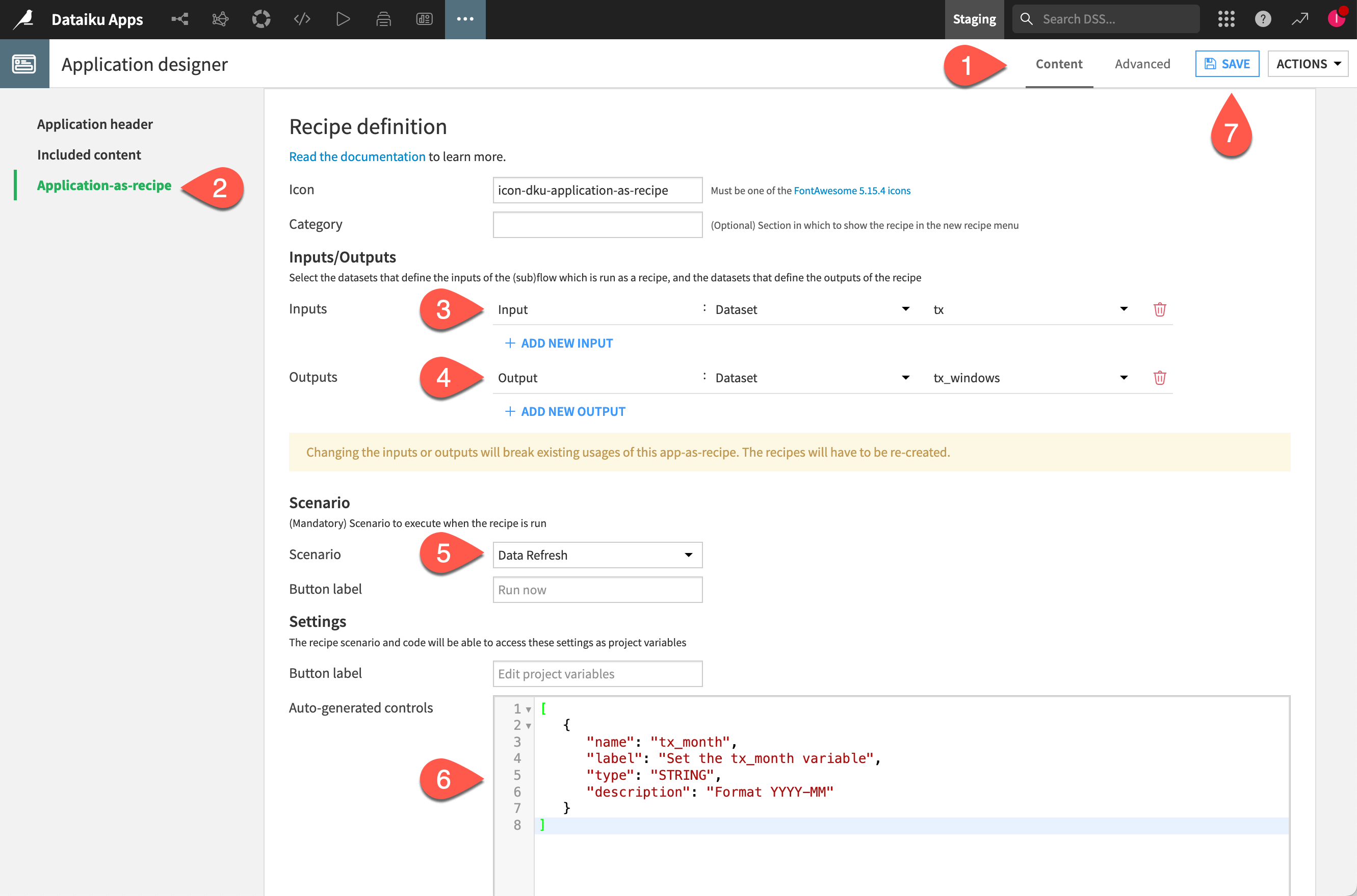
After saving, navigate back to the Content tab of the Application designer.
Select the Application-as-recipe panel on the left.
Click + Add New Input, and select the tx dataset.
Click + Add New Output, and select the tx_windows dataset.
For the scenario, select Data Refresh.
For the Auto-generated controls, copy-paste the same JSON as before:
[
   {
      "name": "tx_month",
      "label": "Set the tx_month variable",
      "type": "STRING",
      "description": "Format YYYY-MM"
   }
]
Click Save.
Create a second project to test the app-as-recipe#
You’ve now created a visual recipe that anyone can use on the same instance! To demonstrate its usage, create a new project that contains a dataset with the schema that matches that of the tx dataset. You’ll define this dataset as the input to the app-as-recipe.
From the Dataiku Design homepage, click + New Project.
Select Learning projects.
Search for and select Dataiku Apps-as-recipes.
If needed, change the folder into which the project will be installed, and click Create.
From the project homepage, click Go to Flow (or type
g+f).
Note
You can also download the starter project from this website and import it as a ZIP file.
Use the app-as-recipe in the Flow#
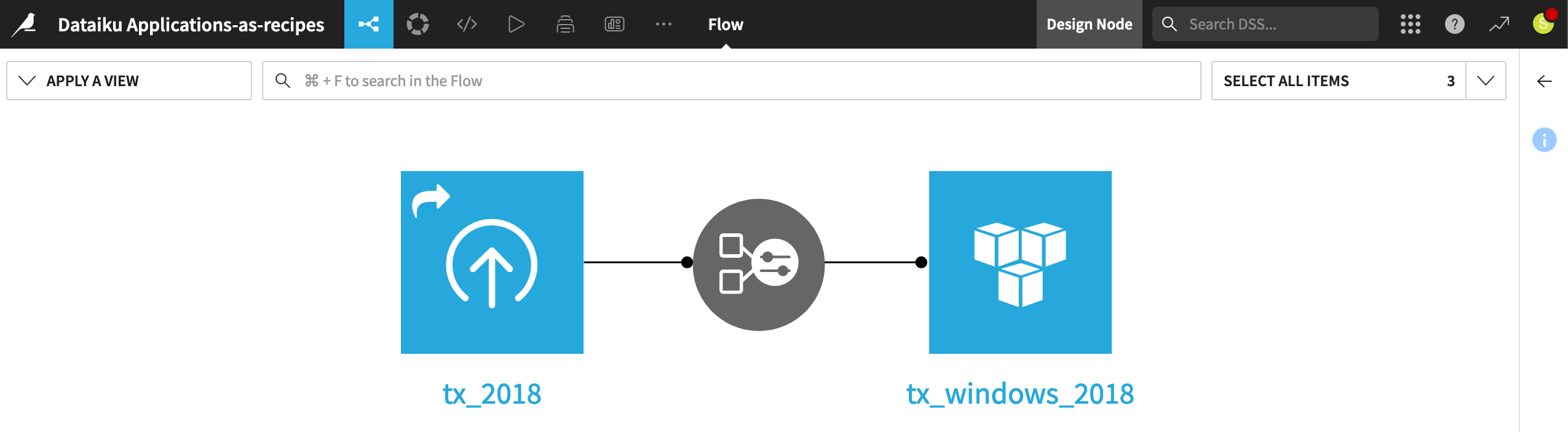
This second project includes just one dataset: the transaction data from 2018. Its schema exactly matches the transaction data defined as an input to the app-as-recipe.
You can use the app-as-recipe just like any other visual recipe.
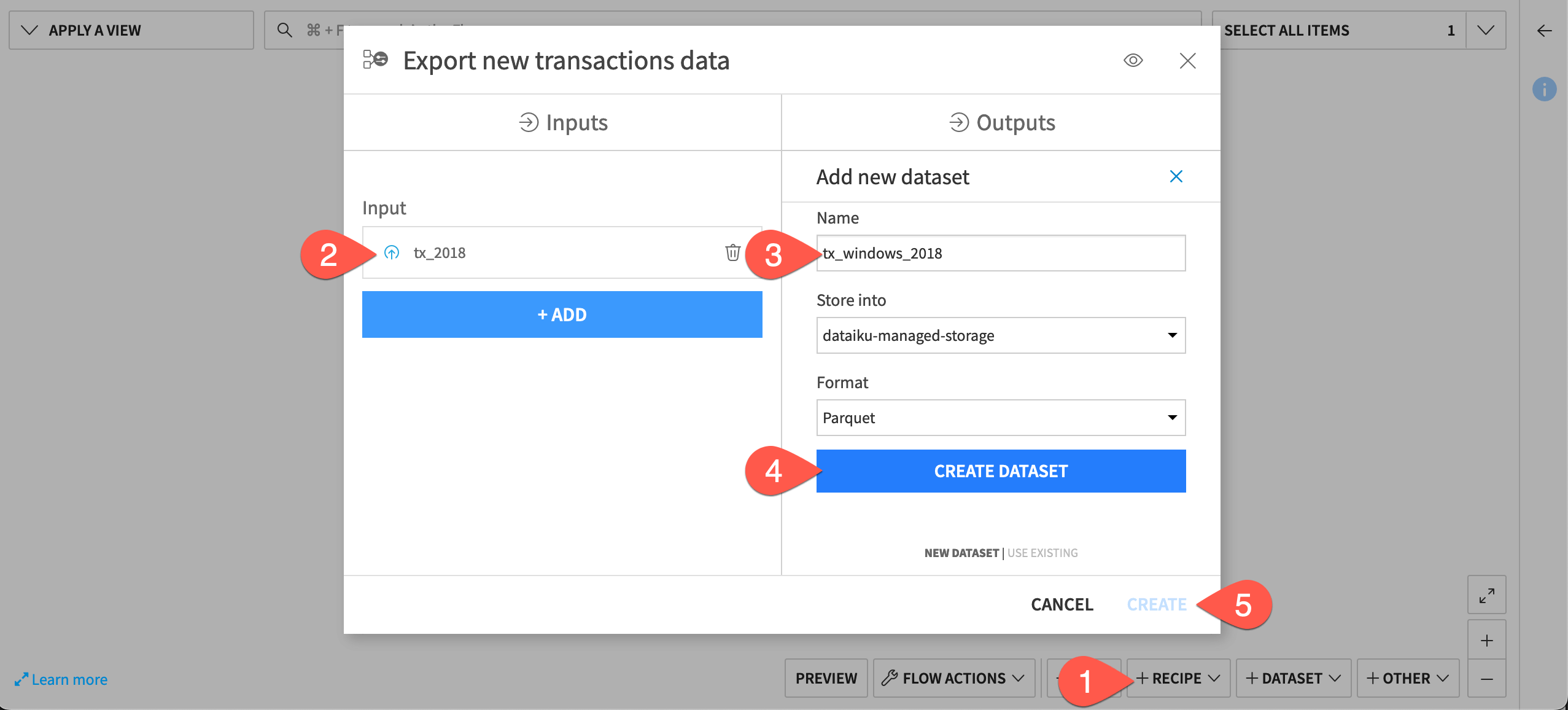
From the Flow, click + Add Item > Recipe > Applications > Export new transactions data.
Tip
If you don’t see the new app-as-recipe as an option, try a hard refresh of your browser.
Under Inputs, click + Add, and select tx_2018.
Under Outputs, click + Add, and name it
tx_windows_2018.Click Create Dataset.
Click Create.
Run the recipe#
The only step to configure in this recipe is to set the tx_month variable.
Provide a variable month such as
2018-01.Click Run to execute the app-as-recipe.
Note
Depending on your instance settings, you may observe pop-up notifications indicating that the Data Refresh scenario is running.
When the recipe finishes running, explore the output and see your progress in the Flow.
Next steps#
Let’s recap the achievement here: With both varieties of Dataiku app, you were able to abstract the functionality of a Dataiku project behind a simple interface that’s reusable by colleagues and that doesn’t interfere with the original project.
For a visual app, that abstraction comes in the form of its own instance and user interface.
For an app-as-recipe, that abstraction comes in the form of a visual recipe.
Dataiku apps are one way to operationalize a project. Another method is to batch deploy a project bundle to a production environment. Learn more in Concept | Project deployment.
See also
See the reference documentation to learn more about Dataiku Applications.