

Concept | Shared code#
In this lesson, you’ll see two of the most common ways to access and share code in Dataiku: project libraries and code samples.
Having reusable code enhances the collaborative experience for all users on the Dataiku instance, reduces the time required to code, and can help improve consistency.
Project libraries#
Project libraries allow you to create and share your code library. Once created, you can share the code within the same project, such as within recipes and with other projects on the same instance.
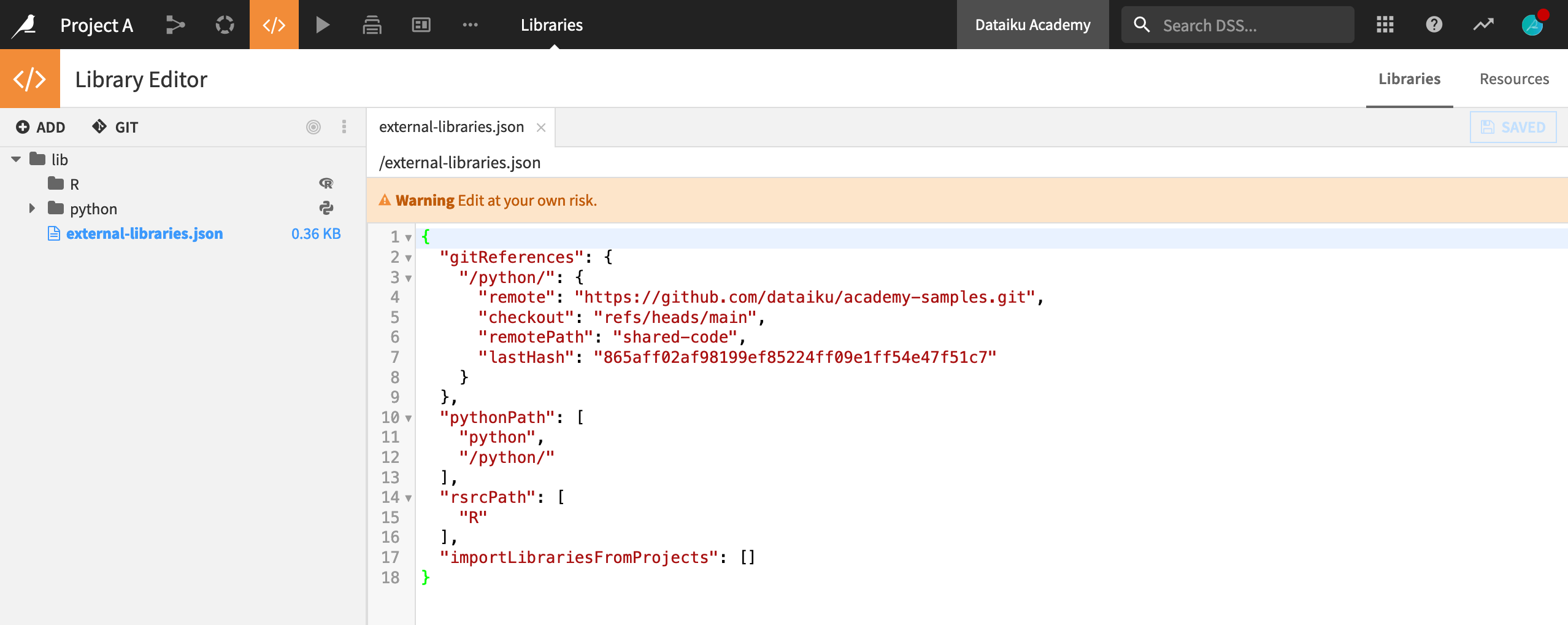
Library editor#
The project code library is the location where files are stored. Use the library editor to create folders and to upload or add files. In the example below, you added a code module that writes data from a Dataiku dataset to an Excel workbook. This file is stored in the Python source folder.
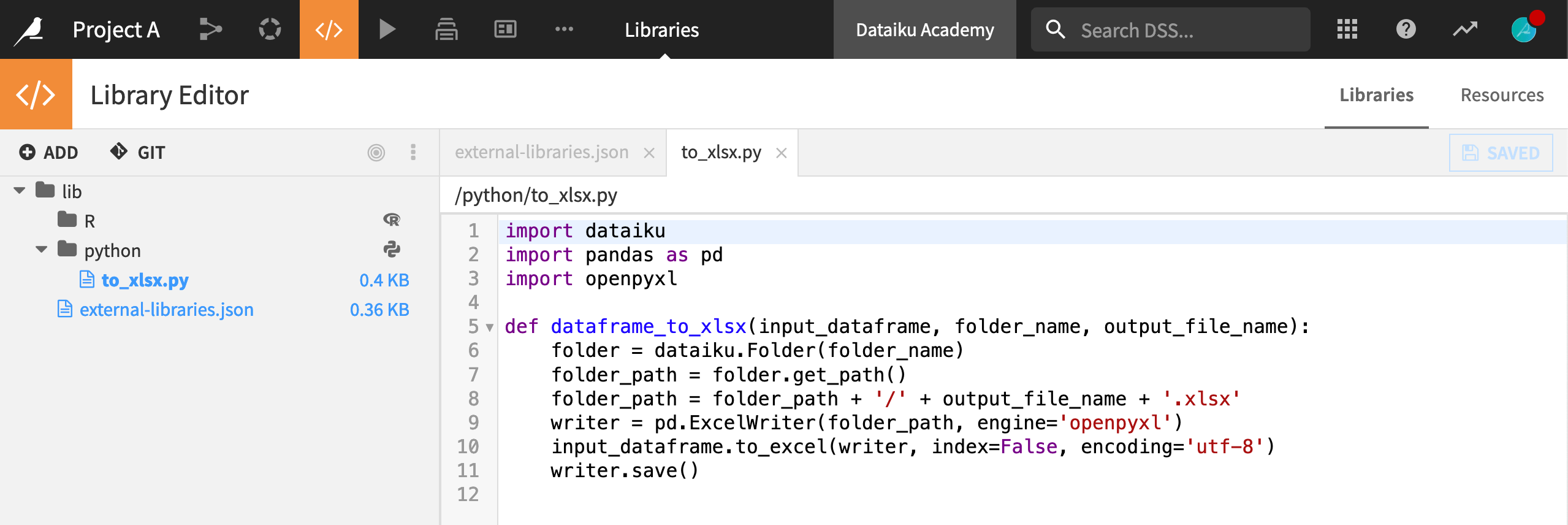
The dataframe to excel function is now available for use in code contexts such as recipes and notebooks. You can access this reusable code within your project and share it with other projects. To import this code into a Python recipe, add the following line to the other import statements at the beginning of your recipe:
from to_xlsx import dataFrame_to_xlsx
Sharing code library between projects#
Now, look at how you can share this code with other projects on the same Dataiku instance. To demonstrate this concept, you’ll share the project library that was created in project A with project B.
To do this, you can copy the project key from the URL of the parent project, project A.
Then in the library editor of project B, you’ll find the external-libraries.json file.
Search for the import Libraries From Project list, and add the project key from Project A such as:
"import Libraries From Project": "PROJECT_A_KEY"
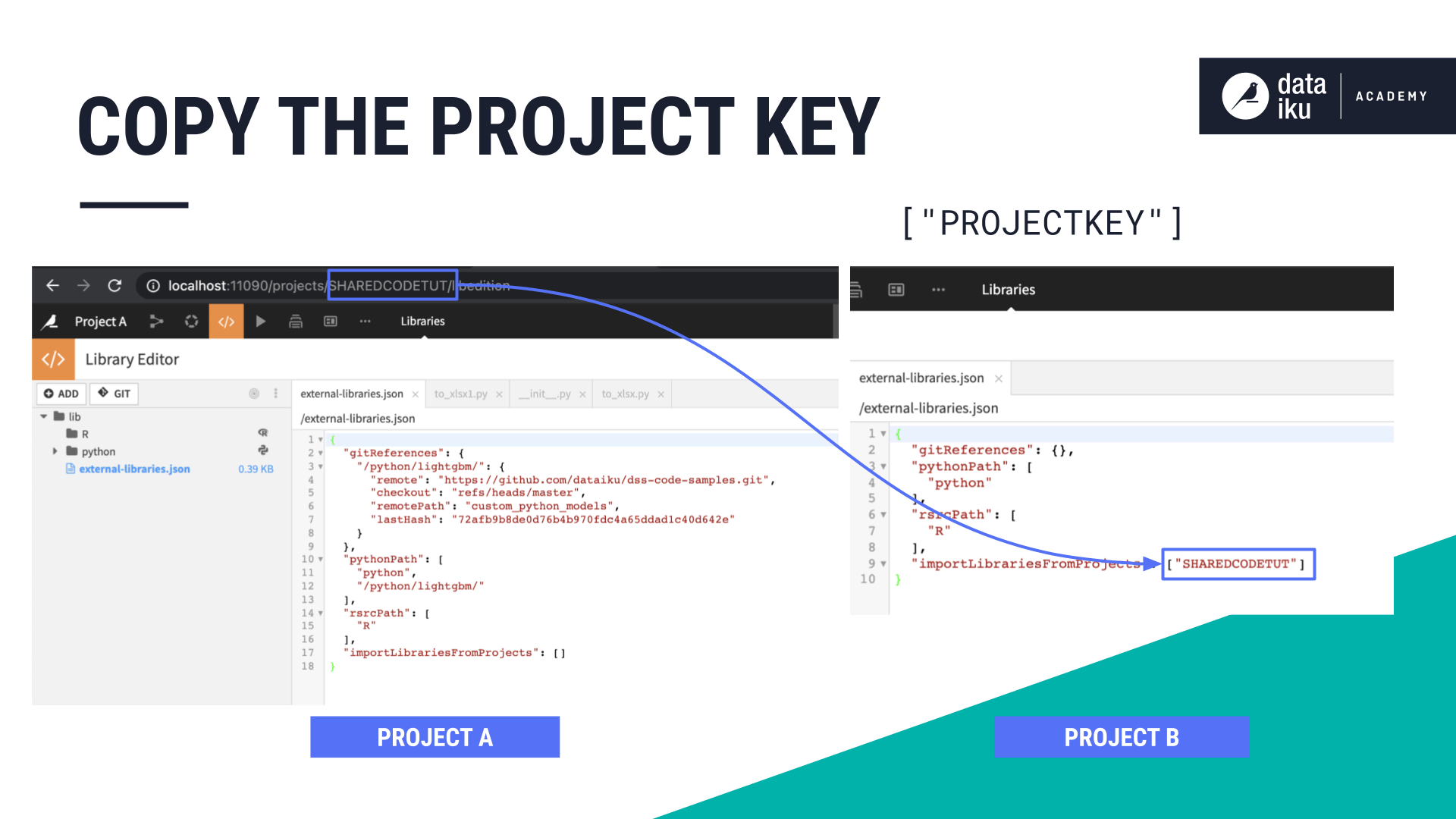
The project library from Project A is now available to Project B. In Project B, you can now import the functions of the Project A code library.
Note
You only need to import a project library once. If the parent project’s library is updated, those changes are available to all child projects. The only time a change in the parent project won’t be usable is if a user unintentionally changes the name of a shared file or function.
When you share libraries between projects, and you plan to deploy your project to the Automation node, the parent project must be deployed so that the project library is available.
Code samples#
Code samples allow you to create and share your own frequently used code snippets when using custom code in Dataiku.
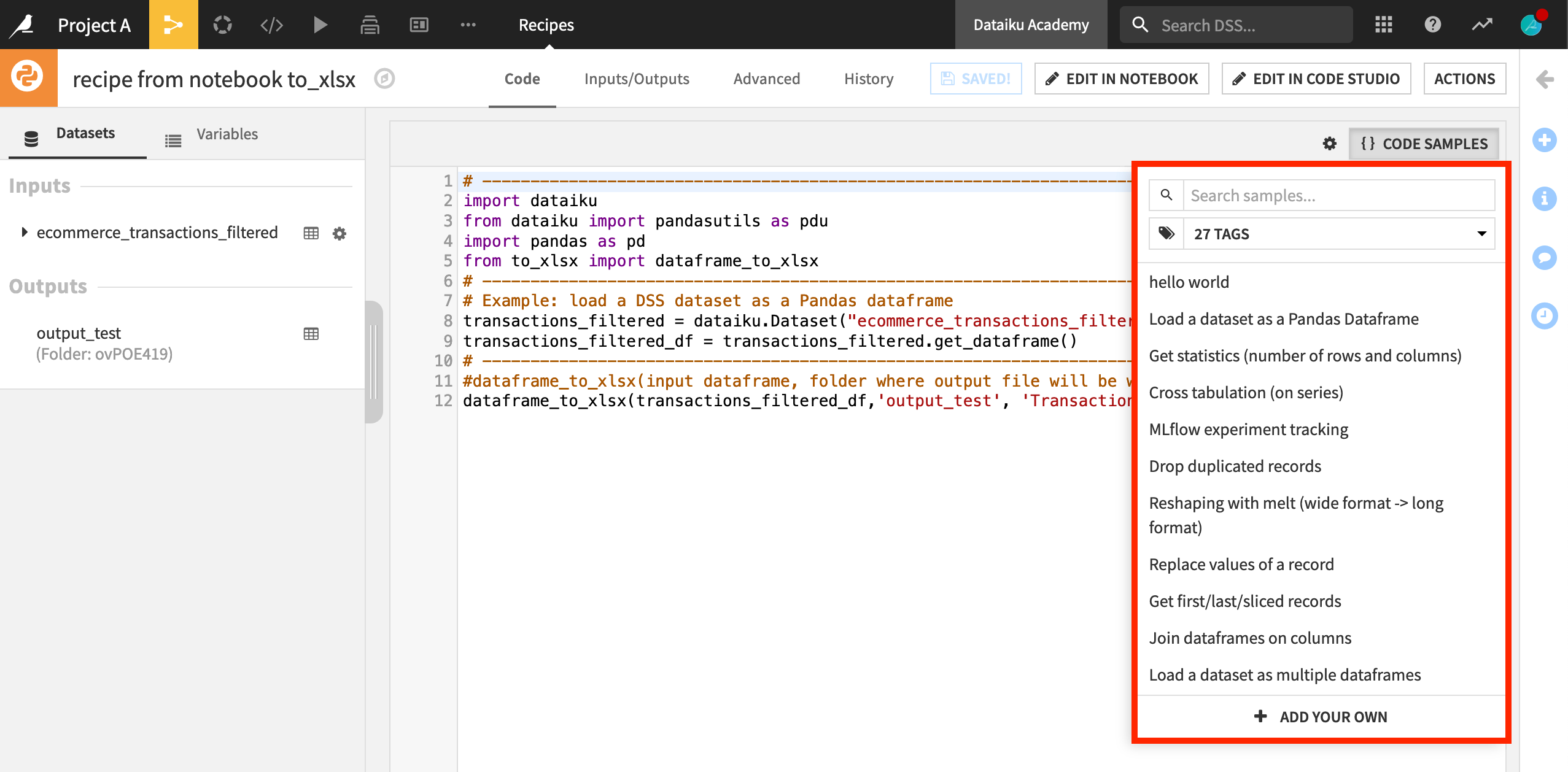
These code samples are available to all projects on the same instance.
Adding a code sample#
You can add code samples wherever code samples are found. For example, you can add a new code sample in the code samples of your notebook.
To do this, click + Add Your Own, then type a descriptive title and description (both are searchable). Then, apply tags to make it even more discoverable by others. The default option is share with other users.
You can add additional information that might help others understand the purpose and usage of your code snippet.
Then, finally, add the core code of your code sample including any variants.
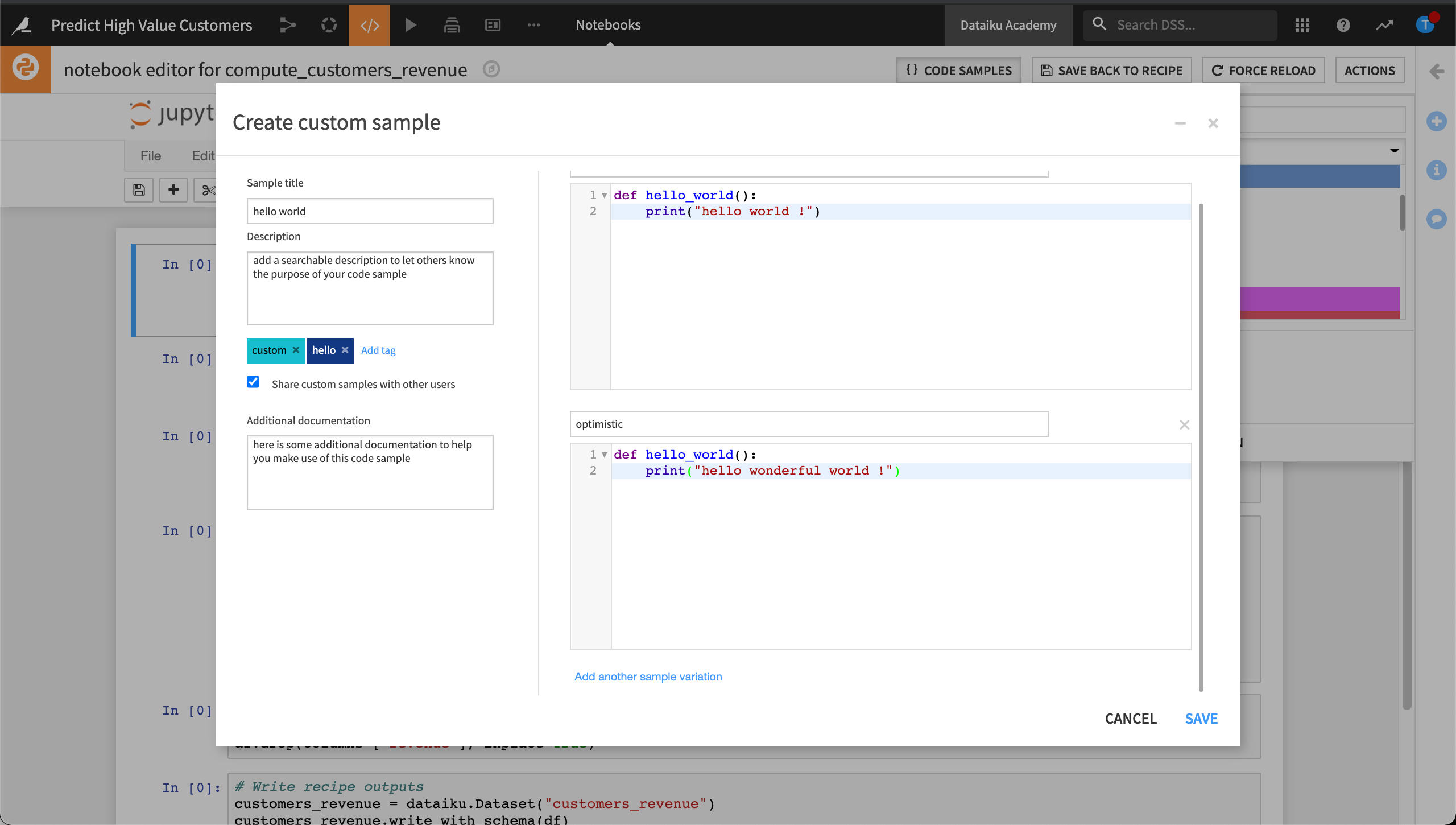
Code variants make sense when it isn’t possible to create a single code snippet that covers all use cases.
Dataiku makes your code sample immediately available to all users on the same instance.
Using a code sample#
Using code samples makes it easier to reproduce an entire Dataiku object or a simple component from one project to another, improving reusability and reliability of the code. You can add code samples in various component within Dataiku:
Component |
Location |
|---|---|
Notebook |
In Code samples |
Code recipes |
In the Code tab of the recipe |
Visual ML tool |
In the Custom Python model, Custom metrics, Custom preprocessing |
Webapps |
In the Edit mode of the webapp |
Note
For the preprocessing, you need to create a processor object that will be responsible for processing the data..
For example, in a Jupyter notebook, you can click Code Samples to start searching the code snippets available on your Dataiku instance.
Suppose you want to find code samples that you can use to merge pandas DataFrames. To do this, search for dataframe to view results where this term is either part of the title or description.
You can also search by tag. For example, you can select the tags, Pandas, Combine, and Dataframe, to help narrow down your search results.
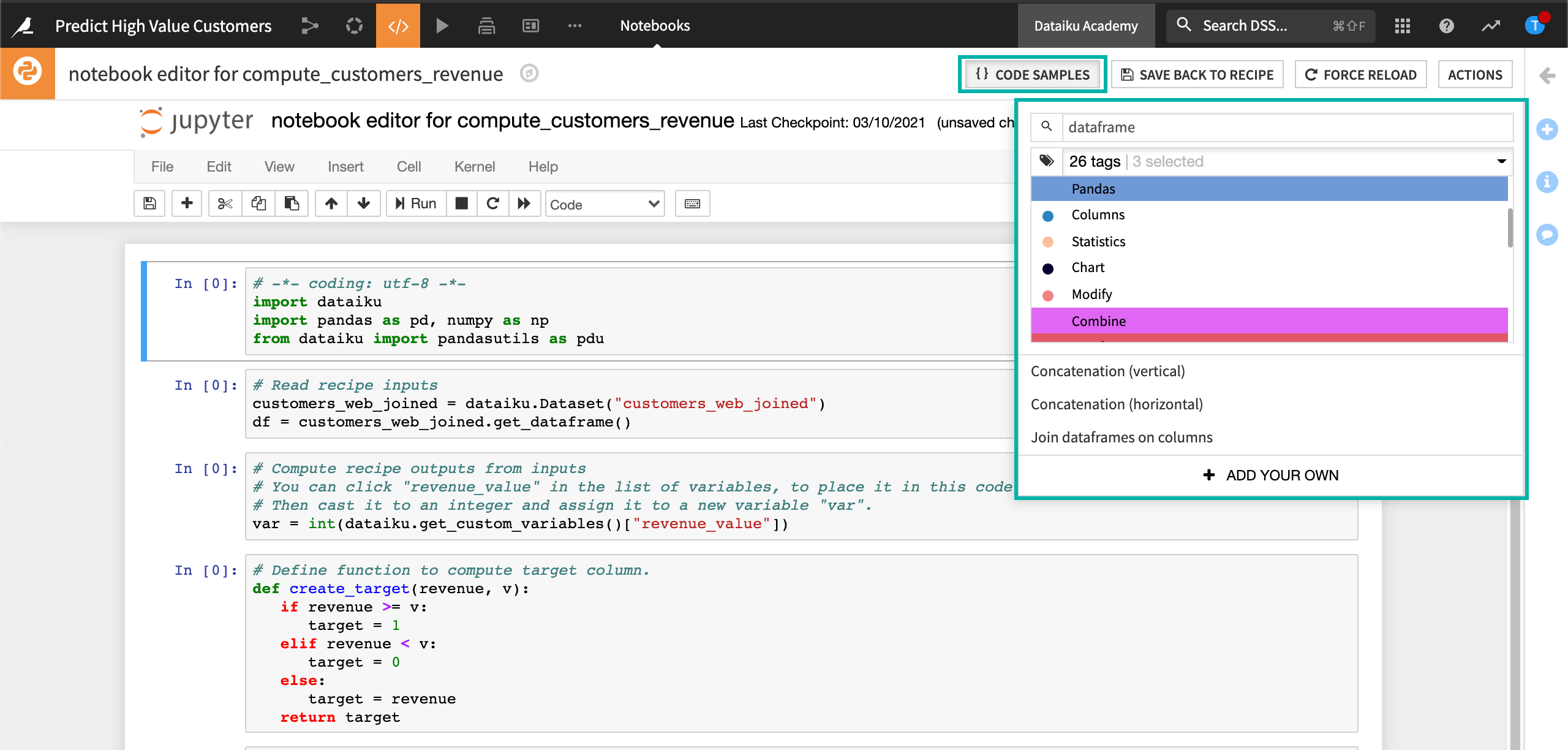
Dataiku displays the code sample, including any variations, along with its documentation.
Once you insert this code, it becomes part of your script.
Next steps#
To go deeper into sharing your code, visit other documentation such as the Developer Guide to practice Using Git shared code in your projects or Importing code from Git in project libraries in the reference documentation.