

Tutorial | Distinct recipe#
Practice using the Distinct recipe not only for removing duplicate rows, but also investigating analytical questions around uniqueness.
Get started#
Objectives#
In this tutorial, you will:
Deduplicate a dataset.
Create a distinct list of values for a lookup table.
Check if the values from a combination of columns are unique.
Prerequisites#
To complete this tutorial, you’ll need the following:
Dataiku 14.0 or later.
Create the project#
If needed, from the Dataiku Design homepage, use the (
 ) icon to switch to the Designer view.
Click + New Project > Learning projects.
Search for and select Distinct Recipe.
If needed, change the folder into which the project will be installed, and click Create.
From the project homepage, click Go to Flow (or type
g+f).
Note
You can also download the starter project from this website and import it as a ZIP file.
You’ll next want to build the Flow.
Click Flow Actions at the bottom right of the Flow.
Click Build all.
Keep the default settings and click Build.
Use case summary#
Let’s say we’re a financial company that uses some credit card data to detect fraudulent transactions.
The project comes with three datasets, described in the table below.
Dataset |
Description |
|---|---|
tx |
Each row is a unique credit card transaction with information such as the card that was used and the merchant where the transaction was made. It also indicates whether the transaction has either been:
|
merchants |
Each row is a unique merchant with information such as the merchant’s location and category. |
cards |
Each row is a unique credit card ID with information such as the card’s activation month or the cardholder’s FICO score (a common measure of creditworthiness in the US). |
Create the Distinct recipe#
In tx_prepared, the first column is id. It certainly appears like every row should represent a unique transaction. For a quick check, you could use the Analyze window on the whole id column to find out. However, you may need to verify assumptions beyond one column.
The Distinct recipe can help with a range of use cases around deduplication.
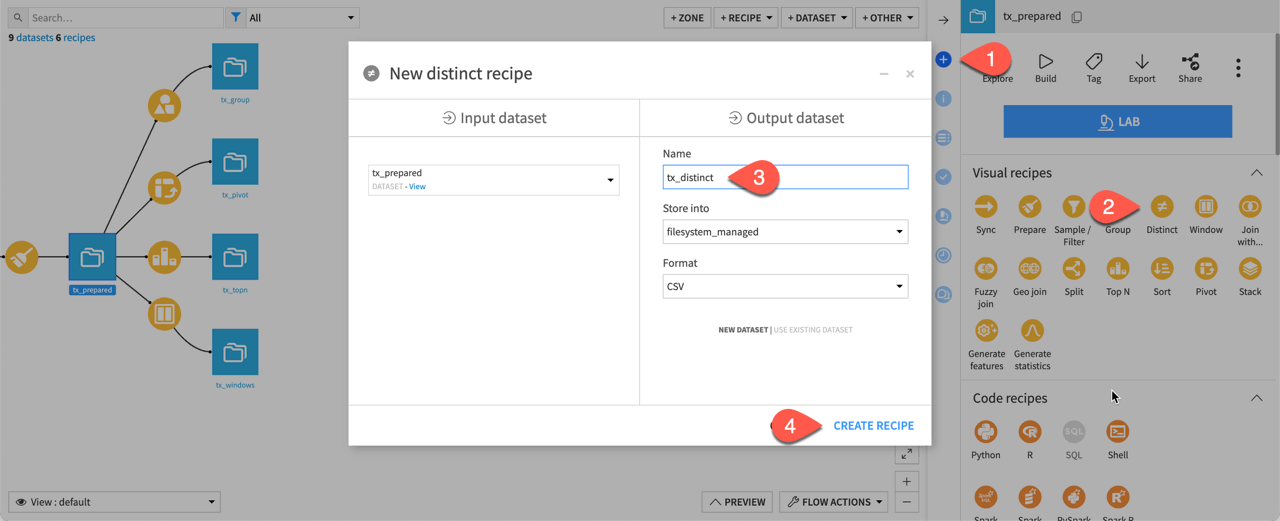
From the Flow, select tx_prepared.
In the Actions tab on the right, select Distinct from the menu of visual recipes.
Name the output dataset
tx_distinct.Click Create Recipe.
Deduplicate a dataset#
Start with a basic deduplication exercise:
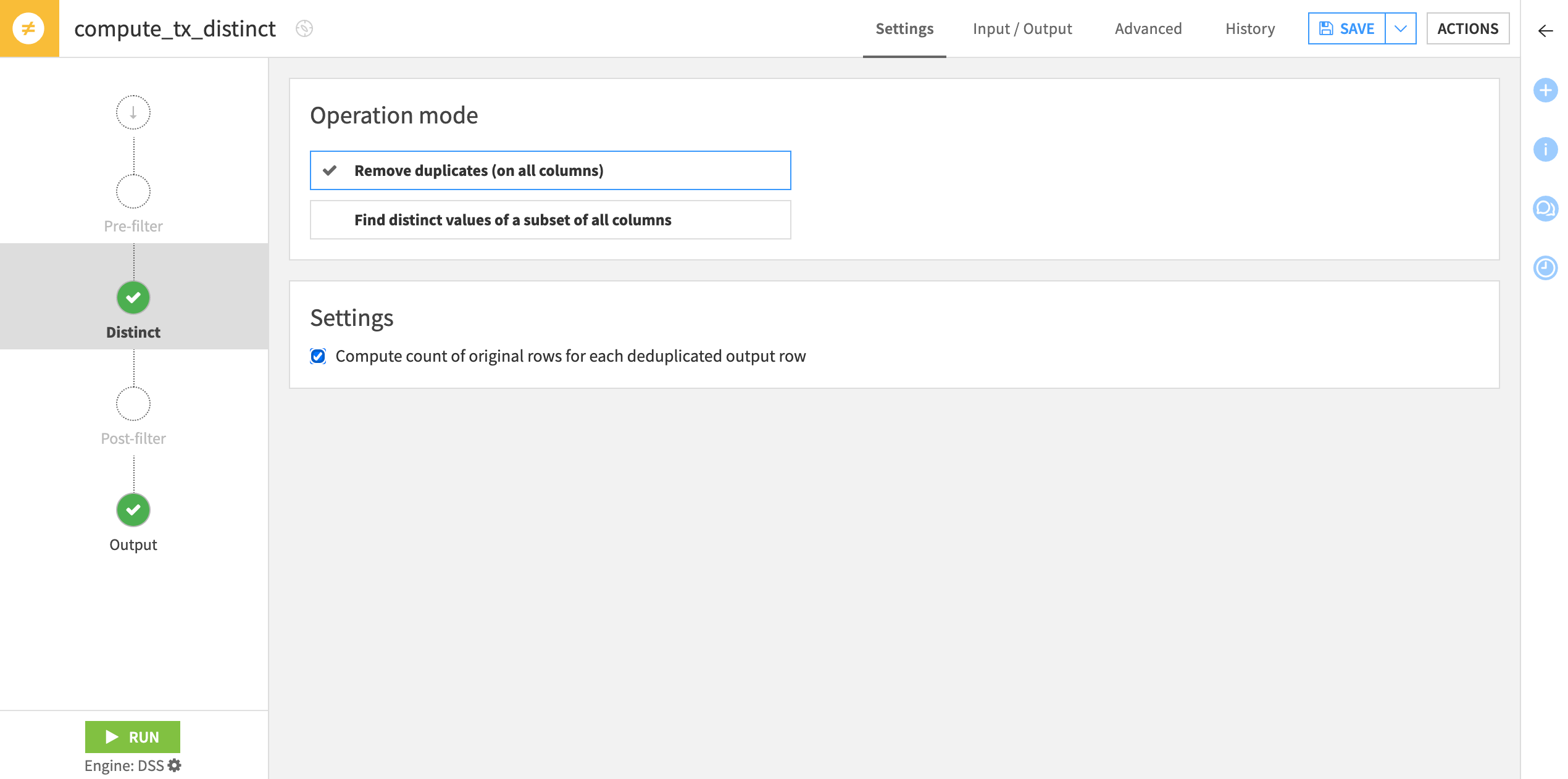
Under Operation mode, select Remove duplicates (on all columns).
Check the box to Compute count of original rows for each deduplicated output row.
Click Run to execute the recipe, and then open the output dataset.
Use a post-filter to verify uniqueness assumptions#
Were any rows removed? The Analyze window could give a one-off answer. Any value greater than 1 signals a deduplicated row.
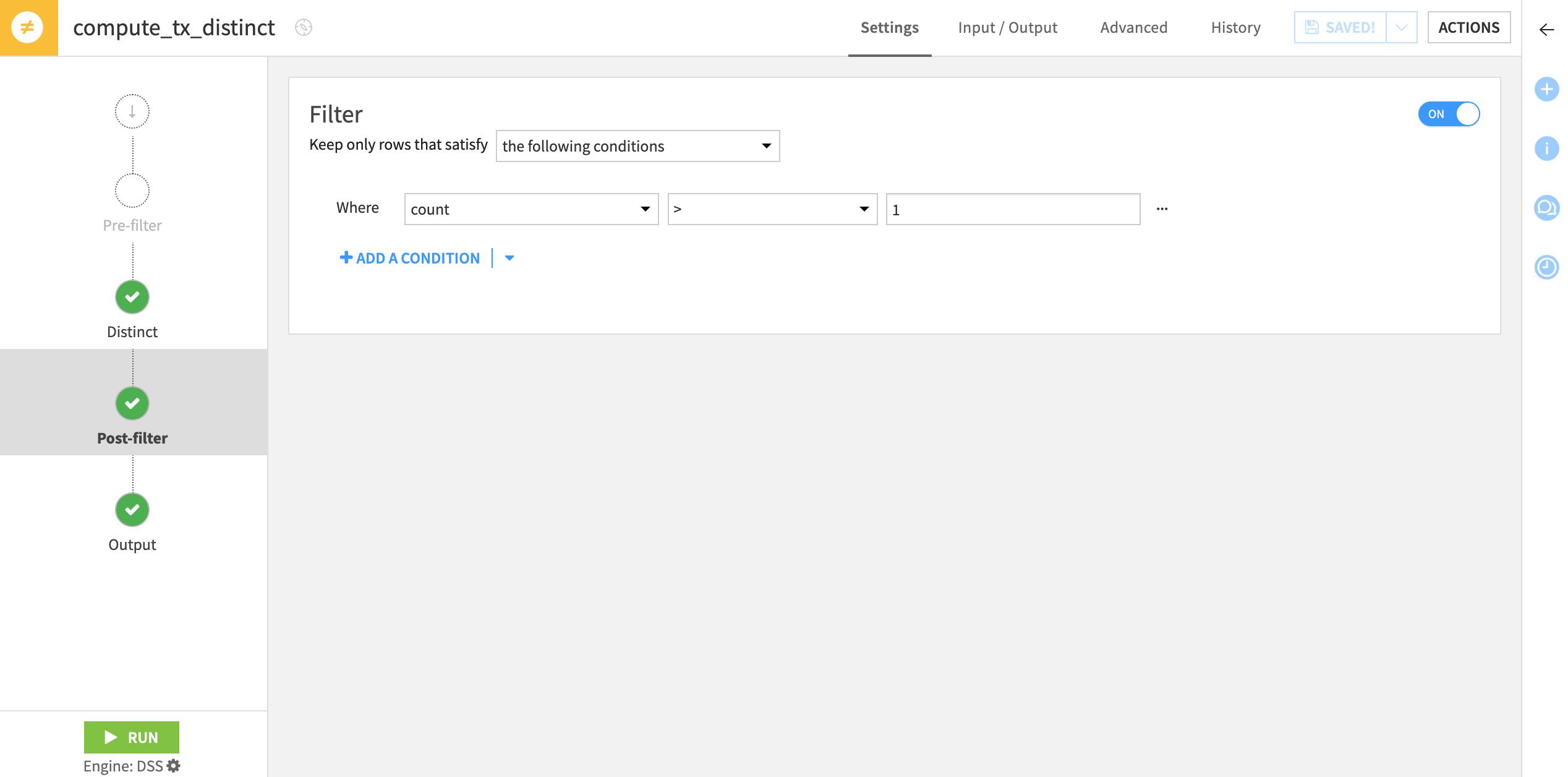
However, to build this check into the actual workflow, from which you could then add safeguards through data quality rules and scenarios, you could use the post-filter step:
From the output dataset, click Parent Recipe.
Navigate to the Post-filter step of the recipe.
Toggle On the Filter tile.
Add a condition where count is
> 1.Click Run to execute the recipe, and then open the output dataset.
Tip
Since the output has no rows with a count greater than 1, the input data had no duplicated rows.
Create a reference dataset#
You can also use the Distinct recipe to generate an authoritative source of unique values. For example, somewhere else in the Flow, or even in another project, you need the definitive list of distinct customers, merchants, etc. You could imagine needing such a list for a join or a lookup table.
From the output dataset, click Parent Recipe.
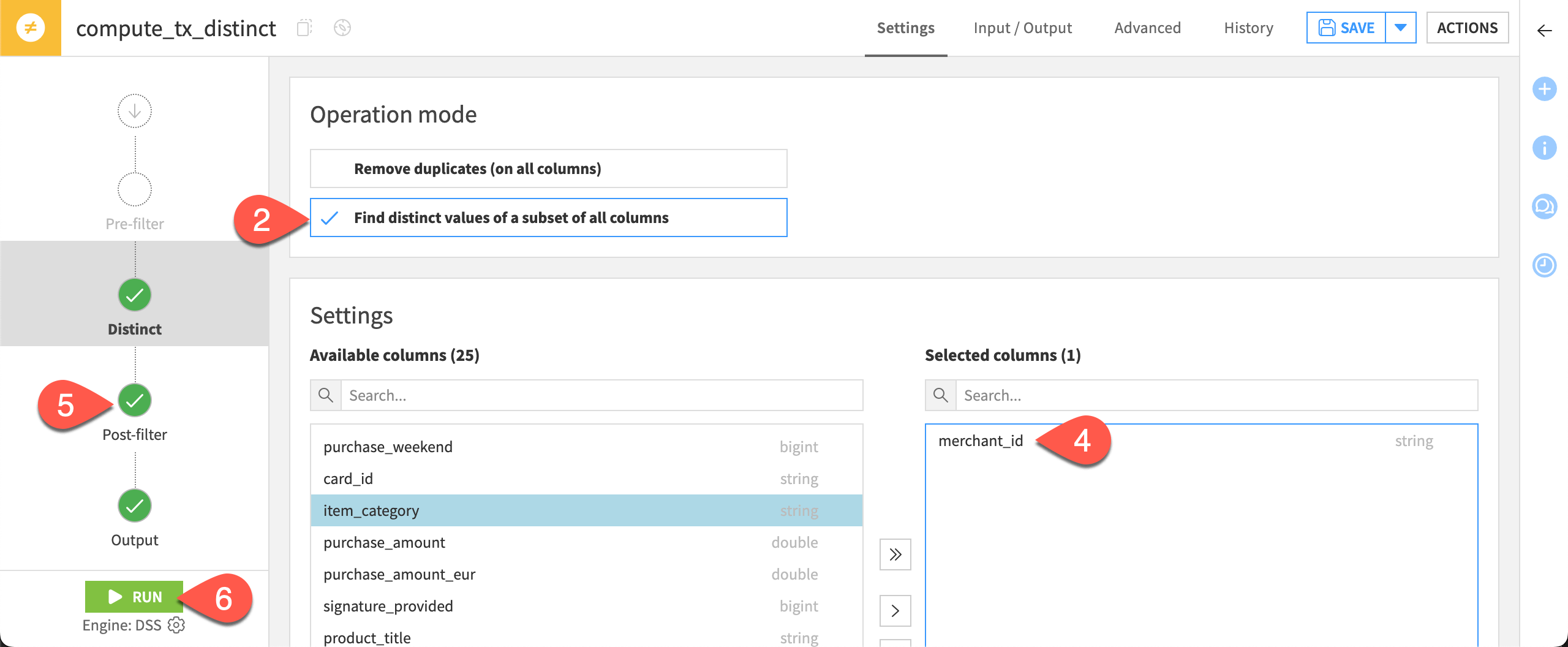
Change the Operation mode to Find distinct values of a subset of all columns.
Move all columns into the Available columns section using the double left chevron (
 ).
).Move merchant_id back to the Selected columns section using the right chevron (
 ).
).Navigate to the Post-filter step, and turn Off the previous condition.
Click Run to execute the recipe, and open the output dataset.
See also
To export or share a dataset like this, see Sharing Projects & Dataiku Assets in the Knowledge Base.
Find distinct values of a subset of columns#
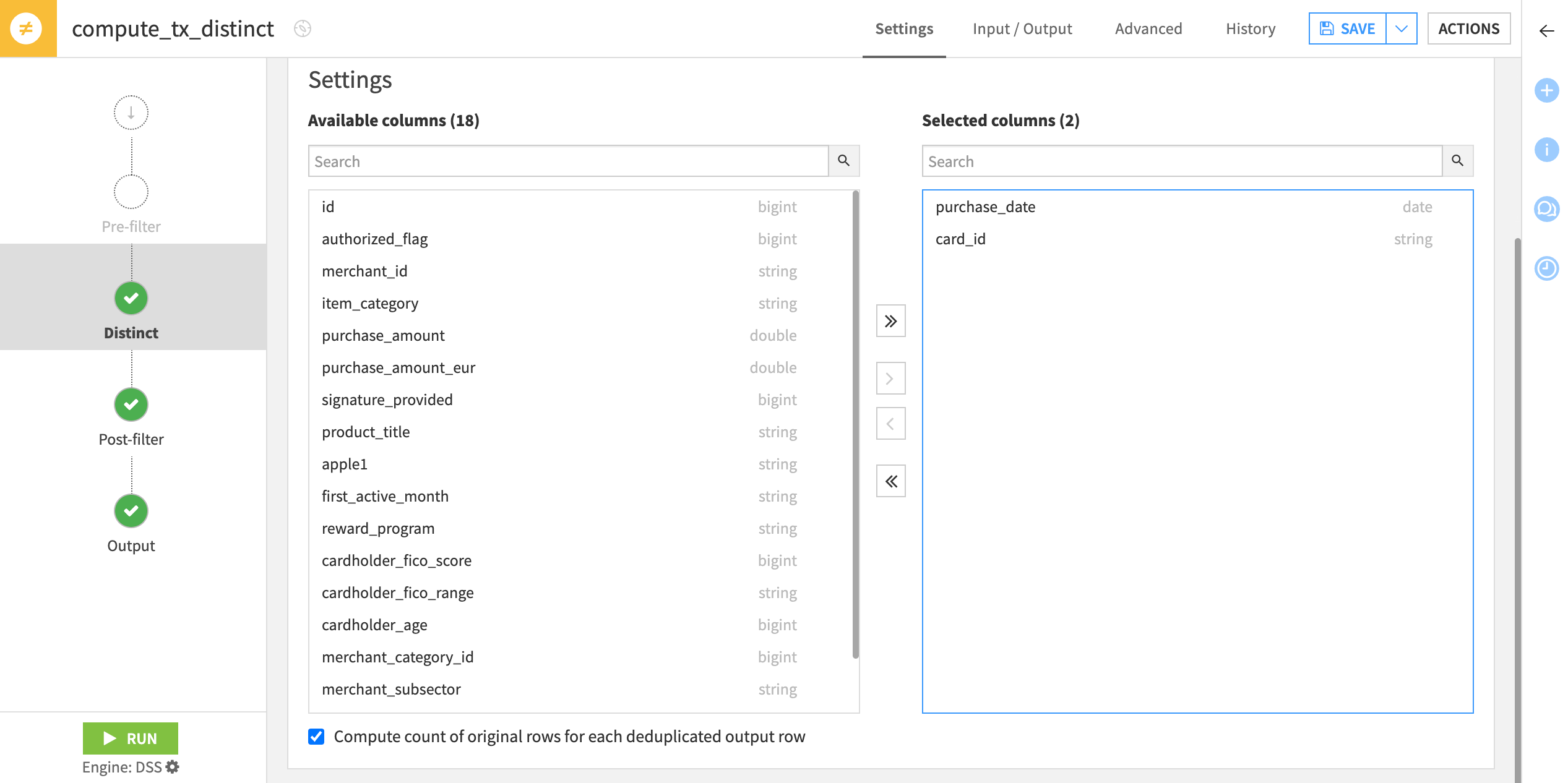
The Distinct recipe can also help you verify if a combination of columns is unique. For example, in a Window recipe, you might assume that grouping by card_id, and ordering by purchase_date would produce a deterministic row order (which is important to get the correct calculations). The Distinct recipe can verify if that assumption is true.
Find out if there are any duplicate combinations of purchase_date and card_id:
From the output dataset, click Parent Recipe.
Under Settings, adjust the columns to select only purchase_date and card_id.
On the Post-filter step, toggle back on the filter to keep only rows with a count greater than
1.Click Run to execute the recipe, and then open the output dataset.
What this output proves is that it’s actually common for one customer to make multiple transactions on the same day!
Next steps#
Well done! You’ve seen now how you can use the Distinct recipe for deduplication, but also a variety of other analytical questions around uniqueness.
See also
For more information on this recipe, see Distinct: get unique rows in the reference documentation.
To try out more visual recipes, visit our page on data preparation and transformation!