

Concept | Cobuild#
Cobuild is a built-in agent with a conversational interface to generate and manage your work in Dataiku.
You can use natural language to build and maintain the full data and AI lifecycle, from data prep to model building, Flow management, agent creation, documentation, and governance.
Cobuild leverages the reasoning power of LLMs to translate your prompts into actions in Dataiku. It builds a visual Flow that you can review and edit, giving you control over results.
Unlike a general-purpose chatbot, Cobuild creates and modifies actual Dataiku assets — including datasets, recipes, models, agents, dashboards, scenarios, webapps, and documentation.
To list a few examples, you could prompt Cobuild to:
Suggest and calculate multiple insights from a dataset.
Find potential issues in a dataset, then create Prepare recipes or data quality checks to address them.
Create predictive models from a dataset, run training sessions, and recommend the best performing model for deployment.
Build AI agents that act on your datasets and documents.
Write a Python recipe to execute customized actions.
Important
To use Cobuild, you must be running Dataiku 14.7 or later. An administrator must enable Cobuild and configure either:
Dataiku AI Services (operated by Dataiku), or
Bring your own LLM through the LLM Mesh.
The administrator must also configure user access permissions and, if applicable, the models used by Cobuild and agent-building workflows.
For more about setup, see Cobuild in the reference documentation.
Working with Cobuild#
Cobuild works within Dataiku projects.
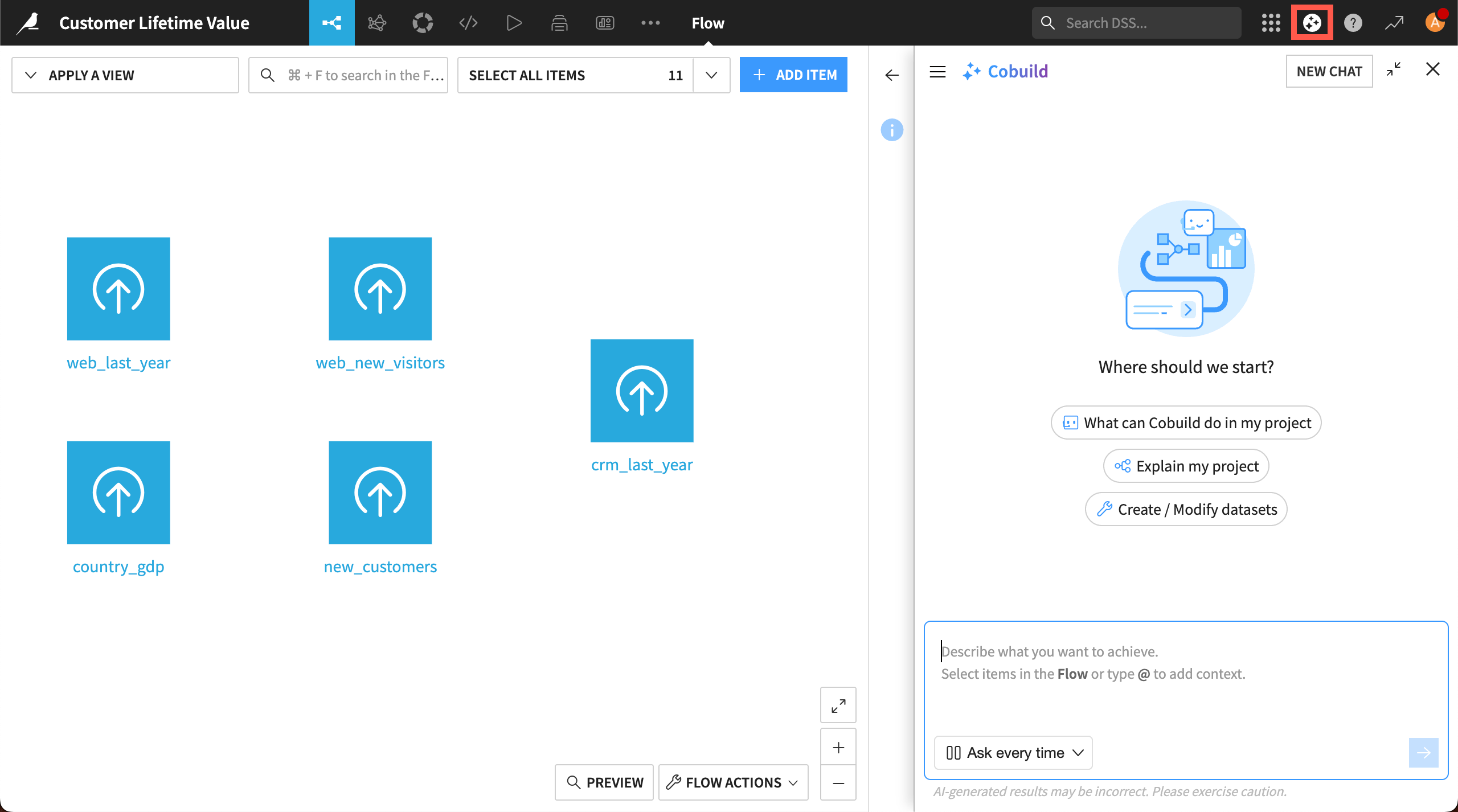
From a project, start a conversation by clicking the Cobuild ( ) icon on the top right of the navigation bar, or by using the keyboard shortcut
 g + b.
Prompts#
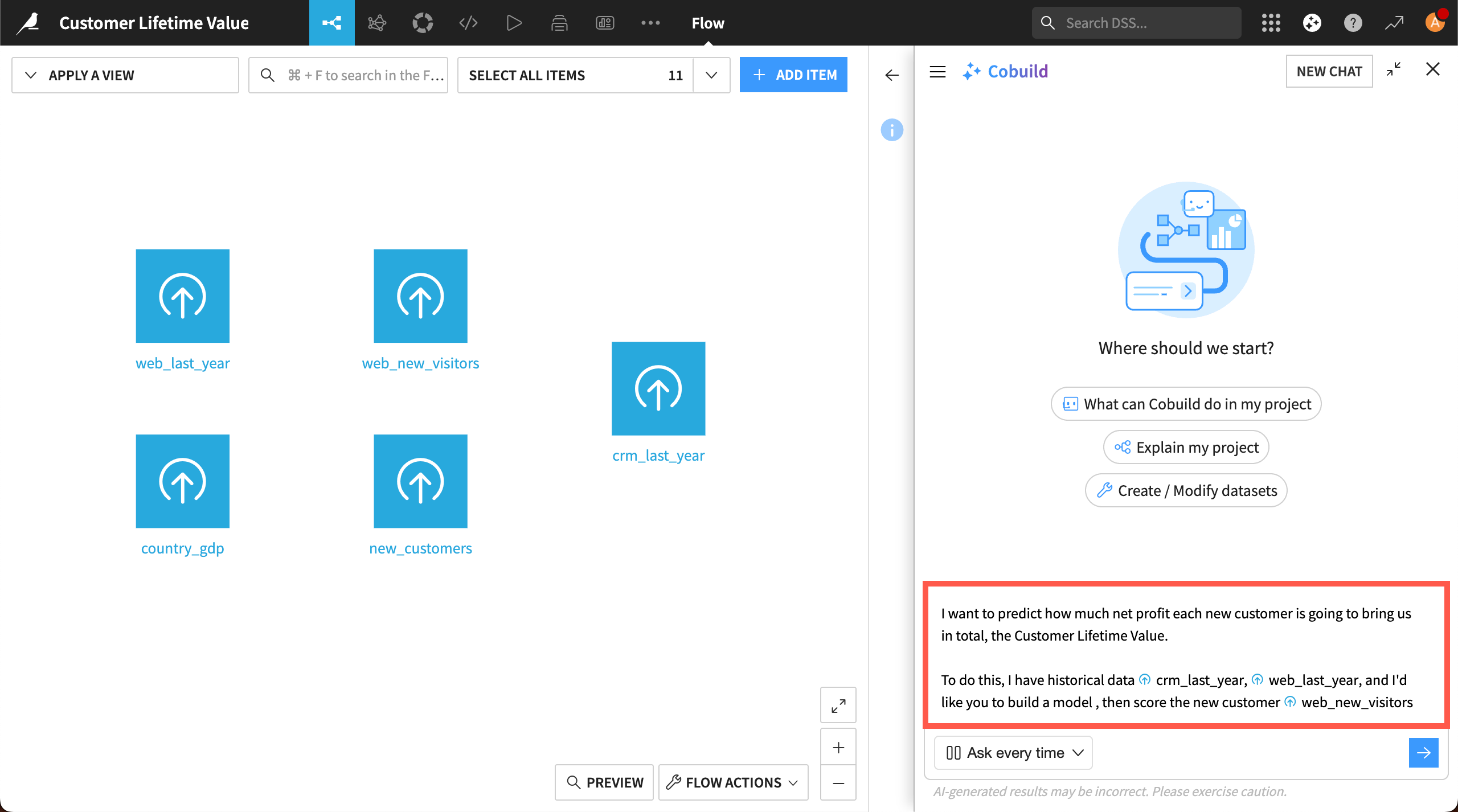
In the chat window, give Cobuild a prompt describing what you want to accomplish.
A place to start might be with broad prompts to help understand your project or decide next steps, such as “Explain this project to me” or “Suggest ways to improve the efficiency of this Flow.”
You can also prompt Cobuild to take specific actions, such as building objects like recipes, machine learning models, webapps, and agents (depending on your access and permissions).
In a prompt, you can give Cobuild context about objects to work in by typing @ and selecting the object from the list of suggestions. Cobuild also will take context from the page you have open or objects you have selected in the Flow.
Activities#
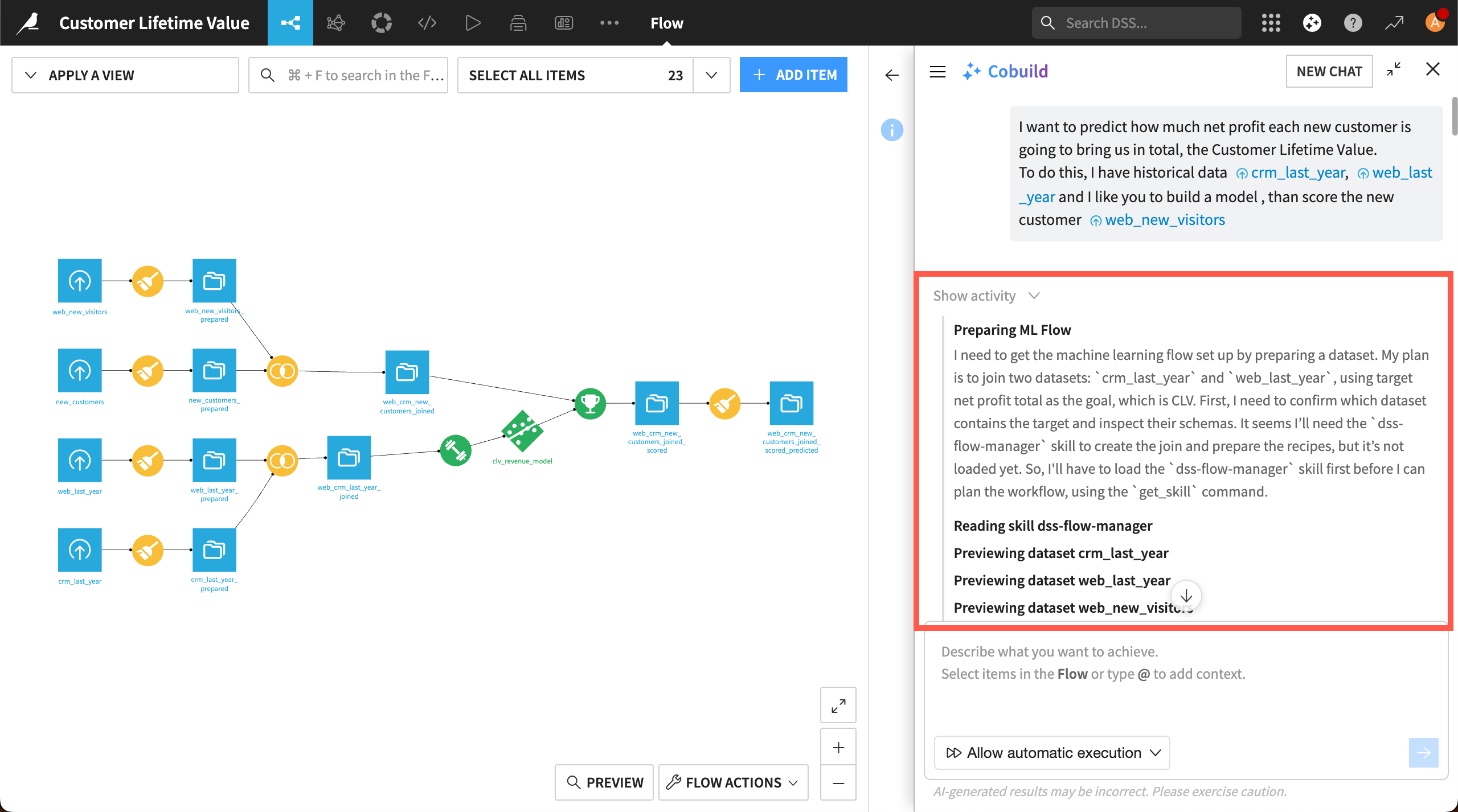
Cobuild uses an LLM to reason through your task. As it reasons, you can watch the steps Cobuild is taking in the conversation window.
After Cobuild responds, click the Show activity button to view full explanations of its reasoning and actions.
Output#
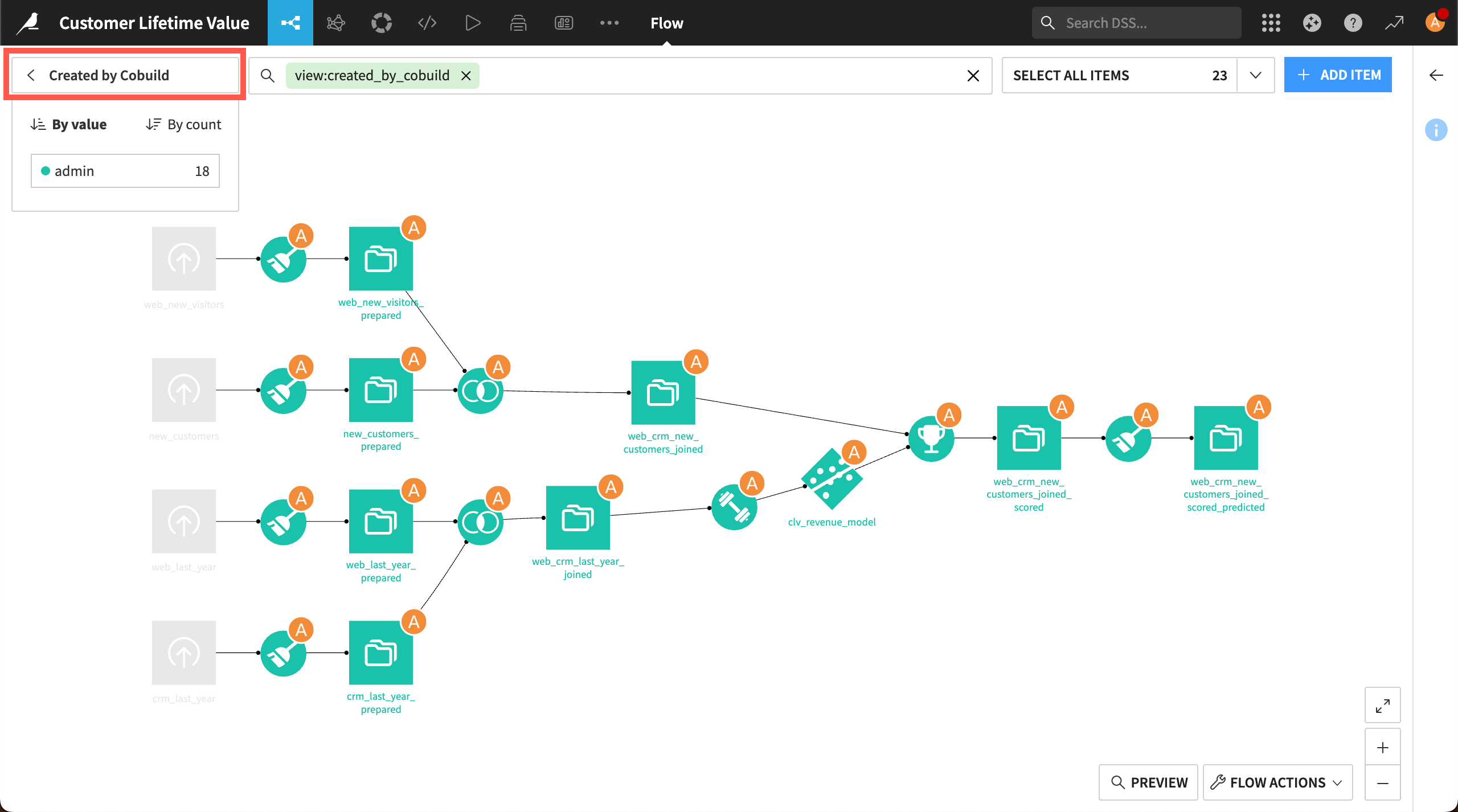
As you work, you can navigate through the Flow to confirm, edit, or update any object built by Cobuild, as you normally would for any object in the Flow.
To find all of Cobuild’s actions in the Flow, go to Flow views, and choose Created by Cobuild.
Conversations#
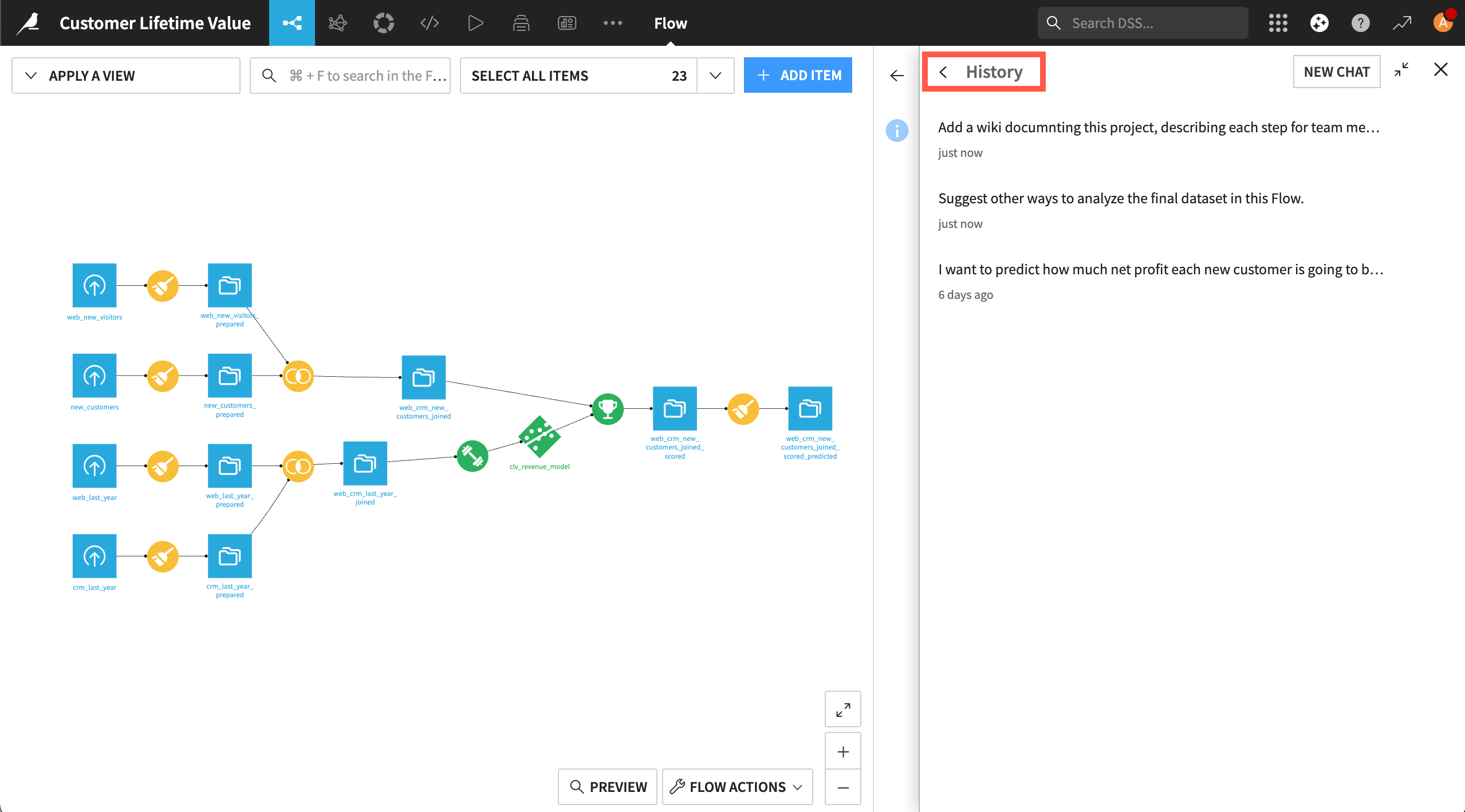
Cobuild preserves conversation history, and you can start multiple chats within a project. View your history by clicking the list icon ( )in the top left of the Cobuild window. You can rename or delete chats in the history window.
If multiple users are working on the same project, they each have separate conversations with Cobuild and can’t see each other’s chats.
Important
Each user with a Designer-level profile is allocated monthly credits for Cobuild, and customers can purchase additional credits.
Permissions#
Cobuild requires several levels of permissions at the instance, user, project, and conversation levels.
First, your administrator must enable Cobuild on an instance and grant permissions to users by group. The admin can grant different Cobuild capabilities to various groups.
You must also grant permission for Cobuild to access the project you’re working on. Then Cobuild has the same access level to work in the project as your Dataiku user profile.
If you have a Data Designer profile, for example, Cobuild can access Dataiku’s visual features, such as data preparation and visualization. For Full Designers, Cobuild can access the same, plus coding and machine learning features.
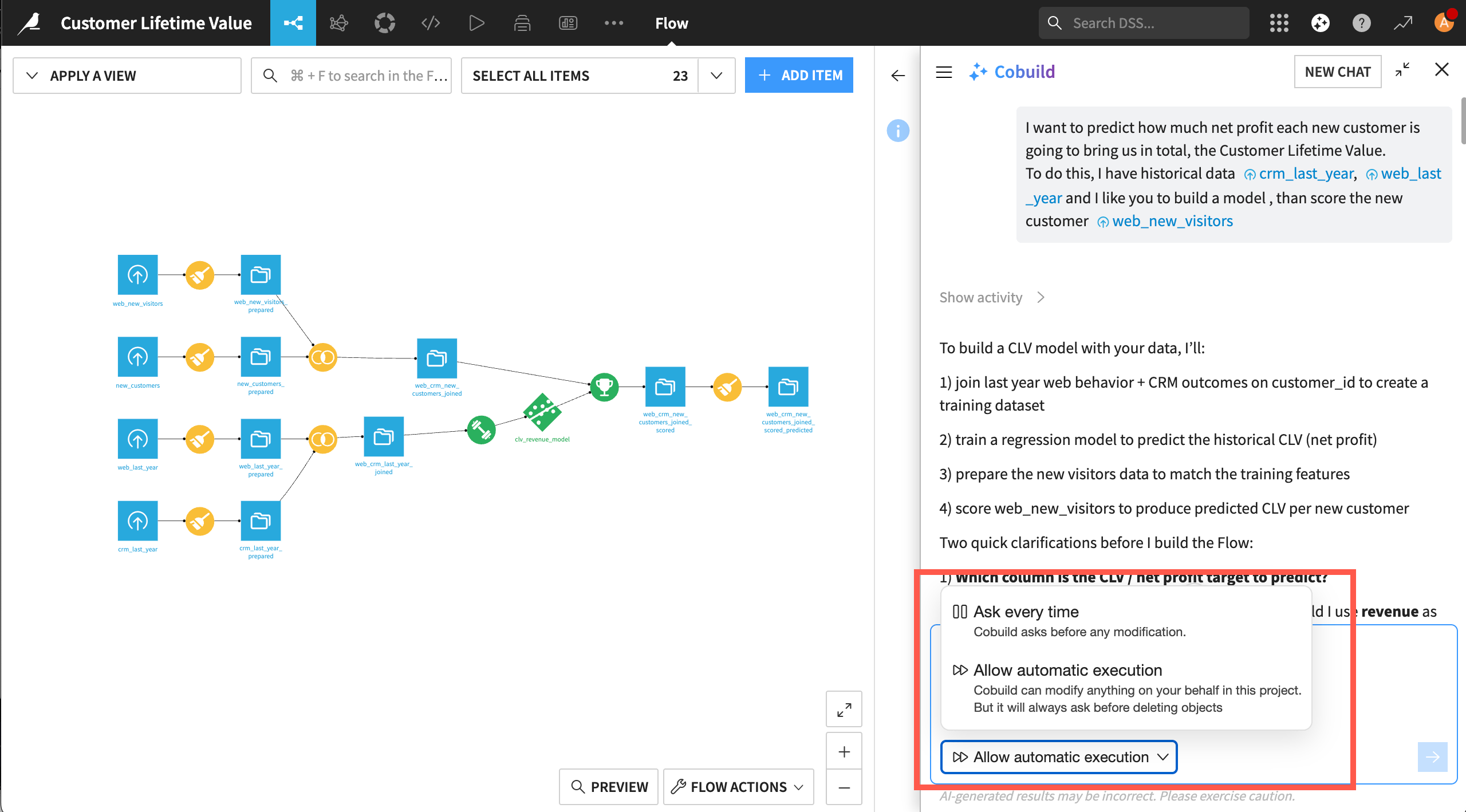
At the conversation level, you can require Cobuild to ask for confirmation before completing tasks. In the chat window, you can choose between:
Conversation setting |
Outcome |
|---|---|
Ask every time |
Cobuild will ask before making any modification. |
Allow automatic execution |
Cobuild can modify anything in the project without asking, but will always ask before deleting objects. |
Next steps#
Try your hand at prompting Cobuild in Tutorial | Cobuild basics.