

Concept | Adding a governance layer to Dataiku items#
An organization may have thousands of synced Dataiku items eligible for governance. A large AI portfolio requires organizations to make strategic decisions about what to govern. The Govern node administrator can implement these decisions with instance-level governance settings.
These settings shape the boundaries of the end user’s role in governing items. Still, a number of governance decisions often remain in the hands of end users.
The governance decision#
Taking into account an organization’s governance settings, the first decision for an end user is whether to govern or hide a specific item. Namely:
Is the item something you want to track with a workflow, validate with a feedback process, or enrich with additional documentation?
Or should you hide it from view?
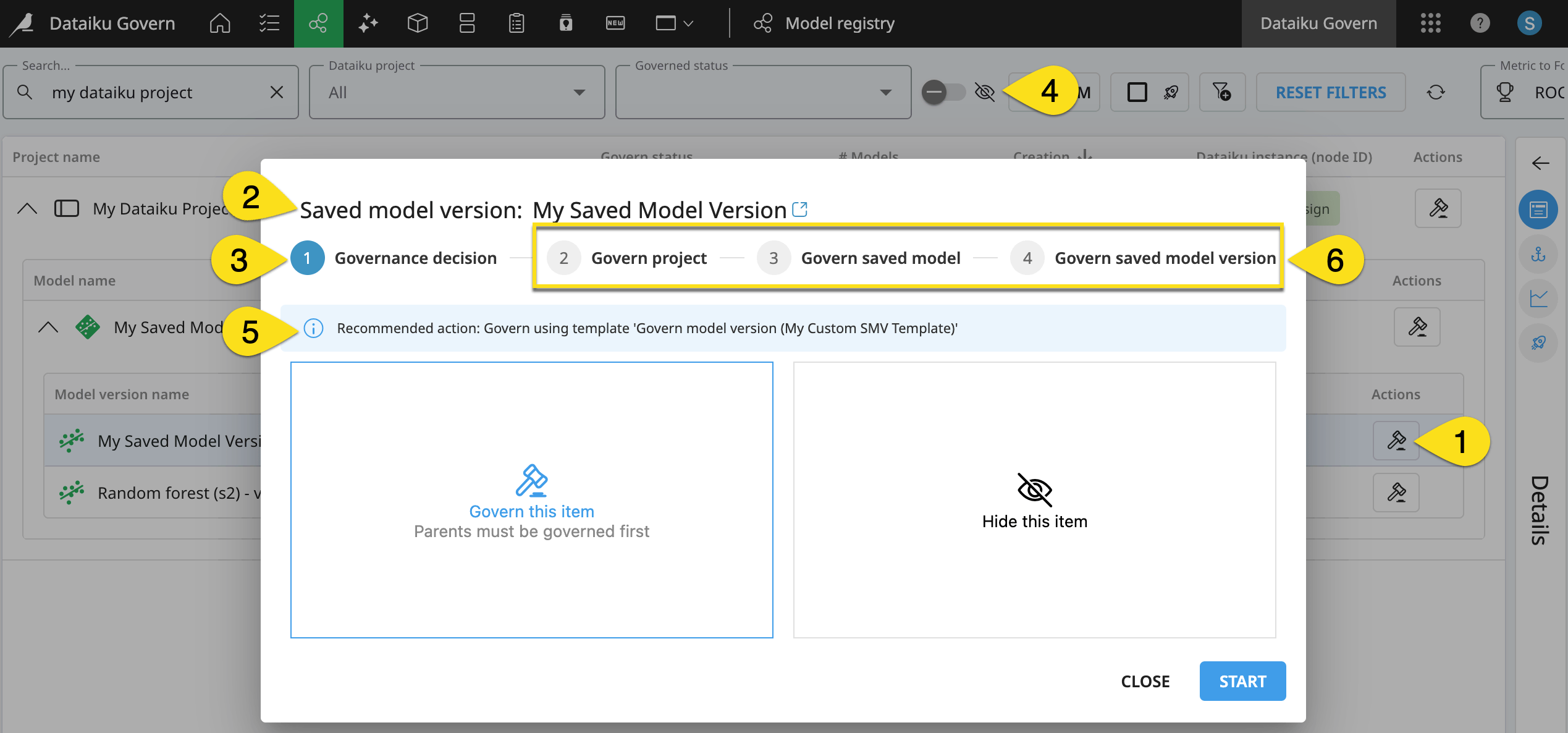
Follow the markers in the screenshot below to better understand this process.
End users can initiate a governance decision by clicking the gavel (
 ) in the row of an item from either the Governable items or the item registry pages.
The top of the modal indicates the type and name of the item that the user intends to govern.
The first step is deciding whether to govern or hide the selected item.
If necessary, you can include hidden items in results using the (
 ) toggle at the top of Govern node pages.
Depending on the instance-level governance settings, it’s possible you’ll see a recommendation of how to handle the item.
The remainder of the procedure for applying a governance layer to an item depends on its position in the item hierarchy. See below for more information.
The depth of governance#
When considering items synced from connected Dataiku nodes, the project is the top-level item in the Dataiku information hierarchy. When thinking about governance strategies, your organization has a choice about how deep into this information hierarchy they want to govern.
If you govern at the project level, you have the option of extending this layer to include child items.
If you start from the child items, such as bundles or model versions, you’ll end up governing the parent items as well.
Tip
In other words, your organization may decide to govern only Dataiku projects. However, it isn’t possible to govern only child items like saved model versions without also governing the parent model and project.
The screenshot above demonstrates the latter case: a user applies a governance layer to a saved model version. Accordingly, as shown in marker 6, the governance modal guides the end user to:
First, govern the parent project.
Then, govern the parent saved model.
Finally, govern the selected saved model version.
The project definition#
Regardless of how deep into the Dataiku item hierarchy you’re attempting to govern, you’ll need to define a few settings with respect to the project level.
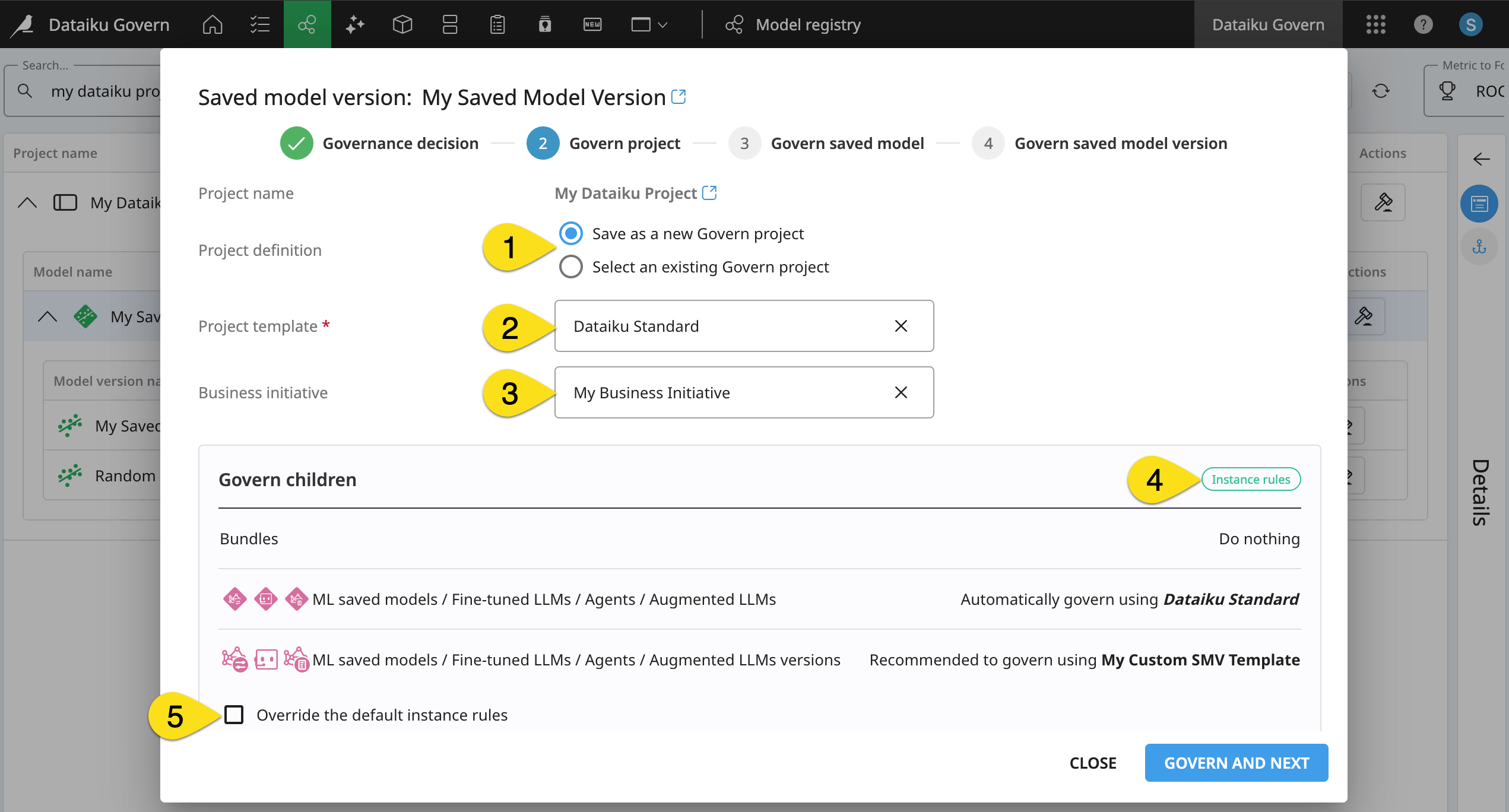
When applying a governance layer, you have two options with respect to defining the project’s representation in the Govern node (see marker 1 in the screenshot below).
Project definition |
Use case |
|---|---|
New Govern project |
You have an existing Dataiku project that you want to govern. |
Existing Govern project |
You pre-qualified a project in the Govern node that you now want to link to a Dataiku project. |
Tip
If you’re getting started with the Govern node, you most likely already have Dataiku projects that you want to govern. In that case, you’ll want to create new Govern projects.
The governance template#
Governing an item means applying a certain governance template to it. This may be the Dataiku Standard template available to all users. If your organization holds an advanced license, you may also be able to choose from custom templates created by your administrator.
In the example above, the standard template will govern the project (see marker 2).
See also
You’ll see the purpose of these governance templates in Concept | Governed items.
The Business initiative#
The project is at the top of the information hierarchy among Dataiku items. However, the Govern node introduces a new optional level higher than a Dataiku project: a Business initiative (see marker 3 in the screenshot above).
Business initiatives serve as an extra level of organization to group governed projects under a shared theme. This can be a key tool for monitoring progress on shared goals, assessing risk and value, and delivering greater visibility into the return on investment of an initiative.
Tip
You can walk through an example of adding a governed project to a Business initiative in the Manage governed projects with Business initiatives section of the basics tutorial.
Instance rules#
Govern node administrators define instance-level governance settings to shape the governing tasks of end users. These rules can come in two forms:
Automatic, thereby removing the governance decision from the end user entirely.
Recommendations, thereby guiding the end user to the organization’s suggested action.
An end user attempting to govern a new item sees their current instance rules. To dissect the above example see the table below marker 4:
The instance rule for models is to govern automatically according to the standard template. Therefore, on step 3 (Govern saved model), the user won’t have any action to take. The model will have already been governed.
The instance rule for model versions is to recommend governing according to a custom template. On step 4 (Govern saved model version), the user will see this template selected as the instance recommendation. However, the end user can still take any decision.
Overriding instance-level governance settings#
Instance-level governance settings don’t prevent end users from taking their own decisions. A user can override the default instance rules (see marker 5 in the screenshot above), and replace them with custom ones.
You can further explore this option with a second example below.
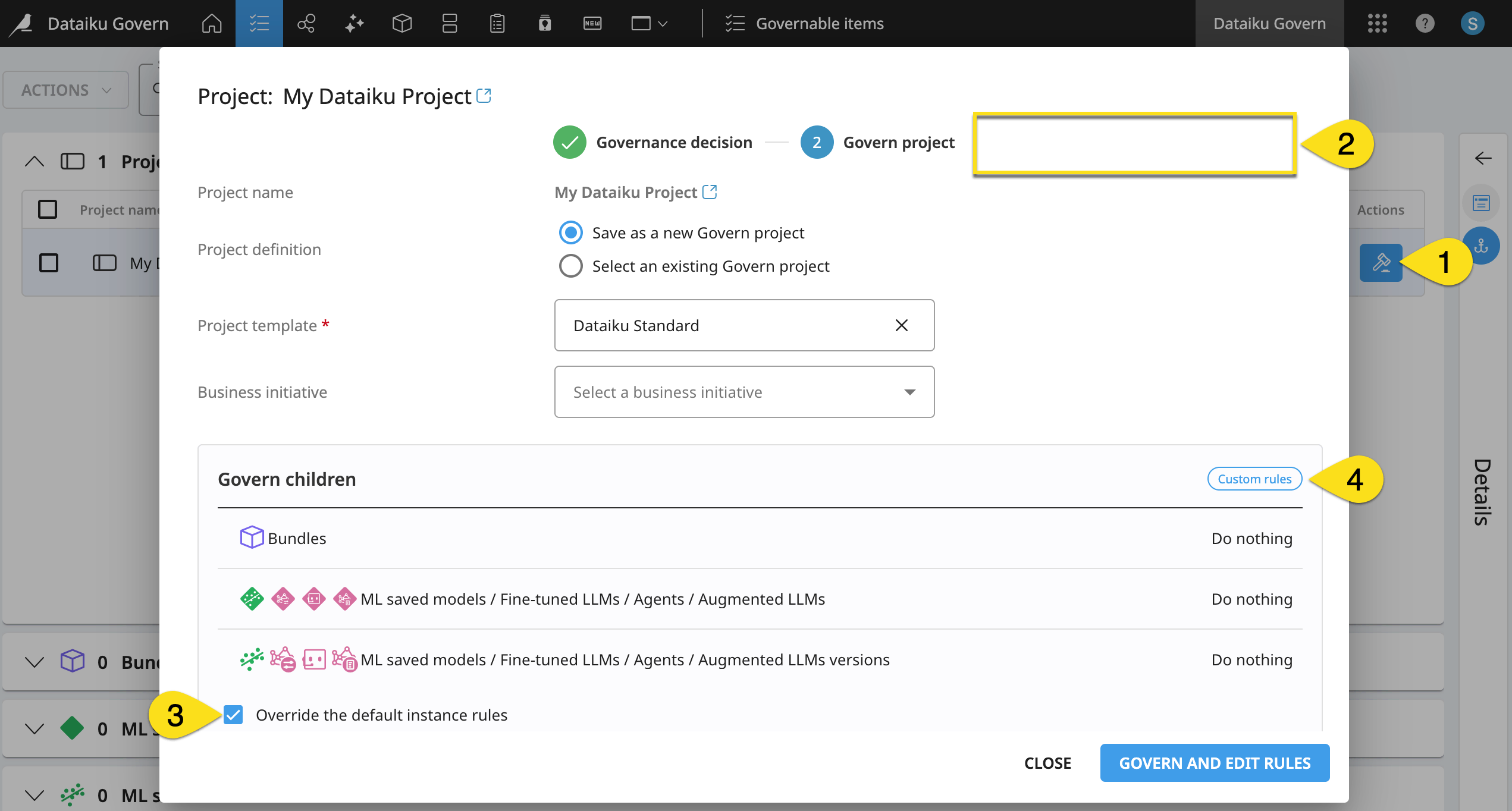
From the Governable items page, a user selected a project to govern (instead of a saved model version).
By governing at the project level, there are no steps 3 and 4 — unlike in the example above.
The user chose to override the default instance rules.
Consequently, the governance of any child items belonging to this project will follow custom rules that the user will define in the resulting project’s Governance settings panel.
Tip
If you’re only getting started, try governing at all levels of the Dataiku information hierarchy (from projects down to child items like bundles and saved model versions). This way, you’ll understand what value it might bring. Later, you can restrict your governance activities to the project level, should you so choose. Ultimately, organizations will need to decide what works best for their own needs!
Next steps#
Now that you’ve seen how to add a governance layer to Dataiku items, learn about the resulting objects in Concept | Governed items!