

Concept | Semantic Models Lab#
Semantic models help structure and generate context around data. AI agents can leverage them to deliver accurate, fast, and reliable answers to complex business queries that require fetching information from structured datasets.
LLMs excel at writing SQL, but without relevant context, they can struggle to discern the correct meanings in data sources. This can lead to an agent creating inaccurate SQL queries and thus delivering unreliable answers to user questions.
For example, LLMs might be unable to distinguish between ambiguous column names such as revenue and adjusted_revenue. Or they might need to be instructed with a specific business context, such as when the fiscal year begins and ends.
In Dataiku, you can use the Semantic Models Lab plugin to address problems like these. The plugin contains two components:
Semantic Model Editor: An interface where you provide clear context and definitions for underlying data sources.
Semantic Model Query: An agent tool to execute SQL queries using the contextual layer.
Important
There are several prerequisites for using semantic models:
The Semantic Models Lab plugin (available in Dataiku 14.4 and later), installed by an administrator.
An LLM connection also set up by an admin. An embedding LLM is required for certain features.
An SQL dataset.
Semantic Model Editor#
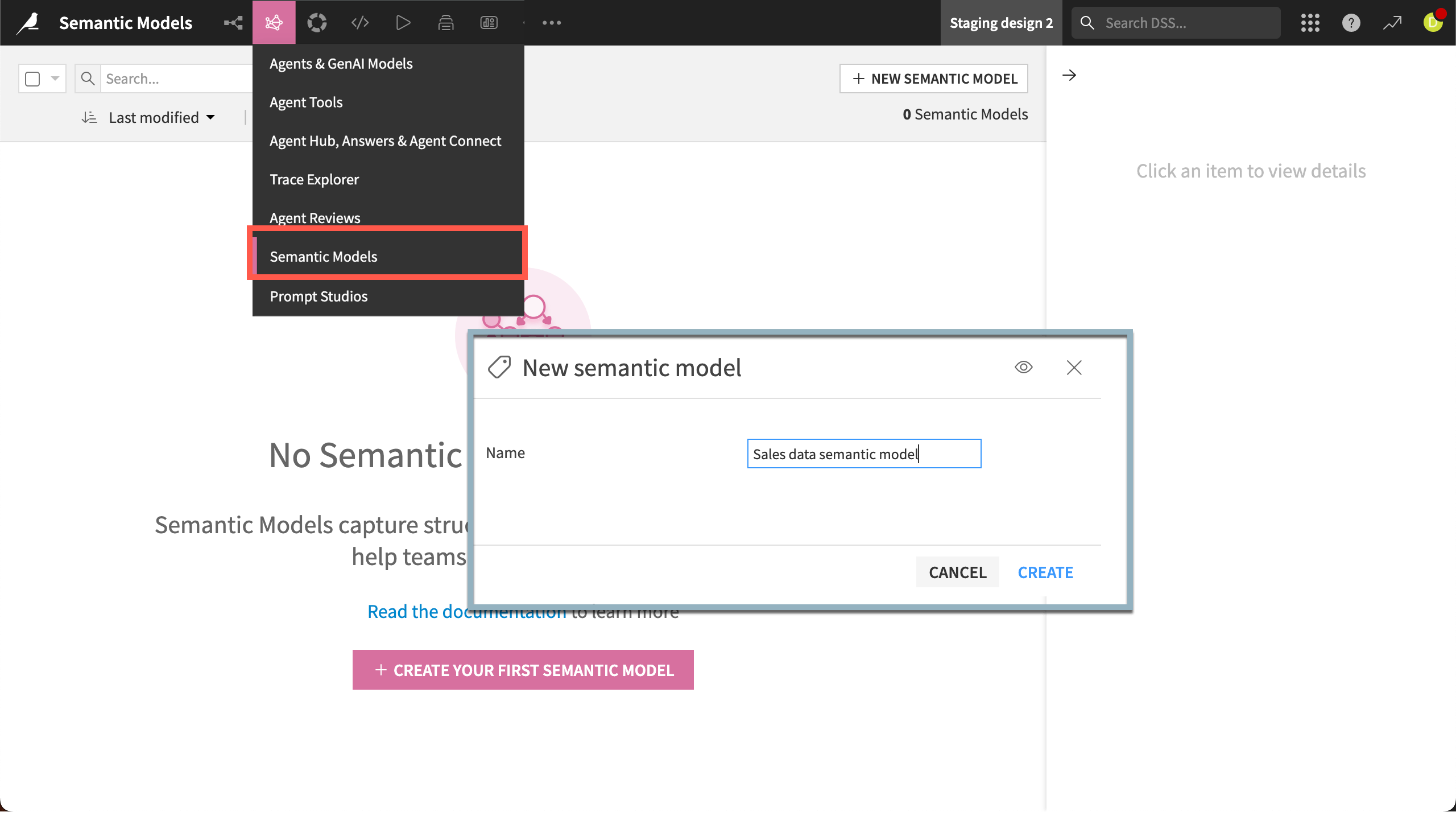
The Semantic Model Editor allows you to create, test, and implement semantic models linked to specific datasets and use cases.
After you install the Semantic Models Lab plugin, the editor is available in the GenAI menu ( ) > Semantic Models.
Entities#
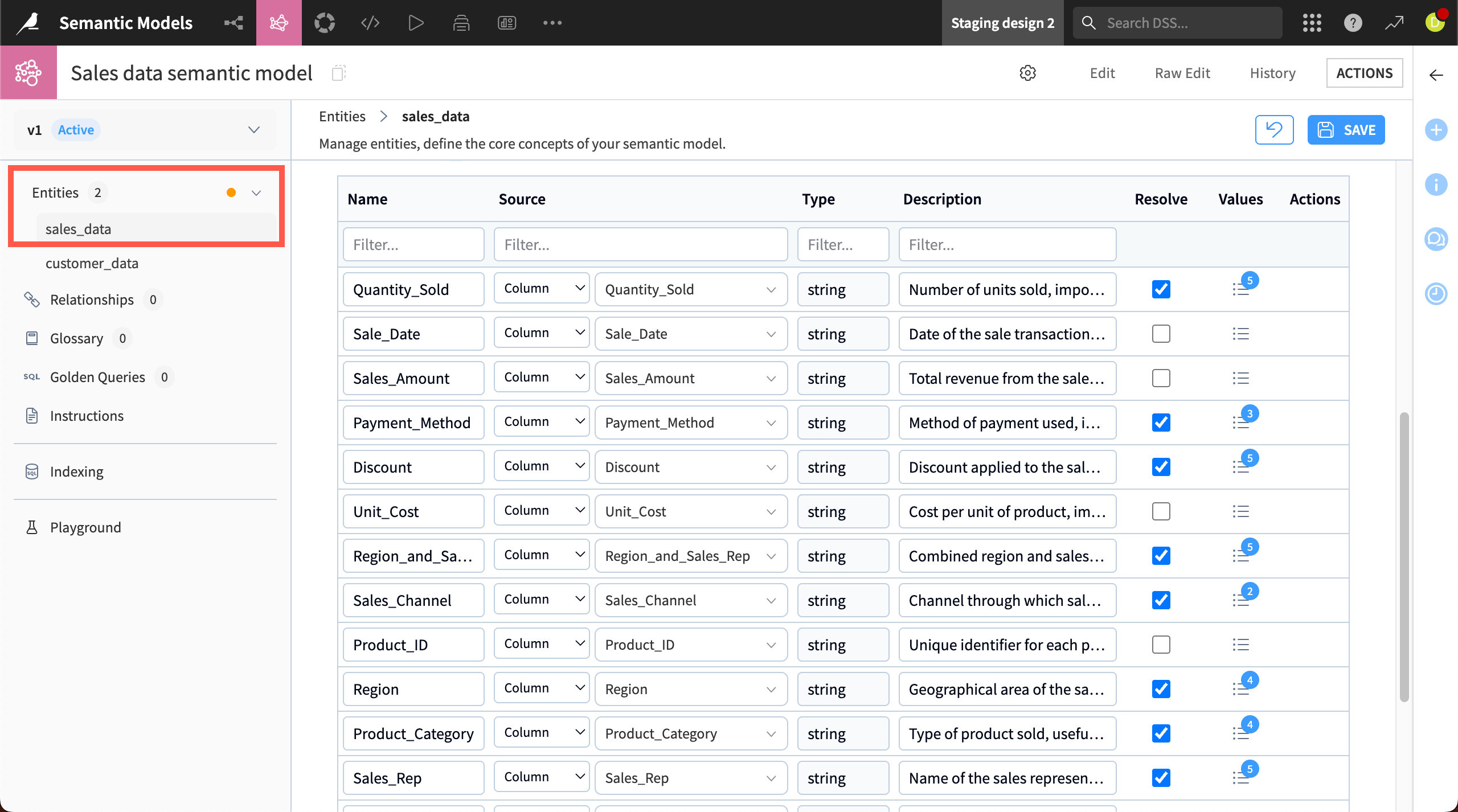
The first step to creating a model is to add Entities, or tables that will be linked with context, from specific projects. When you add an entity, you can choose to create it manually or automatically via an LLM connection.
You can split large datasets into multiple entities. For example, a large client database with hundreds of columns might be split into multiple entities with related columns, such as customer_details, contracts, and call_notes.
Tip
Before creating entities, it’s good practice to ensure that datasets are prepared and include metadata describing each column. You can use the Generate Metadata AI assistant.
Each entity is made of several components:
Item |
Description |
|---|---|
Attributes |
Columns from the table or dataset, with a name, data type, description, and other information. |
Metrics |
Aggregations of attributes, such as count or sum. |
Filters |
Filters applied to attributes, used if you want the agent to use only certain records in its queries. |
Relationships#
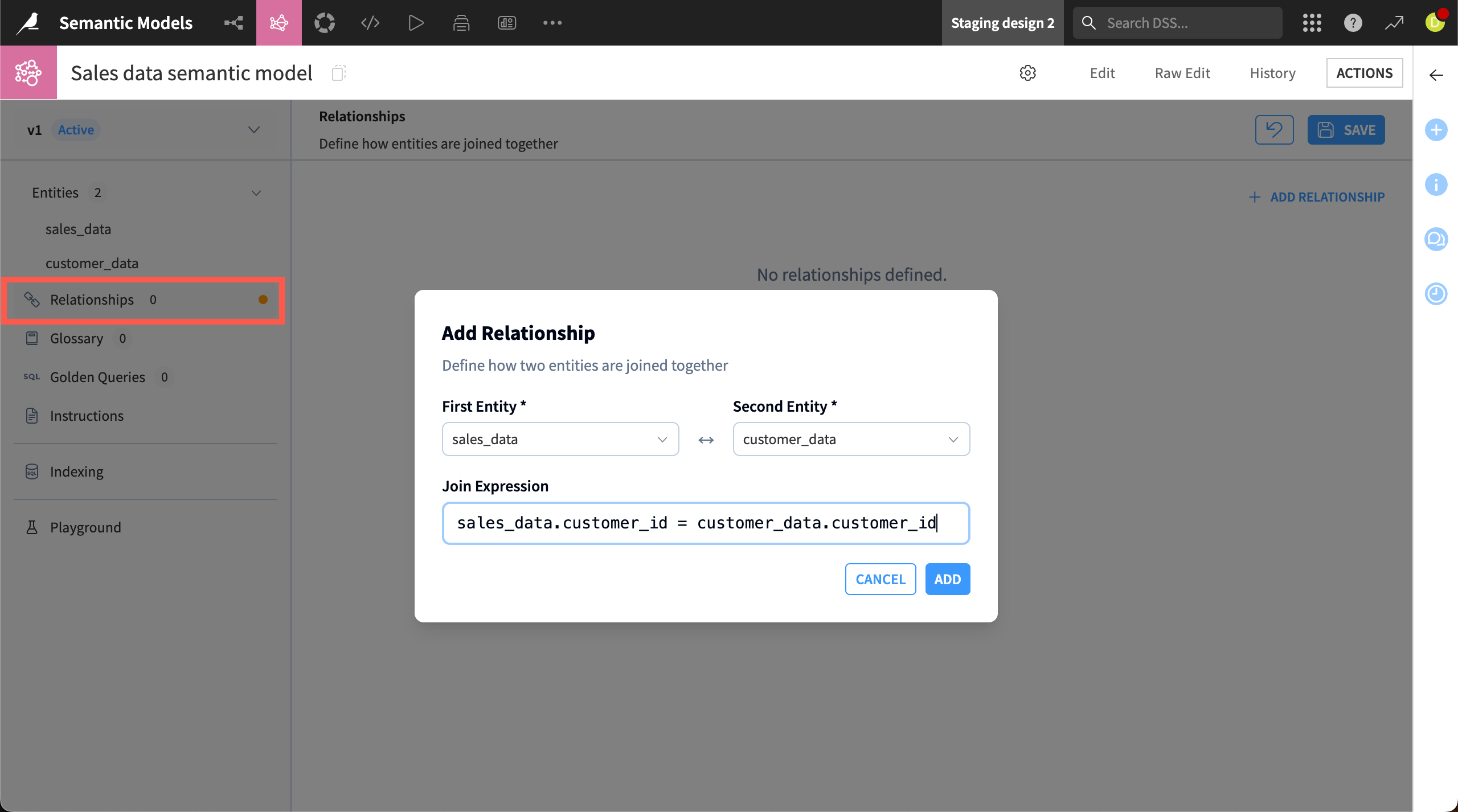
The Relationships panel shows the links between the entities. You can define how to join them using SQL syntax.
Glossary#
In the Glossary, you can add business terms, synonyms, and definitions to build more business context around the data.
In the client database example, you could define terms that your end users might use, such as high-potential client, define it with parameters from the dataset, and add synonyms like high value and strong possibility. The semantic model will then recognize high-potential clients with this definition when a user queries with any of those terms.
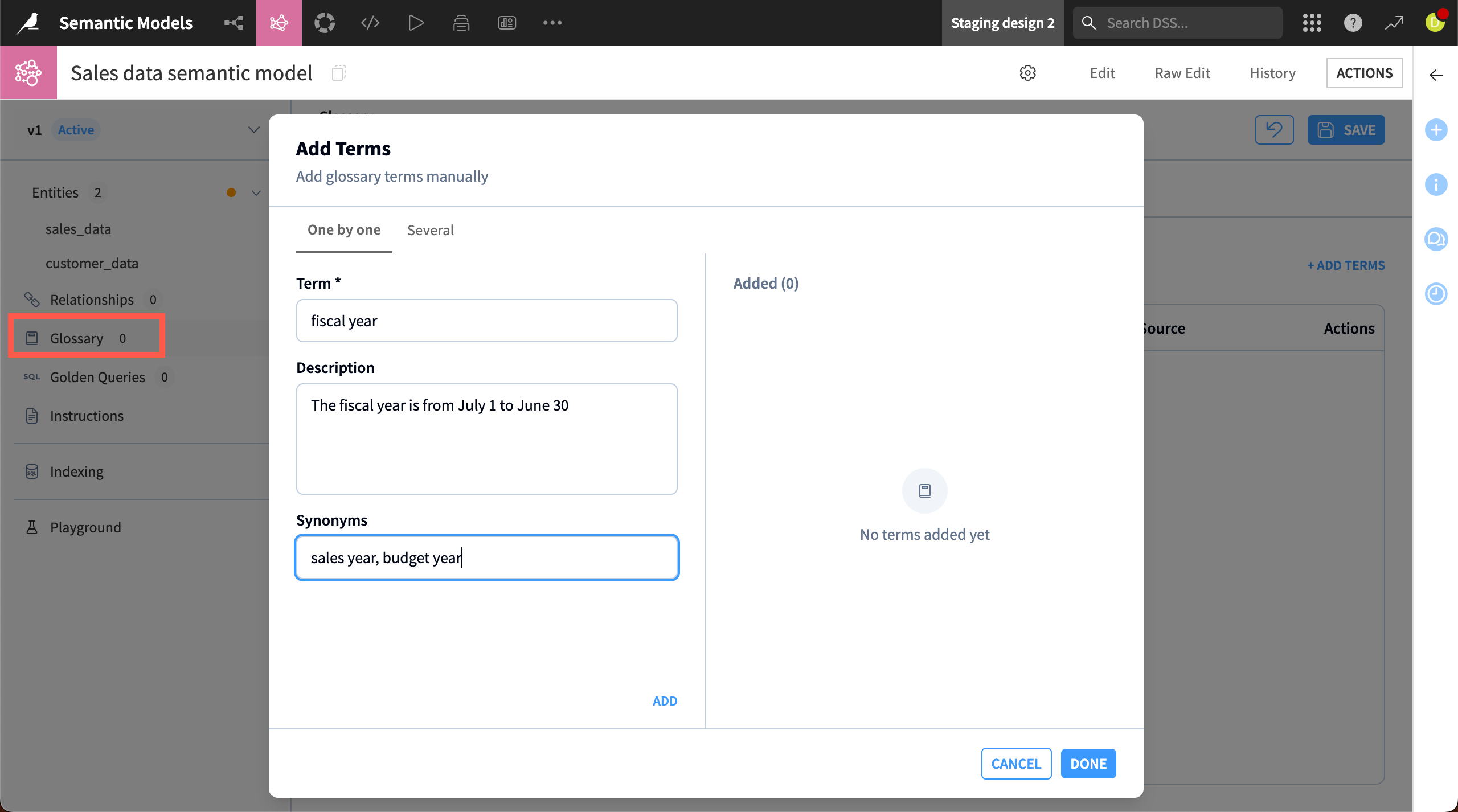
You can add terms either manually (one by one or in bulk in CSV format) or by uploading documents and extracting text from them.
Important
To extract terms from a document, you need an LLM connection and a document extraction code environment set up by an administrator.
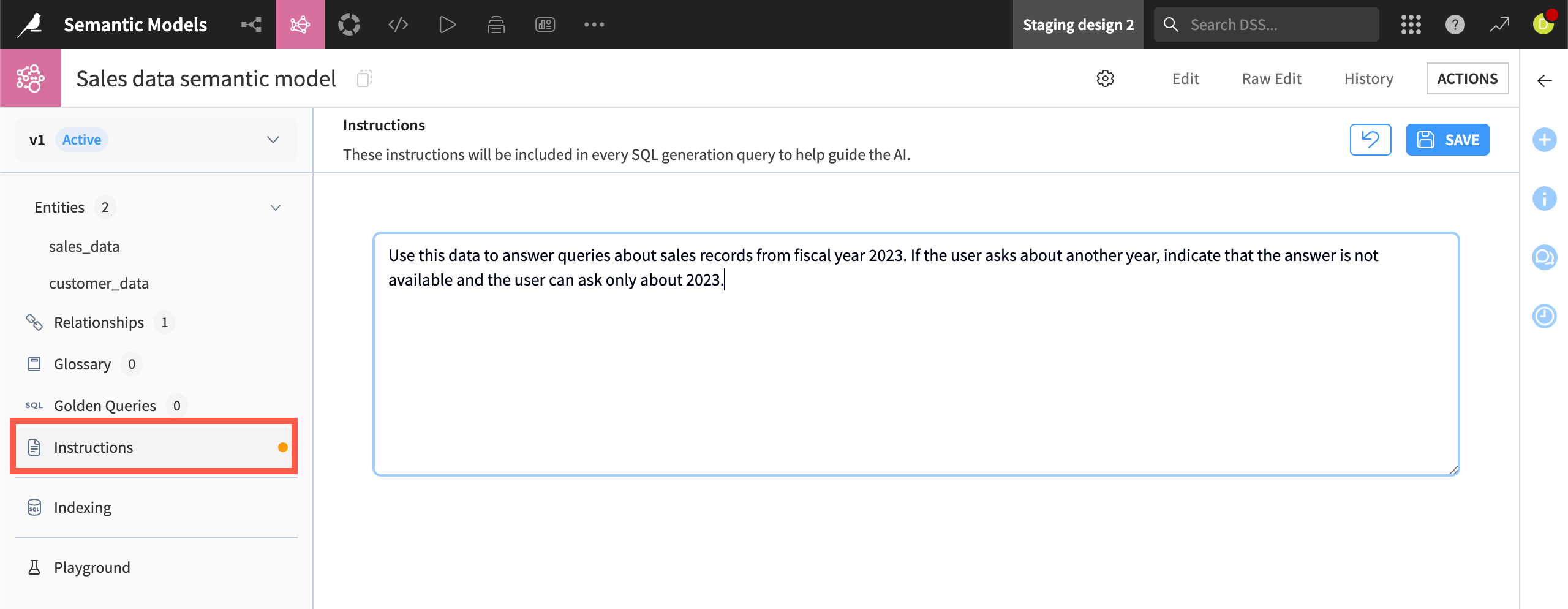
Instructions#
In the Instructions section, you can add more context and instructions for the agent that will use the model.
Playground#
The Playground is an area for testing the semantic model and viewing details of its responses via an LLM connection.
You can ask a question in natural language, as an agent user would. The LLM will respond after querying the dataset and using the semantic model for context.
You can view the answer that would be provided to the user, along with other details such as how the model matches terms, the underlying SQL query the LLM used, and records returned by that query.
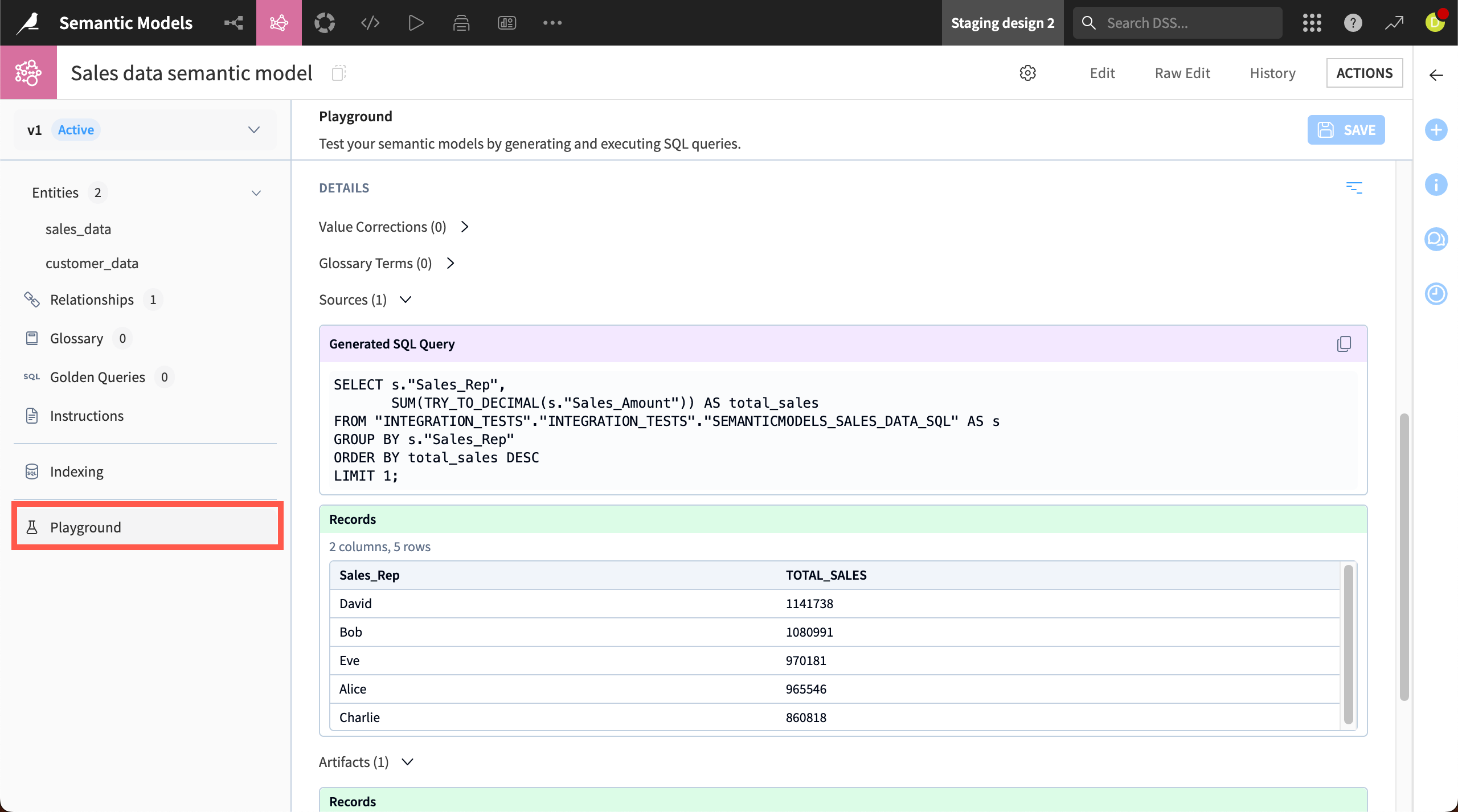
Based on the LLM’s response, you might want to iterate on the semantic model.
If you are happy with the response, you can save it as a Golden Query, which the model will save and use in its responses to users.
You can also then use the model in a dedicated tool.
Semantic Model Query#
Semantic Model Query is a tool that leverages the semantic model to translate natural language questions into SQL queries and provide answers via an agent.
To build the tool, go to the GenAI menu () > Agent Tools and add a new Semantic Model Query. Add your semantic models and LLM connection.
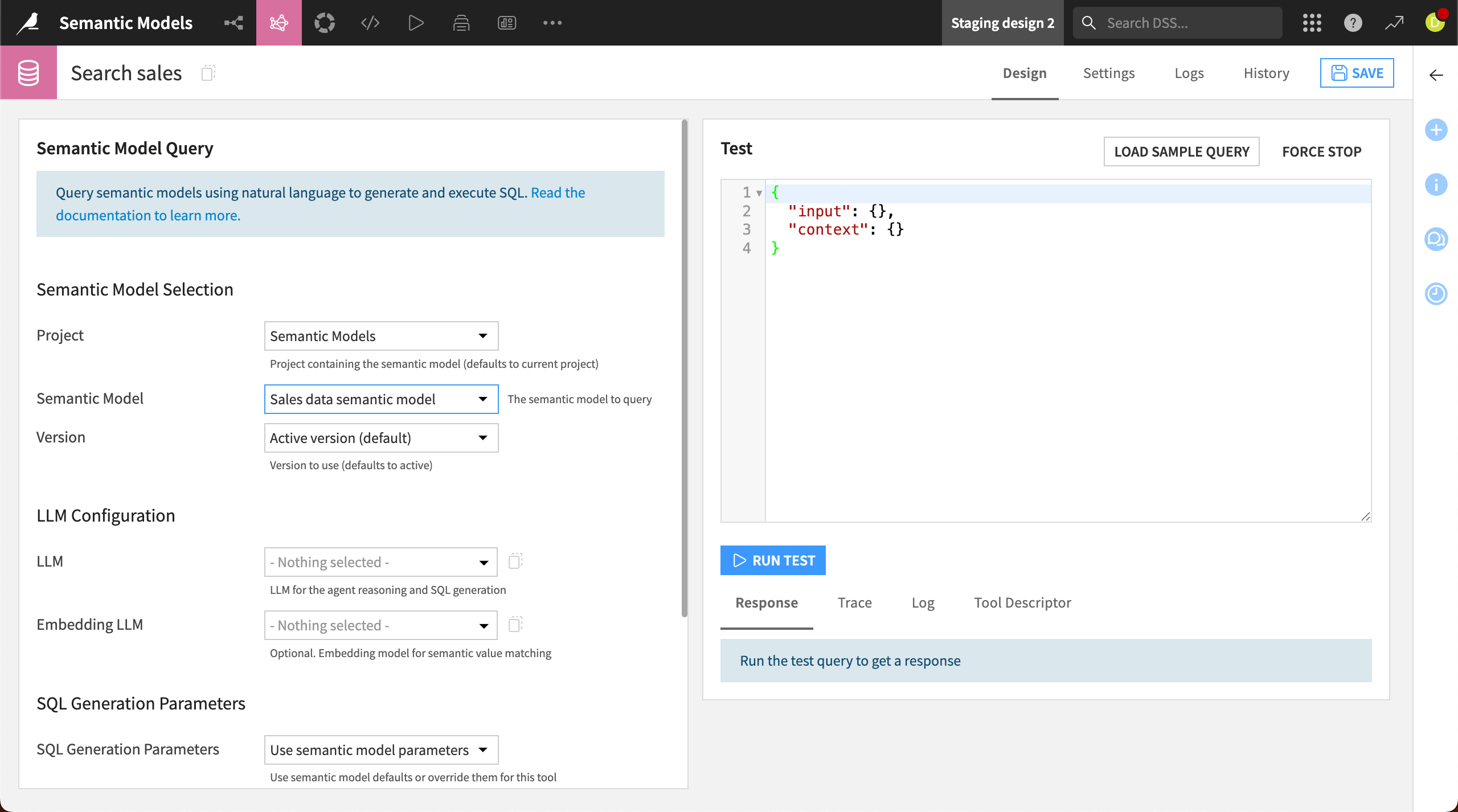
The tool is ready for use in an agent and can be distributed to users via Agent Hub.