

Build agent tools#
We’ll create two managed tools — individual components that complete different tasks — that we will add later to an agent. Dataiku offers multiple built-in tools that you can configure in just a few clicks.
Add a knowledge bank search tool#
The first tool specializes in searching knowledge banks like the one we just built.
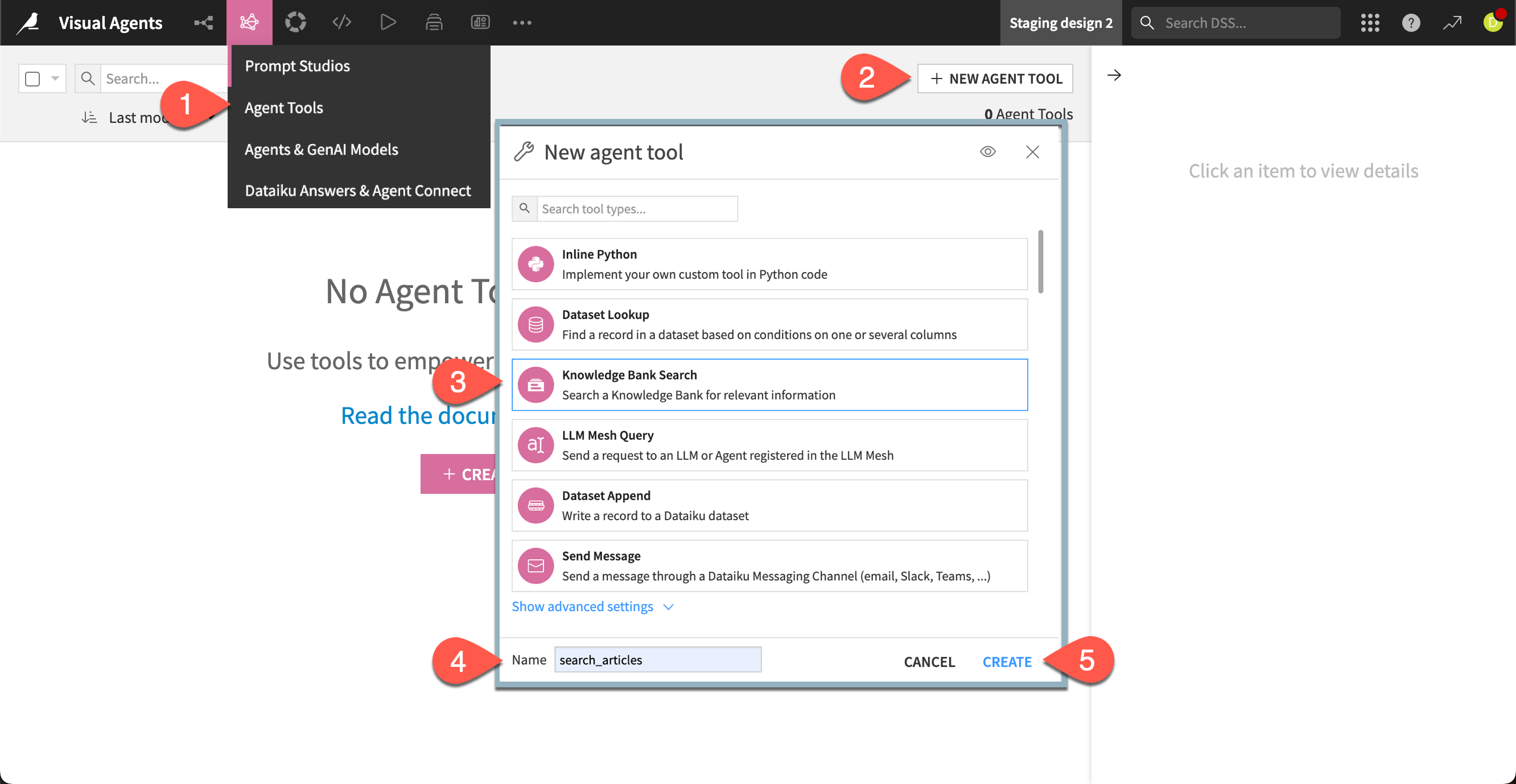
Go to GenAI (
 ) > Agent Tools in the top navigation bar.
Click + New Agent Tool.
Choose Knowledge Bank Search from the available tools.
Give the tool the Name
search_articles.Click Create.
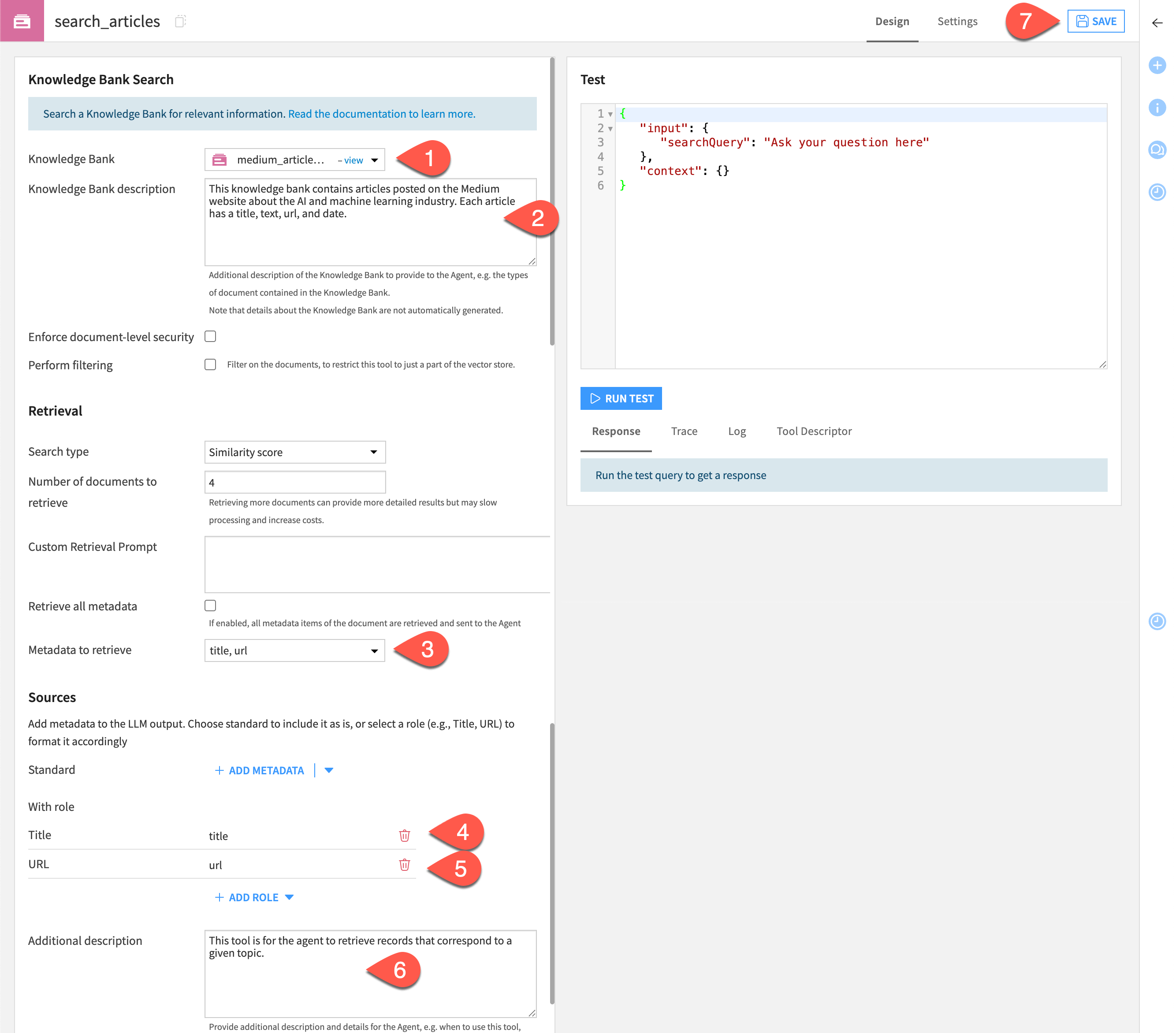
Next, configure the tool to use the knowledge bank. We can choose from among the data columns we embedded for the agent to include as metadata and sources in its responses. We’ll also add some descriptions that give the agent some context about the knowledge bank and how the tool should be used.
In the Design tab of search_articles, choose medium_articles_embedded as the Knowledge Bank.
In the Retrieval section, next to Columns to retrieve, select title and url.
Under Sources > With role, click + Add Role and select title, then for Select metadata, select title.
Add another role for url.
In the Description for LLM window, copy and paste the following text:
This knowledge bank contains articles posted on the Medium website about the AI and machine learning industry. Each article has a title, text, url, and date.

This tool is for the agent to retrieve records that correspond to a given topic.
Click Save.
Test the search tool#
We can run a quick test of the tool to see how it performs. This gives a behind-the-scenes look at how the tool will run a query. Later, we’ll interact with the agent using a chat interface.
Let’s look for any articles that deal with deep learning.
Still in the Design tab, move to the Test window.
Replace the text Enter search query here with the following text:
What is the latest news on deep learning?
Click Run Test.
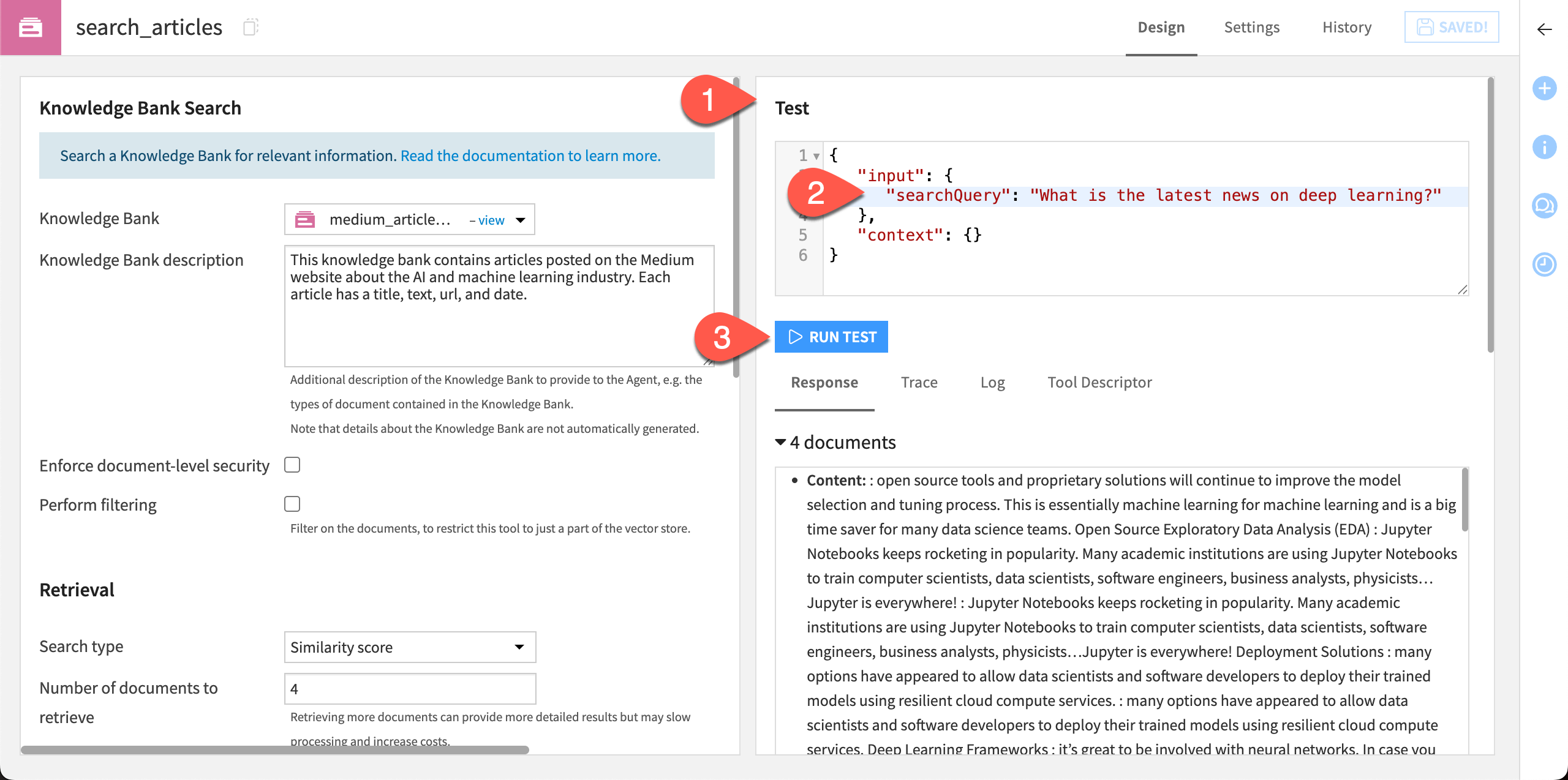
The tool returns several pieces of useful information under the test window, including:
Response |
Includes the content and metadata of relevant articles, along with sources. You can change the number of documents, metadata, and sources retrieved in the Design tab. |
Trace and Log |
Can help audit and debug an agent’s actions. |
Tool Descriptor |
Provides information about the tool for agent use. |
Add a messaging tool#
The next tool to build sends a message summarizing the articles returned using the knowledge bank search tool.
Note
You can send a message via Slack, Microsoft Teams, or email. An administrator must configure these settings. This tutorial uses email, though feel free to experiment with the message type of your choice and adapt the steps below accordingly.
Return to the Agent Tools page and click + New Agent Tool.
Choose the Send Message tool.
Add the Name
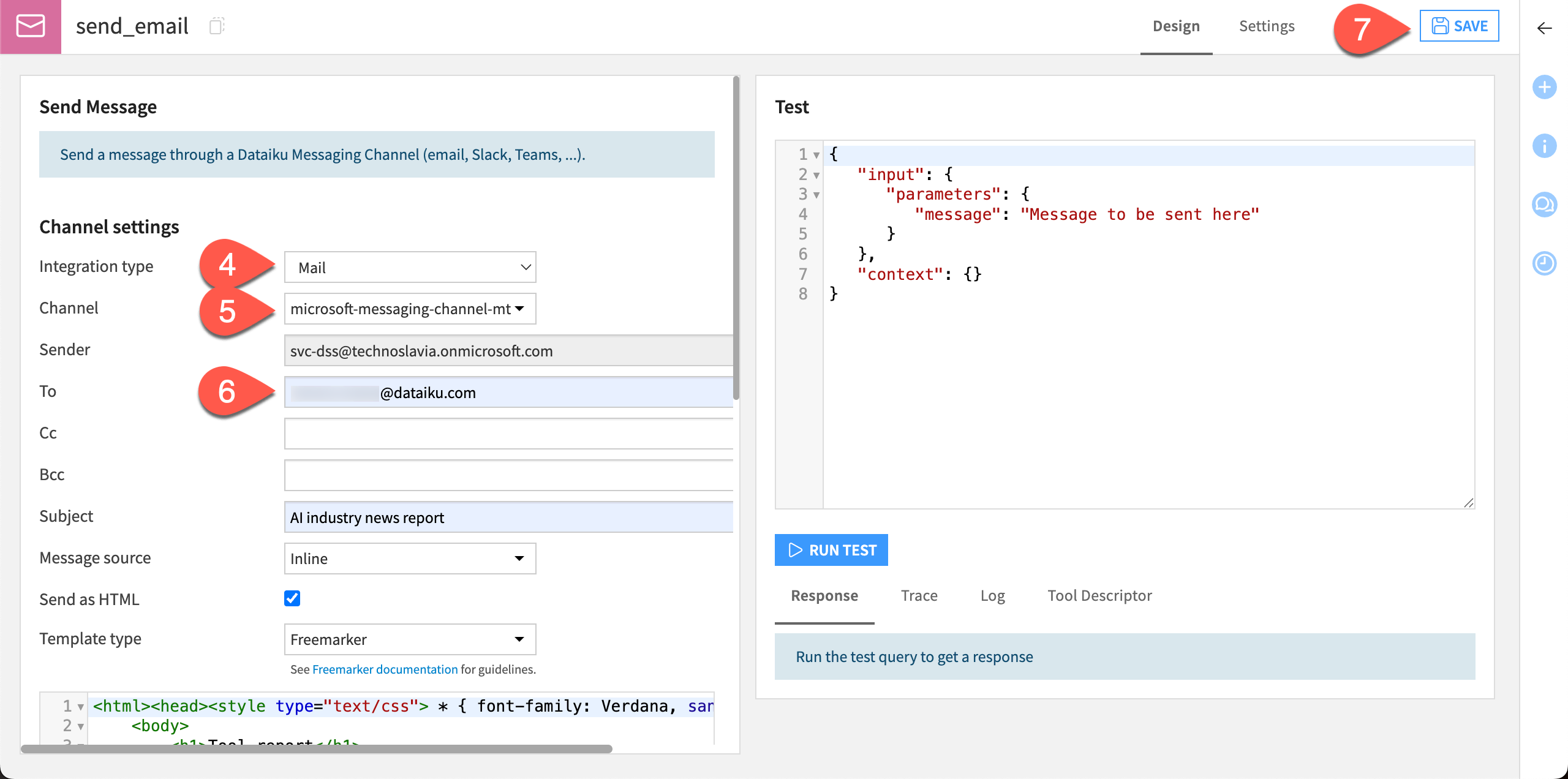
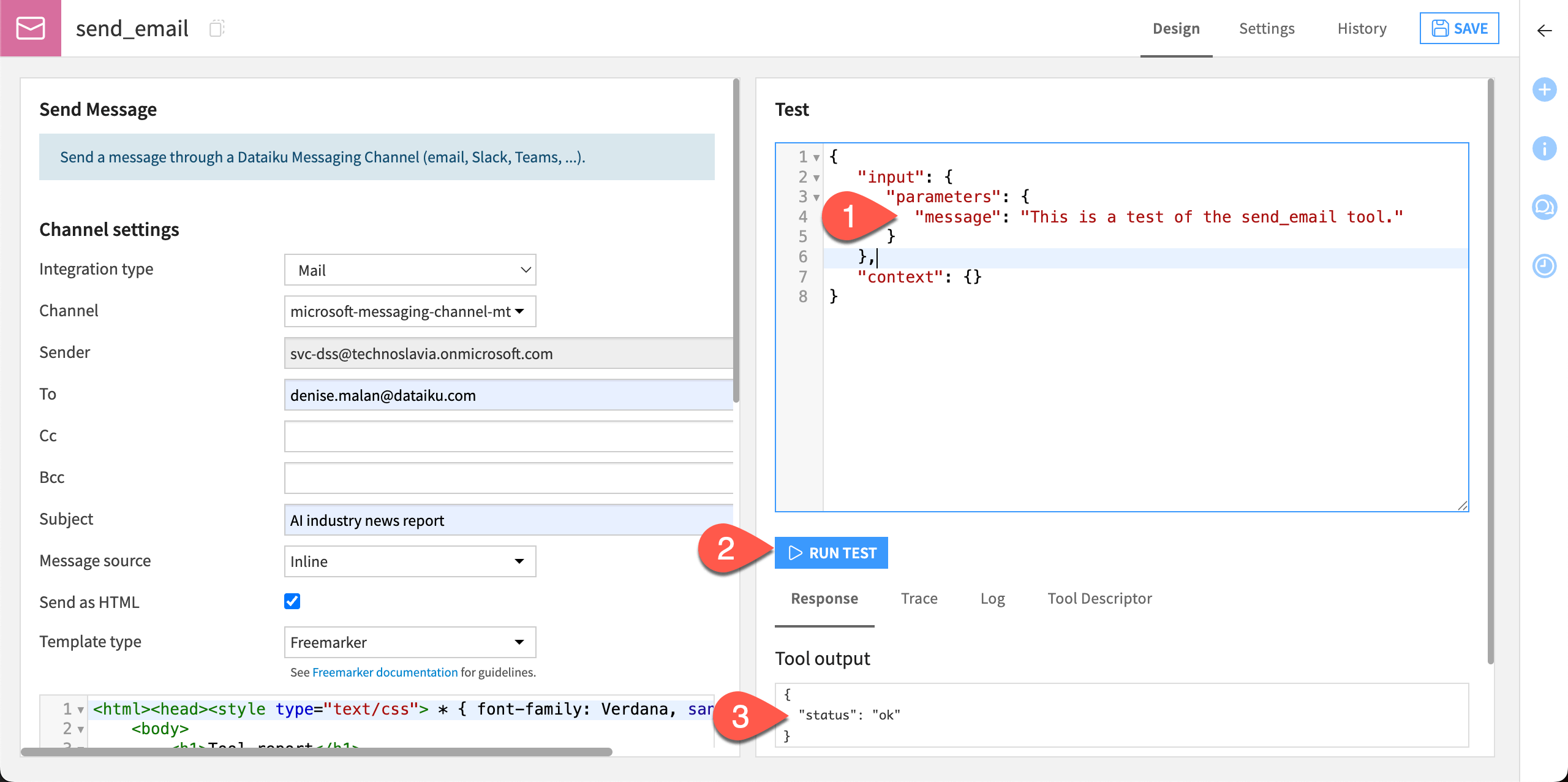
send_emailand click Create.In the tool Design page, choose the Integration type of Mail.
For the Channel, choose the channel configured by your administrator.
Add the following text to the corresponding boxes:
To: Your email address
Subject:
AI industry news reportTool description > Description for LLM:
This tool should be used to send a summary of the most relevant articles found by the search_articles tool, via email.
Click Save.
Test the messaging tool#
Let’s run a quick test to make sure this tool is working correctly.
In the Test window, optionally add your own message in the Test query box, replacing the text
The message to send.Click Run Test.
Check that the Tool output window returns
ok. You can also check your email or other messaging tool to find the test message.
Now that you have two tools that are working separately, let’s put them together to build an agent!