

Concept | Code environment administration#
Isolation of code dependencies#
As a collaborative platform, many users share the same Dataiku instance. One team may be building a project with one set of Python or R packages. Another team may have their own set of requirements. In fact, the software requirements may even differ within the same project.
Code environments address the problem of managing software dependencies and versions. A Dataiku code environment is a standalone and self-contained environment to run Python or R code. It’s similar to a Python virtual env or an R renv.
Dataiku administrators can create an arbitrary number of code environments. This means that in one project, a code recipe, a code notebook, a plugin, and a webapp, can all have their own separate code environments. This approach enables you to tailor each environment to the task at hand, running as isolated processes. For example, if the requirements for a code recipe need to change, the other items don’t need to face any impact.
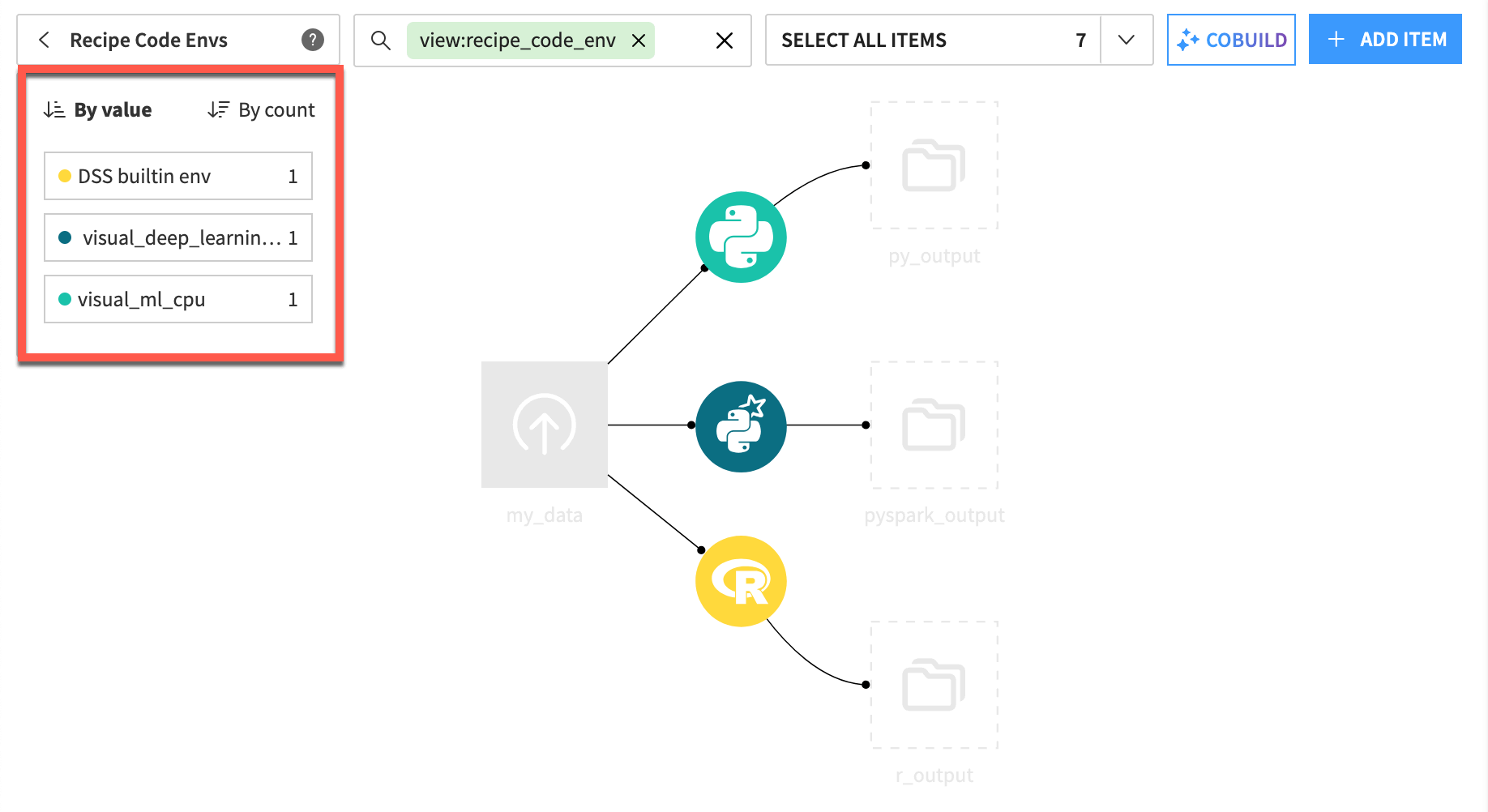
The code recipes in this Flow use separate code environments. Other components (webapps, plugins, etc.) can also have their own environments, each with their own set of dependencies.#
Code envs in Dataiku#
Given the need to isolate code dependencies, take a closer look at how to create, configure, and use code environments in Dataiku.
The built-in env#
During installation, Dataiku creates a built-in Python environment (and, where the R integration is enabled, a built-in R environment). This environment serves two purposes:
It runs Dataiku’s own internal Python-based operations.
It serves as the default environment for any user-provided code that hasn’t been assigned another one.
While the built-in env is the default for user code, it’s better to think of it as a fallback env of last resort for user code. In fact, it’s best to avoid using the built-in env altogether for any user code.
Given the built-in env’s role in internal Dataiku operations, trying to modify it for user code could impact unintended internal operations. Any such changes would counteract the goal of code envs — isolation of dependencies. Moreover, during every Dataiku upgrade, it’s possible that the content of the built-in env can change. If user-provided code depends on the built-in env, it’s possible that the projects using that code will break.
An admin can avoid users falling into this situation by defining a global default code env in Administration > Settings > Misc. > Code envs > Global defaults. This optional setting is an instance-wide policy choice: it applies to every project and code object that doesn’t select a more specific environment. If you set one, choose an approved environment that you actively maintain.

Instead of the built-in env, user-created Python objects like notebooks and recipes on this instance inherit the admin-managed global_default env.#
Best practices#
Given the purpose of the built-in env, now you can review the best practices for creating your own code envs in Dataiku.
One of the simplest but most important practices is naming code environments according to a specific convention that meets the needs of your organization. As an instance grows, the list of code environments can become cluttered and confusing. A clear naming convention prevents duplicates, encourages reuse, and improves searchability.
While you’ll need to determine what works best for your organization, you might consider using prefixes or suffixes to signal key details, such as:
global_*for stable admin-owned tasks[initials]_*for personal usep_*for projects-basedtmp_*for testingplugin_*for any plugin*_gpuif applicable
Prefixes such as these can help the admin know which code environments are safe to delete during routine clean up cycles. Also, consider avoiding language prefixes like py_* since this information is already recorded for every code environment. In general, keep names short and lowercase.
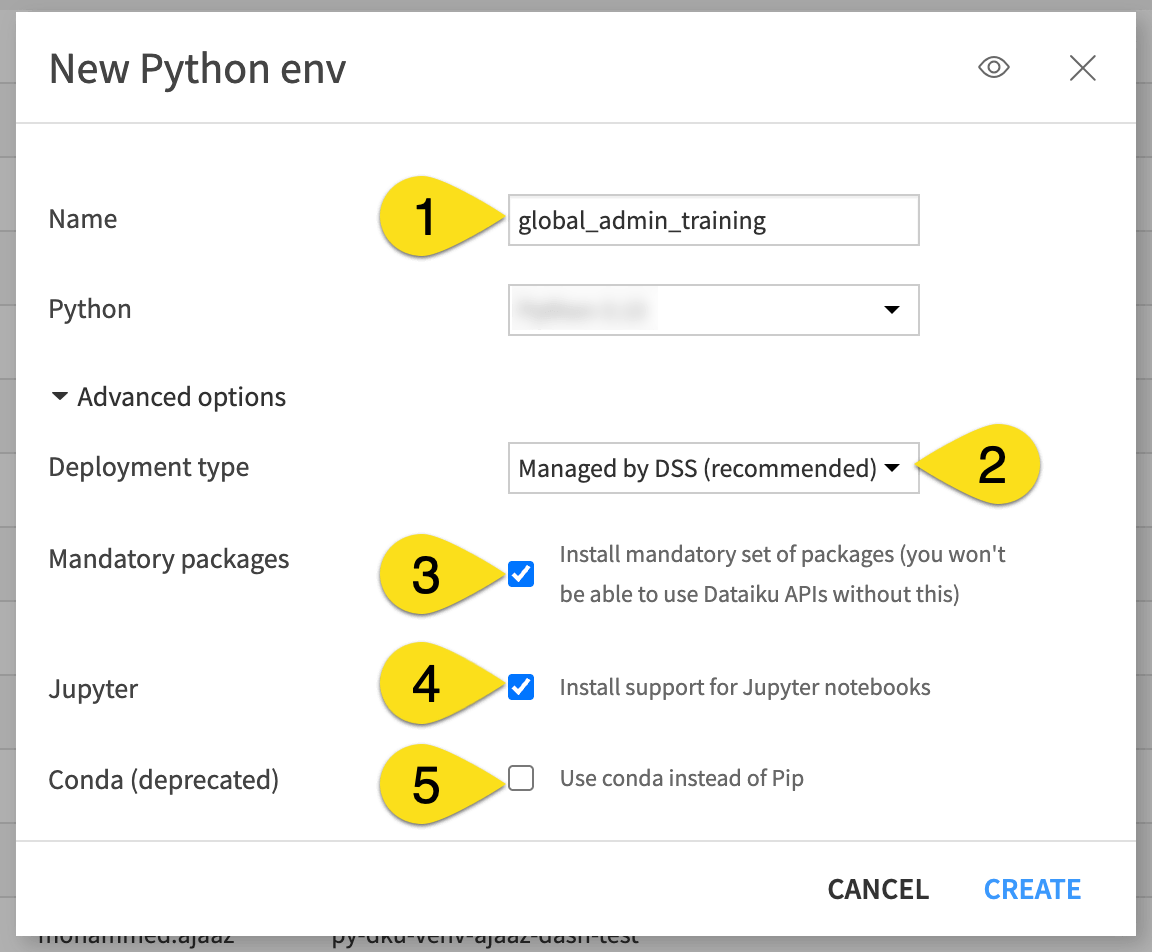
There are a few other configuration settings you’ll encounter when creating a new code environment.
Setting |
Description |
|---|---|
Name (1) |
Follow the guidelines for naming above. |
Managed by DSS (2) |
Dataiku-managed environments are the most common and recommended approach so that Dataiku can handle the heavy lifting of installation and maintenance. If necessary, you can create a non-managed environment. |
Mandatory packages (3) |
Mandatory packages provide the essential dependencies required for the Dataiku library to function. Without them, you won’t be able to use the Dataiku API. |
Jupyter (4) |
Jupyter packages enable the interactive notebook integration, ensuring the environment supports both automated processes and ad-hoc experimentation. |
Avoid conda (5) |
Conda code environments are deprecated, and later versions of Dataiku won’t be able to build them. Until then, they have only Tier 2 support. Use the native options for new code environments. |
Important
Python and R code environments function largely the same, but with a few key differences. For example, each Python code environment can use its own base version of Python (3.9, 3.10, etc.). However, R code environments must use the R version installed on Dataiku.
Requested and base packages#
Once you have these options in place, you’re ready to request packages to install inside the code environment. The code env manager does this through the Packages to install panel.
Here you can list the packages needed to perform a specific task. For example, a deep learning project might require packages like TensorFlow or PyTorch. A visualization task might need seaborn or plotly.
Alongside requested packages are base packages. These are mandatory libraries required for core Dataiku features to function.
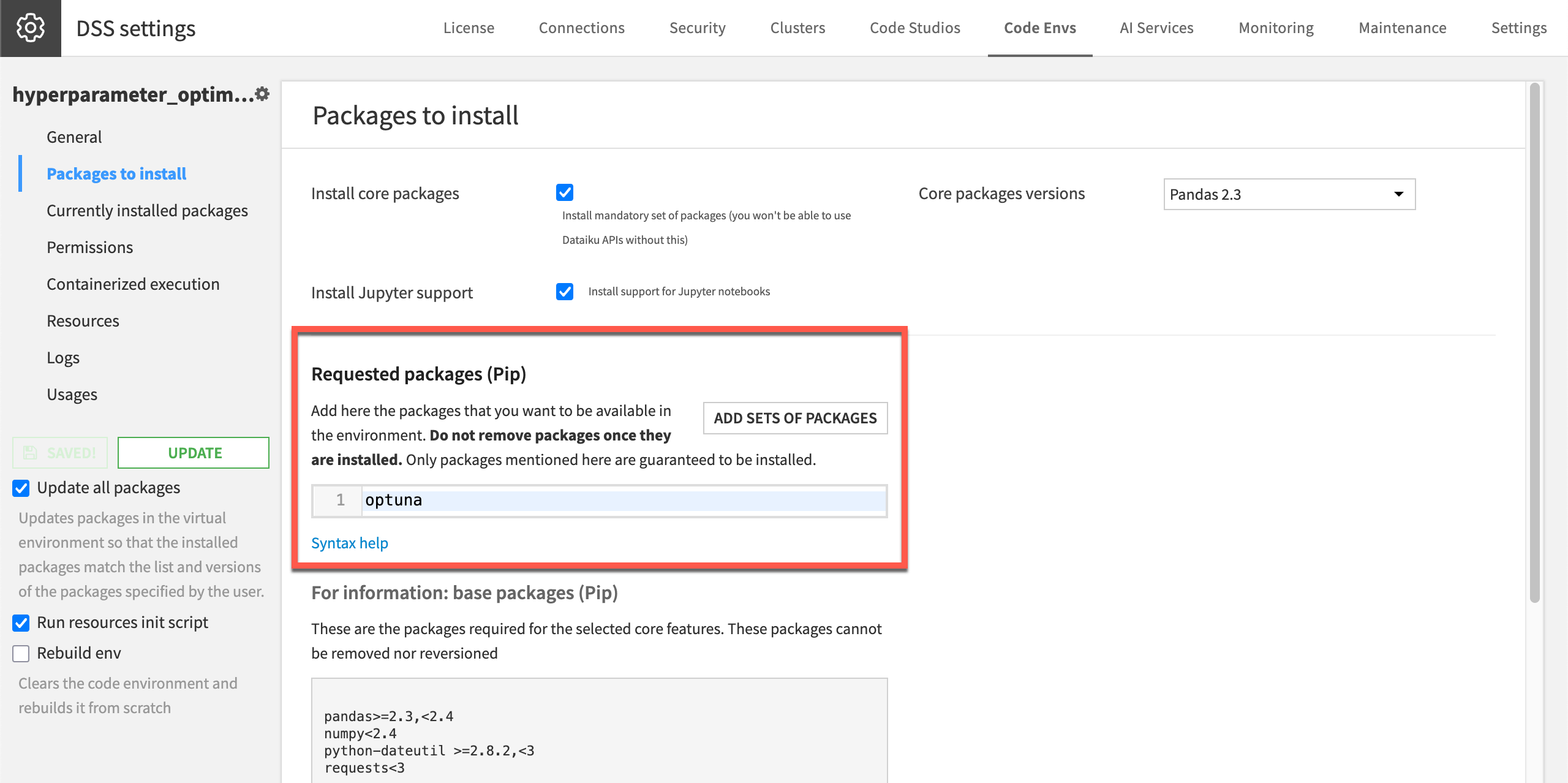
In addition to the base packages, this environment will also include the optuna library (along with its own dependencies).#
Tip
Click Add Sets of Packages to explore groups of compatible packages for visual tasks in Dataiku such as machine learning, time series forecasting, or deep learning.
Internal envs#
Certain tasks in Dataiku — such as document extraction, PII detection, or retrieval augmented generation — require the admin to create a separate type of env, an internal code env.
For these tasks, admins only need to choose a Python version, and then click Create. They do this through the Administration > Code envs > Internal envs setup page.
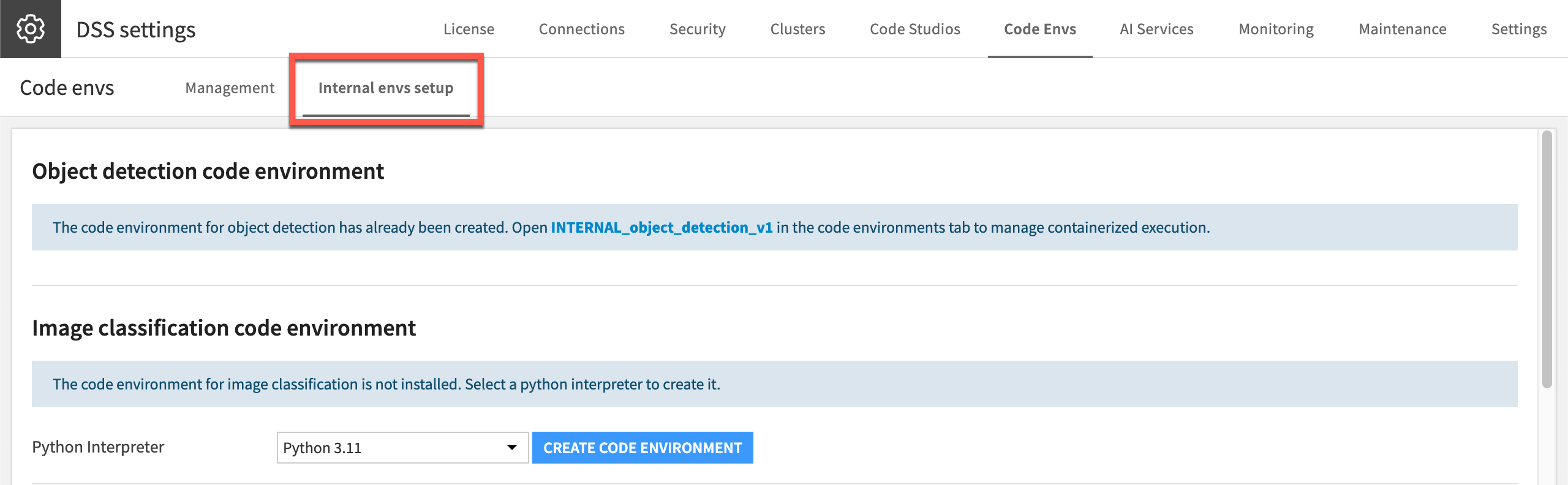
Here the admin has created the internal env for object detection, but hasn’t yet done so for image classification.#
Once created, these envs — beginning with the name INTERNAL_ — function much like other envs. The exception is that Dataiku entirely controls the package list. They don’t show a Packages to Install panel at all.
Tip
You’ll encounter the need to install these envs as you work through the reference documentation for that particular topic.
Inheritance hierarchy#
The environment assigned to a code object in a Dataiku project follows an inheritance hierarchy. This hierarchy allows the admin to guide users into preferred environments, while giving users the option to adjust the default selection where it’s needed.
Level |
Code environment selection |
|---|---|
Instance |
Administrators can set a default Python and R code environment at the instance level in Administration > Settings > Misc > Code envs. It’s important to define this to avoid objects inheriting the built-in environment. |
Project |
Project owners can override the instance default with their own project-level default in More options ( |
Object |
Within a project, users can select a specific code environment other than the project default for individual objects. Users can do this through the kernel of a notebook, the Advanced tab of a code recipe, or the Settings tab of a webapp. |
 ) > Settings > Code env selection.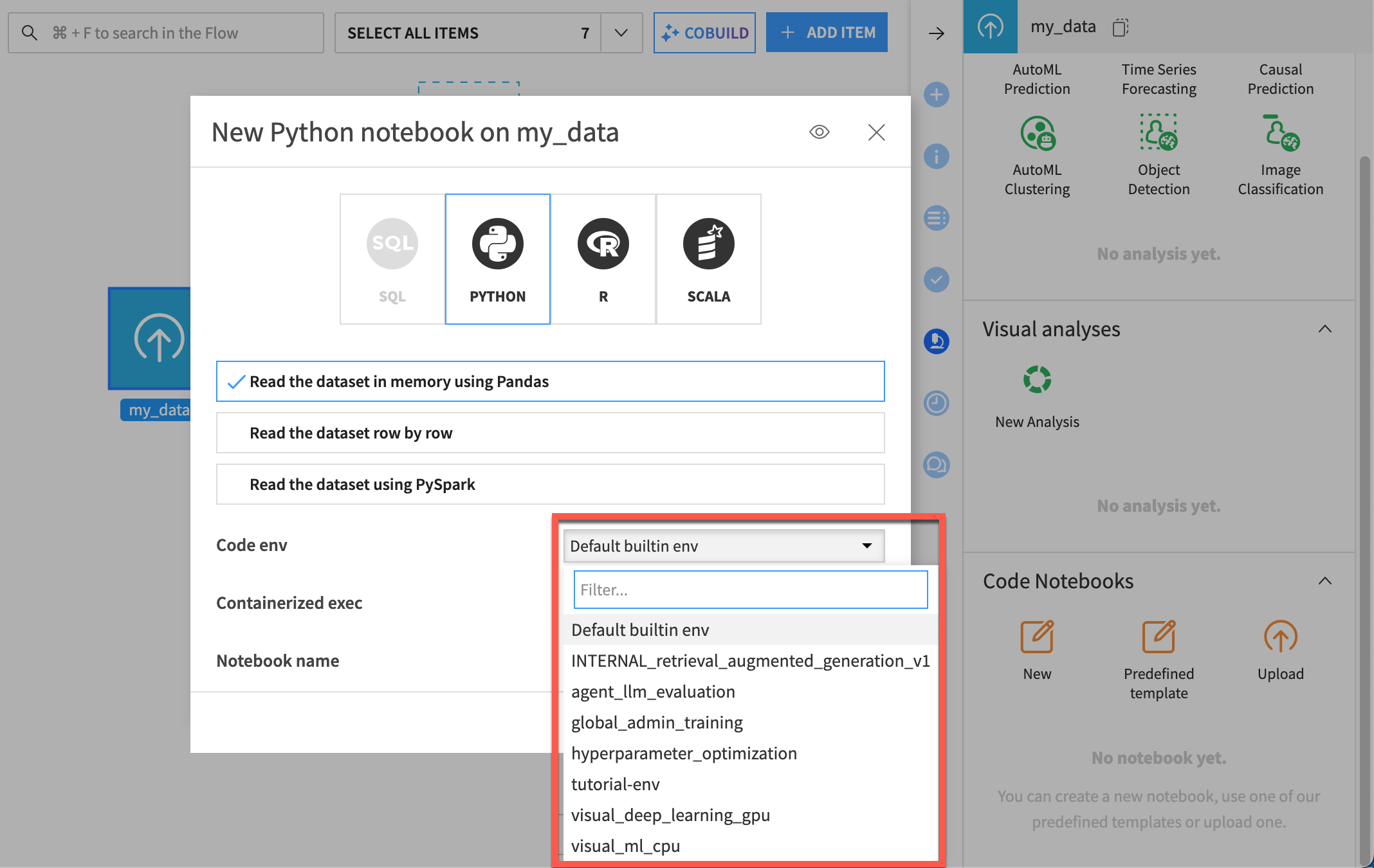
When creating a new code notebook, the user can select a code environment or change the kernel later.#
See also
Plugins are another type of Dataiku object that should have their own dedicated code environment. This helps with portability and provides protection against possible changes to global or built-in environments. Learn more about Plugins’ code environments in the reference documentation.
Code envs with non-standard repositories and local packages#
By default, Dataiku downloads code environment packages from public repositories, such as PyPI and CRAN. Some organizations need other sources:
Internal repositories. In air-gapped or restricted networks, admins can point Dataiku to an internal mirror, such as Nexus or Artifactory, in Administration > Settings > Misc. > Code envs > Extra options. Users then request packages exactly as before.
Local packages. When a package exists in no repository (a proprietary internal library, a modified open source package, or an unreleased commit), admins of self-managed installations can install it from the Dataiku server’s filesystem.
Note
Dataiku Cloud can reach public repositories. Reaching private repositories on a private network requires the Private cluster add-on. Installing local packages isn’t possible on Dataiku Cloud, since customers don’t have access to the server’s filesystem.
See also
See the reference documentation on custom Python package repositories, custom R package repositories, and installing packages not available through pip. More generally, see Custom options and environment.
Code env permissions#
Code environments are one type of resource that has its own set of permissions inside Dataiku’s permissions model.
As an administrator, you can designate which groups have the global permission to create and manage code environments.
On top of this, you can also define permissions on a specific code environment.
For example, you can designate:
Whether all users can see an existing code environment when making a selection (Usable by all).
Which groups have permission to use a particular code environment (Use).
Which groups can also manage the settings and packages for a code environment (Update settings & packages).
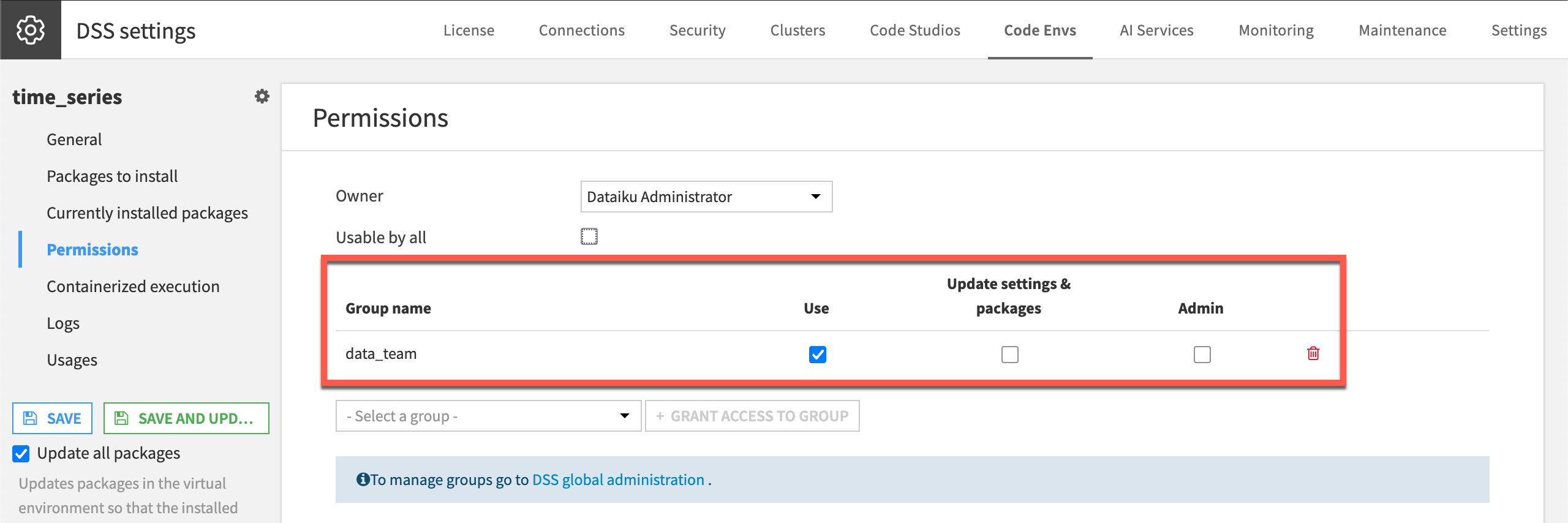
The data_team group can use this environment for a time series task, but they can’t modify the contents. Those not in the data_team group won’t see this environment available for selection at the project or object levels.#
Tip
As an administrator, it’s your responsibility to weigh the costs and benefits of liberal vs. restrictive code environment permissions for your organization. When first starting, you may find it beneficial to institute limited permissions to manage code environments, and then gradually grant this right to more groups if necessary over time.
See also
See the reference documentation on Code env permissions to learn more.
Code env resources#
Thus far, you’ve seen how code environments are a way to manage software dependencies, ensuring each process has exactly the packages it needs. However, code environments can also be a way to manage the large files user code depends on at runtime.
The Resources directory is a storage space tied to a specific code environment. Consider cases where user code needs a heavy artifact, such as a pre-trained deep learning model. The code env owner can download it once into this directory rather than letting each recipe or notebook fetch it on its own. Every workflow that runs on this code environment then has access to the same cached files automatically.
The mechanism that makes this work is environment variables. A resources initialization script can set variables like HF_HOME (Hugging Face), TORCH_HOME (PyTorch), or TFHUB_CACHE_DIR (TensorFlow) to point at the resources directory. The frameworks pick these up at runtime, so they look for models there first without any extra configuration in your recipes, notebooks, or webapps.
The practical payoff is significant: a large language model or image classification backbone can be several gigabytes. Without a centralized cache, that download happens repeatedly, across users and runs, burning time and bandwidth. With the resources directory, it happens once, at environment build time, and stays put.
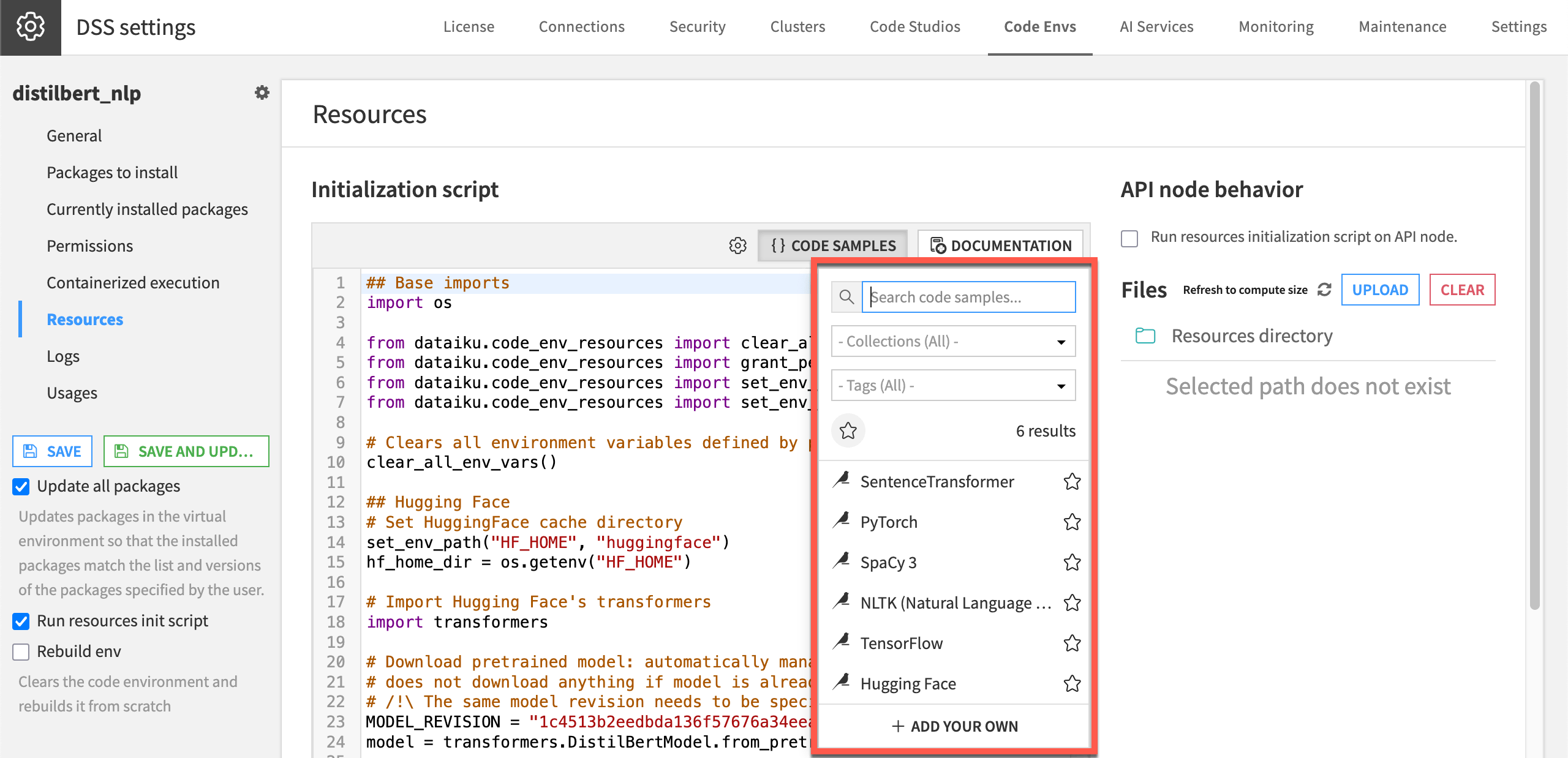
Use the code samples to get started with frameworks such as Hugging Face, PyTorch, and TensorFlow.#
See also
To configure this option, see the reference documentation on using a Python code environment’s managed resources directory. For a tutorial, see Load and re-use a Hugging Face model in the Developer Guide.
Code envs in containers#
When an admin sets up containerized execution, for example on a Kubernetes cluster, each code environment that should run in containers needs to be built into a container image. The Containerized execution panel of a code environment controls which container configurations include it, and how its image is built.
See also
For all build options, such as resources, runtime additions, and Dockerfile customization, see the reference documentation on Using code envs with containerized execution.
To see how code environments fit with clusters and container configurations, see Concept | Containerized execution.
Code env maintenance & troubleshooting#
Once an instance has code environments in use, ongoing maintenance and troubleshooting becomes an important part of the responsibilities of a Dataiku administrator.
Upgrades#
Responsibility for upgrades differs depending on the type of Dataiku installation.
Dataiku automatically triggers a rebuild of all code environments after each upgrade. Should any code environment fail to rebuild, the space admin receives a report with links to investigate failed builds.
The most critical recurring task is rebuilding code environments after a Dataiku upgrade. Each new version of Dataiku ships with an updated base image. Running an old environment image against a new Dataiku version can lead to subtle but serious failures. Examples include:
Mismatched internal library versions
Broken links to system-level C libraries like libssl
Stale references to Dataiku’s own Python packages
To handle this, Dataiku provides a CLI helper you can run post-upgrade to rebuild all container execution images at once:
$DATADIR/bin/dssadmin build-container-exec-code-env-images
Important
While rebuilding the images is mandatory after every upgrade, a full rebuild of the code environment itself is only required in specific cases — for example, if a Python version has been deprecated, core packages have changed, or the OS upgrade has updated underlying system libraries.
Issue investigation#
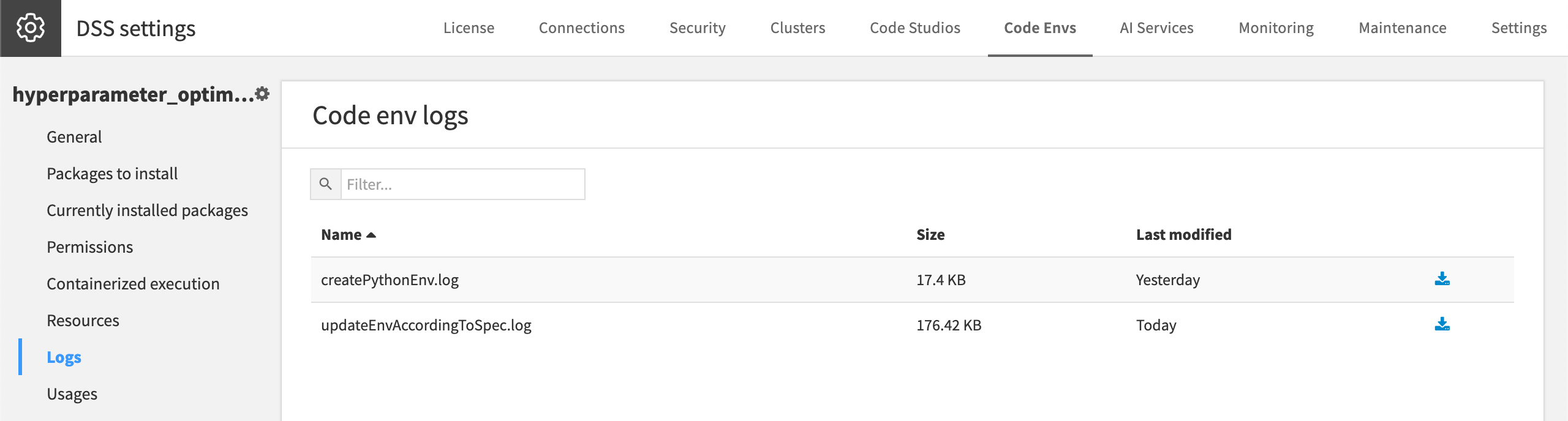
At times, you may need to investigate problems with a code environment. For example, imagine a code recipe or webapp starts failing unexpectedly. The Logs tab for each code environment is your first stop.
It captures the output from installation and update operations, making it straightforward to spot a package conflict or a failed dependency resolution. Once you’ve identified the issue, the fix might involve updating a version pin, removing an incompatible package, or doing a full rebuild.
Important
When communicating with Dataiku support on issues related to code environments, you’ll often need to provide a diagnostic. You can find this for any code environment by selecting gear ( ) > Get diagnostic.
Before making any significant change to a code environment, admins should consult the Usages tab. This view shows every recipe, notebook, and webapp across the instance that depends on that environment, giving a clear picture of the impact of any modification. Skipping this step is one of the most common ways an admin can break active workflows.
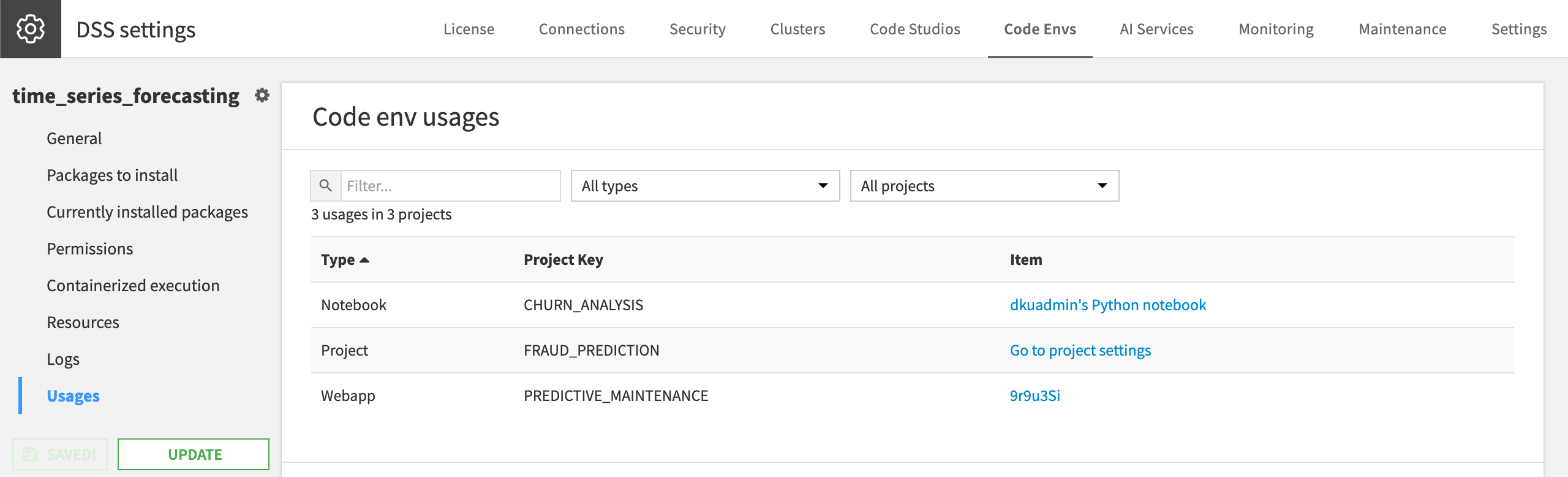
Across the entire instance, three projects use this one code environment in different types of items.#
Common errors#
If you’ve followed the best practices on code environment administration, the errors below should be preventable. That said, they’re among the most common issues administrators encounter, and so here’s how to recognize and resolve each one.
Kernel not found when opening a notebook
Consider a user who creates a code environment and then tries to select it as a kernel in a notebook, only to see a “Could not find a matching kernel” error.
This happens because Jupyter kernel support is an optional component that must be explicitly included in a code environment. If this option was skipped at creation time, the environment isn’t capable of serving a notebook kernel. To fix it:
Go to Administration > Code Envs.
Select the environment.
Navigate to the Packages to install panel.
Check Install Jupyter support.
Click Save and Update.
Once the environment updates, the kernel will be available in both new and existing notebooks.
Conflicting dependencies
Consider a user who tries to add a package to an existing environment, and the build fails with a message including the lines of “The conflict is caused by…”. The culprit is usually a version conflict with a base package. For example, a user manually requesting a specific version of pandas that differs from the version Dataiku has already pinned will cause the dependency resolver to fail.
The fix is to avoid manually specifying versions of base packages. This approach ensures all related internal dependencies are updated consistently.
Go to Administration > Code Envs.
Select the environment.
Navigate to the Packages to install panel.
Use the Core packages versions dropdown to change the version of a core package.
Click Save and Update.
Couldn’t find a version that satisfies the requirement
This error appears when Dataiku can’t locate the requested package at all, rather than finding a conflicting version. The most common cause is a network access issue.
Work through the following checks:
If the instance is air-gapped, the server may have no route to public repositories like PyPI. You’ll need to allowlist the required URLs, configure a proxy, or point Dataiku to an internal mirror such as Nexus or Artifactory.
If Dataiku is already configured to use a custom repository and the error still appears, verify that the repository URL is correct and that the specific package and version actually exist in that repository.
If neither of the above applies, confirm that the package name, version, and any version constraints you’ve specified are valid and exist on the target repository.
See also
For other tips on common code environment errors, see the reference documentation on Troubleshooting.
Next steps#
Try out these principles for code environment administration in Tutorial | Manage code environments.
See also
To learn more, see Code environments in the reference documentation.