

Concept | Data access#
You’ve likely already explored a project with existing Dataiku datasets. However, you’ll often need to import the necessary data into a project on your own. Dataiku offers several avenues for users to access the data they need, depending on the context.
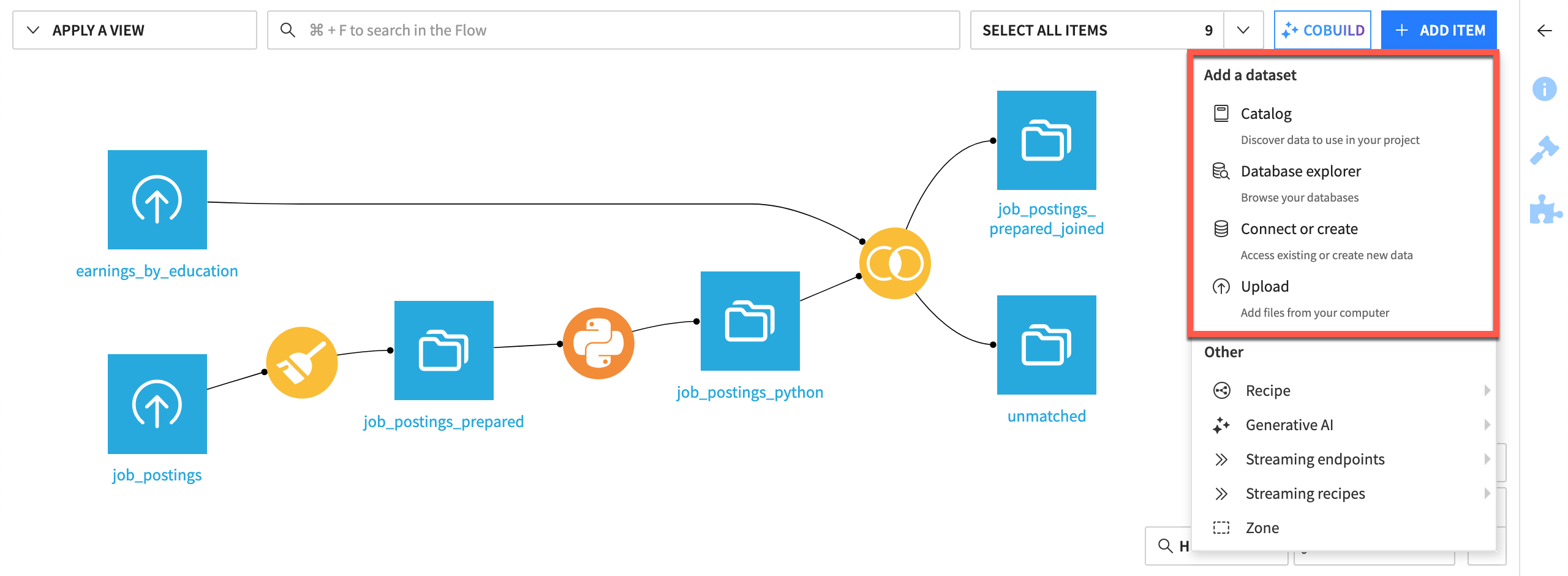
The + Add Item menu in the Flow includes four ways to import data into a project.#
Uploading a file#
The simplest path applies when your data exists as a file on your computer, such as a CSV file or an Excel workbook. Uploading a file only requires dragging it onto the Flow, or choosing the Upload option from + Add Item menu.
When uploading a file, Dataiku shows a preview of the data and offers a few configuration options before creating the dataset. These include parsing options like the separator or quoting style, how many header lines to skip, and the schema Dataiku inferred from the file. For example, if a column will be stored as text but is actually a number, you can let Dataiku infer its type.
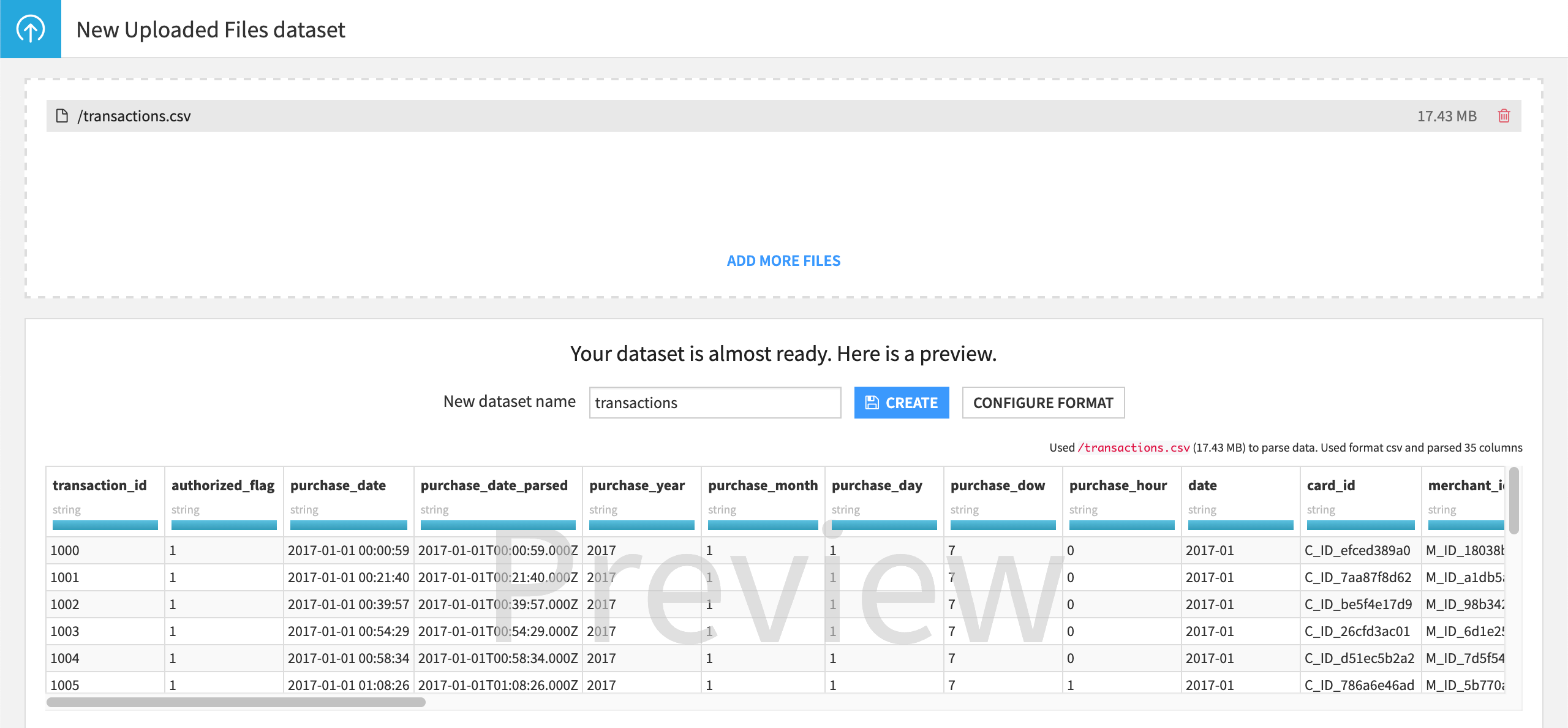
Uploading a file shows a preview of its contents, with the option to adjust the schema and other parameters before creating the dataset.#
Important
Uploading a file is a convenient way to get started, but it isn’t the primary way that data enters most project work. Production data almost always lives in a connection managed by the instance administrator.
Discovering data in the Catalog#
The Catalog is the broadest way to search across the Dataiku instance. You can find not only existing data, but also assets like models and agents. Rather than starting from scratch, it’s always a good idea to first check what relevant assets might already exist that you can reuse or build upon.
The Catalog groups this content in a few ways:
Curated collections that teams assemble for easier discovery
An assets view you can filter by type
An AI-powered search that lets you describe what you’re looking for in plain language rather than keywords
A Database Explorer for browsing connections (see below)
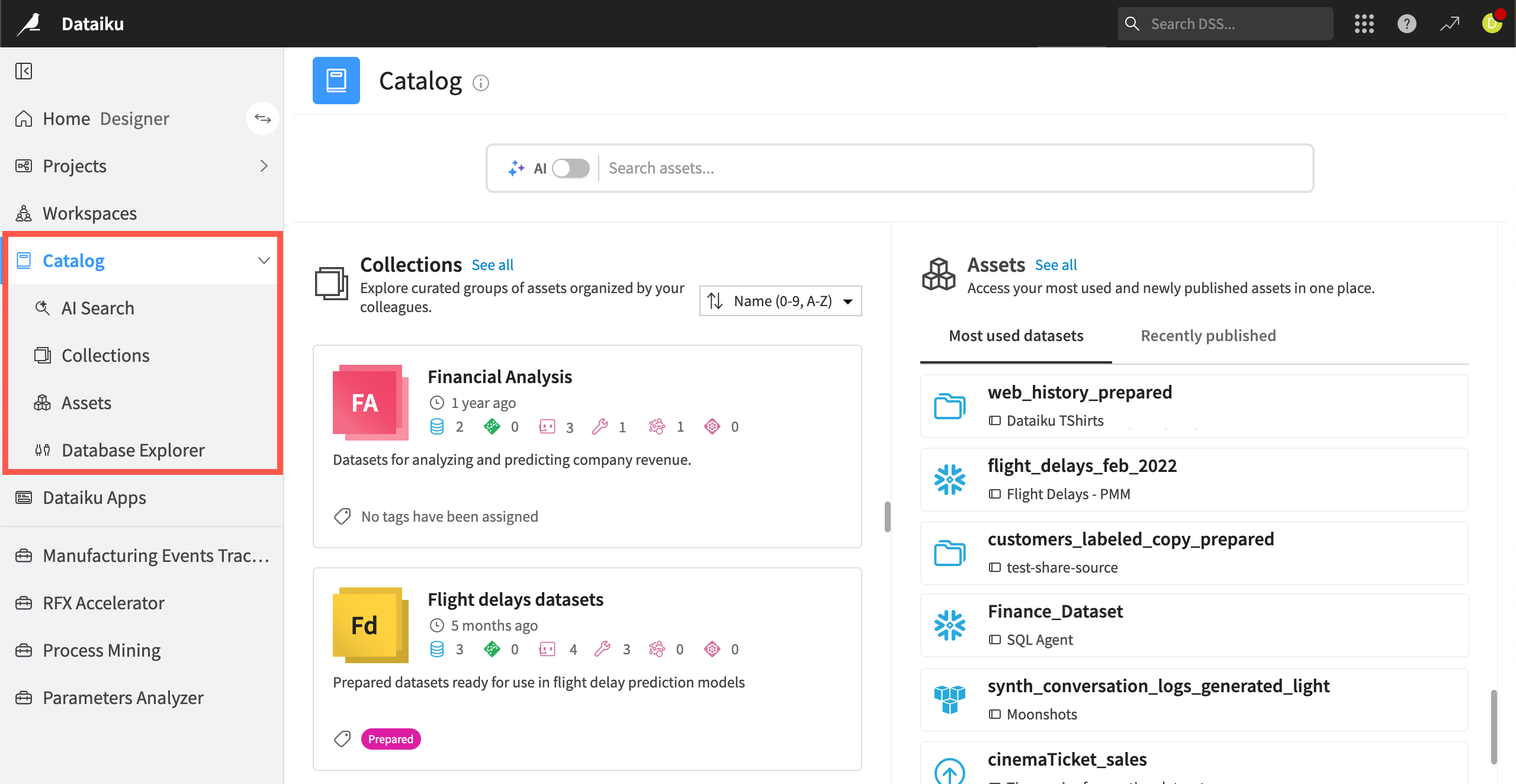
The Catalog groups AI Search, Collections, Assets, and the Database Explorer in one place.#
Important
Wherever you search for data in Dataiku — whether through the Catalog, the Database Explorer, or elsewhere — you only see what your user and group permissions allow. If something you’re expecting doesn’t turn up, it may sit outside your current permissions, as managed by the instance administrator.
Browsing a known connection with the Database Explorer#
The Database Explorer — found in both the Catalog and + Add Item menu of the Flow — narrows the search from “everything available” down to a single connection. Reach for this option once you already know which connection holds the data you want, but aren’t sure of the specific table.
This option provides a visual way to browse a connection’s schemas and tables, preview their contents, and import the ones you need.
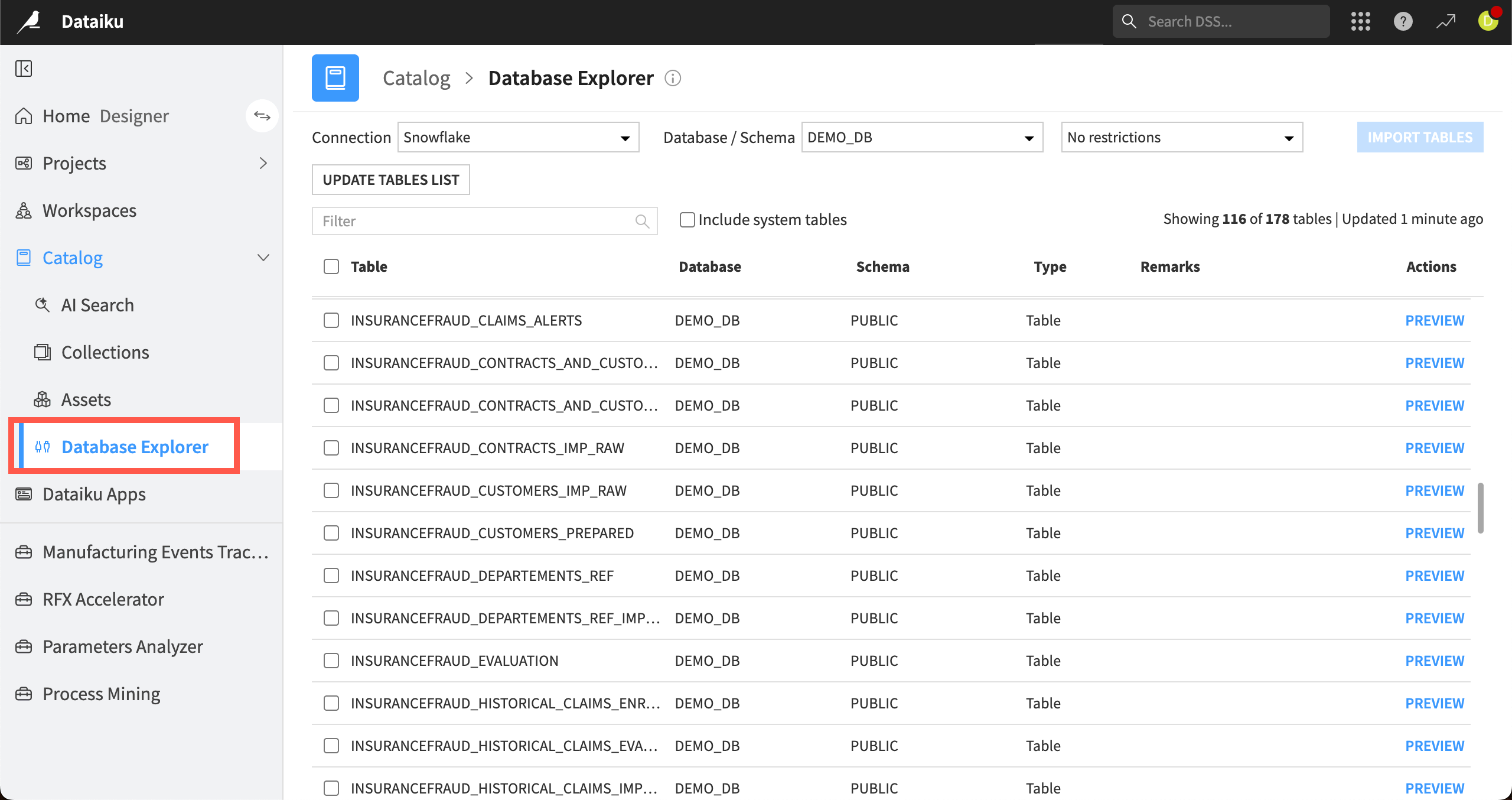
The Database Explorer lets users preview a connection’s tables before importing one.#
Connect or Create: The direct path#
The Connect or Create option inside the + Add Item menu of the Flow is the most direct of the four options. Reach for this option when you already know exactly which connection, and often exactly which table, you need. Rather than discovery, it’s built for getting straight to a specific piece of data — or choosing where to store a new piece of data.
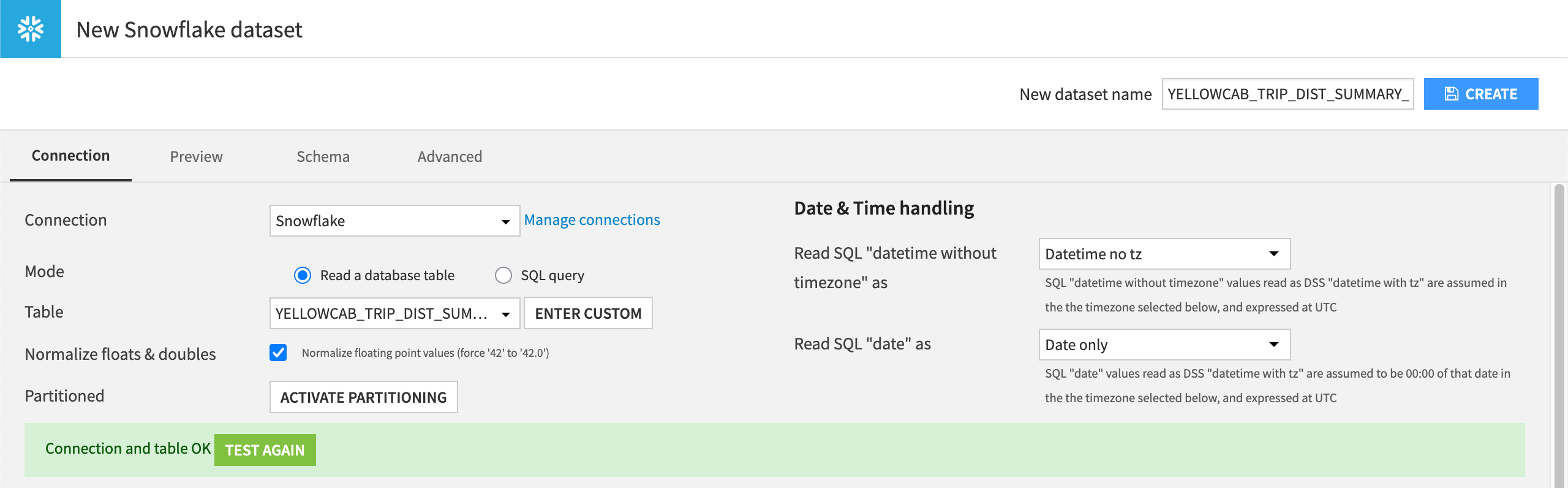
This user is importing a table from a Snowflake connection as a dataset in their Dataiku project.#
Tip
The Connect or Create option is also where you’ll find data from application connections and plugin-based connectors.
Choosing among the four#
Which option for accessing data is the right choice comes down to your particular use case.
Data access option |
Use case |
|---|---|
Upload a file |
You already have the file locally. |
Catalog |
You want to browse existing assets. |
Database Explorer |
You know the connection but not the table. |
Connect or Create |
You know exactly what you need (or what you want to create). |
Next steps#
Once you’ve brought data into your project as a dataset, using any of these methods, you’re ready to start exploring it. See Concept | Dataset characteristics for a closer look at how to inspect what you’ve imported.