

Tutorial | Manage a connection between Dataiku and a data source#
Get started#
Building analytics, models, and agents can’t begin without an admin first establishing connections to data sources. Setting one up yourself in this tutorial will serve as practice for the connections you’ll create to your organization’s true data sources.
Objectives#
In this tutorial, you will:
Create a connection in Dataiku to an external data source (an SQL database).
Import data through this connection into Dataiku.
Configure the connection to enable users to create Dataiku managed datasets in that source location.
Restrict the ability to use the connection to specific Dataiku groups.
Guide users to the correct storage locations by defining preferred connections.
Prerequisites#
On the Dataiku side:
Dataiku 15.0 or later.
Membership in a group with the global Administrator permission.
The ability to log in as a second test user, who isn’t a member of the same admin group.
On the database side:
Access to a non-production SQL database you can use for testing. It must be reachable over the network from wherever your Dataiku instance runs.
A database user with enough privilege to create and modify objects, such as tables and schemas.
Tip
If you don’t have a test database reachable from your Dataiku instance, you have a fallback option. However, it only works if Dataiku itself is also running locally on your machine. It won’t work with a Dataiku Cloud or Cloud Stacks instance, since your laptop’s database isn’t reachable from there.
Install the free edition of Dataiku on Mac, Windows, or Linux.
Install PostgreSQL locally.
With both Dataiku and PostgreSQL on the same machine, the network reachability requirement is met, and you’ll have the necessary components to demonstrate creating connections in Dataiku.
Use case summary#
While your organization may have connections to object storage or application connectors, perhaps the most ubiquitous is an SQL connection. By creating one in Dataiku, you’ll learn important principles for managing any type of connection.
This tutorial walks through creating a PostgreSQL connection because it’s free, and, like Snowflake and Google BigQuery, ships with a built-in JDBC driver in Dataiku. That makes it a low-friction way to practice creating an SQL connection without first needing access to a cloud data warehouse.
If you already have another SQL database available, you’re welcome to use it instead. The steps on the Dataiku side are the same regardless of database vendor. However, the steps on the database side, such as the exact commands to create a user or grant privileges, may differ. This tutorial gives you copy-paste commands for PostgreSQL and general guidance for bringing your own database.
Configure a data source#
Once you’ve chosen a non-production SQL database that you can connect to Dataiku, you need to configure it to follow along with the tutorial actions.
The sample code below, in PostgreSQL syntax, creates the dku database, and then grants the user dku_training_admin all privileges in the dku_training schema. It also adds a simple users table you’ll import into Dataiku in the next section.
Tip
Syntax can vary by database vendor. Recreate the same structure — one schema, one restricted user, one table with sample rows — using your database’s equivalent commands.
psql -h localhost
CREATE DATABASE dku;
\c dku
CREATE SCHEMA dku_training;
CREATE USER dku_training_admin WITH PASSWORD 'Password';
GRANT ALL PRIVILEGES ON SCHEMA dku_training TO dku_training_admin;
CREATE TABLE dku_training.users (
    id SERIAL PRIMARY KEY,
    name TEXT,
    role TEXT
);
INSERT INTO dku_training.users (name, role) VALUES
    ('Alice', 'Admin'),
    ('Bob', 'Editor'),
    ('Charlie', 'Viewer');
\q
Configure a connection in Dataiku#
Once you have configured a non-production SQL database with the correct user, schema, and sample table, you can establish a connection between it and Dataiku.
The first step is choosing the type of new connection.
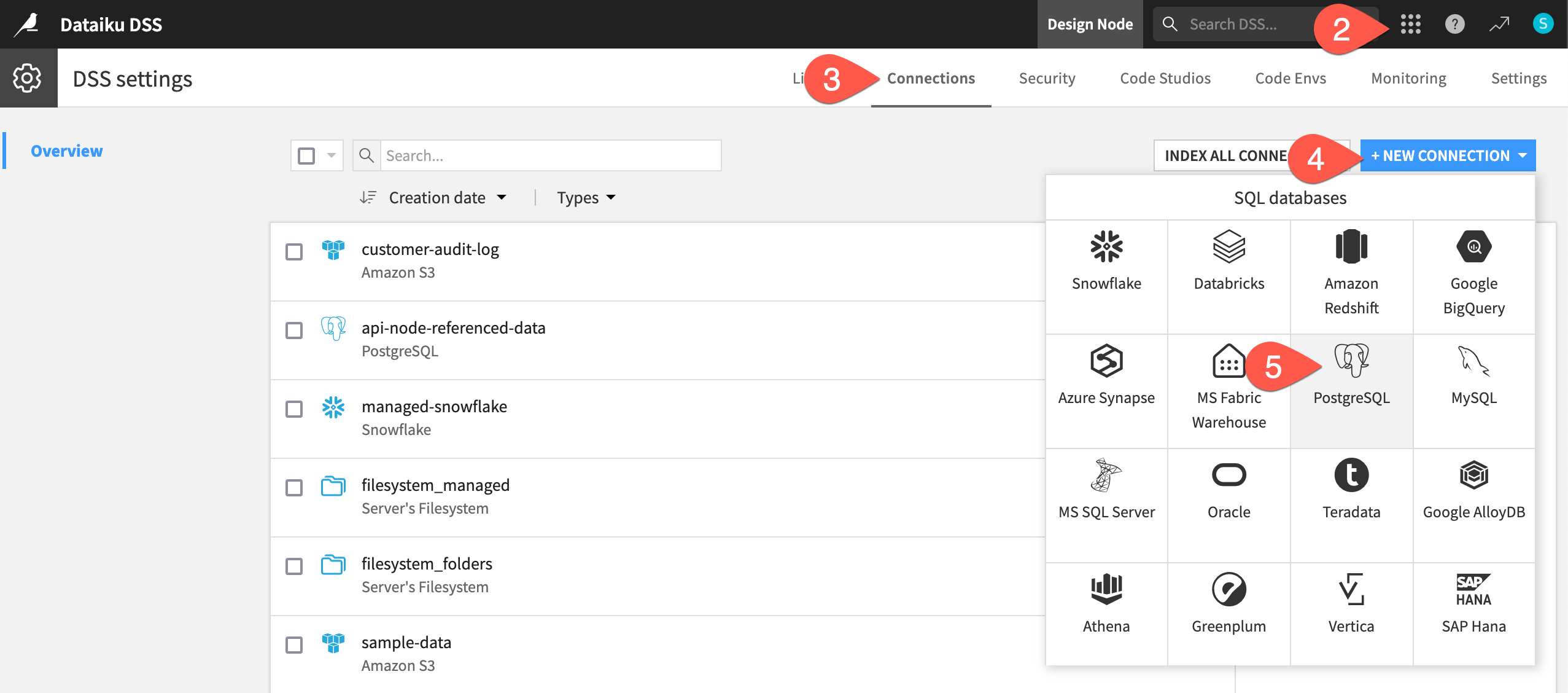
Logged in with your admin credentials, from the waffle (
 ) menu in the top navigation bar, choose Administration.
Navigate to the Connections tab.
Select + New Connection.
Select PostgreSQL (or another data source).
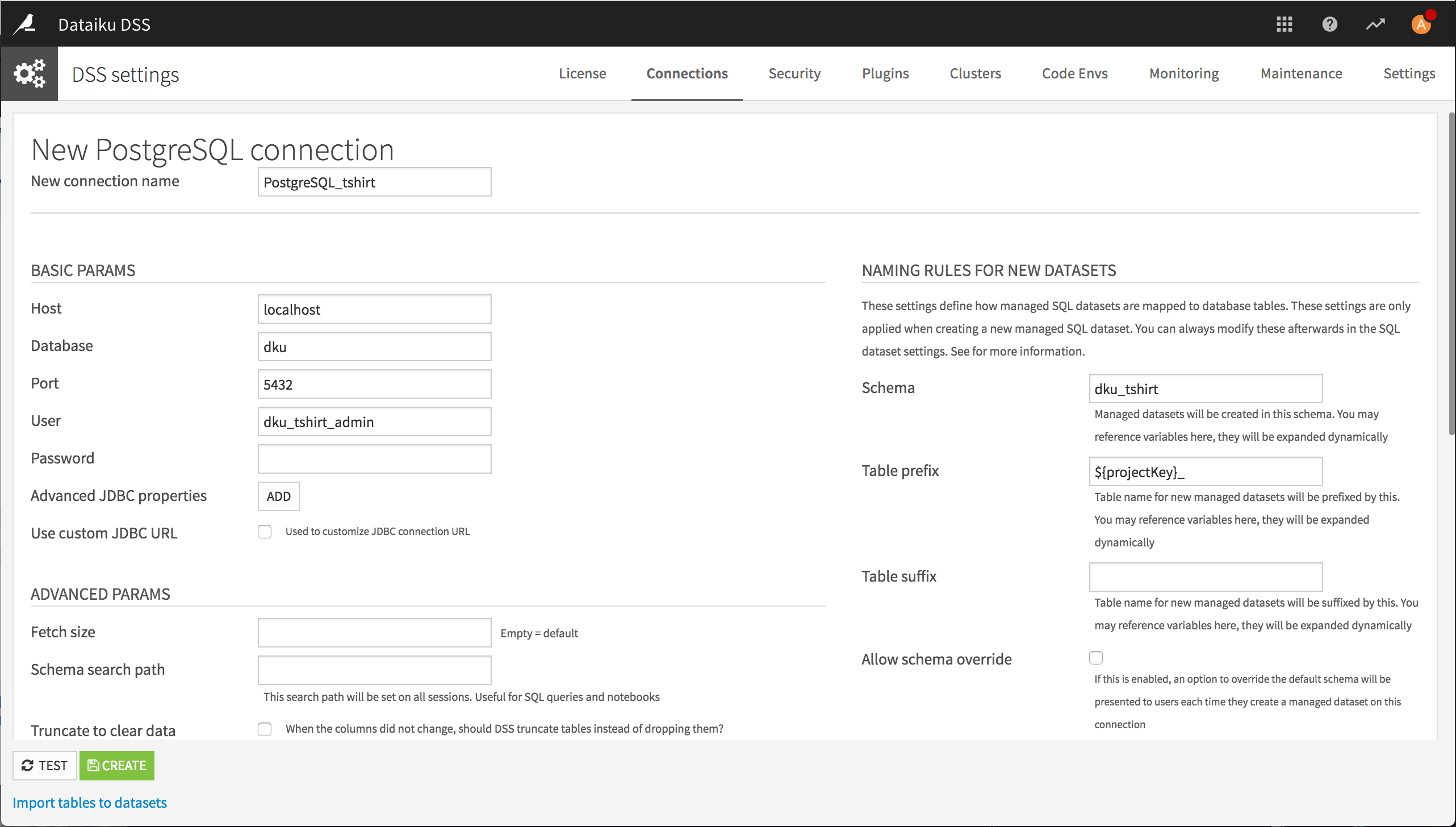
Once you’ve chosen a type of connection, you can configure the details.
Name it
dku_sql(you can’t change it later).Provide the Description
SQL database for admin training.Fill in the Basic params. Adjust to your own parameters as needed.
Host:
localhost(or your database server’s hostname)Database:
dkuPort:
5432(PostgreSQL’s default port)User:
dku_training_adminPassword:
Password
Click Test.
Assuming it returns OK, click Create to establish the connection.
Import datasets from a connection#
Users have several options for accessing data stored in connections. To simulate one common user workflow, start with a Dataiku project.
Create the project#
If needed, from the Dataiku Design homepage, use the (
 ) icon to switch to the Designer view.
Click + New Project > Learning projects.
Search for and select Connections.
If needed, change the folder into which the project will be installed, and click Create.
From the project homepage, click Go to Flow (or type
g+f).
Note
You can also download the starter project from this website and import it as a ZIP file.
Preview a table#
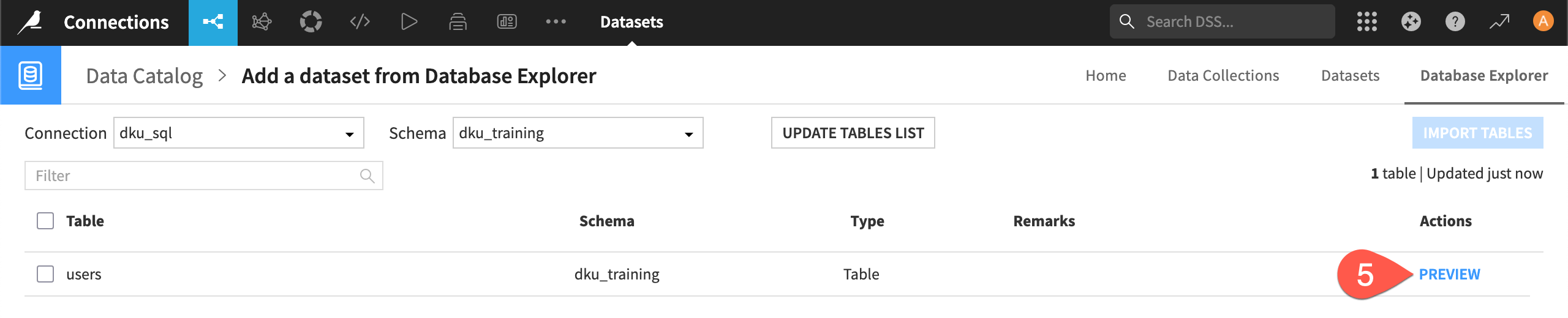
Using the Database Explorer section of the Catalog, you can browse a connection’s contents.
From the Flow, click + Add Item > Database explorer.
For the Connection to browse, select dku_sql.
For Restrict to schema, click Fetch List, and select dku_training.
Click List Tables.
For the users table, click Preview.
Grant privileges#
Previewing the table should have failed with a permission error, something like PostgreSQL’s ERROR: permission denied for table users. That error comes from the database itself, not Dataiku. The grant issued when configuring the database only covered the schema (creating and listing objects in it). It doesn’t extend to the tables inside.
Dataiku authenticated successfully as dku_training_admin. PostgreSQL, in this case, however refused to let that user read the table’s data. This is a good first example of how the database itself enforces database-level access control — independent of anything Dataiku’s connection settings control. It will be a common theme!
To fix it, connect to the database again, and grant privileges on the table directly:
Enter the following in a terminal:
psql -h localhost -d dku
GRANT ALL PRIVILEGES ON ALL TABLES IN SCHEMA dku_training TO dku_training_admin;
\q
Back in the Database Explorer, click Preview next to the users table again to confirm it now works.
Select users, and click Import Tables.
Click Create 1 Dataset to confirm.
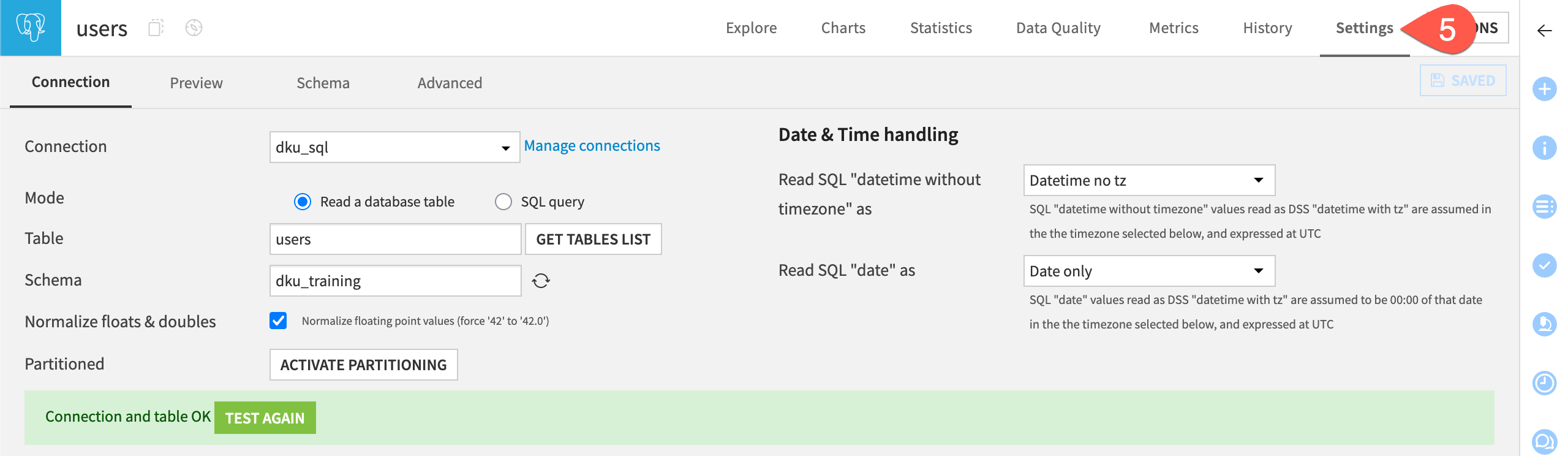
Within the users dataset, navigate to the Settings tab to view its connection, table, and schema details.
Write to a connection#
Users now have an SQL connection to use underneath the Flow of their Dataiku projects. Thus far however, you’ve only read from the dku_sql connection. Building a Flow means running recipes, and therefore writing new output datasets in the connection’s storage location.
This section puts the connection’s usage parameters and placement settings to the test.
Trigger a placement error#
Try to create a new output dataset in the connection via a visual recipe.
Open the users dataset.
From the Actions (
 ) tab in the right panel, select Prepare.
Accept the default output name of
users_prepared.Confirm that Dataiku will store the output in dku_sql.
Click Create Recipe.
Beneath the Run button, note that Dataiku has selected the in-database SQL engine to execute the recipe.
Despite it not having any actual steps, click Run to send this job to the database.
The job should fail due to an error on the database side. Vendors may differ, but in the case of PostgreSQL, you’ll find in the logs: “permission denied for schema public.” Every Dataiku user will run into this error because the dku_training_admin role itself lacks the CREATE privilege on the public schema.
Important
If you review the connection details, you’ll find that the dku_sql connection doesn’t have a schema configured in its “Rules for new datasets” settings. With that field empty, Dataiku falls back to PostgreSQL’s own default schema: public. But every grant issued so far only covers dku_training.
Define rules for new datasets#
Granting CREATE ON SCHEMA public TO dku_training_admin would fix the job. Instead of granting more privileges, there is a better way to solve this problem. Point the new dataset at the schema that already works, rather than opening up a second one.
Open the Settings tab of the empty users_prepared dataset.
Set the empty the Schema field to
dku_training.Click Save.
In the Actions tab of the right panel, click Build and then Build Dataset to re-run the recipe.
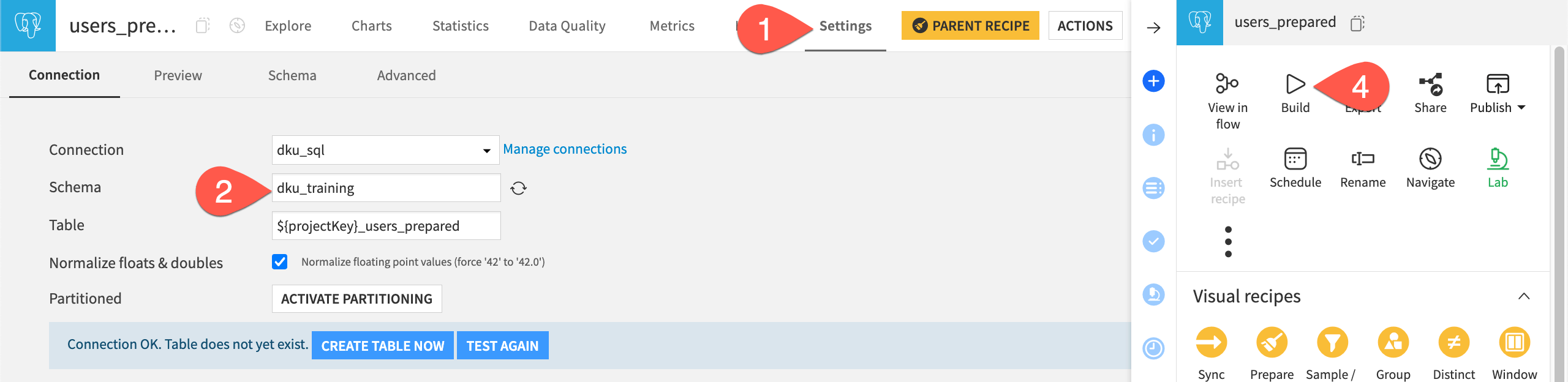
The recipe should now succeed. This immediate fix notwithstanding, you want to avoid this output for all such future situations. You can do that in the connection’s settings.
Return to the dku_sql connection details page.
Under Rules for new datasets, set the Schema to
dku_training.Click Save.
To test it, back in the Dataiku project, select the users dataset, and create a Sample/Filter recipe this time.
Click Run to execute it (once again with the in-database SQL engine).
Check the Settings tab of the output dataset to confirm its placement in the dku_training schema within the connection.
Confirm the table’s placement#
You can also check the database directly to see the new tables’ full names and where they landed.
Connect to the database to confirm the new tables exist:
psql -h localhost -d dku
\dt dku_training.*
You should have output like:
                             List of relations
   Schema     |                 Name           | Type  |       Owner
--------------+--------------------------------+-------+---------------------
 dku_training | TUT_CONNECTIONS_users_filtered | table | dku_training_admin
 dku_training | TUT_CONNECTIONS_users_prepared | table | dku_training_admin
 dku_training | users                          | table | <your local user>
All three tables landed in the dku_training schema, confirming the connection’s rule applies to any new dataset. Their names, however, aren’t identical to what you see in Dataiku. Both managed tables carry the Dataiku project key as a prefix, while users, the table you connected to directly rather than imported, doesn’t.
This prefix comes from the default table prefix setting.
Navigate to the dku_sql connection page.
Find under Rules for new datasets, a Table prefix of
${projectKey}_.
Turn off write access#
The actions above only succeeded because the option to “Allow write” and “Allow managed datasets,” found in the Usage params section of the connection details, are toggled on.
Thus far, the dku_sql connection has served as both a source you read from and a destination you write to. In certain cases though, admins need a connection reserved for reading only. For example, you may have a connection to an upstream production database or a schema owned by another team. On these types of tables, Dataiku users should be able to build from the data, but never risk a recipe creating or overwriting tables there by mistake.
The “Allow write” usage parameter sits above the rules for new datasets. This setting decides whether users can write to dku_sql at all — independent of whatever privileges the underlying database user actually holds. Turn it off to enforce that boundary, and see the effect for yourself.
On the connection’s details page, find the Usage params section.
Uncheck Allow write (which thereby removes allowing managed datasets and the entire section of rules for new datasets).
Click Save.
Back in the Dataiku project, select the users_prepared dataset.
In the Actions (
) tab of the right panel, select Clear data, and Confirm.You should find an error message from Dataiku.
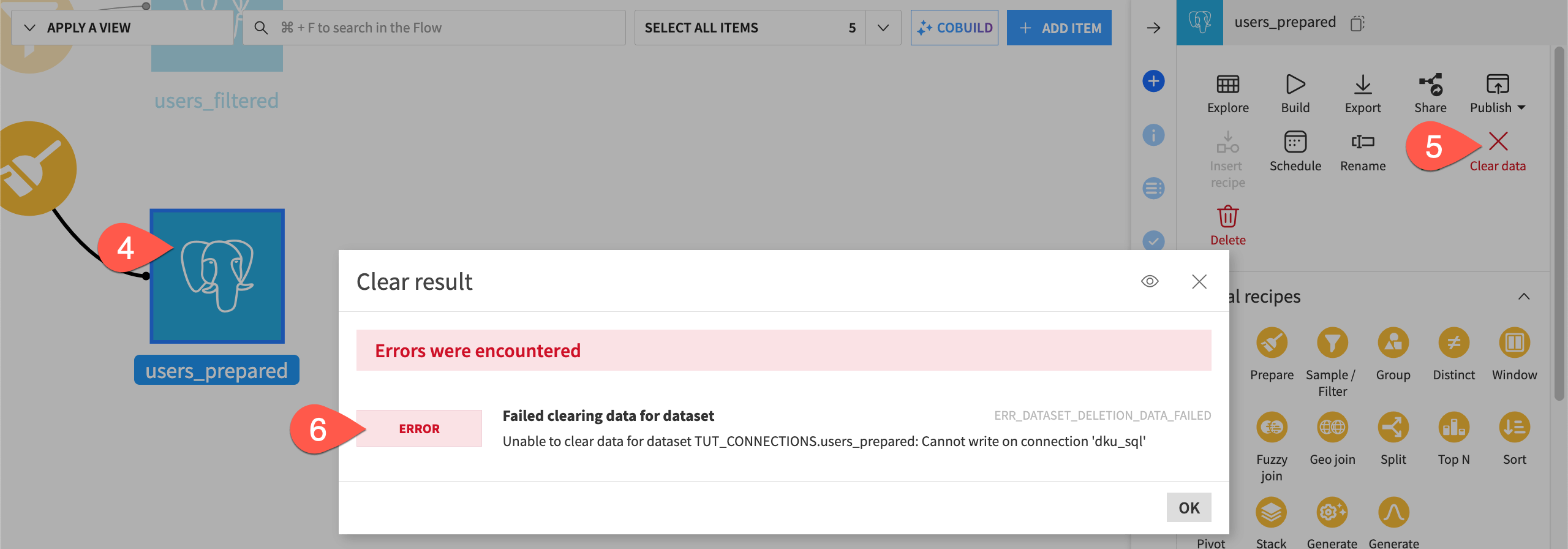
This job fails before it ever reaches the database. Dataiku refuses to attempt the write at all because the connection no longer allows it. In this case, Dataiku doesn’t need to ask the database anything.
Tip
Without write access, if you take the users dataset as input to another recipe, you won’t find dku_sql as a possible output storage location.
Before finishing, return the connection settings to a more typical configuration as later sections rely on the ability to write managed datasets.
Return to the dku_sql connection details page.
Under Usage params, toggle on Allow write and Allow managed datasets.
Click Save.
Secure a connection#
Under the current settings, every Dataiku user of the dku_sql connection has the same experience: unrestricted use of the connection, and one shared database identity behind the scenes. This section puts connection security into practice by changing both.
Share the project with a new group#
To feel the effect of restricting a connection, you need a second Dataiku user. This user should have membership in a group with write access to the Connections Dataiku project, but without membership in your own admin group.
Open the Connections Dataiku project.
In the top navigation bar, navigate to More Options (
 ) > Security.
Within the Permissions panel, under User permissions, open the dropdown Select groups, choose your second group, and click + Grant Access.
Make sure the second group has the permission to Write project content.
Click Save.
Tip
If you need to create users and groups, follow Tutorial | User and group management.
Restrict the connection to a group#
At this point, any user has an unrestricted path to dku_sql, courtesy of the connection’s default Freely usable by setting of Every analyst. The next step closes that off.
Navigate to Administration > Connections, and open dku_sql.
Under Security settings, change the Freely usable by field from Every analyst to Selected groups.
Choose your admin group (likely administrators or space_administrators).
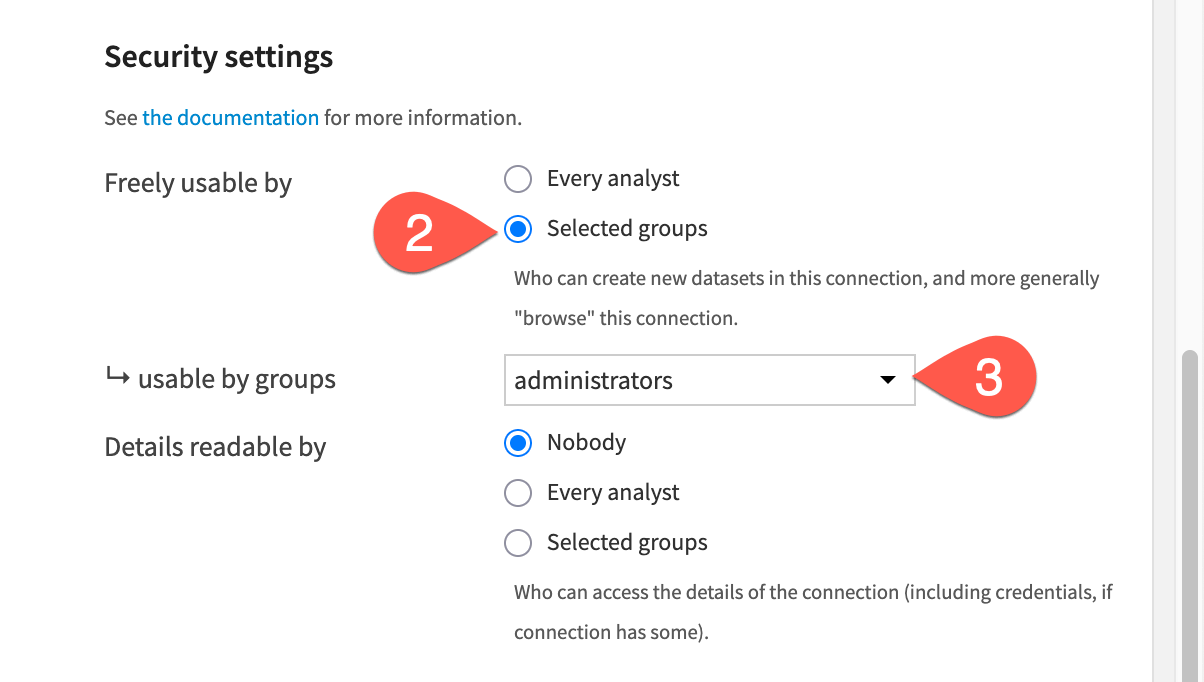
Click Save.
The dku_sql connection is now reachable only by members of this admin group. The second test user has membership in a group with write access on the project, but lacks the resource permission on the connection used inside it.
Log in as the second test user to see the impact of this restriction. First see what doesn’t change.
Log in as the second test user.
Open the Connections project, and confirm the Flow is visible.
Open the users_prepared dataset, and confirm its data still previews normally.
From the Actions (
) tab, click Build, and rebuild users_prepared. The job should succeed.
This job succeeded because users_prepared already existed on the connection before you restricted it. Rebuilding a managed dataset writes into that existing table. Now see where the restrictions present themselves.
From the users dataset, initiate a new recipe, such as Top N. When choosing where to store the output, notice that dku_sql no longer appears as an available connection.
Open the users_prepared dataset’s Settings tab, and recognize changes aren’t possible.
Try to Save any new step in the Prepare recipe. Confirm it’s not permitted.
The latter two steps fail because they require reaching the connection directly.
Important
Project permissions and connection permissions are independent gates. The test user cleared the first but not the second. Both have to be open before a user can create a new output in the connection and in the project.
Switch to per user credentials#
Despite two different Dataiku users running jobs against the database, every job has authenticated as the same database user, dku_training_admin. PostgreSQL however is one type of connection that offers the ability to validate credentials on a per user basis, rather than a global basis.
Log back in as the admin user.
Return to the dku_sql connection’s settings page.
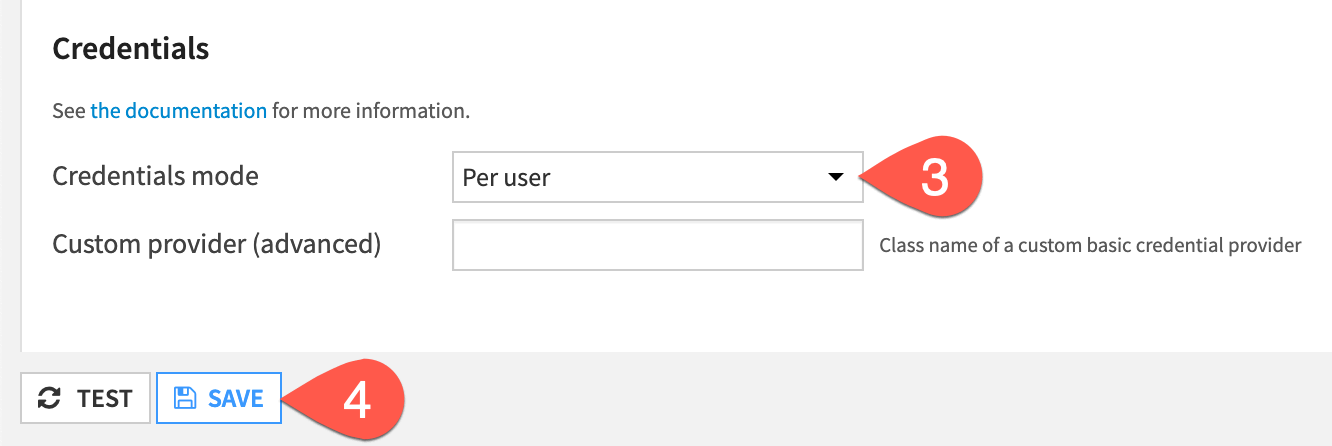
Under Credentials, find the Credentials mode setting, and change it from Global to Per user.
Notice that the User and Password fields disappear from the connection’s settings entirely; that identity is no longer the connection’s to provide.
Click Save.
Now test the consequence of this change.
Still logged in as the admin, return to the Connections project.
Attempt to rebuild the users_prepared dataset.
Confirm the job fails before it reaches the database, with an error like:
To access data using connection dku_sql, you need to connect your PostgreSQL account to Dataiku.
Important
The connection used to hand every job the same identity, dku_training_admin. Now it hands each job the identity of whoever is running it. However, nobody has told Dataiku what your identity is on the database side. The only known database user is still dku_training_admin, and nothing yet links it to your Dataiku account.
Connect your personal credentials#
To resolve the error, you need to store the necessary credentials in your Dataiku profile.
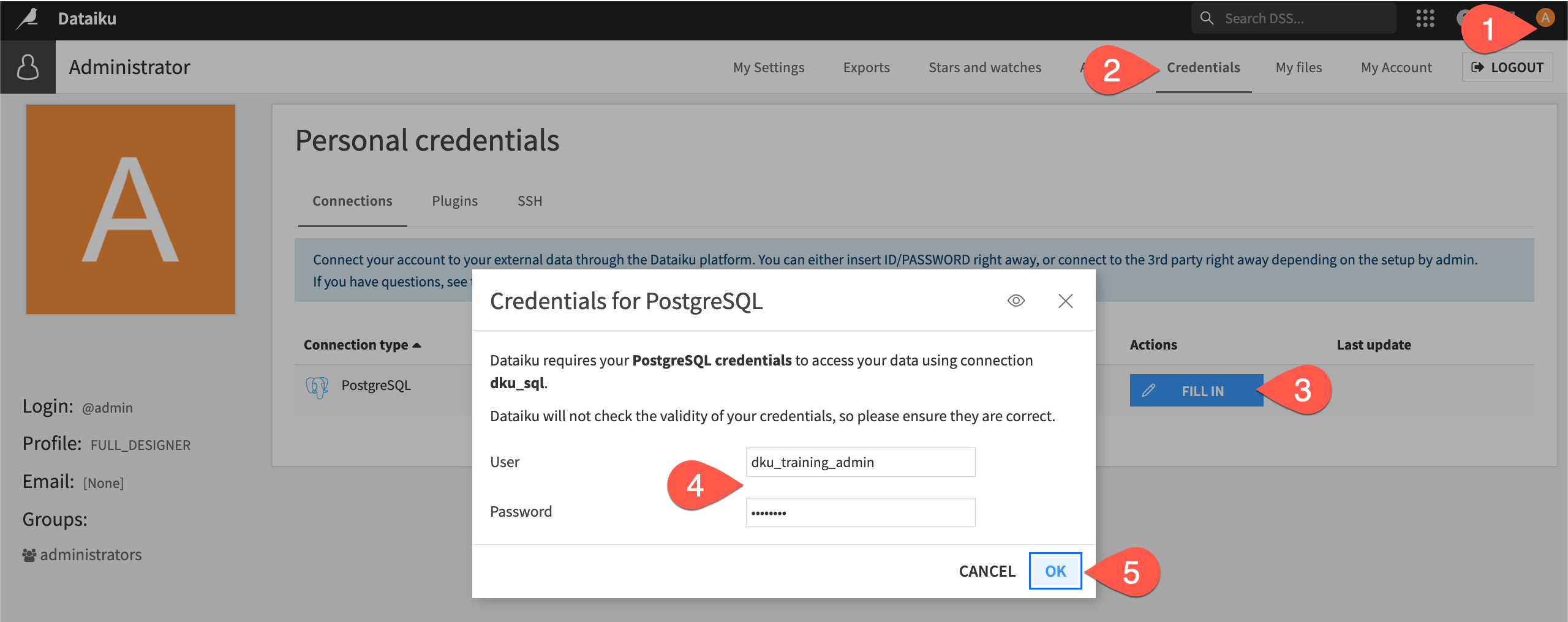
From the profile page, select Profile and settings.
Navigate to the Credentials tab of your profile.
For the dku_sql connection, click Fill In.
To keep it simple, use the credentials already present on the database side:
dku_training_adminas the user andPasswordas the password.Click OK to save it.
Return to the Connections project.
Rebuild the users_prepared dataset once more. The job should now succeed, this time carrying your own identity to the database.
Tip
Nothing changed on the database side. dku_training_admin is still the only role that exists there. What changed is that Dataiku now knows to present that role as your credentials, rather than assuming it on everyone’s behalf.
Configure default and fallback connections#
The settings covering “Rules for new datasets” define how a table is placed and named within a connection. However, admins also need to guide users to the correct connections in the first place. Defining Dataset creation settings is one way they can do that.
This section of the tutorial implements the principles found in Concept | Default and fallback connections.
Enable computation offloading#
When a user initiates a recipe, Dataiku suggests a name for the output dataset (for example, users and users_prepared). Similarly, Dataiku also picks where to store the output data. It makes this selection based on the input storage location.
Relying on Dataiku to make this decision is most often the best approach. For one, it helps enable the most efficient choice of recipe engine. If the input and output datasets reside in the same connection, Dataiku, most often, is able to offload the computation. In the case of SQL databases, that means an in-database SQL engine. In the case of object storage, it could be a containerized engine or Spark.
For the previous recipes in this project, you followed Dataiku’s default storage suggestions. Accordingly, you should be able to confirm the following:
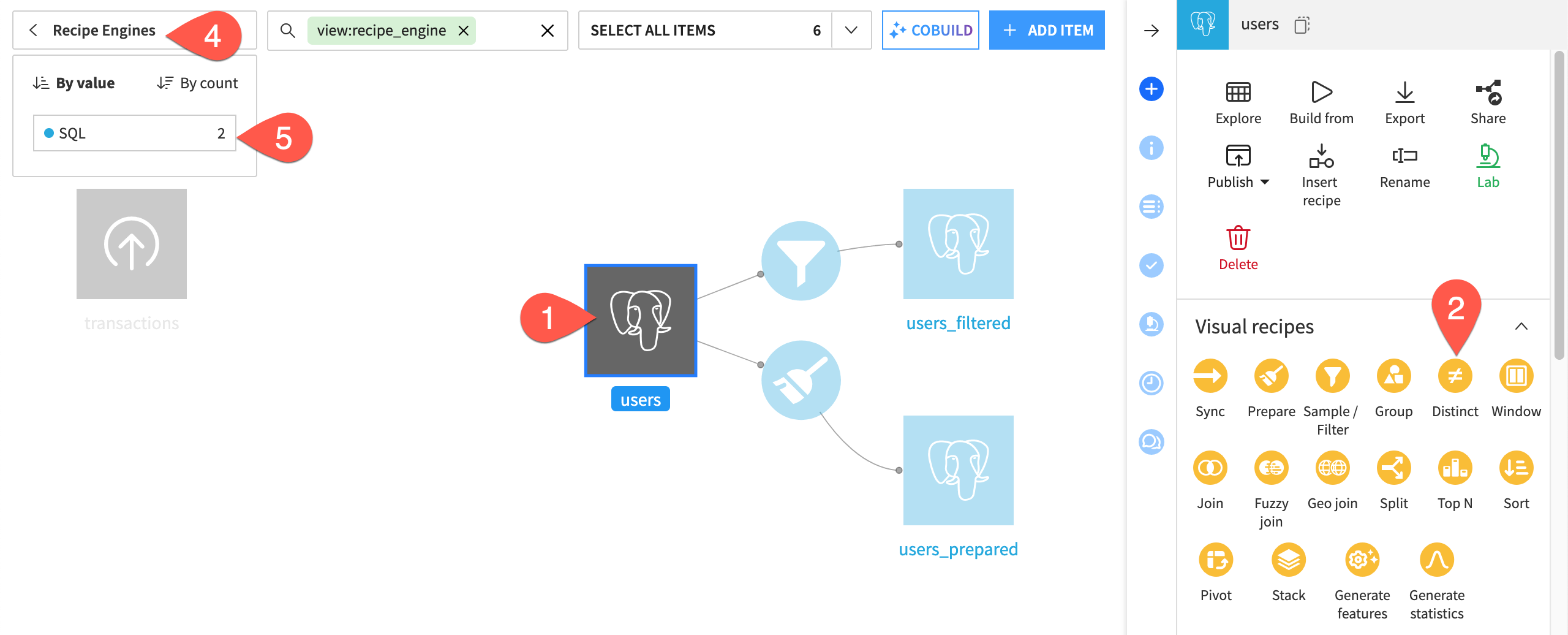
From the Flow of the Connections Dataiku project, select the users dataset.
From the Actions (
) tab of the right panel, select a visual recipe like Distinct.In the new recipe dialog, confirm Dataiku would store the output in the dku_sql connection (the same as the input dataset). Click Cancel.
From the Flow, click Apply a View > Recipe Engines.
Confirm both recipes in the Flow use the SQL engine.
See also
You can learn more about push down computation in Tutorial | In-database data visualization and preparation.
Set a preferred fallback connection#
Given an input dataset stored in the dku_sql connection, Dataiku knows to store the output of any downstream recipes in the same location. Dataiku, however, doesn’t always have this context. It’s possible some uploaded files don’t have any connection information that Dataiku can use to suggest an output storage location.
This is true for the uploaded file in the starter project.
From the Flow of the Connections project, select Apply a View > Connections.
While the users dataset and its downstream outputs are stored in dku_sql, the transactions dataset has No connection.
Select the transactions dataset, and initiate any visual recipe from the Actions (
) tab of the right panel.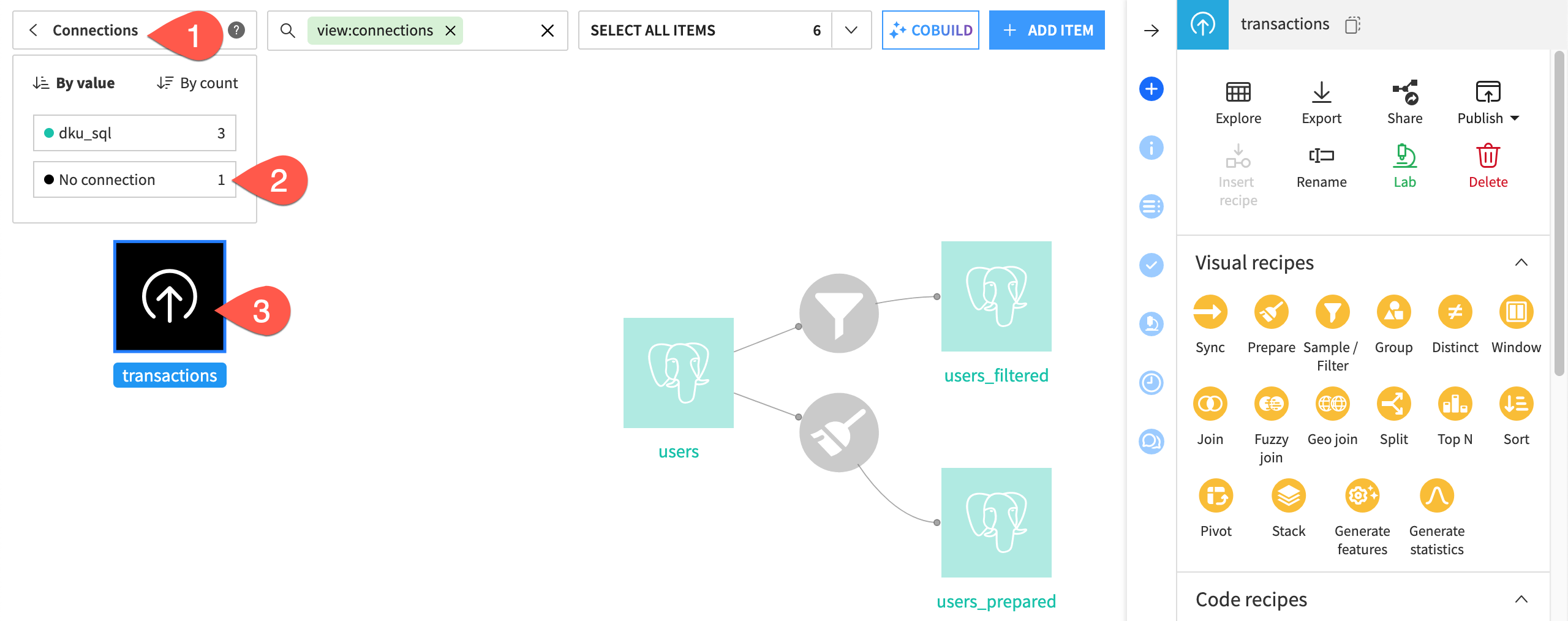
In the new recipe dialog, note the suggested Store into location.
Click Cancel.
Without any context for Dataiku to draw upon, there’s no guarantee that this default location is the optimal choice. Moreover, any further downstream recipes will inherit the context of this potentially undesirable location.
To mitigate this situation, you can define a preferred fallback connection at the instance or project level.
Navigate to Administration > Settings > Engines & connections.
Under Dataset creation settings, set
dku_sqlas the Preferred fallback connection, and click Save.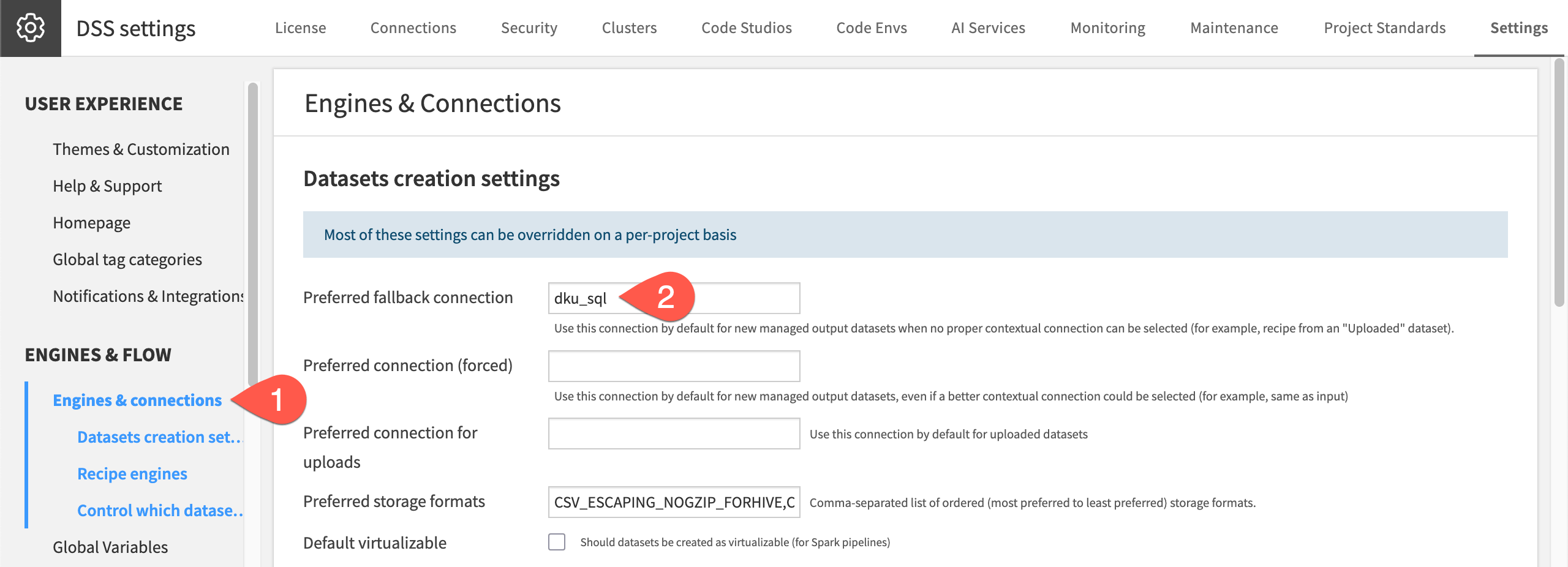
Return to the Connections project.
Select the transactions dataset again, and initiate a visual recipe.
Confirm dku_sql is now the suggested storage location for the output.
Tip
The choice of dku_sql here is for demonstration only. In practice, a fallback connection should point to storage built to hold growing data long-term.
Set a preferred location for uploads#
Users can encounter a similar problem when uploading files like CSVs or Excel workbooks. As the admin, you can define a default location for uploaded files. Unlike dku_sql, the connection needs to be file-based storage. It also needs write-access.
Navigate to Administration > Settings > Engines & connections.
Under Dataset creation settings, define a Preferred connection for uploads.
If on a self-managed instance, try
filesystem_managed(assuming you haven’t configured other options).If on Dataiku Cloud, check the Connections panel of the Cloud Launchpad for any file-based connection in Read-write access mode.
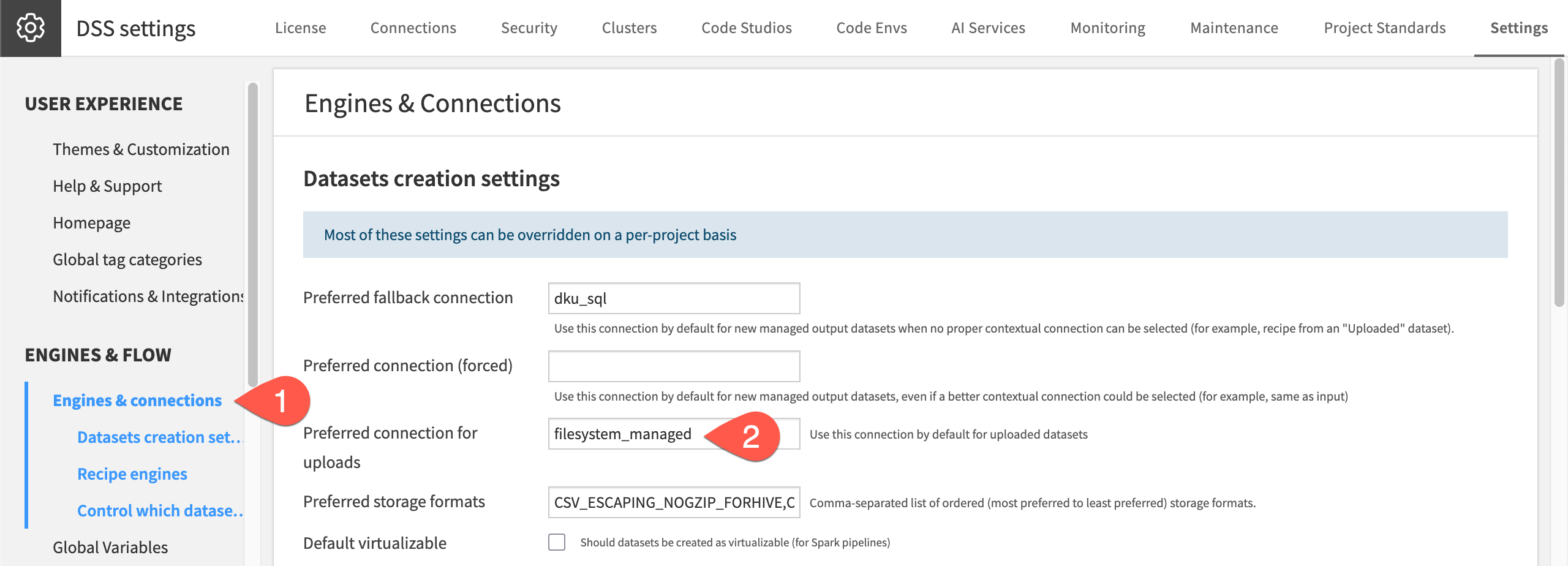
Click Save.
Return to the Connections project.
From the Flow, click + Add Item > Upload.
Confirm the Upload to connection field defaults to your choice.
Tip
The same principle for defining a fallback connection applies to uploads. Avoid leaving uploads on your instance’s default storage. On a self-managed instance, that means the local filesystem, which consumes disk space on the node itself. On Dataiku Cloud, that means the built-in dataiku-managed-storage S3 bucket. Instead, set a preferred connection for uploads that direct this data to storage built to hold it long-term.
Next steps#
Congratulations! Across this tutorial series, you’ve taken on many of the core tasks involved in managing a Dataiku connection to an external data source:
You configured a non-production SQL database as a data source, and then connected it to Dataiku.
You imported data from the connection into a Dataiku project.
You defined rules for new datasets to control how recipe outputs are named and placed within the connection.
You secured the connection by restricting it to a specific group and switching from shared to per user credentials.
You configured fallback connections to guide users toward preferred storage locations for new managed datasets.
With this foundation in place, you’re ready to start creating connections to your organization’s true data sources.
Important
Before finishing, delete any objects created during the tutorial that you no longer need, such as the test connection and the database behind it.
See also
For more details, see Connecting to data in the reference documentation.