

Tutorial | Manage code environments#
Get started#
One responsibility of a Dataiku administrator is effective management of code environments. If you’re a Dataiku administrator, follow this tutorial for your first steps toward successful code environment management.
Objectives#
In this tutorial, you will:
Create code environments and modify the package lists inside them.
Restrict code environment usage and editing to specific groups.
Locate code environment logs and diagnostics for troubleshooting issues.
Prerequisites#
Dataiku 15.0 or later.
Membership in a group that has the global permission to create projects, write isolated code, manage all code envs, and create code envs.
At least two groups to demonstrate securing a code environment.
Create the project#
If needed, from the Dataiku Design homepage, use the (
 ) icon to switch to the Designer view.
Click + New Project > Learning projects.
Search for and select Code Env Administration.
If needed, change the folder into which the project will be installed, and click Create.
From the project homepage, click Go to Flow (or type
g+f).
Note
You can also download the starter project from this website and import it as a ZIP file.
Create a notebook with the built-in environment#
One best practice is to avoid using the built-in env for user code. To see why firsthand, create a notebook with the built-in environment.
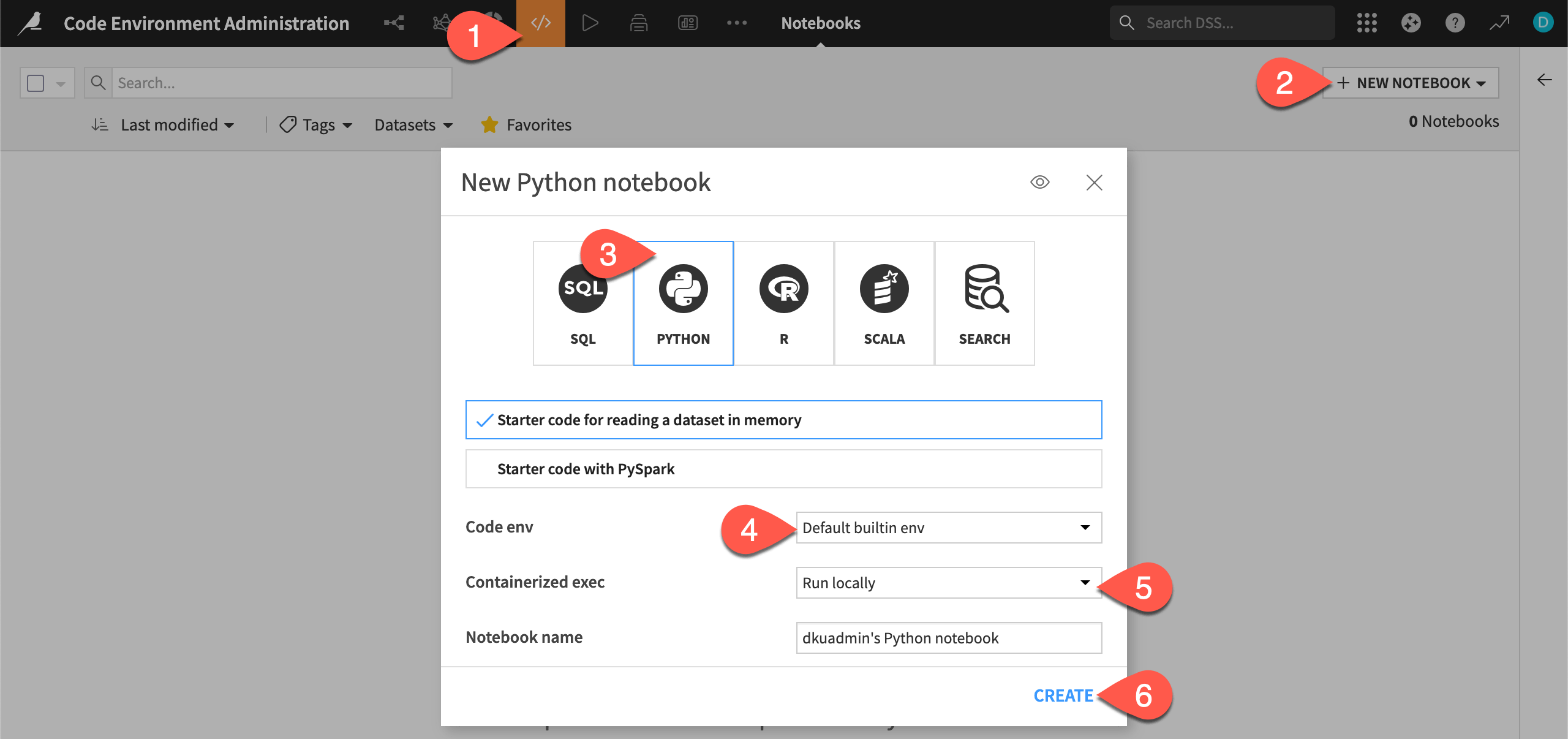
From the Code (
 ) menu of the top navigation bar, select Notebooks (or use the keyboard shortcut
 g+n).Click + New Notebook > Write your own.
In the new notebook modal, select Python.
For the Code env field, if not already selected, choose Default builtin env.
To simplify matters, for the Containerized execution field, choose Run locally.
Click Create.
Now try to run code that imports a package not included in the built-in environment, in this case, sympy, a library for symbolic mathematics.
Replace the starter code with the following:
from sympy import *

from sympy.interactive import printing
printing.init_printing(use_latex=True)

x, y = symbols('x y')
expr = x + 2*y
display (expr)
Execute the code, and confirm a
ModuleNotFoundError.Click File > Save and Checkpoint (or
Cmd/Ctrl+S) to preserve the notebook’s progress.
Tip
The package called in this code doesn’t exist in the built-in environment. You’ll need to install it in a separate code environment owned by you!
Create a code environment#
To overcome this missing dependency, create your first code environment with the recommended default options.
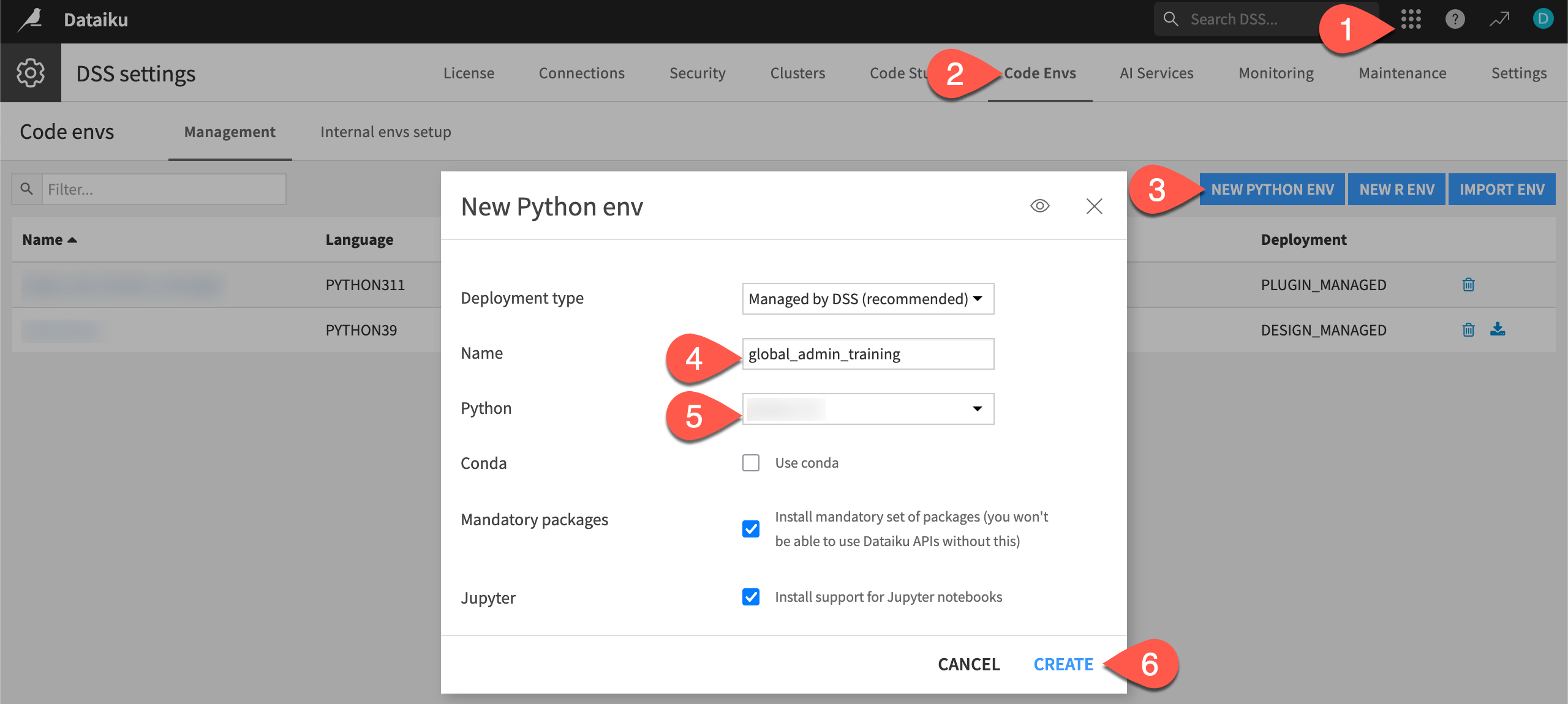
From the waffle (
 ) menu in the top navigation bar, select Administration.
Navigate to the Code Envs tab.
Click New Python Env.
Name it
global_admin_training.Leave the default Python version for your instance and other default options.
Click Create.
Add a package to a code environment#
A code environment comes with a number of mandatory base packages required for core Dataiku operations. On top, you can request specific packages to include in the environment.
As an example, request the sympy library so users can access its methods for symbolic mathematics.
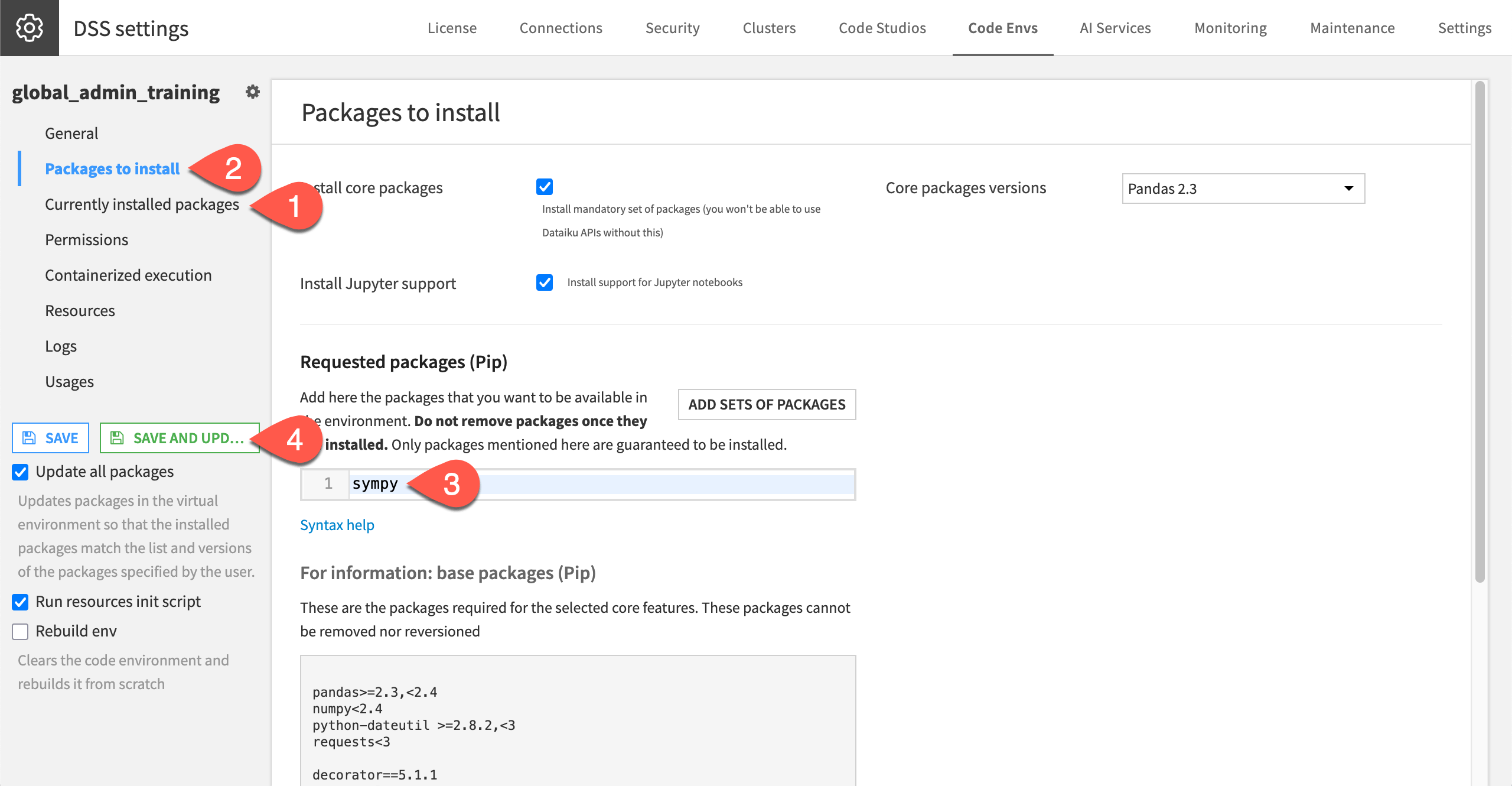
In the new environment, navigate to the Currently installed packages to see what’s already included.
Navigate to the Packages to install panel.
Under Requested packages (Pip), add
sympy.Click Save and Update.
Return to the Currently installed packages panel, and confirm a specific version of sympy is present. You’ll also find mpmath, a package that sympy depends on: Dataiku installed it automatically, even though you didn’t request it.
Apply a code environment#
It’s important to recognize that Dataiku projects follow a certain inheritance hierarchy to determine the default assignment of code environments to items inside them.
First, check your project’s default Python code environment. Code items in the project (such as notebooks, recipes, and webapps) inherit this environment by default.
Return to your Code Env Administration project.
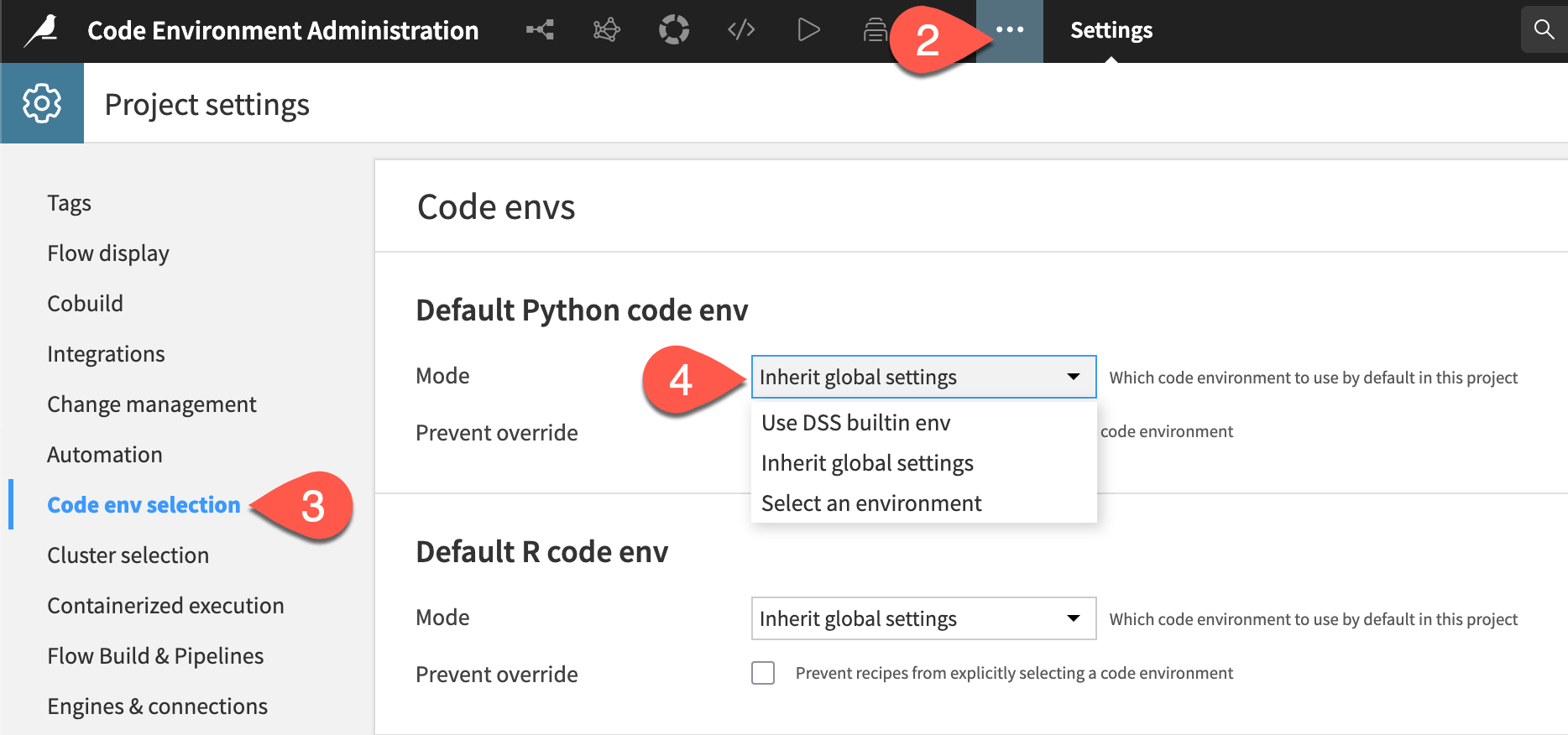
In the top navigation bar, go to More Options (
 ) > Settings.
Navigate to the Code env selection panel.
Find out what the project’s default Python code environment is.
Important
Your project might be set to inherit global settings. The administrator defines these settings in Administration > Settings > Misc. > Code envs. It’s important to define this to avoid users inheriting the built-in env.
Instead of using the code environment throughout the project, select it only for a specific code notebook.
Return to the Python notebook you created.
Go to Kernel > Change kernel > global_admin_training.
Click Kernel > Restart.
Re-run the code, now using a kernel that includes the sympy package.
Confirm it runs successfully.
Tip
Users follow a similar process for setting the code environment of other code items. Look for the Advanced tab of a code recipe or the Settings tab of a webapp.
Update a code environment#
As requirements change, you may need to modify the list of packages included in a code environment. You can add additional packages to an existing environment using pip syntax on the Packages to install tab.
However, to preserve an env’s integrity, removing a package that’s already present requires rebuilding the env from scratch. Do that now, replacing sympy with another package.
Return to the global_admin_training code environment.
Navigate to the Packages to install panel.
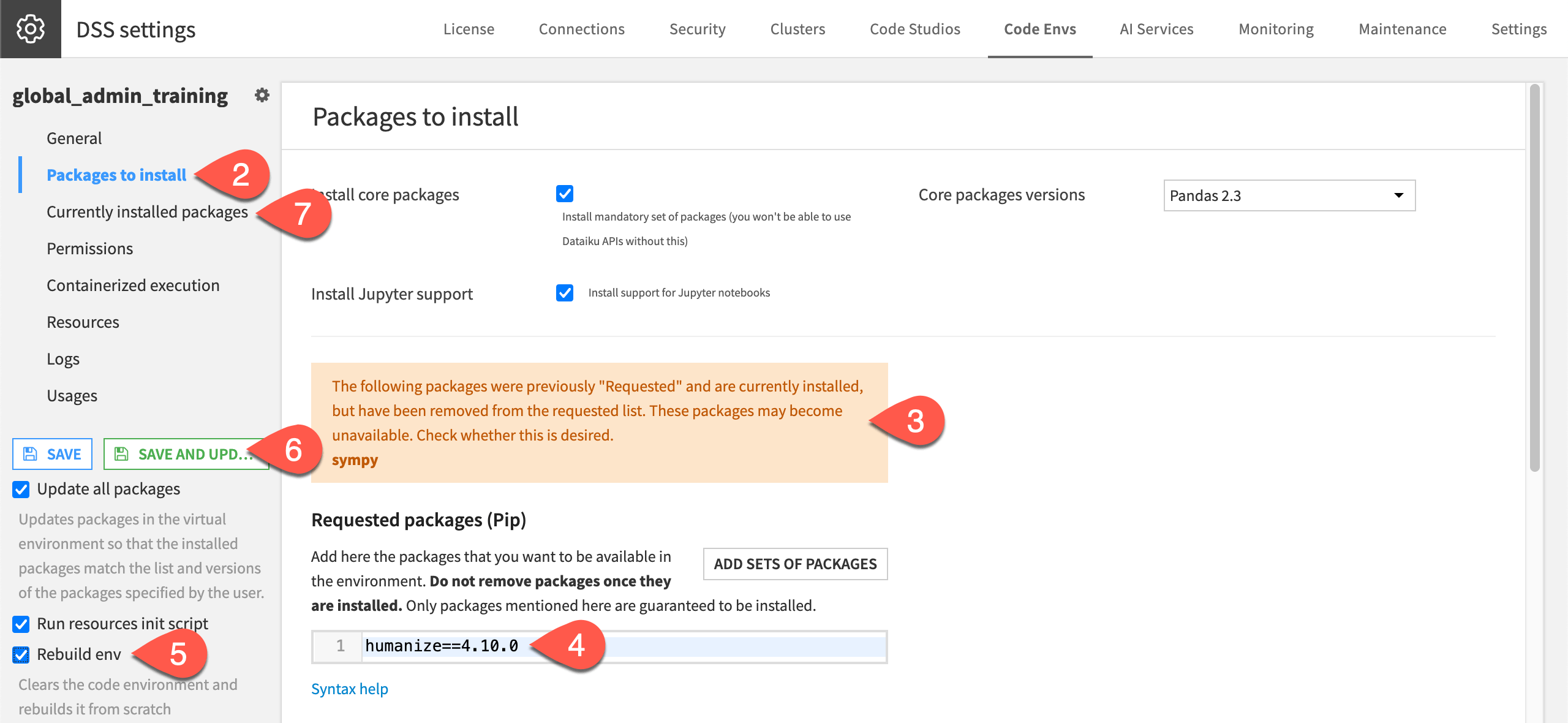
Remove sympy as a requested package, and confirm the warning message.
Add
humanize==4.10.0, noting the pip syntax for requesting a specific version.Check Rebuild env to rebuild it from scratch.
Click Save and Update.
Go to the Currently installed packages panel, and confirm the environment includes humanize, but not sympy.
You can also confirm this in your project.
Return to the Python notebook in the Code Env Administration project.
In the notebook, click Kernel > Restart & Run All, and confirm.
You should receive a
ModuleNotFounderror for the missing sympy library.
Tip
If the purpose of the code environment has changed (such as from computer algebra to humanization utilities), you’d most likely want a separate code environment. However, this option has two benefits:
It reinforces the need to rebuild from scratch if removing a package.
It results in fewer environments to clean up later when finished training (an important administrator responsibility)!
Secure a code environment#
Once you understand how to configure the contents of a code environment, the next step for an administrator is learning how to govern who can see, use, and manage it.
Grant group access to a code environment#
To complete the next exercise, you’ll need two test groups. Any two groups work, but you can imagine one group with advanced permissions (here called test_builders) and another with more limited permissions (here called test_consumers).
First, define which groups can access the code environment and how they can use it.
Return to the global_admin_training code environment.
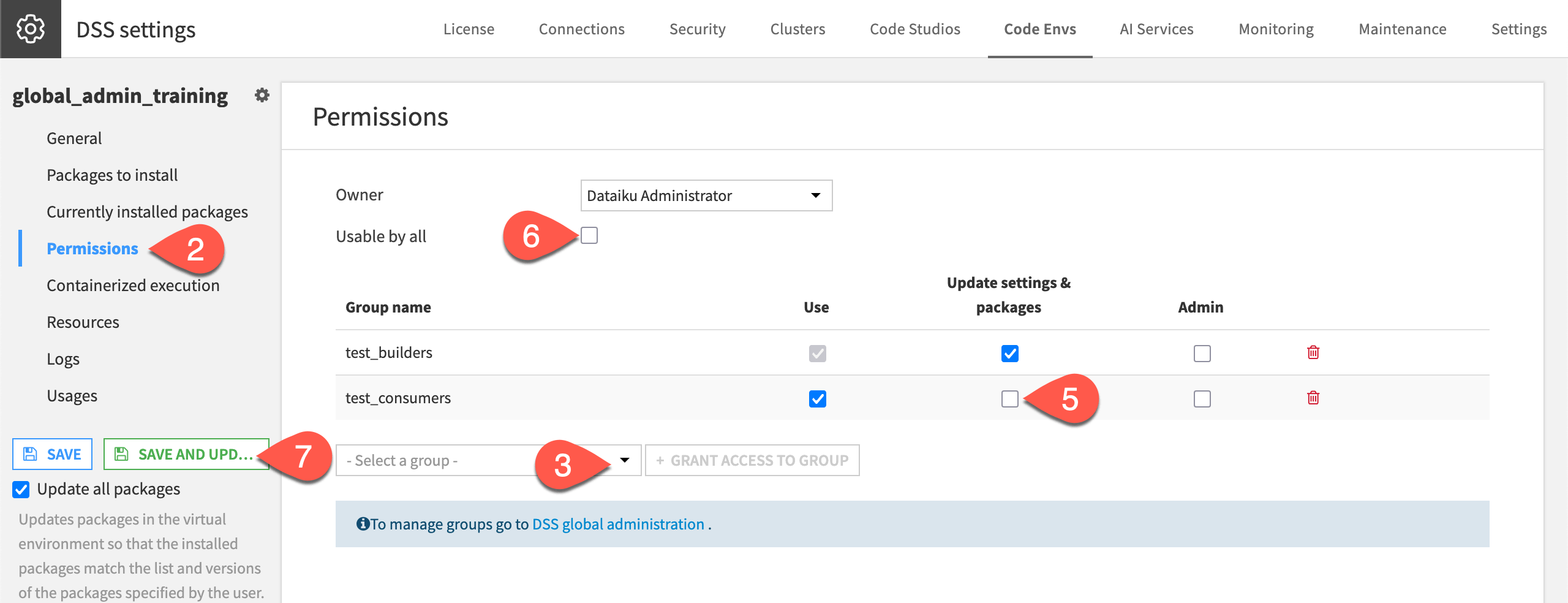
Navigate to the Permissions panel.
Using the dropdown, select a group, and click + Grant Access to Group.
Repeat for a second group.
Remove the Update settings & packages permission for the more limited group.
Uncheck the box Usable by all.
Click Save and Update.
Test the permissions on a code environment#
All else being equal, if you were to log in as a user in the test_builders group, in the test_consumers group, or a member of neither of these groups, you’d find three different experiences with respect to this code environment.
A member of the test_consumers group would be able to select and use the global_admin_training code environment in their Dataiku projects. However, they’d be forbidden from modifying its contents.
In addition to using the environment, a member of the test_builders group would be able to update the contents of the environment with different packages.
Lastly, because you unchecked the option Usable by all, the global_admin_training environment would be hidden from a user not in either group. For example, when looking at the list of available code environments to use as the project default, this environment wouldn’t appear.
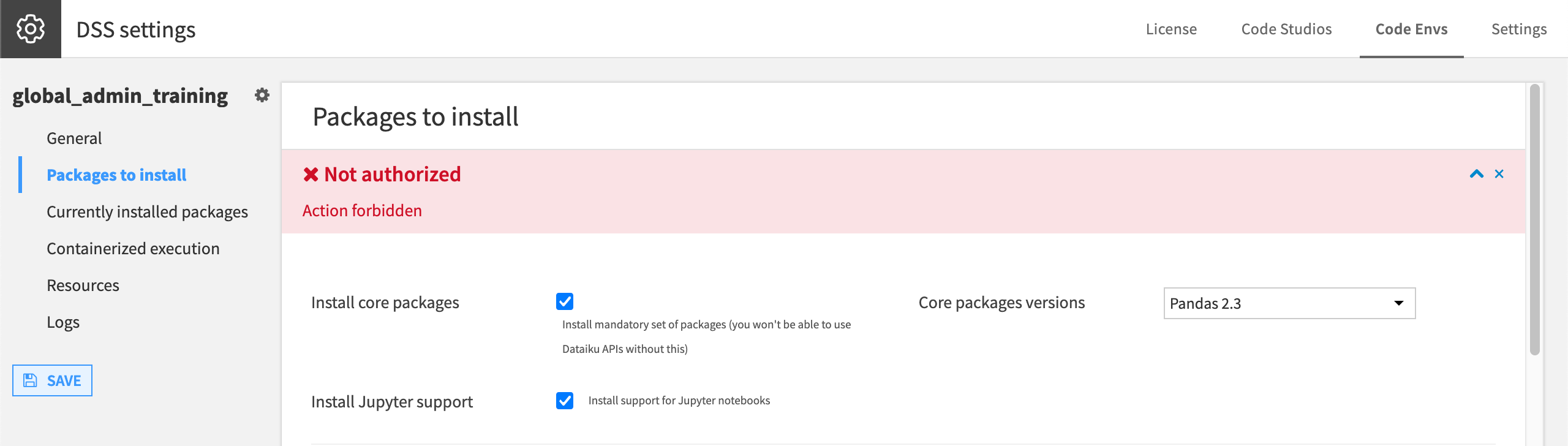
This user tried modifying the global_admin_training environment, but lacks the right to do so.#
The above words “All else being equal” are important. Recall that Dataiku has a multi-tiered permissions model. Code environment permissions are one type of resource permission. However, the global and project-level tiers are always simultaneous factors to consider when determining if a user can perform a certain action.
In this example, a member in the test_consumers group has the permission to Use a specific code environment. However, other permission tiers could change the outcome.
On a specific project, these users may lack the Write project content permission needed to actually use the code environment to write an output.
On the other hand, if for some reason the test_consumers group held the global permission to Manage all code envs, users in this group would be able to change the environment’s contents without having any explicit rights on it.
Caution
The “Usable by all” parameter functions as a convenient way to create tidy lists of approved code environments on a large shared instance. It doesn’t prevent a knowledgeable user from changing a notebook’s kernel and using the code environment that way. See Code env permissions in the reference documentation to learn more.
Troubleshoot a code environment#
As an administrator, your responsibilities with respect to code environments extend beyond maintaining their contents. You’ll need to manage their lifecycle in tandem with the Dataiku instance itself.
In cases of possible errors relating to code environments, including those after upgrades, you’ll want to investigate the logs. Moreover, when communicating with Dataiku support, you’ll often need a diagnostic.
From the code environment’s page, navigate to the Logs panel.
Download one of the log files.
Click the gear (
 ) > Get diagnostic to download a report that includes not only logs but also environmental information helpful for debugging.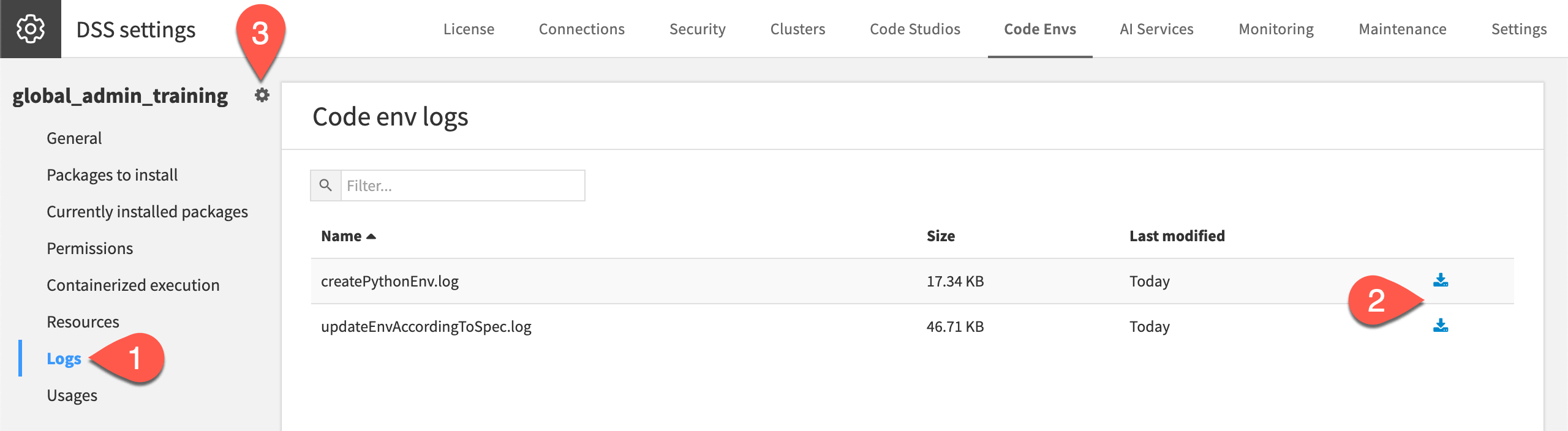
Unzip these files to examine their contents.
Find where a code environment is used#
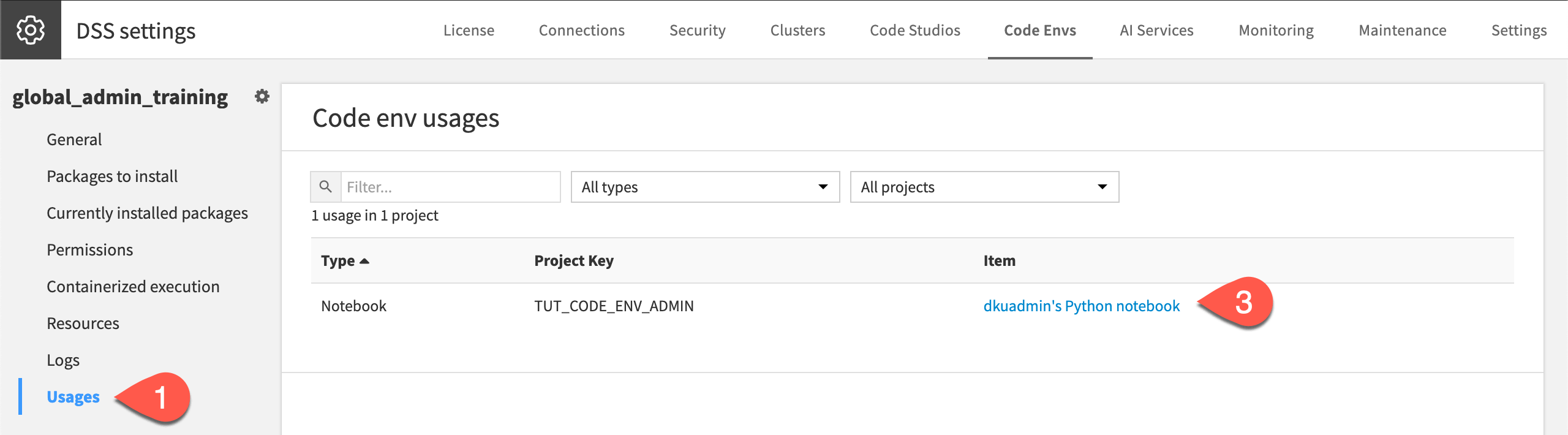
While troubleshooting code environment issues, it’s important to know where an environment is being used. This is particularly essential when considering to modify or delete a code environment. This way, you’ll avoid disrupting projects actively in development or production.
From the code environment’s page, navigate to the Usages panel.
Click Compute Usage.
Confirm the env’s usage in the code notebook of the tutorial project.
Delete a code environment#
After confirming the code environment is only used in the tutorial project, it’s safe to delete it. It’s also important to do so to maintain clean lists of code environments. Your users will thank you!
Next to the code environment’s name, click the gear (
) > Delete.Since you’ve already computed the usage, click Delete again to confirm.
Next steps#
Congratulations! You’ve taken your first steps as an administrator managing code environments on a Dataiku instance.
See also
For more information, see the reference documentation on Code environments.