

Tutorial | User and group management#
Get started#
Before teams can begin building analytics, models, and agents with Dataiku, the administrator needs to create and manage user and group assignments.
Objectives#
In this tutorial, you will:
Manually create users and groups on the Dataiku instance.
Distinguish between user profiles and user groups.
Grant project-level permissions to groups.
Use the authorization matrix to review user and group permissions globally.
Prerequisites#
Membership in a group with the Administrator permission.
An available user profile seat on your license, for the test user.
Use case summary#
This tutorial walks through creating users and groups by hand. Your organization may never need to do this. If you use LDAP, SSO, or another external identity provider, user authentication and provisioning happens automatically. However, working through the manual process is the clearest way to learn the principles of user and group management that apply regardless of how users arrive on the platform.
Along the way, you’ll build a simple permissions model from scratch: creating groups, assigning global and project-level permissions, and seeing how those layers interact. These fundamentals are the same ones you’ll rely on in any Dataiku deployment.
Important
While the principles are the same, the interface for managing users and groups differs depending on your type of installation. Use the tabs below to follow the correct set of instructions for whether you’re using Dataiku Cloud or a self-managed (Dataiku Cloud Stacks or Custom) installation.
Manage users#
At the foundation of any permissions model is the users themselves. Start by getting familiar with a few important properties of a user’s account.
Find your user profile and group assignments#
Before you start creating users and groups on behalf of your organization, take a moment to review your own account details.
Log in to the Cloud Launchpad.
Within the Overview panel, turn on the instance, and on the Design node, click Open Instance.
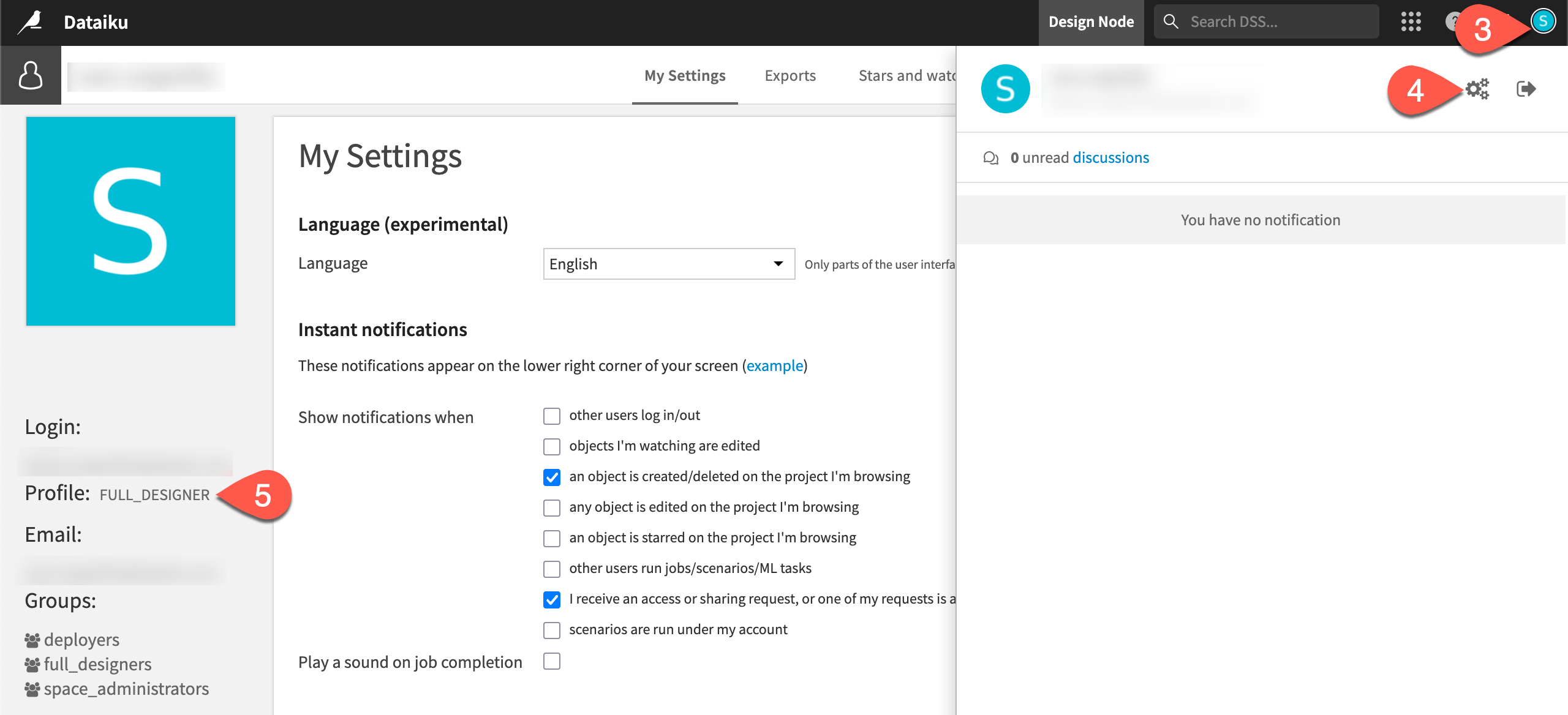
At the top right corner of the Design node, click the user icon.
Click the gear icon to see Profile & Settings.
You should have a profile (such as Full Designer) and membership in a group called space_administrators.
Log in to Dataiku with your admin credentials.
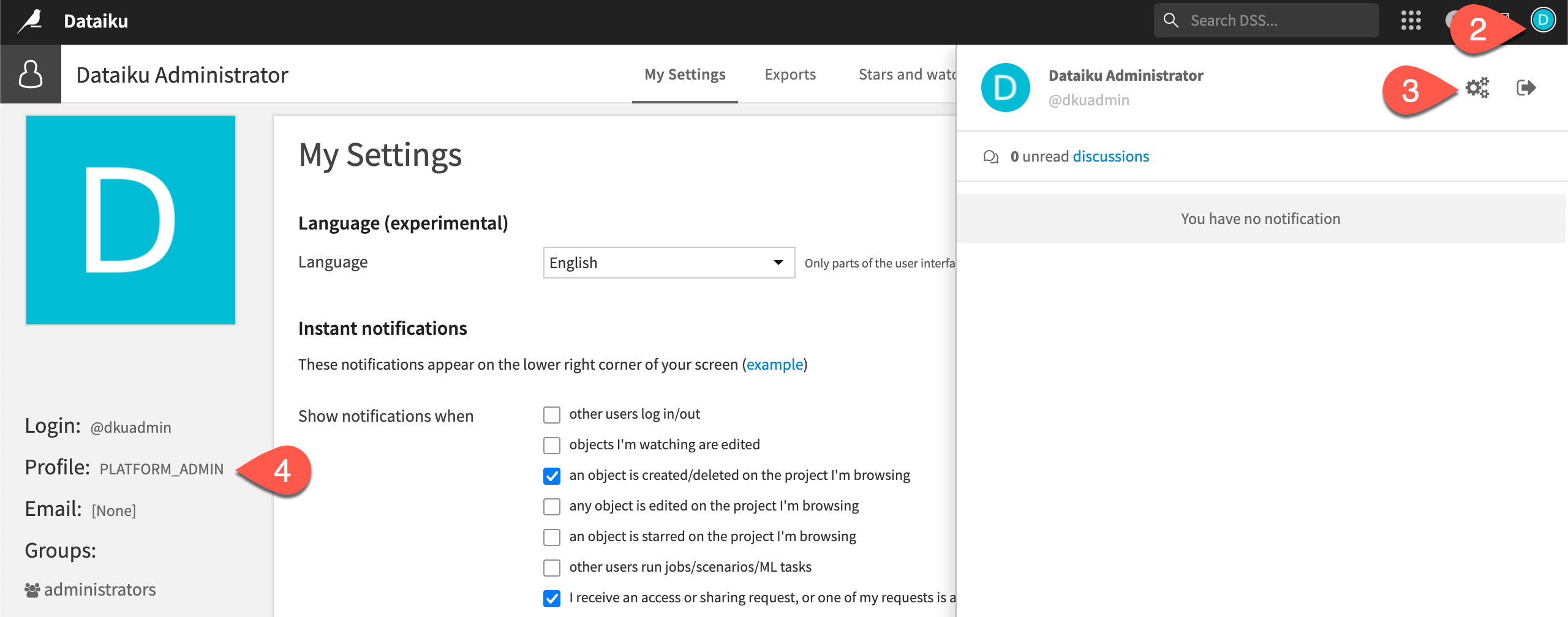
At the top right corner, click the user icon.
Click the gear icon to see Profile & Settings.
You should have a profile (such as Full Designer or Platform admin) and membership in a group called administrators.
Tip
The name of your exact profile may differ based on your Dataiku license. For the purpose of this tutorial, the exact name won’t matter. See User profiles in the reference documentation to learn more.
Create or invite a user#
Having found your own account details, you’re ready to add users from your organization. For simplicity, add yourself as a second user.
To experience the platform as a new user would, without needing a second mailbox, you can invite yourself using an email subaddress. Think of this user as a test user.
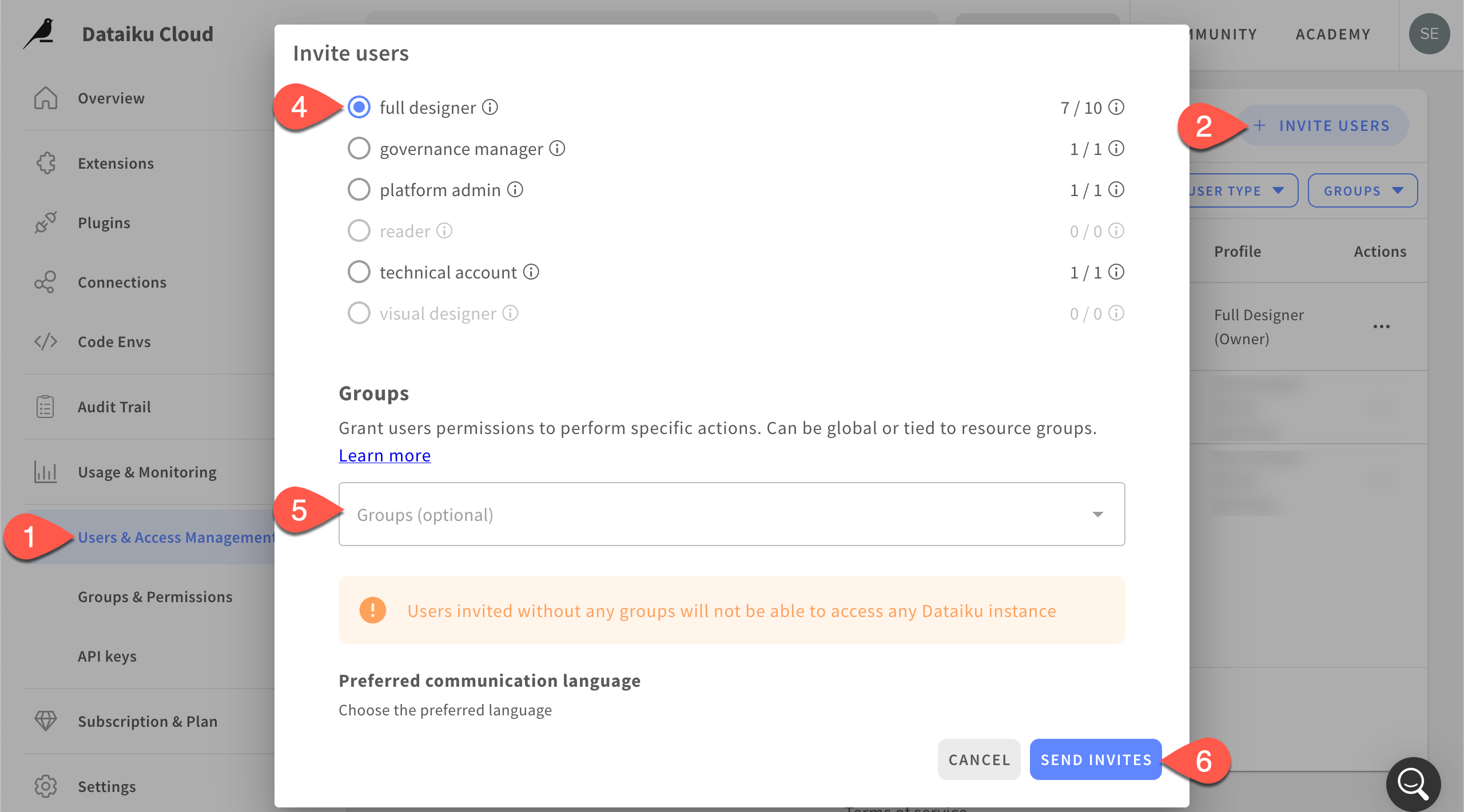
From the Launchpad, navigate to the Users & Access Management panel.
Click + Invite Users.
Send the email to
youremail+training@yourdomain.com(note the+training).For the Profile, select full designer.
Temporarily, remove all group assignments for this test user.
Click Send Invites.
Tip
Some corporate mail systems strip or reject subaddressing. If the invite doesn’t arrive, confirm with your IT team or use a real secondary mailbox instead.
While your organization may authenticate with other methods, start by creating a local user:
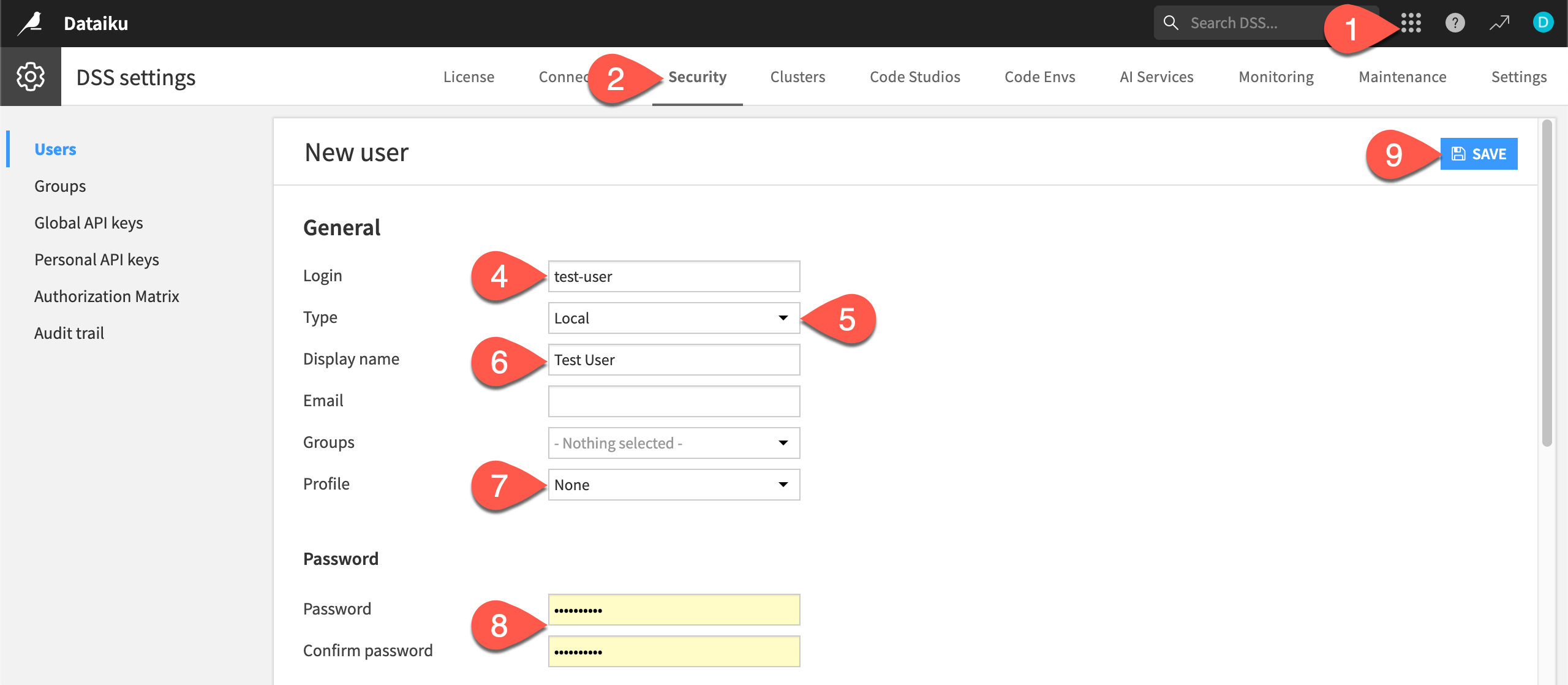
From the waffle (
 ) menu of the top navigation bar, select Administration.
Navigate to the Security tab.
Within the Users panel, click + New User.
For the new user, provide a Login like
test-user.Explore the different Type options, but leave the selection as Local.
Provide a Display name like
Test User.For the Profile, select None temporarily.
Provide a Password you’ll remember.
Click Save to create the test user’s account.
Assign a profile to a user#
Regardless of how you retrieve user information, you’ll need to understand the property of user profiles vs. groups. Note that:
User profiles are a licensing concept.
User groups are a security mechanism.
The test user you created is a good opportunity to understand this difference.
At this point, the test user has a profile but no group.
When you receive the invite link in your email inbox, open it in a private or incognito window to avoid interference with any prior session cookies.
Click Accept.
Confirm you’re logged in to the Cloud Launchpad, but don’t have access to any actual Dataiku nodes.
At this point, the user has neither a profile nor a group. First, assign a profile.
Log in as the new test-user.
Without a profile, in order to access Dataiku, this user needs to send a request to the administrator (which is also you!).
Log back in as the admin.
Return to Administration > Security > Users, and assign the test user an available Profile, such as Designer or Full Designer.
Click Save.
Without a profile, the user had no license to access Dataiku. Now with a profile, but still without any groups, check the test user’s experience again.
Log back in as the test-user.
Confirm the test user has access to the Dataiku instance, but no projects shared with them.
If they can see any existing projects (depending on the project visibility settings), they can’t access them without submitting a request.
Important
Even though the test user in this case has some kind of Designer profile, they can’t design projects. Permissions to perform actions (like creating projects) come from group permissions rather than the profile.
Design a permissions model#
To grant permissions to users in a governed and auditable way, the administrator needs to establish groups. Before rushing to do so, first think about designing a permissions model that meets the needs of the organization’s user personas.
For this tutorial, assume your organization has three broad types of users:
A builder persona (data scientist/analyst/engineer, etc.) that needs a wide range of permissions to perform most actions on the platform.
A consumer persona that needs a much more limited range of permissions for tasks such as interacting with dashboards and running Dataiku apps.
An administrator persona that needs all permissions for managing the platform.
Create two groups#
While your instance has default groups that could match these personas, start by creating two groups by hand to better understand the process.
In the Cloud Launchpad, log in as the admin.
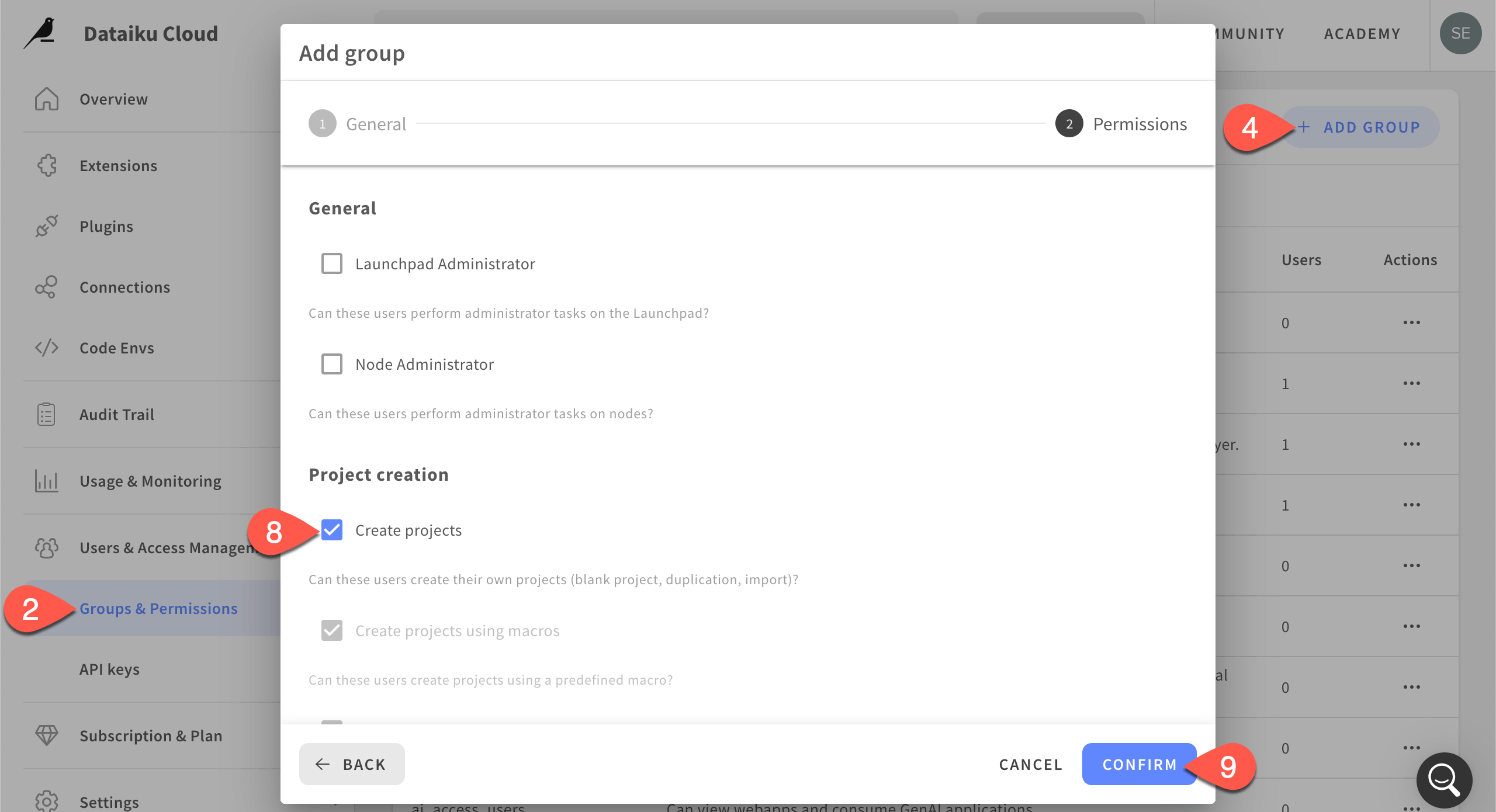
Within the Users & Access Management panel, go to Groups & Permissions.
Explore the permissions of any default groups.
Click + Add Group.
Name it
test_builders.Provide the description
Admin training group for users building projects.Leaving users temporarily empty, click Next.
Grant this group the global permission to Create projects.
Click Confirm.
Log in as the admin.
From the waffle (
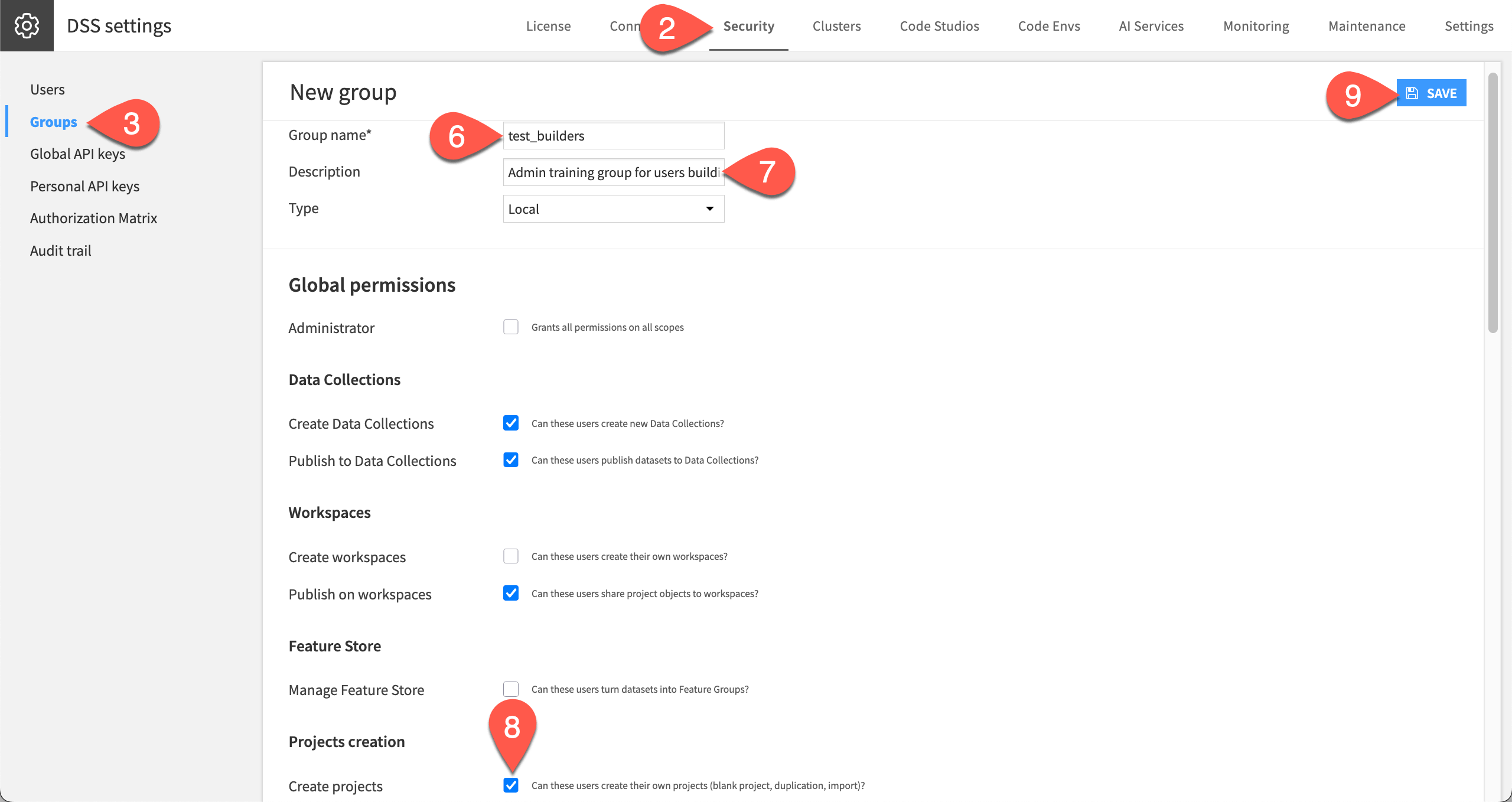
) menu, navigate to Administration > Security.Navigate to the Groups panel.
Explore the global permissions of any default groups.
Click + New Group.
Name it
test_builders.Provide the description
Admin training group for users building projects.Be sure this group has the global permission to Create projects.
Click Save to create this group.
Repeat the steps above to create a second group called test_consumers.
Be sure members of the second group don’t have the global permission to Create projects. Instead, grant them a right such as the ability to Publish to Data Collections.
Click Save or Confirm.
See also
To explore other group permissions, see global group permissions in the reference documentation.
Assign a user to groups#
Now your instance has groups that align with the user needs of your organization. To see this in action, these groups need users. To realize the power of group memberships, start by assigning the test user to both groups.
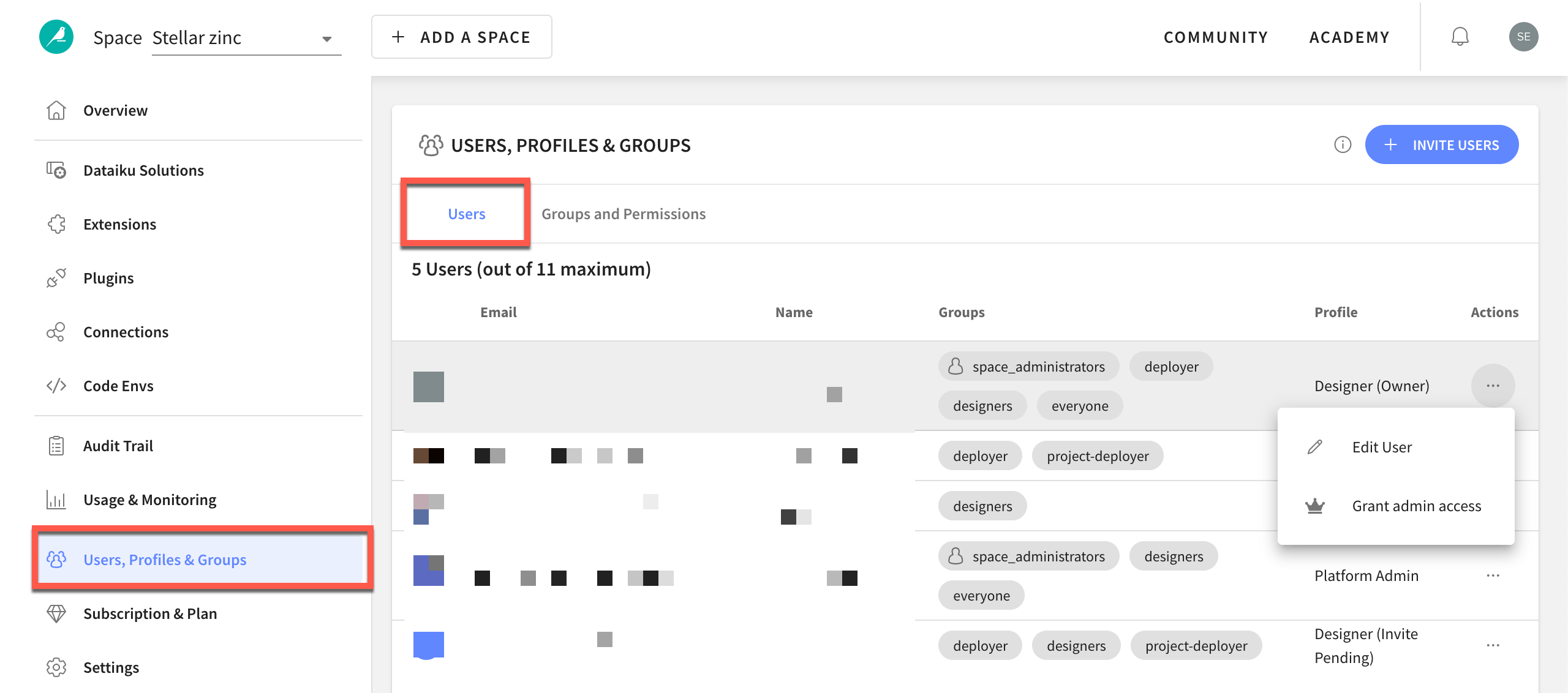
Navigate to the Users & Access Management panel.
In the row of the test user, click (
 ) > Edit User.
For the Groups field, assign this user to both test_builders and test_consumers.
Click Update.
Within the Security tab of the Administration page, navigate to the Users panel.
Select the test-user.
For the Groups field, assign this user to both test_builders and test_consumers.
Click Save.
Group permissions are additive. As long as the test user belongs to one group that has the global permission to create projects, this user will be able to create projects. Confirm this for yourself:
Log in as the test user.
From the Overview panel of the Cloud Launchpad, click Open Instance in the Design node.
Log in as the test user.
From the Design node, you can create a new project.
If needed, from the Dataiku Design homepage, use the (
 ) icon to switch to the Designer view.
Click + New Project > Learning projects.
Search for and select User & Group Management.
If needed, change the folder into which the project will be installed, and click Create.
From the project homepage, click Go to Flow (or type
g+f).
Note
You can also download the starter project from this website and import it as a ZIP file.
Grant project-level permissions#
The global group permissions (such as the ability to create projects) apply throughout Dataiku. On top of these, you can also set much finer-grained permissions with respect to an individual project.
Set per-project group permissions#
For the current project, grant specific permissions to members of specific groups. In this case, members of test_consumers shouldn’t be able to edit the project. They only need viewing rights.
Logged in as the test user, open the User & Group Management project.
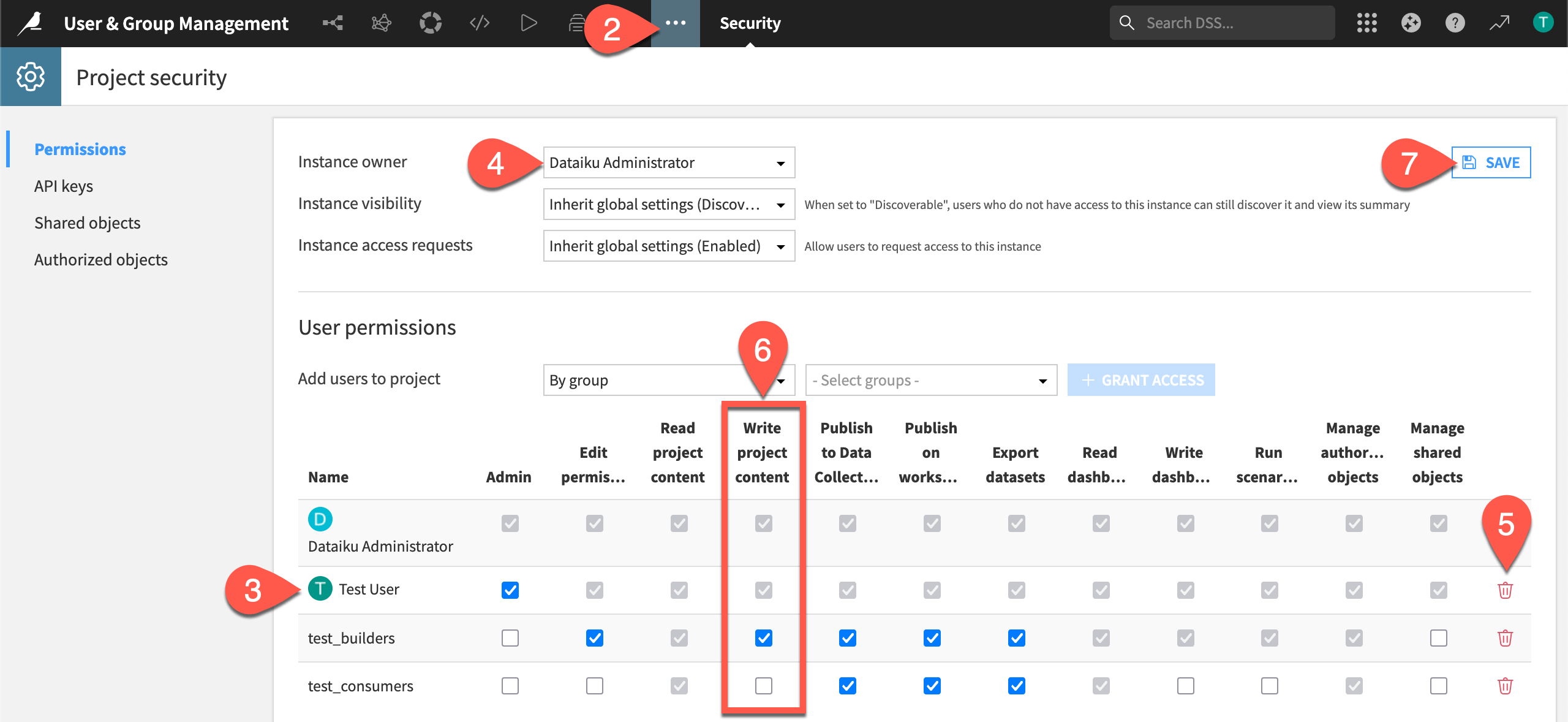
In the top navigation bar, navigate to More Options (
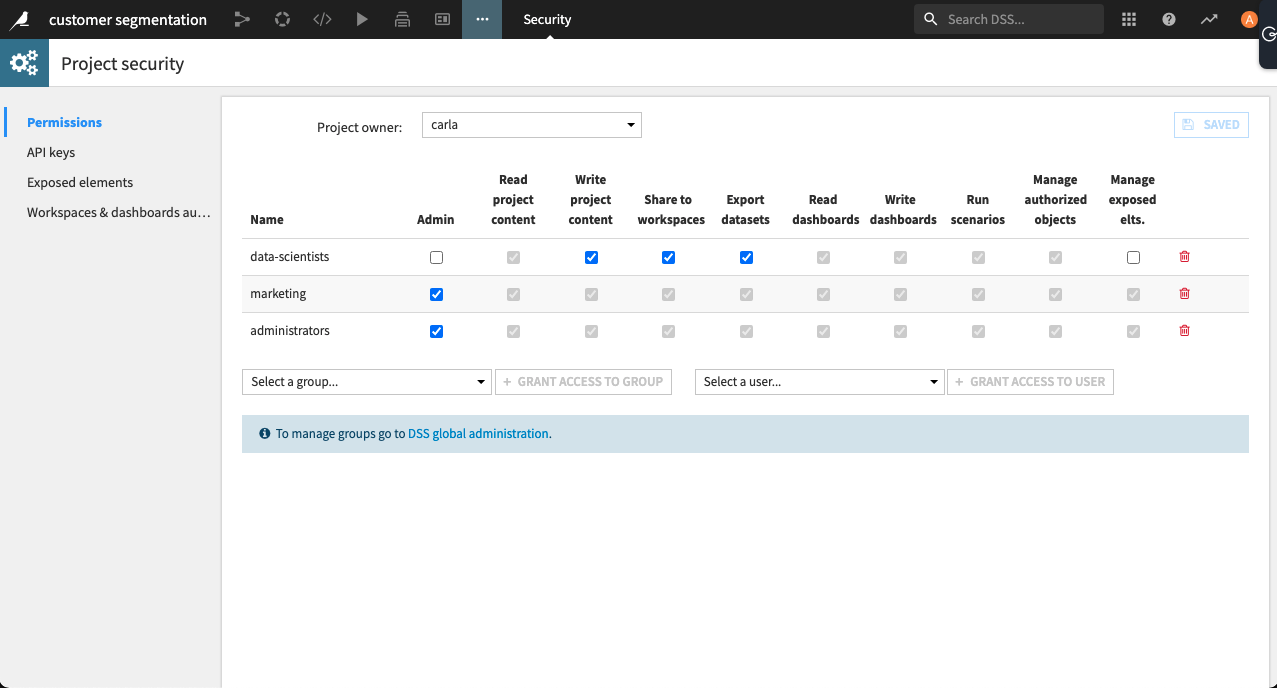
) > Security.Under User permissions, open the dropdown Select groups. Choose test_builders and test_consumers, and click + Grant Access.
Modify the project-level permissions for each group. Make sure that members of test_builders can Write project content, but that members of test_consumers can only Read project content.
Click Save to preserve these changes.
Tip
Notice that some permissions automatically grant others. For example, a group that can Write project content must also be able to Write dashboards. However, the reverse isn’t true.
See also
For the complete list, see per-project group permissions in the reference documentation.
Edit a user’s group memberships#
To examine this configuration in action, remove the test user from the test_builders group.
In the Cloud Launchpad, log in as the admin.
Go to Users & Access Management.
In the row of the test user, click (
) > Edit User.Limit this user’s group membership to only test_consumers (members of which can’t create projects globally and, with respect to the User & Group Management project, can only read content).
Click Update.
Log back in as the test-user.
From the Design homepage, try to click + New Project, and confirm this user lacks the permission to create a new project.
Log in as the admin.
Go to Administration > Security > Users.
Open the test-user page.
Limit this user’s group membership to only test_consumers (members of which can’t create projects globally and, with respect to the User & Group Management project, can only read content).
Click Save to preserve the test user’s more limited group status.
Log back in as the test-user.
From the Design homepage, try to click + New Project, and confirm this user lacks the permission to create a new project.
Important
Without membership in a group with the global permission to create projects, the test user now can only access existing projects shared with them.
Transfer project (instance) ownership#
Through these few actions, you should have a solid understanding of the key principles for managing users and groups. One last concept to grasp is the role of the project owner, formally known as the instance owner.
Tip
Here “instance” refers to an instance of the project rather than the entire Dataiku instance, or platform.
Despite lacking membership in a group with the permission to write content in the project, the test user actually still retains this right. How? The test user is the instance owner of that project.
The instance owner (by default the user who created the project) has the same permissions as a group with admin rights to the project.
Logged in as the test-user, open the User & Group Management project.
Navigate to More Options (
) > Security.Within the Permissions panel, confirm that the test-user is the Instance owner, with their full admin permissions listed in the table.
Transfer instance ownership to the admin user.
Click the bin (
 ) to delete the test-user from the permissions table.
Confirm that only the admin user and the test_builders group have the permission to write content in the project.
Click Save to preserve the project-level permission changes.
Still logged in as the test-user, return to the Flow (
g+f), and confirm that the test user can’t write content (such as with a visual recipe).
Tip
The owner status is primarily a tool to grant access to a project to the user who just created it. However, beyond this designation, there’s no additional permission beyond any other user in a group with admin rights.
Audit user and group membership#
As the platform matures, it’s an administrator’s responsibility to maintain permissions of users and groups. The authorization matrix provides a global view.
Log in as the admin.
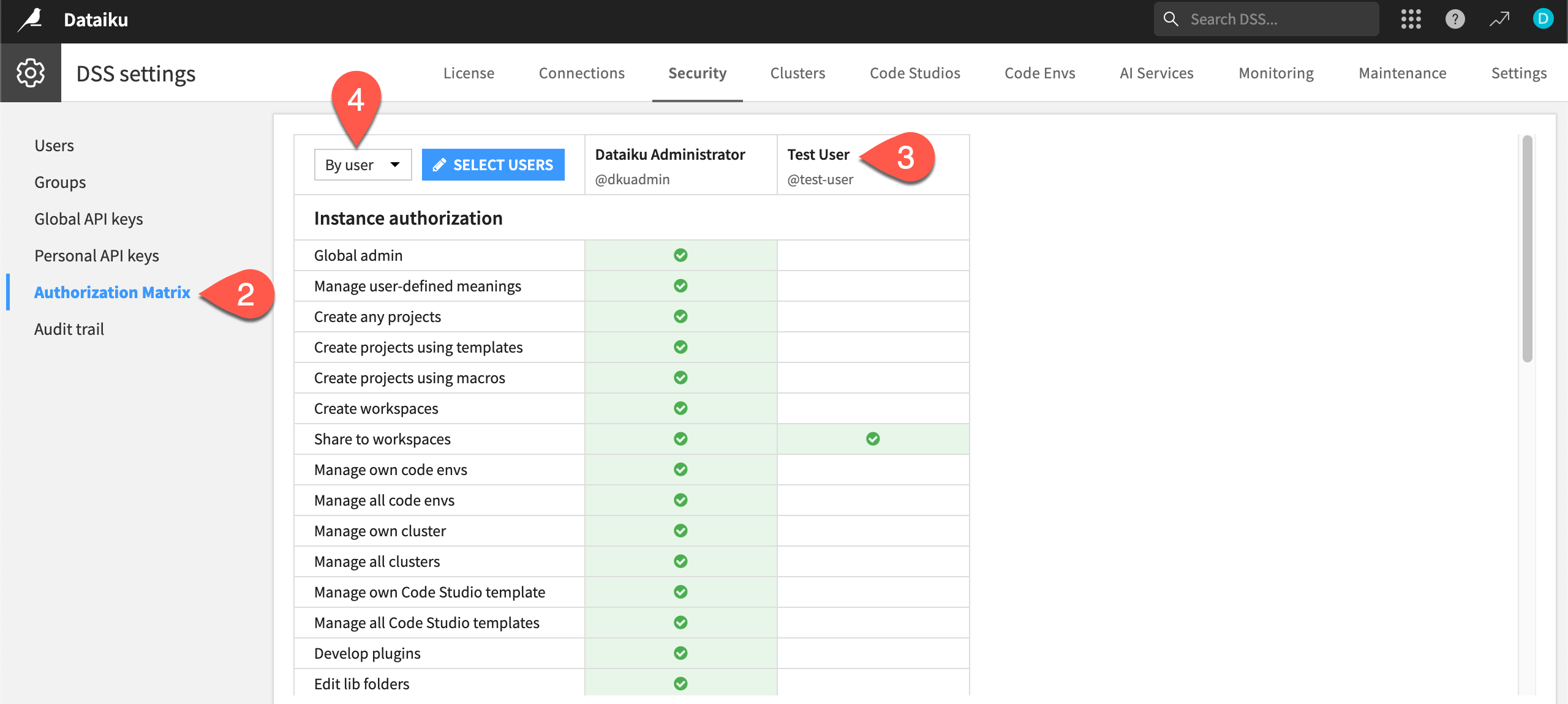
Go to Administration > Security > Authorization Matrix.
Above Instance authorization, view By user, and include Test User as a column to view this user’s global permissions.
Switch to By group, and do the same for test_builders and test_consumers.
You can do the same at the project level.
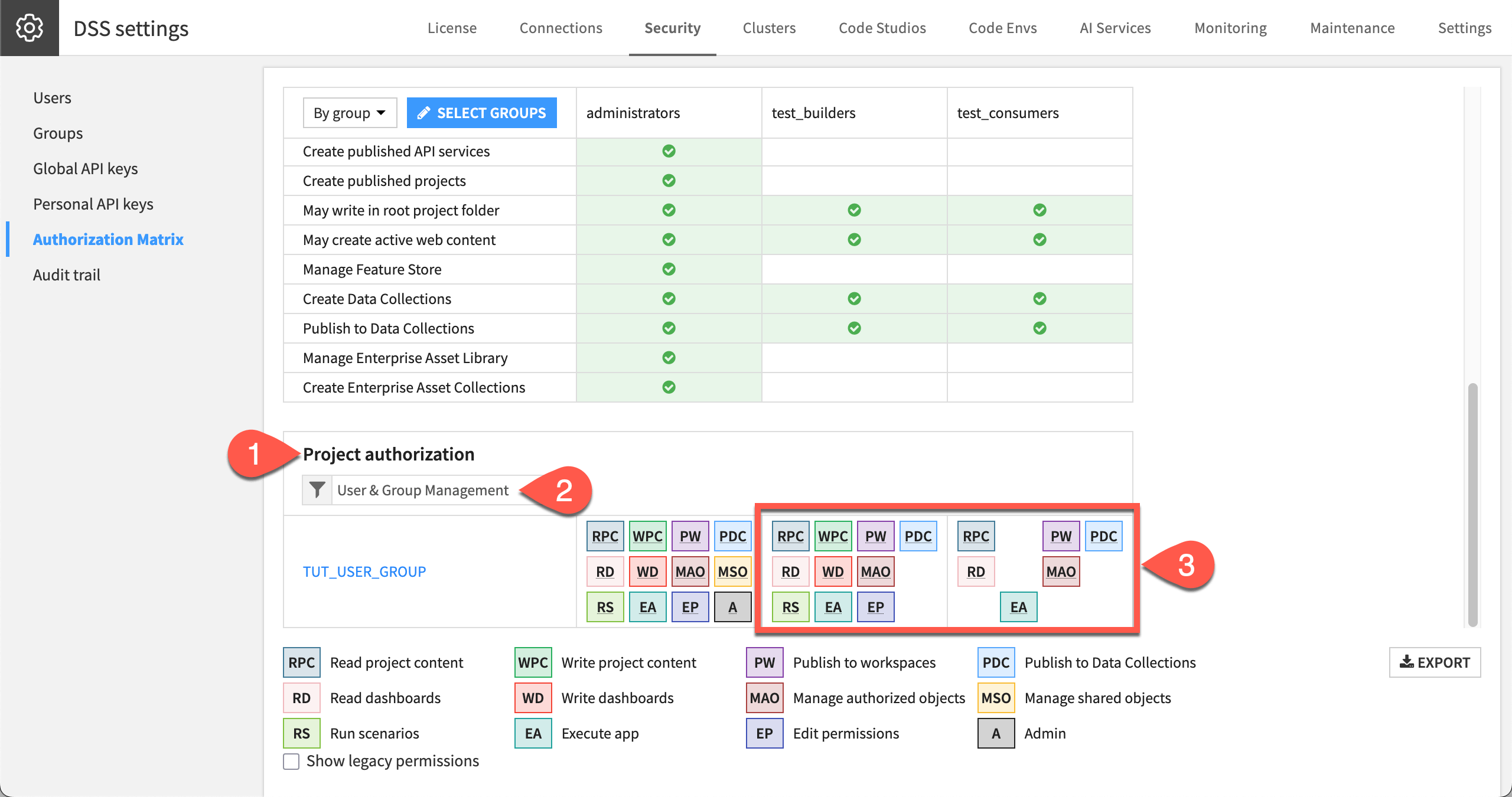
Within the Authorization Matrix panel, scroll down to Project authorization.
Filter for
User & Group Management.Compare the project level permissions for members in the test_builders and test_consumers groups, especially the missing WPC (Write project content) permission for test_consumers.
Next steps#
This tutorial introduced only the foundations of user and group management. To complete the entire security model, you’ll also need to understand resource permissions.
This class of permissions controls access to data connections, deployment infrastructure, code environments, compute clusters, and more. You’ll learn about the administrator’s role in securing these resources in materials dedicated to the resources themselves.
Important
Before finishing, remember tidiness is the administrator’s responsibility! When finished training, delete:
The user named test-user
The groups test_builders and test_consumers
The project User & Group Management
See also
For more information, consult the reference documentation on topics like permissions.