

Concept | The Dataiku permissions model#
Administrators must know how user profiles, groups, and a three-tiered permissions model work together to control what users can do across the Dataiku platform.
A platform built for collaboration#
Dataiku is a collaborative platform by nature. Users of diverse backgrounds and skill sets need to be able to work together in an efficient and governed manner. But for any given Dataiku project, those users may have different roles and responsibilities:
Some users may be building models and agents, while others are only viewing dashboards or consuming insights.
Some users may have access to sensitive datasets, while others must never see them.
Some users write code, while others work exclusively with visual tools.
Some users need to deploy projects into production, while others may have privileges on compute resources or LLM connections.
This variety of situations requires a sophisticated permissions model. The administrator makes configurations like these possible by managing properties of users, profiles, groups, and resources.
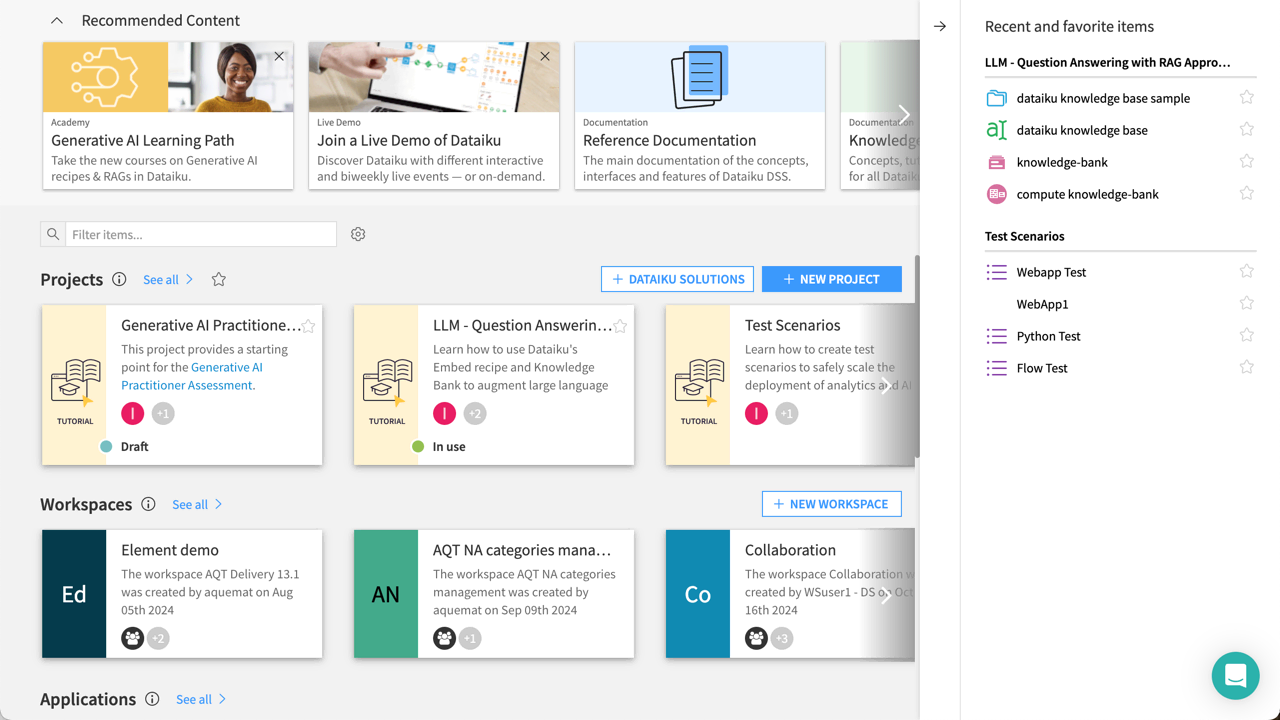
A Dataiku project can have many contributors, with many different roles and responsibilities.#
Profiles vs. groups#
Every user has two properties that determine their experience in Dataiku: a user profile and group membership(s). These properties serve different purposes.
Property |
Purpose |
Details |
|---|---|---|
Profile |
Licensing |
A profile determines which features of the Dataiku interface a user can see. For example, the profile may determine whether a user has access to the full Design environment or a more limited consumer view. Profiles aren’t a security mechanism, and Dataiku doesn’t guarantee that they enforce security boundaries. For access control, never rely on profiles. |
Group |
Security |
A group is a collection of users that has been granted a specific set of permissions. To control what a user can do on the platform, use group membership. |
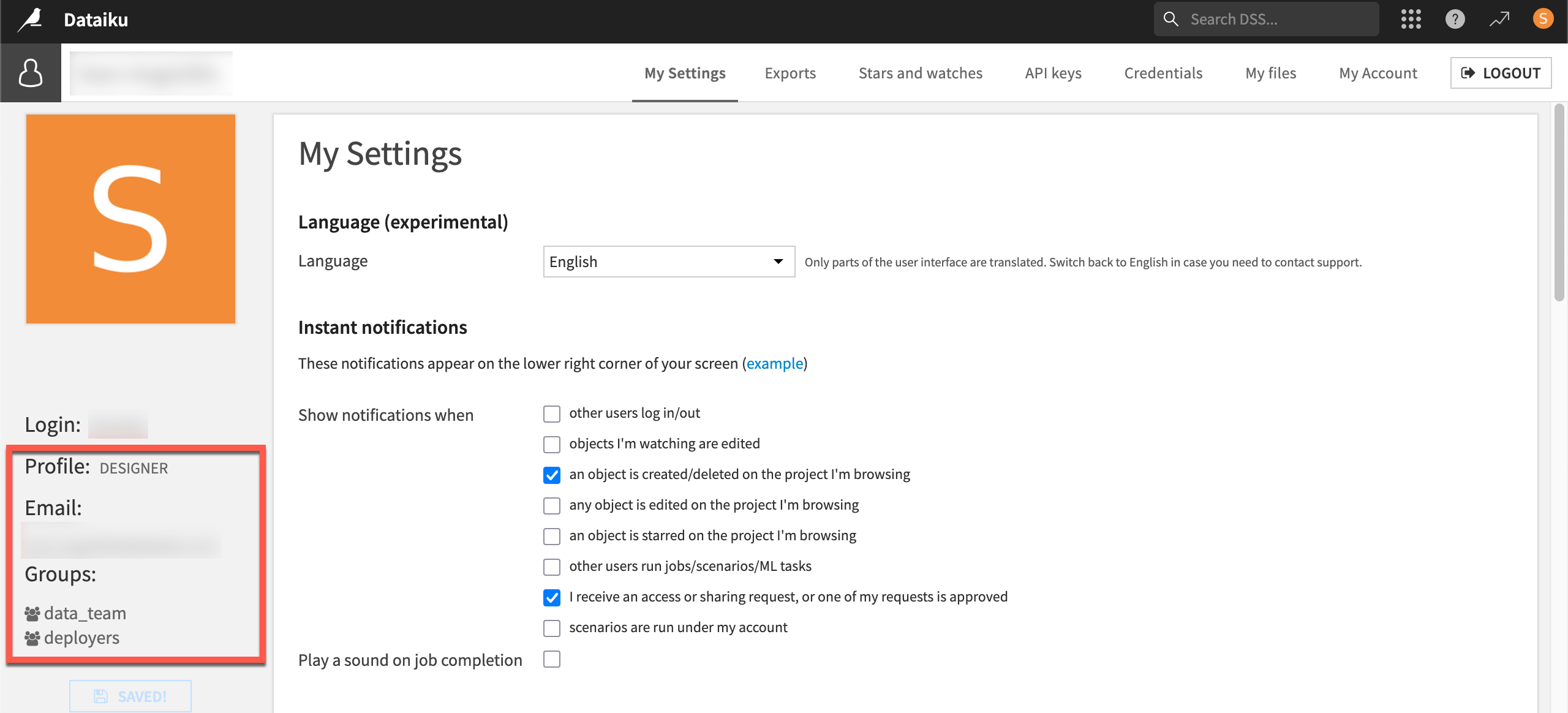
What this user can do on the platform comes from membership in the data_team and deployers groups, rather than their Designer profile.#
Important
A user needs both: a profile to access the platform, and group membership to do anything meaningful on it.
Three tiers of permissions#
It’s possible to organize Dataiku permissions into three tiers, each operating at a different scope:
See also
For complete details, see the reference documentation on permissions.
Global permissions#
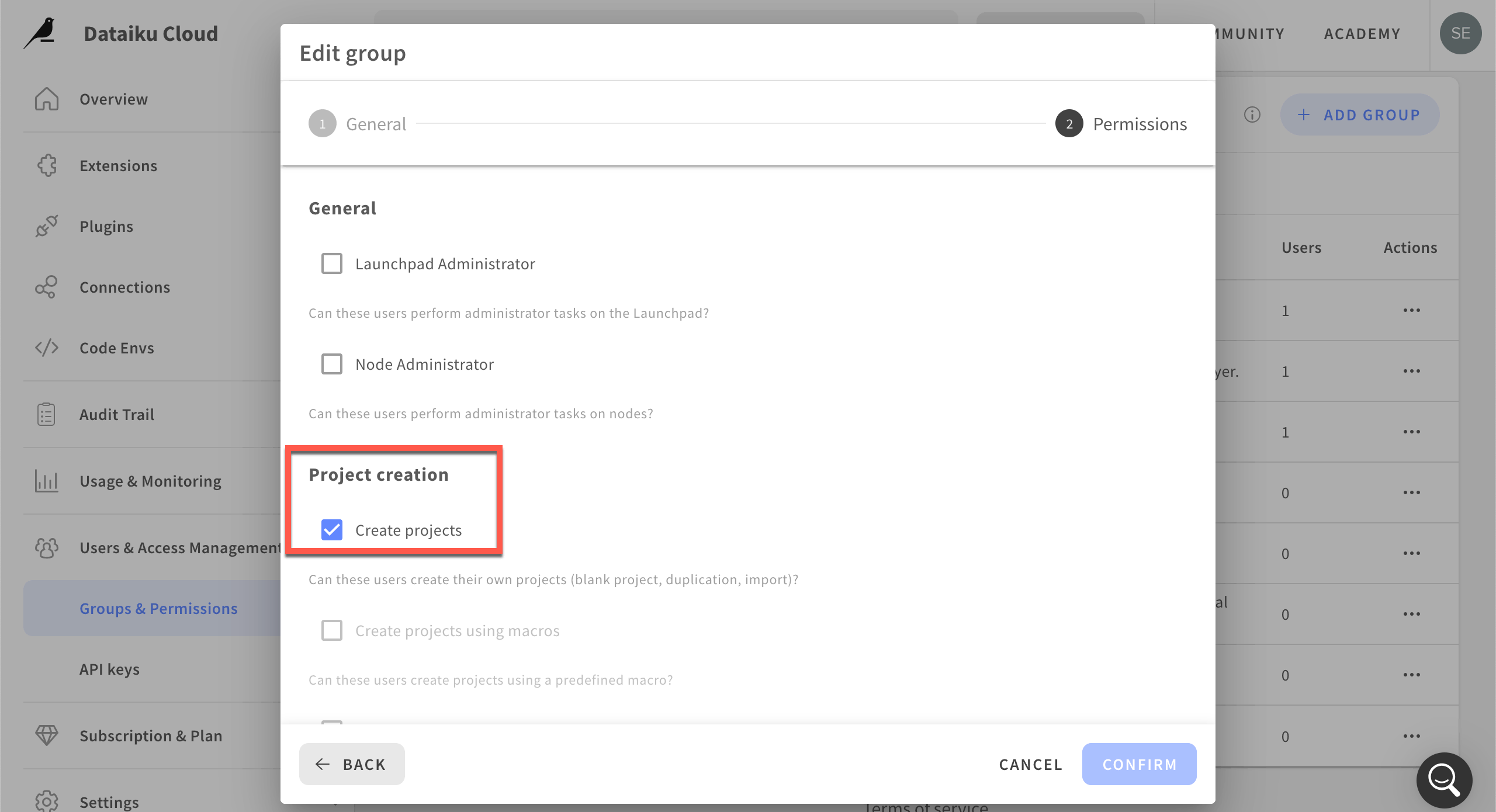
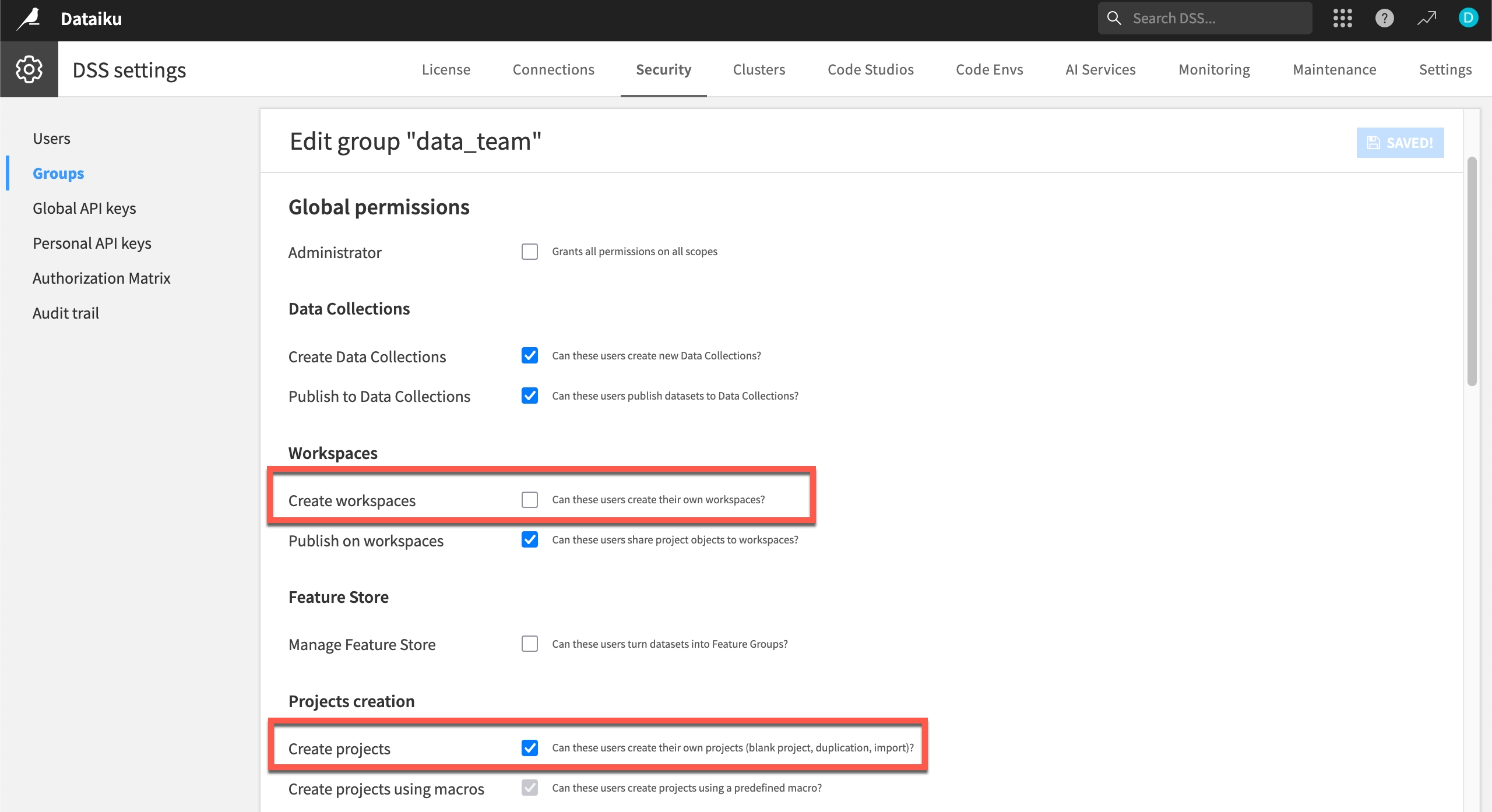
Global permissions apply across the entire Dataiku instance. They control capabilities like the ability to create projects, manage code environments, or administer the platform itself. Admins define these at the group level.
Important
While the principles are the same, the interface for user and group management differs for installations of Dataiku Cloud vs. self-managed (Dataiku Cloud Stacks or Custom) instances.
Per-project permissions#
Project permissions apply to a specific project. By default, no group has access to a project. Access to a project is always opt-in. A user with admin rights on the project explicitly grants access to groups, and can assign each group a different level of privilege within that project. For example, this tier of permissions includes the ability to read or write content in a specific project.
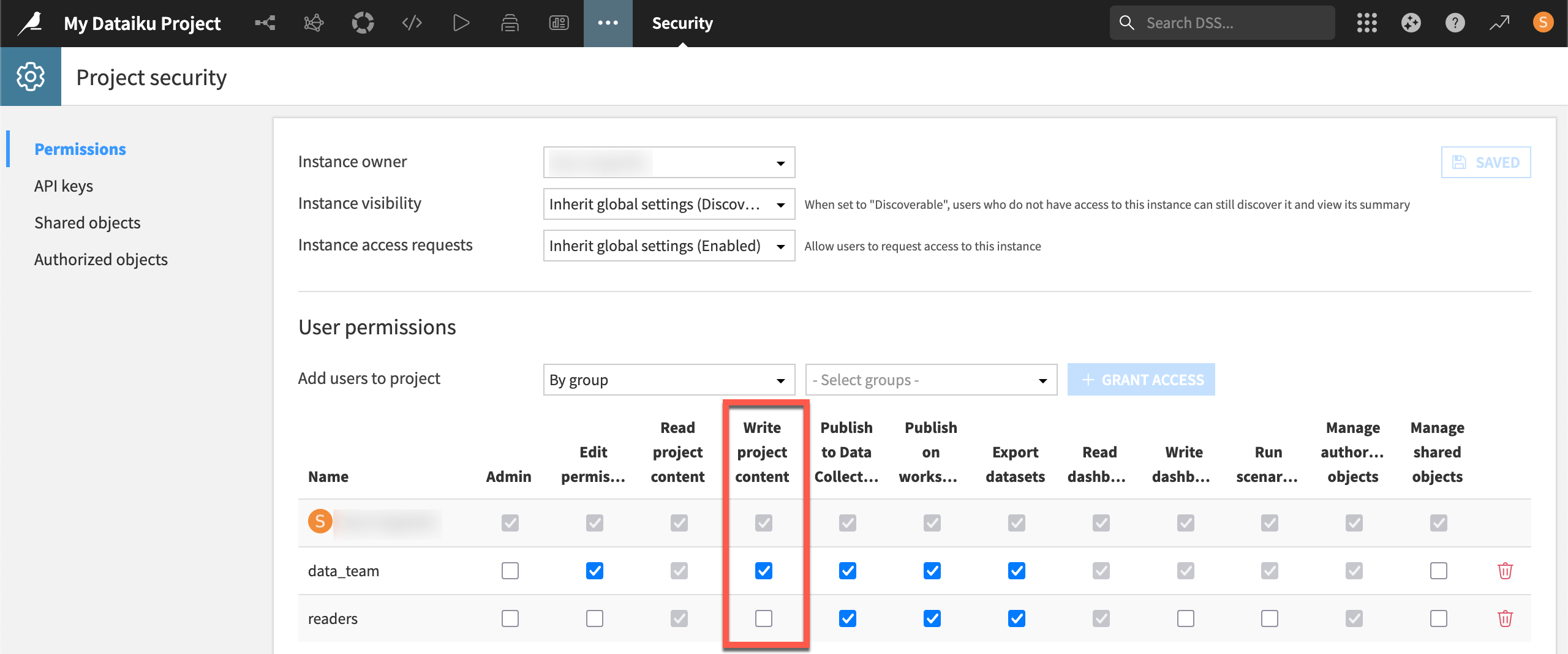
A user in a group with the global permission to create projects is the instance owner of this specific project. This status grants them admin rights on the project. This user then invited members of the data_team and readers groups to collaborate. However, members of the readers group have a more limited set of permissions.#
Resource permissions#
Resource permissions apply to individual resources like data connections, compute clusters, deployment infrastructure, and code environments. Materials dedicated to each resource cover this class of permissions in depth, but it’s important for admins to know this tier exists.
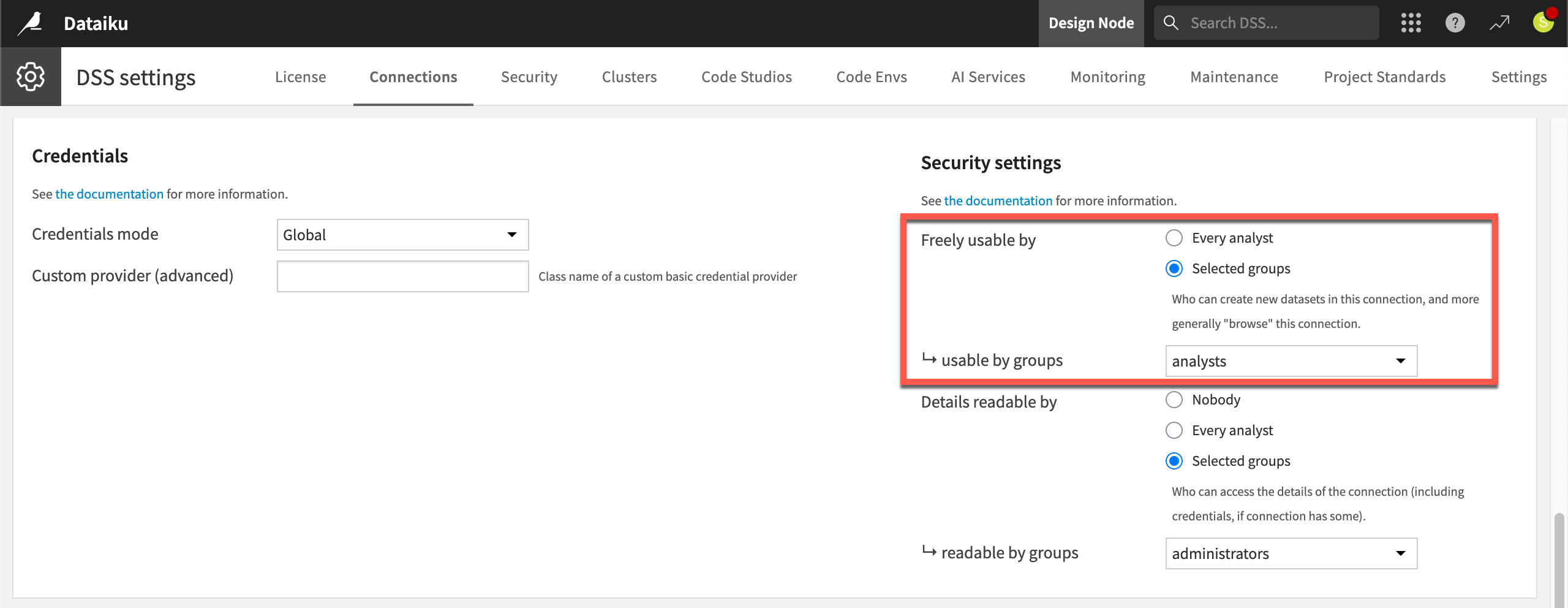
A connection is one type of resource with security settings allowing the admin to define which groups can use it.#
See also
Project visibility is a related but separate concept. By default, users can only see projects they’ve been granted access to. A global administrator can adjust this so that users can discover a project’s existence. This allows for users to see basic information like its name, description, owner, and tags, without having full access to its contents. Discoverability and access are controlled independently. See Project Access in the reference documentation to learn more.
How the tiers interact#
All three tiers of permissions work together:
A user might have the global permission to create projects, but that doesn’t automatically give them access to any existing project.
Conversely, a user might have write access on a specific project, but if their group lacks certain global permissions, there are still platform-wide capabilities they can’t use.
Resource permissions add a third layer on top of this. Even a user with broad global and project permissions may be unable to use a specific data connection, cluster, or deployment infrastructure. This user still needs membership in a group with explicit access to that resource.
Tip
Think of resource permissions as the most granular tier. They govern access to the specific tools and infrastructure that sit beneath projects.
Permissions across multiple group memberships are additive. If a user belongs to two groups and one of them has a permission the other lacks, the user has that permission. Dataiku doesn’t have a concept of negative permissions. You can’t use a group to explicitly take something away.
This user has the combined permissions of the data_team and deployers groups.#
Caution
While the group-based model is the recommended approach at every tier, project permissions do have one exception worth noting. It’s possible to grant an individual user access to a project directly, without going through a group. This can be useful for sharing a project with a colleague on a one-off basis. The available permissions are identical whether they’re granted to a group or an individual user, but the group-based approach is significantly easier to govern and audit at scale.
Designing a permissions model for your organization#
Understanding the components of Dataiku’s permissions model is the first step. The next step is deciding how to use those components to meet the needs of your specific organization. Before creating any groups in Dataiku, it’s worth stepping back to think about who your users are and what they actually need to do.
Start by working with relevant teams in your organization to identify the distinct user types on the platform. Most organizations can cover the majority of their users with a small number of groups. A simpler model is easier to govern, easier to audit, and easier to explain to the people it affects. You can always add complexity if needs emerge.
A useful way to think through this question is to ask: what does each type of user need to create versus what do they need to consume?
Permissions that allow users to create shared resources (like projects, code environments, or clusters) have broader implications for the rest of the platform. Consider granting these kinds of permissions to a limited number of users.
Permissions that allow users to read, view, or interact with existing work are generally safer to distribute more widely.
As a starting point, many organizations find that three broad groups cover most of their initial needs:
Administrators who configure and maintain the instance.
Builders such as data scientists, analysts, and engineers who create and run projects.
Consumers who interact with dashboards or work with project outputs.
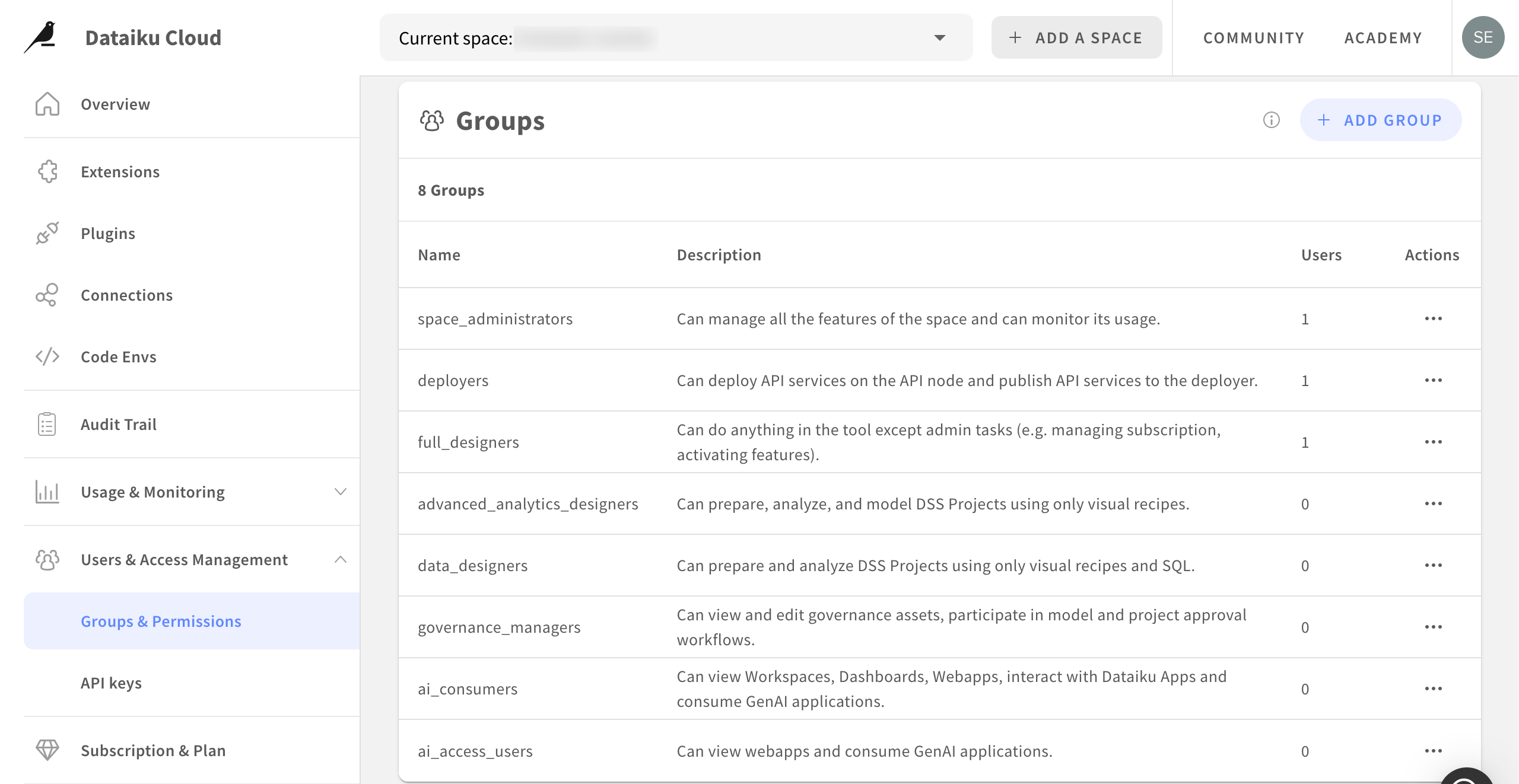
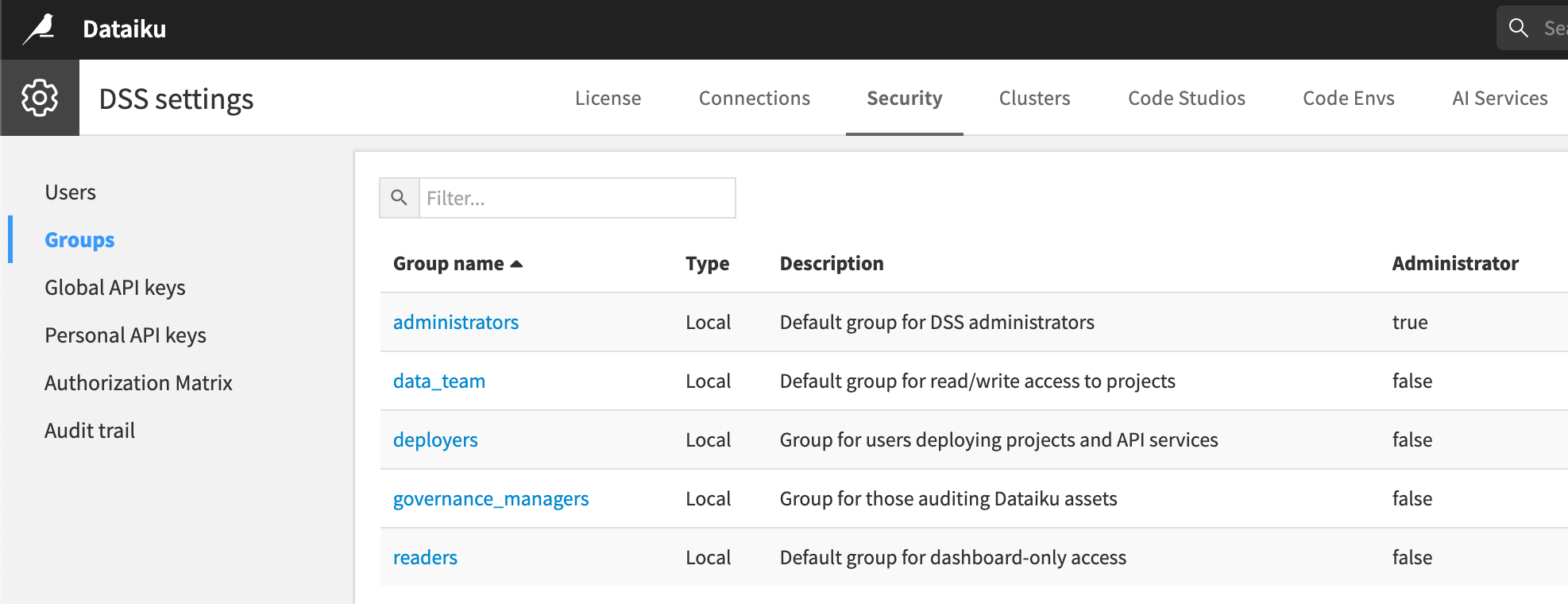
From there, the specifics (how many groups, what permissions each carries, how project access is managed) should reflect your organization’s actual structure and governance requirements. For example, you may soon find a need for separate groups for users responsible for deployment or governance.
Tip
Explore the default groups on the instance to see if they meet your initial ideas or inspiration for how you’ll shape your own.
Next steps#
Once you have an understanding of Dataiku’s permissions model, try building one yourself in Tutorial | User and group management.
See also
Dataiku Cloud admins should see Users & Access Management on Dataiku Cloud in the Knowledge Base.