

Connect to the LLM Mesh#
Many pieces of software (including Dataiku) incorporate various forms of AI assistants. While these kinds of assistants can aid productivity, the LLM powering them is most often hidden from the user.
For many use cases however, including this one, you’ll need to:
Choose the LLM best suited to the task at hand.
Iterate over data. In other words, query the LLM repeatedly in a standardized way.
Monitor and govern the usage of LLMs.
Enter the LLM Mesh! The LLM Mesh provides a unified secure gateway to your organization’s choice of LLMs. It solves the problems of oversight, governance, and centralization — all factors which hinder the deployment of LLM-based applications.
See also
For an introduction to the LLM Mesh, you might start with the original blog post introducing the concept, The LLM Mesh: A Common Backbone for Generative AI Applications. Newcomers to the field may also wish to consult Concept | Large language models and the LLM Mesh.
Obtain an API key from an LLM provider#
An LLM connection isn’t the same as a free account with ChatGPT or another LLM provider. Your instance administrator needs to follow the terms of an LLM provider to get started with its API.
Identify your instance administrator. If you’ve started a Dataiku trial, you are the instance administrator in this respect!
Next, choose a supported LLM connection.
From this broad list, ideally choose a connection that includes a model supporting image input. If not, you won’t be able to complete the section on retrieval augmented generation (RAG).
If a suitable LLM connection already exists on your instance, request the administrator to grant you access to it. Alternatively, create it yourself with the instructions below.
To create the connection yourself, you’ll first need to follow your LLM provider’s documentation to obtain an API key.
Tip
If your chosen LLM provider has a chat interface (for example, ChatGPT for OpenAI), ask it how to get started with its API.
Create an LLM connection in Dataiku#
Once you have an API key from an LLM provider, return to Dataiku’s Design node to create the connection.
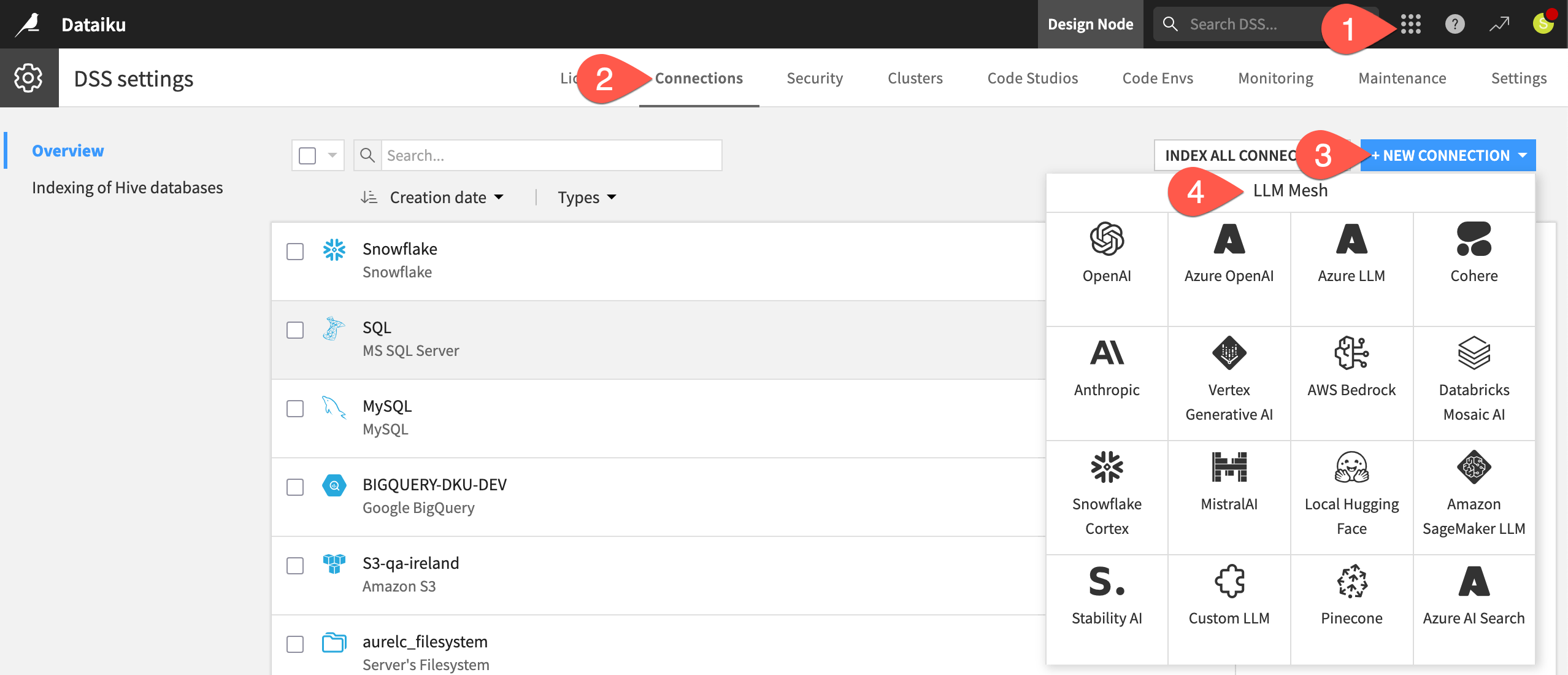
From the waffle (
 ) menu of the top navigation bar, select Administration.
Go to the Connections tab.
Click + New Connection.
Scroll down to the LLM Mesh section, and choose your LLM provider.
The exact details can differ depending on the type of connection, but typically you’ll need to:
Provide a name for the connection (such as
<your-name>-<llm-provider-name>).Provide your API key.
Click Test to confirm your API key is working.
Caution
Always consult the reference documentation for details on establishing a specific LLM connection.
Once you’ve confirmed your API key is working, finish creating the connection.
Select which specific models from the LLM provider your connection should be able to access, including:
At least one text completion model (Feel free to choose a less expensive model given that performance isn’t the objective).
For the RAG section: first, one text completion model that supports image input, and second, one embedding model.
Adjust security settings as needed, such as limiting which groups can use the connection. If you go to your profile in the top right corner, you’ll see the groups to which you belong.
When ready, click Create.
Tip
If you’re not able to meet this prerequisite, you can still read along to understand Dataiku’s approach to Generative AI!
Install internal code environments#
There’s only one more prerequisite to complete all sections of this quick start.
The example presented for RAG requires embedding unstructured data. Accordingly, your instance administrator needs to follow the reference documentation to install and enable the following two internal code environments:
One for text extraction.
Another for retrieval augmented generation.